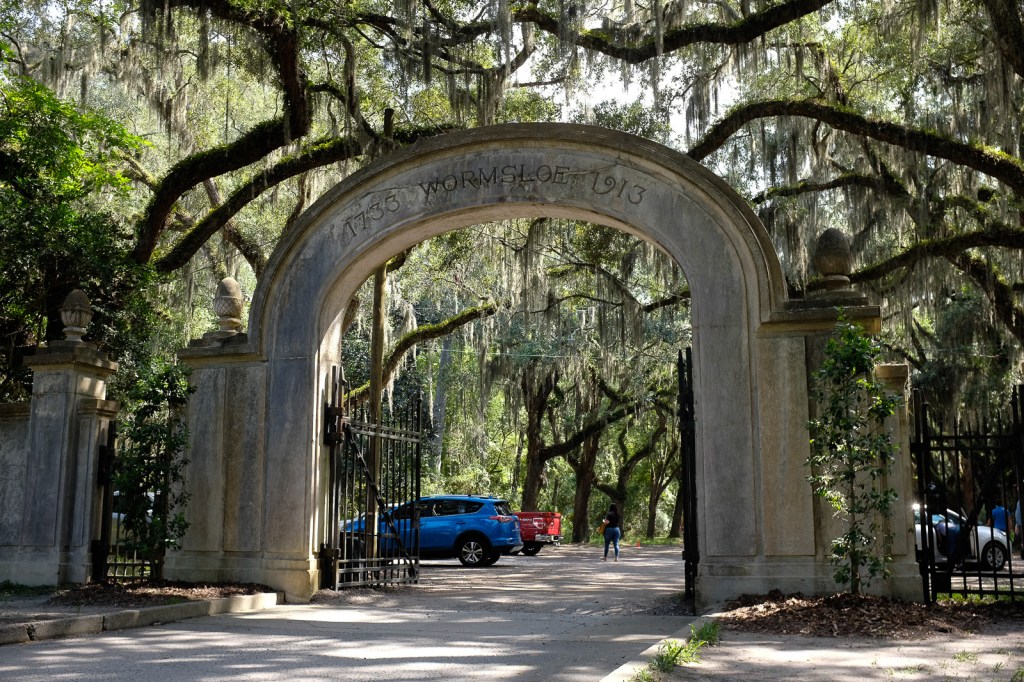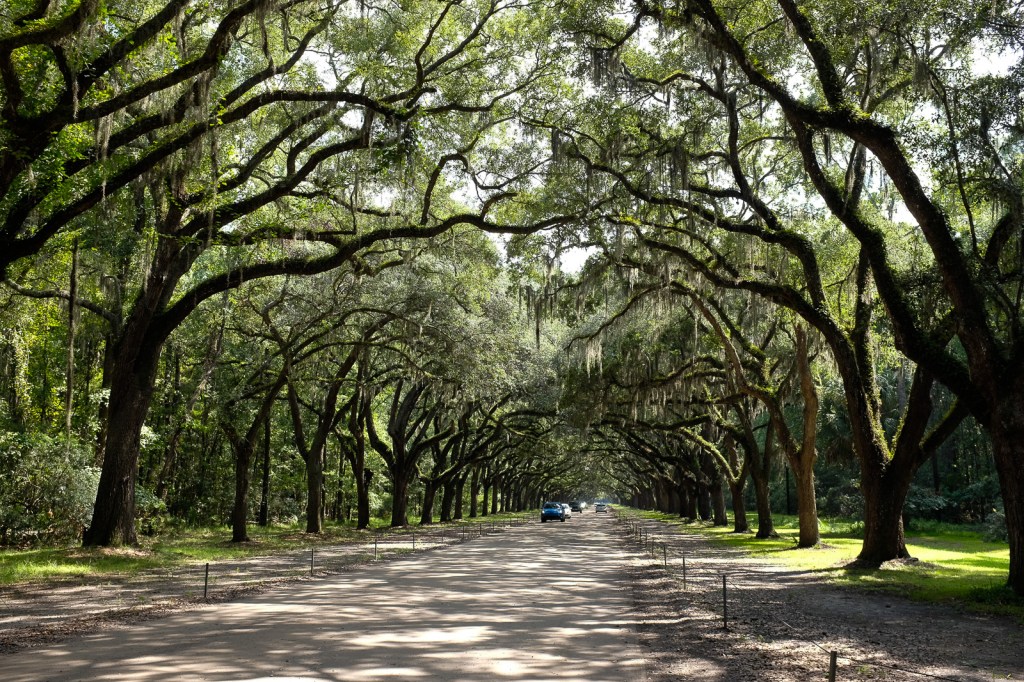
The last dSLRs with CCD sensors

The first generations of dSLRs from Konica-Minolta-Sony, Nikon, Olympus and Pentax were all built around CCD image sensors. Then, around 2006, the camera makers started integrating CMOS sensors, and within a few years CCD sensors were history.

Today, some photographers compare the images they get from their modern cameras (all equipped with CMOS sensors offering a very broad dynamic range and reaching very high ISO sensitivities without much noise), with the images they were taking with the best cameras of the CCD era, and they like the photos taken with the old cameras better. What is so special about CCD sensors, and why have they disappeared if they were so good?

A cenote near Cozumel – Pentax *ist DS – July 2007 (6 Megapixels CCD sensor)

Why CMOS won

For all the hype surrounding CCD sensors, they had reached their peak in the 2006-2009 years – the last CCD sensors from Kodak and Sony were either unreliable or performing poorly above 800 ISO – and the technology of CMOS sensors had much more potential.

In 2006, camera makers started switching to CMOS sensors because they saw three main advantages in them:

  • a much lower power consumption – we now tend to forget that the CCD’s high power consumption and the related heat dissipation were major engineering issues at that time,
  • a much faster data acquisition,
  • a potential for higher ISO performance and wider dynamic range.

Live-view (composing the photo on the rear LCD of dSLRs), video capture in available light and mirrorless cameras were only made possible by the generalization of CMOS sensors, and would have been next to impossible with the CCD sensor technology.

Why this love for CCD sensors ?

In a few words, photographers tend to believe that images captured with a CCD sensor equipped camera are more “film like”.

Venice - gondoliers
The film look? – Venice – Gondoliers in the sun set. Nikon FE2. Fujicolor 400 film

I suffered for you and watched half a dozen Youtube videos where the authors are comparing the pictures taken with some of the best CCD equipped dSLRs with images taken with the CMOS equipped cameras that immediately followed. The conclusion is that if you make a serious apples to apples comparison on RAW files (same brand of camera, same lens, same resolution), there may be a difference, but really minimal. Images taken with a CCD may have a bit more punch, a bit more contrast, and the transition between colors may be more abrupt than on images captured with a CMOS. But again, the differences are marginal, only visible to pixel peepers.

So, if the RAW files are to a large extend similar, where is the perception coming from, that CCD sensors deliver more natural images than CMOS sensors? Could it be that the supporters of CCD sensors are only shooting JPEGs?

CCD and CMOS are different technologies, and their noise characteristics are not the same. They also behave differently in presence of strong highlights (the tone curve of images captured with a CMOS sensor is linear, as opposed to film and, to a lesser extent, CCD, which have a more S shaped tone curve). At the beginning of the transition from CCDs to CMOS sensors, camera vendors had more experience dealing with the noise patterns and tone curve characteristics of the images coming from CCDs than from CMOS sensors, and as a consequence their JPEG rendering algorithms were giving more “natural” (understand crowd pleasing) results when starting from the raw data of CCDs.

The CCD bias of the JPEG Rendering engines did not last. Camera manufacturers learned how to take advantage of the larger dynamic range and the lower level of noise of CMOS sensors to deliver images that mimic film behavior more closely than CCD sensors ever did.

The generalization of CMOS also allowed a raise in the pixel density of the sensors, and with it the end of the need for an “anti-aliasing” filter (the Nikon d800e launched in 2012 was the first dSLR deprived of an AA filter). By 2014, the “new normal” was a camera with a 16 to 24 Megapixel sensor and no anti-liaising filter, capable of a much higher real-life resolution than a 6 or 10 Mpix CCD operating behind an anti-liaising filter. No wonder a photographer upgrading from an early dSLR was a bit surprised by the “surgical” nature of the JPEGs.

Venice, on Dec 25th 2010 – Shot with a Nikon D80 and a Sigma 18-125 lens. (10 Megapixel CCD Sensor)

So…

  • The “CCD look” was a JPEG thing.
  • the “film like” look of images captured with CCDs was the result of lower resolution sensors, thick anti-liaising filters, and above all a product of the JPEG image processing algorithms used at that time.
  • With modern cameras, “film like” behavior can be emulated to a much higher degree than what the JPEG engines of the cameras of 2005 could do. Film emulation (or Picture Styles or whatever the camera manufacturer calls its brand of JPEG rendering recipe) is not only good at mimicking the tonal response and the colors of film, but also its grain.
  • Now that every camera maker is proposing some form of “Picture Control” or film simulation to customize the output of their JPEG rendering engine, it’s remarkable that nobody is proposing “CCD emulation”. Maybe it was not so much of an issue after all?
  • CCD equipped cameras are still available on the second hand market, are generally very cheap, and will give your images the full CCD look if it’s what you’re after.

CCD equipped compact cameras

The compact (point and shoot) cameras of the early days of the digital migration are the ones delivering images closer to the film look, probably because of the low resolution of their image sensor and the very consumer oriented tuning of their JPEG rendering engine. I’m still impressed by the “Barbie at the beach” look of the JPEGs of my old Canon S400 Powershot (Digital Elph or Ixus).

Compact cameras switched from CCD to CMOS sensors later than dSLRs – the last models being launched around 2011.

Miami Beach in 2004 – Canon Powershot S400 (4 Megapixel CCD Sensor)

CCD sensor equipped dSLRs

With the exception of sensors manufactured by Kodak for the Leica M9 (which had very significant long term reliability issues), there is no Full Frame CCD sensor, and only one APS-C sensor with a resolution higher than 10 Megapixel (a 14 Mpix APS-C sensor only used by Sony on the Alpha 280/380 series, which had a reputation of being no good above 800 ISO).

Because of the technical characteristics of CCDs, there never was a CCD equipped mirrorless camera, or a CCD equipped dSLR offering real Live-View capabilities (the Sony Alpha 350/380/390 used a second, dedicated sensor in its viewfinder to offer Live-View). The last dSLRs equipped with CCD sensors were launched around 2010 (Nikon D3000, Sony Alpha 290 and 390).

Let’s focus on the 10 megapixel cameras from Nikon, Olympus, Pentax and Sony:

  • Nikon D200, D80, D40X, D60, D3000 – they all share a 10 Megapixel CCD sensor of the same family. The D200 is often considered the best CCD equipped dSLR ever, but it’s a big and heavy camera designed for pros. There is little difference between the D40X, the D60 and the D3000 – all three are entry level dSLRs designed for beginners and amateurs. The D80 sits in-between. A Nikon D80 was my main camera for years, and I’m still impressed by the quality of the pictures I took with it (I love the D80’s JPEGs).
  • Olympus was the first camera maker to take advantage of CMOS sensors to offer Live View in a limited fashion (on the E330 in 2006). The e400 of the same year is their last dSLR with a CCD sensor (a 10 Megapixel sourced from Kodak). Like the Nikon D200, the e400 has a legion of enthusiastic fans and is comparatively expensive second hand.
  • Pentax K10D, K200D, K-M, K-2000 – the K10D is the big semi-pro camera, the other models are smaller and more amateur oriented. The 10 Megapixel Pentax dSLRs are generally appreciated for their beautiful RAW files, but reviewers complain about their comparatively poor JPEGs, which may not be great if you’re after the CCD look.
  • Sony a100, a200 and a300 series – all are the successors of Konica-Minolta 5D. The 100 and 200 series are very conventional amateur oriented models, the models of the 300 series offer Live-View capabilities thanks to a second dedicated image sensor.

Canon is absent from that list. For their line of dSLRs, they made a very early bet on CMOS – I believe that the EOS-1d of 2001 is their only CCD-equipped dSLR. Note that they kept on integrating CCD sensors in their line of digital point and shoot cameras until 2011.

Venice - Nikon FE2 - Fujicolor 400
Venice – Nikon FE2 – Fujicolor 400 – Dec. 2010

The value of cameras on the second hand market tends to be driven primarily by the sensor resolution – and 10 megapixels is considered so low that all the cameras of this list can be bought for less than $150 (the Nikon D200 is the most expensive, the oldest “amateur” models being the cheapest at $50.00 to $70.00). Interestingly, 10 Mpix CCD compact cameras like the Canon G12 or the Nikon P7100 currently sell for more than the best 10 Megapixels dSLRs. Nikon D200 included.


Venice, Dec 2008 – Nikon D80 (CCD Sensor)
Atlanta Aquarium – Canon Powershot S400 (CCD Sensor)

More in my Flickr galleries


More about film, film cameras and old gear in general in CamerAgX.com:


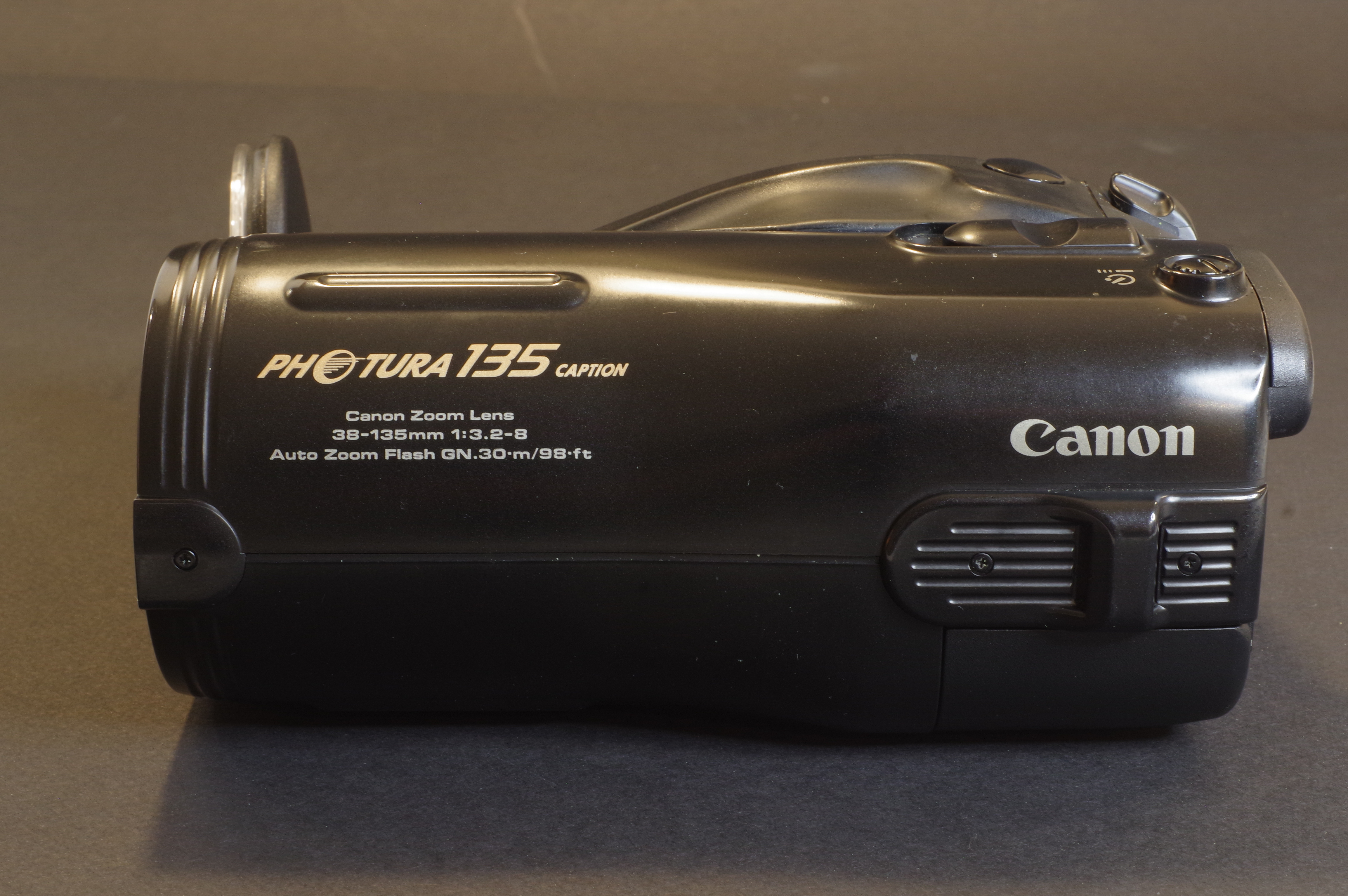
Doubling down on a strange camera – the Canon Photura 135 Caption

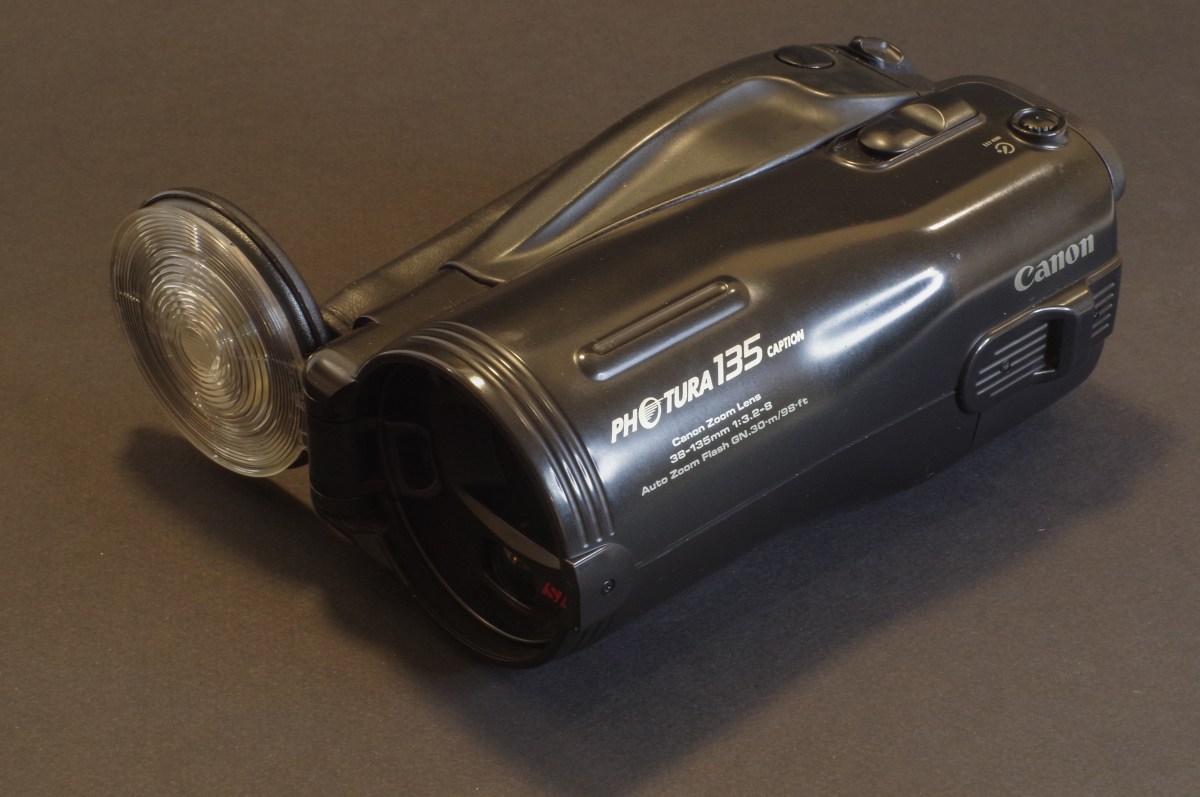
I don’t know much about the genesis of the first version of the camera sold by Canon under the names of “Photura”, “Epoca” or “Autoboy Jet”. Being a profoundly original camera (which, because of its unusual shape, probably required some very specific tooling in Canon’s manufacturing plants), I can only guess that the version 1.0 was not rushed to market but was the product of a long and well thought out development process instead.

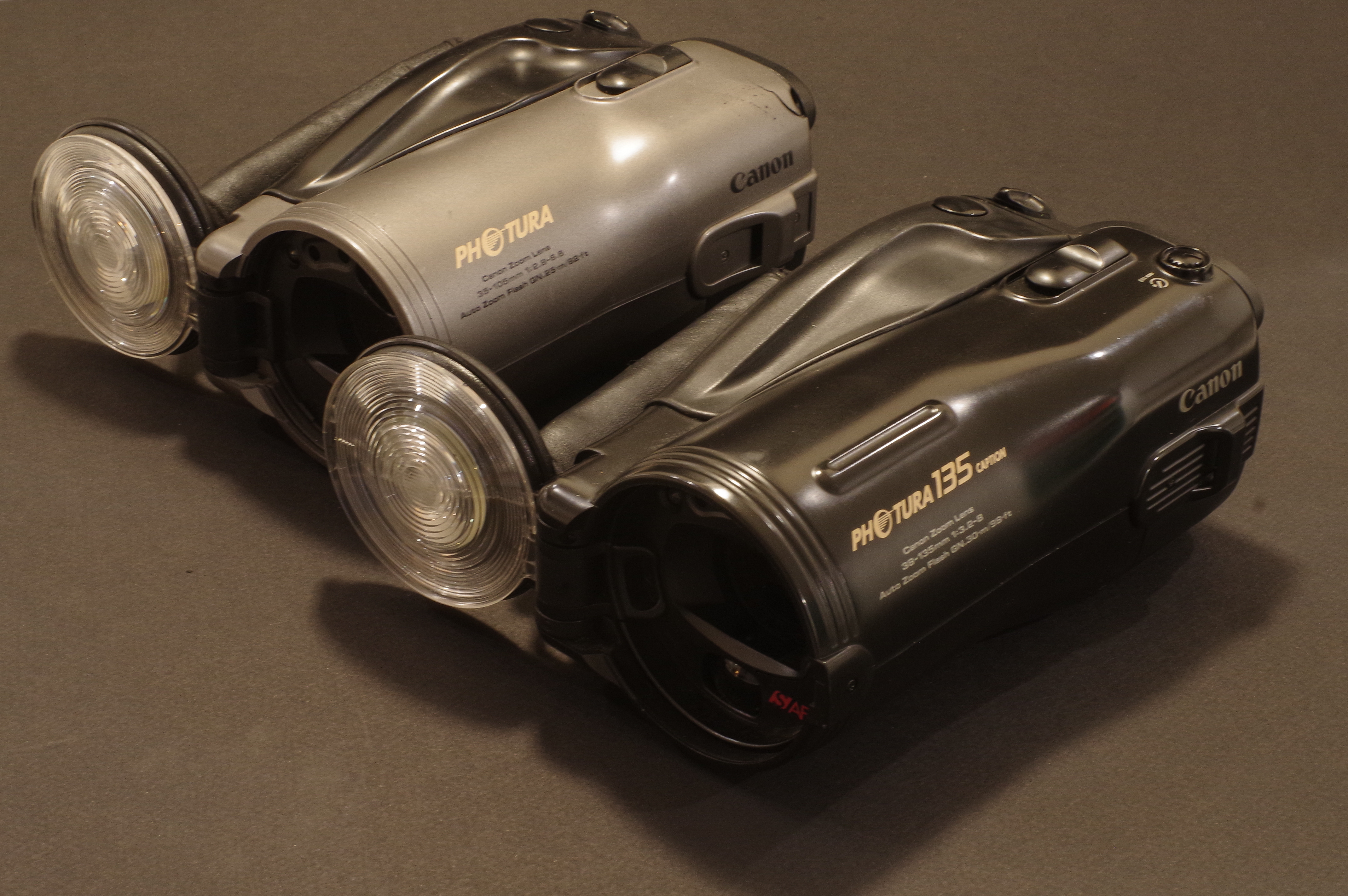
Case in point, the model that replaced it two years after its launch, the Photura 135, was not that different from the original. It simply addressed some of the weaknesses of Photura 1.0, and its two main points of differentiation over its predecessor were its longer zoom (a 38-135mm instead of the 35-105mm of the first Photura), and the color of its body.

I had been so pleasantly surprised by the first series Photura when I had tested it in the Cabbagetown neighborhood in Atlanta, that I decided to bring it with me to a trip in Corsica, where it did not disappoint, for the most part.

Canon Photura 135 next to the first Photura – the 135 is painted satin black and bit longer to make room for the 38-135 zoom

In spite of its size, I found it easy to store in a bag (it’s shaped like a tube, at the opposite of the normal SLR shape, which is more like a long a tube attached to a large brick). It’s easy to keep your right hand wrapped around it when walking around town, and it’s fairly reactive for an autofocus point and shoot. The color pictures I had taken with it in Atlanta had impressed me (the exposure and the focus were tack on, the colors pleasant), and most of the B&W pictures I shot in Corsica and in the Riverside neighborhood happened to be pretty good as well.

My biggest gripe with the first Photura was that it its autofocus system was still very primitive, incapable of focusing on its own on a human being when held in portrait orientation (it needed a complex gymnastic to memorize the focus before re-framing). It also required the photographer to force the focus to infinity when shooting landscapes (by pressing a tiny rubber key at the back of the camera while pressing the shutter release). And the camera missed the exposure in some tricky situations.

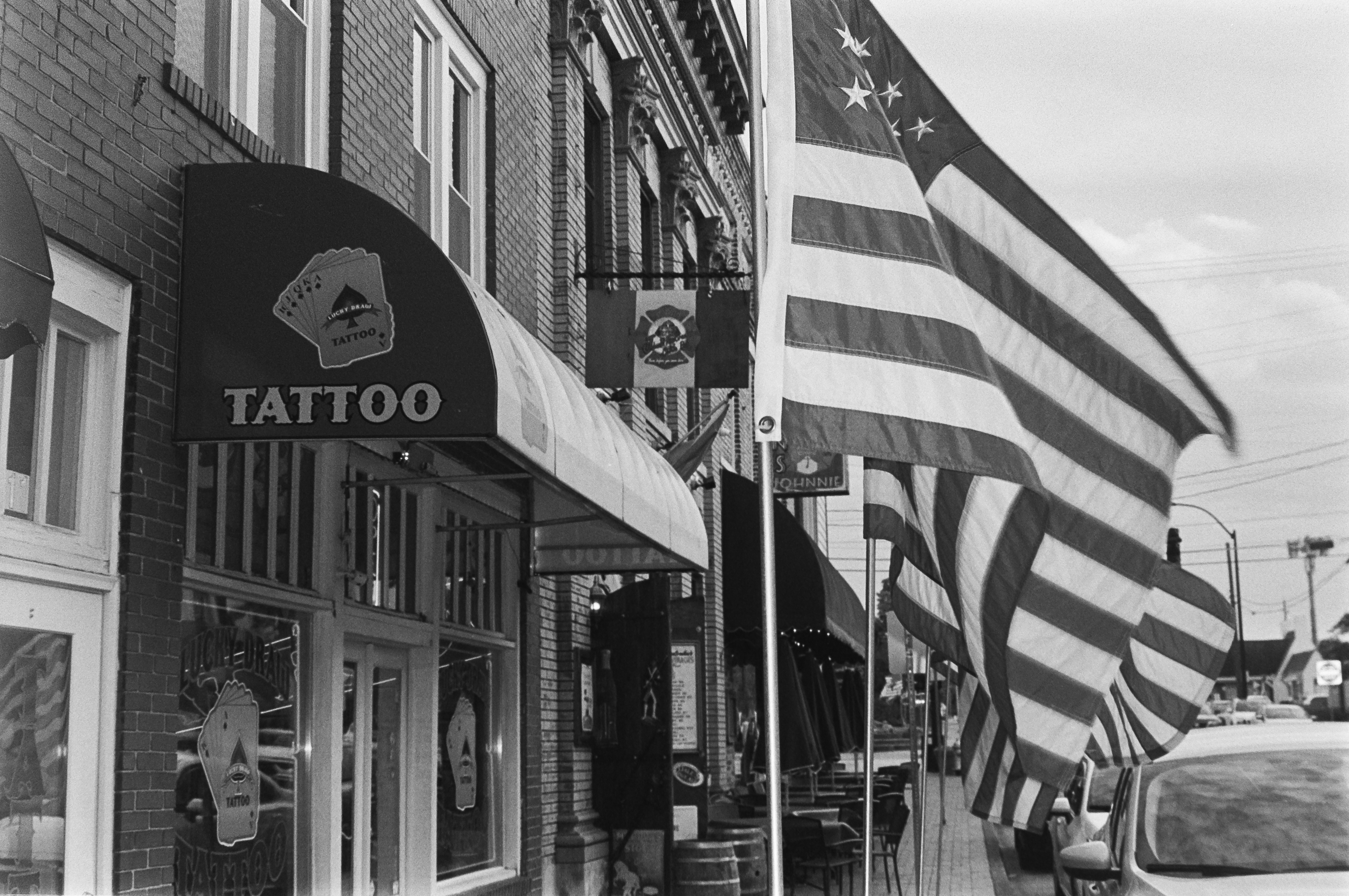
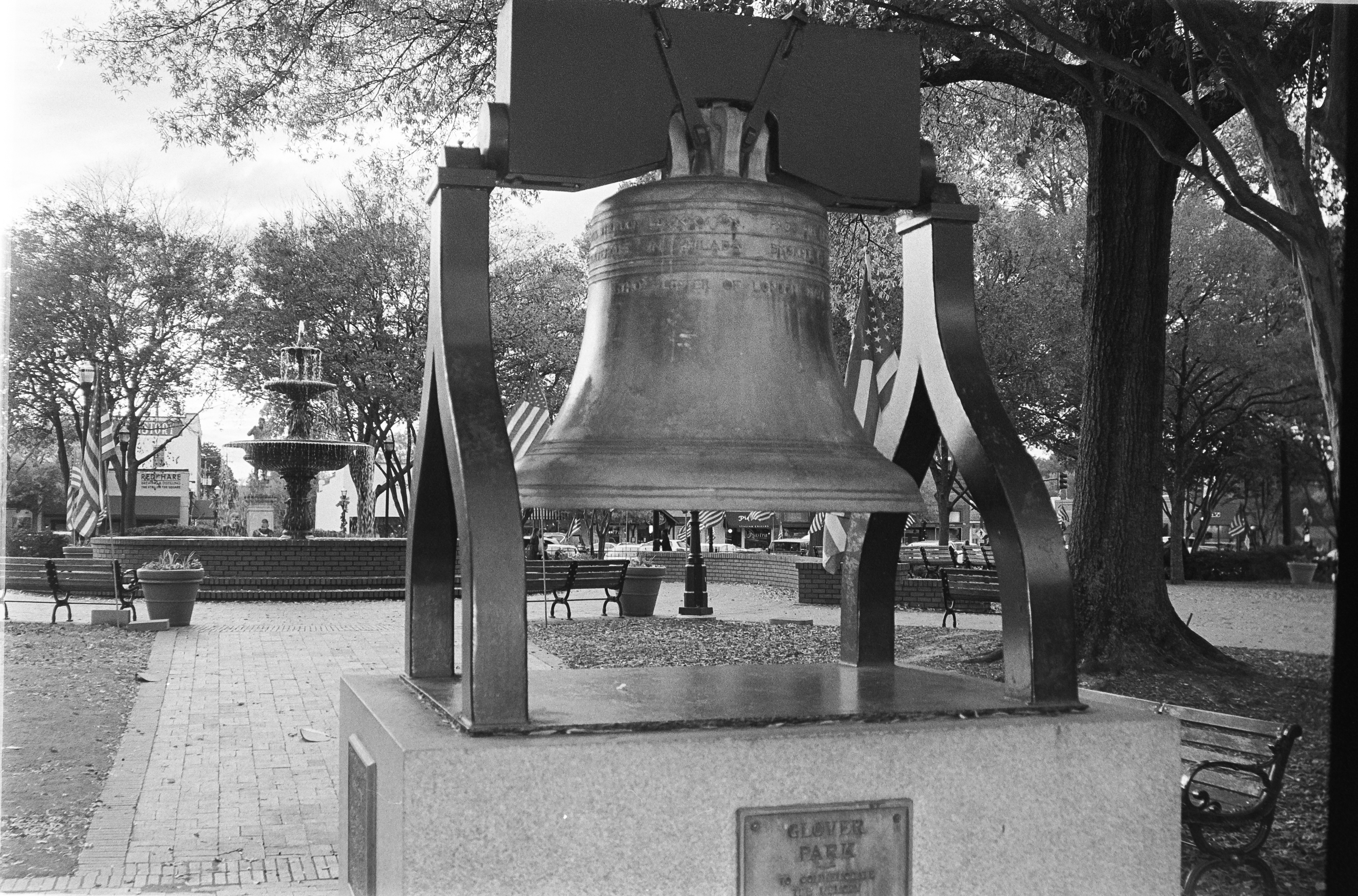
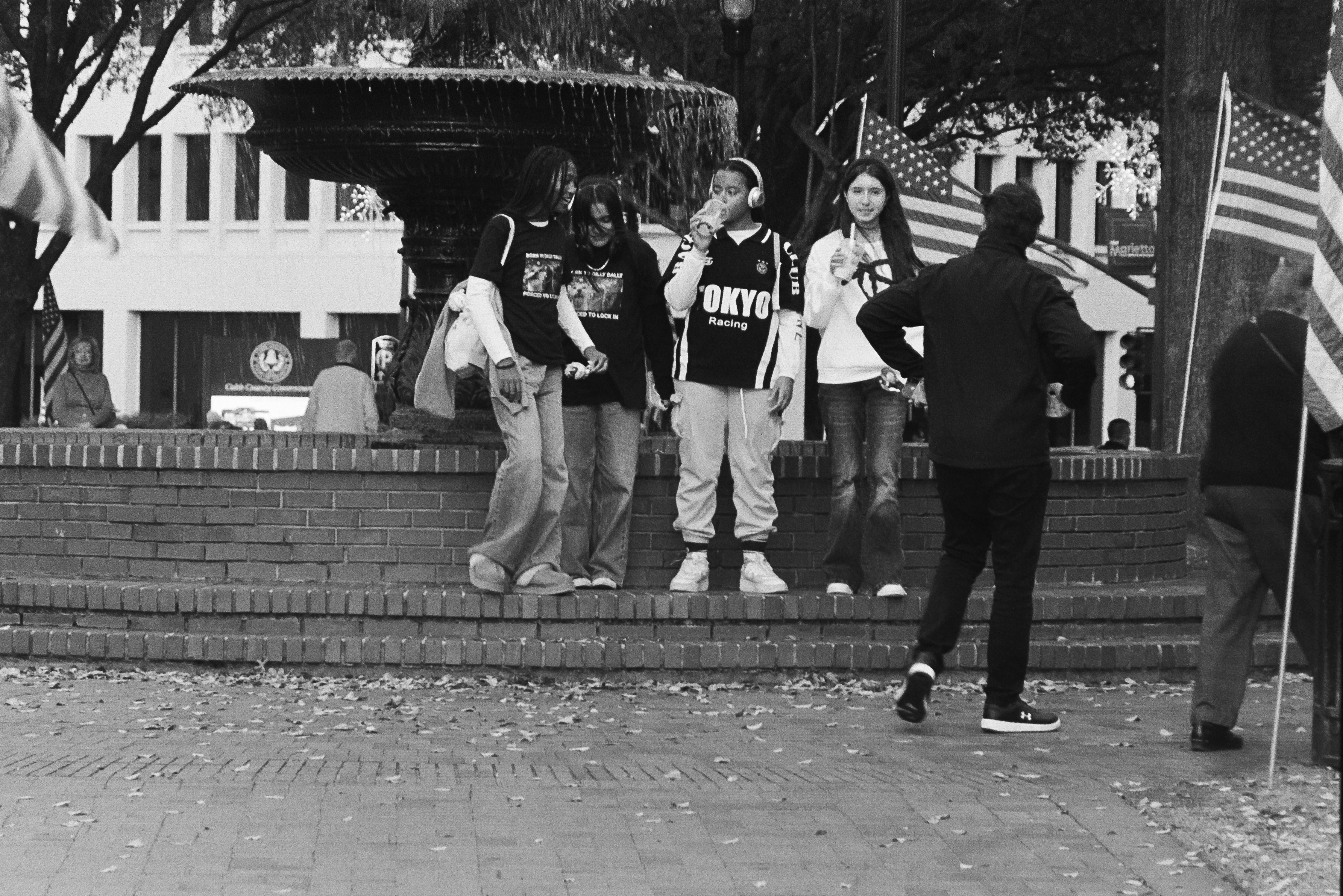
Canon Photura 135 – Ilford HP5 – Marietta, Veterans Day 2025

The Photura 135 Caption

This “Canon Photura 135 Caption” is another of my Shopgoodwill finds – there were two of them for sale the week I bought it, and only one bidder, me. I picked what I believed was the nicest of the two for $19.00.

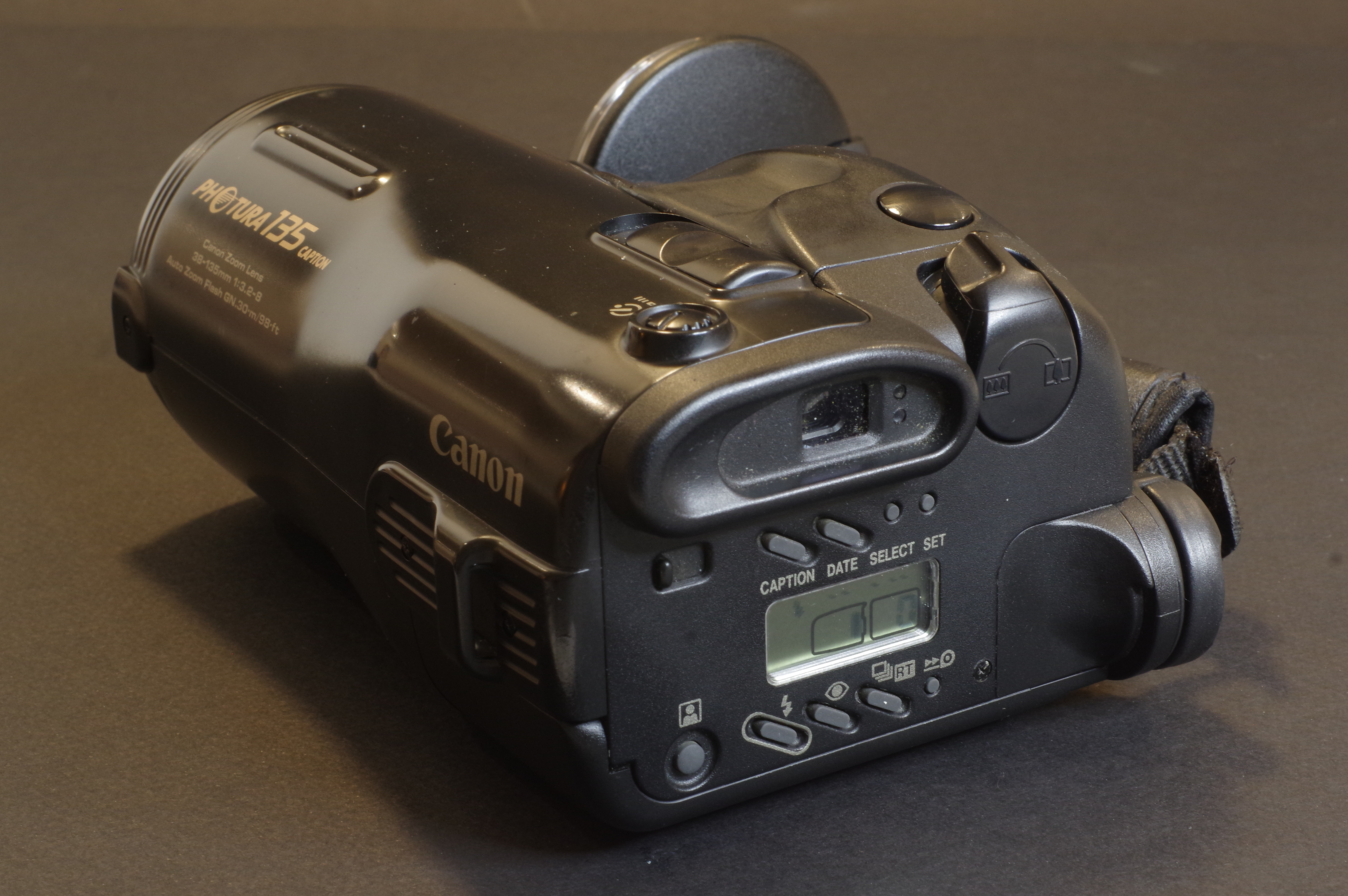
Canon created at least three different variants of the Photura 135, the “Base”, the “Caption” and the “Panorama”. Mine is a “Caption”. It can print the date or a choice of 5 messages on the negatives. Cool!

Contrarily to my Photura 105 which was a bit scruffy, this “135 Caption” is in a very good shape, cosmetically. And it’s finished in satin black, with pale, matt gold lettering. It may sound tacky, but it’s done with restraint, and the camera is rather pleasant to the eyes.

Canon Photura 135 – the specs are listed on the body of the camera

The Photura 135 is marginally longer than the 105, no doubt because of its longer zoom. I’m not sure that extending the longer focal length is a benefit, though, as we’re losing a bit on the wide angle side (38mm instead of 35mm) and a lot when it comes to luminosity – the largest aperture of the lens varies between 1/3.2 at 38mm and 1/8 at 135mm – which makes shooting with 400 ISO film almost mandatory.

The autofocus system seems to have been improved : the AF frame is visibly larger in the viewfinder, the button to force the focus to infinity has disappeared, and according to the documentation, it now relies on 5 infra red detection beams (!).

Marietta, Veterans Day 2025 – Canon Photura 135 – Ilford HP5 I was facing the November sun and the camera nailed down the exposure – Clear improvement over the first gen. Photura

The user manual is not very clear but I assume that focus and exposure are pre-determined on a central area of the scene when the photographer presses the shutter release half way and then evaluated again on a larger area when the shutter release button is fully depressed. On the 135 models, a “real-time” feature has been added (the lag time of the shutter release is reduced to 0.018 sec.), and the user manual recommends to use it to memorize the focus point, in particular when composing an image vertically (in “portrait mode”). The real-time mode skips the second focus determination step and only relies on what the central autofocus sensor has detected during the focus “pre-determination”, which acts as a sort of selective AF lock.

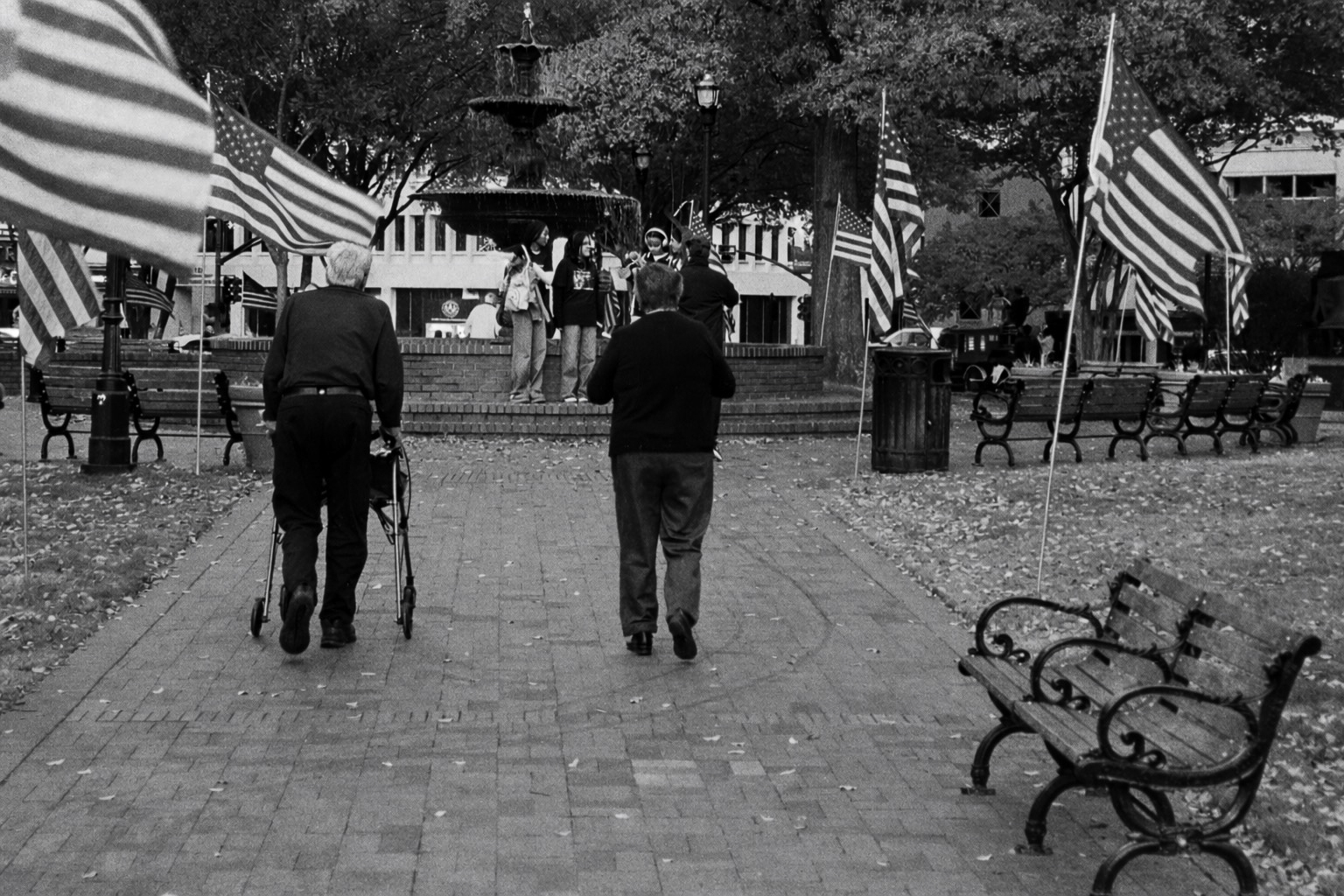
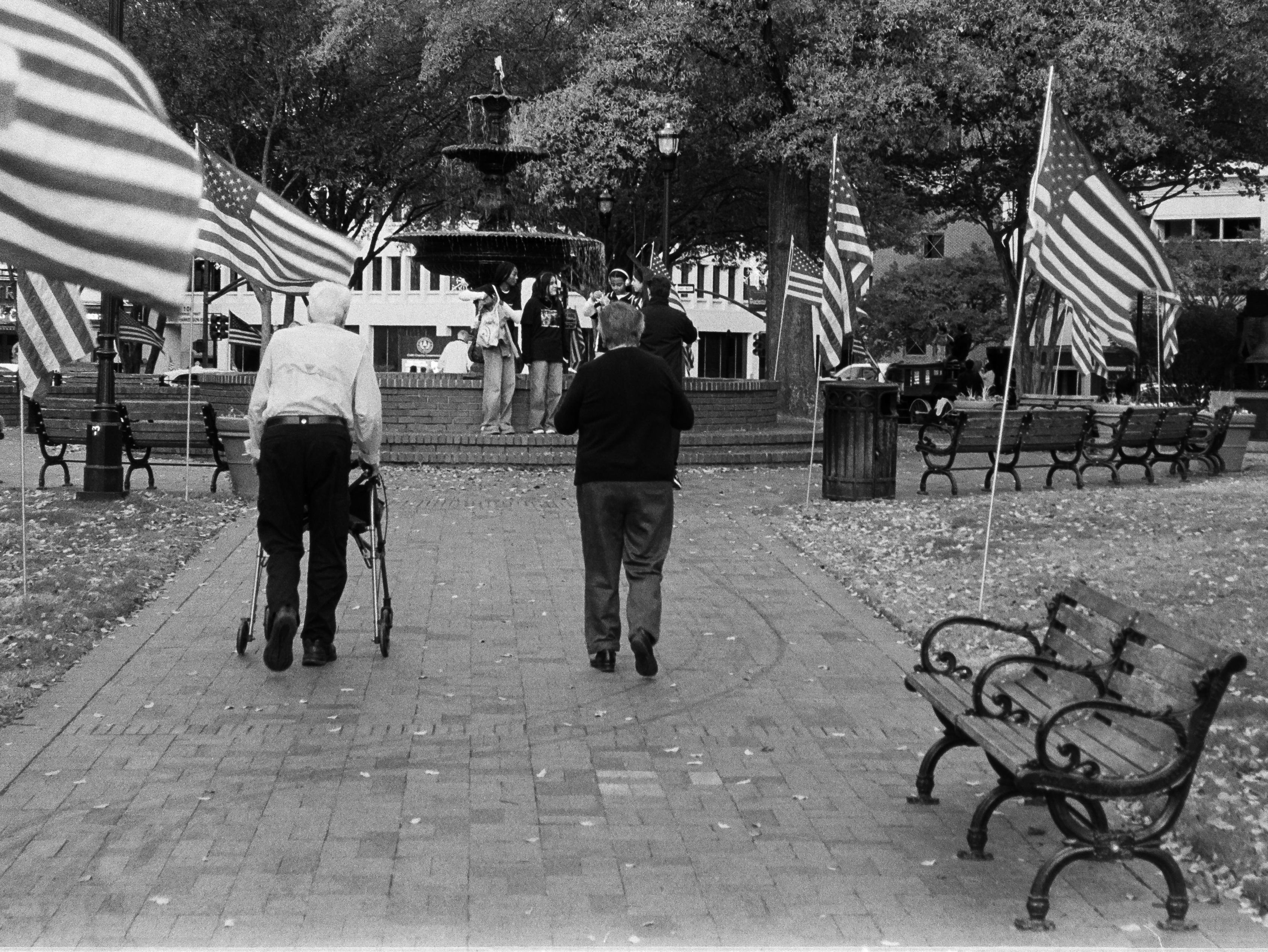
Marietta Town Square – Veterans Day – The tone of the shirt of the man on the left was changed in ChatGPT

The exposure determination also seems to have evolved positively with a three-zone evaluative system replacing the centered metering of the Photura 105. There is no exposure memorization and no magic +2EV button, but the evaluative metering of the “135” should perform better when the subject is backlit than the simpler system of the first Photura.

Canon Photura 135 Caption – Caption, Autozoom and Real Time buttons have been added.

Like the older Photura, the 135 Caption only operates under a single programmed auto-exposure mode, and is deprived of any “scene mode”. Being a camera from the nineteen nineties it does not offer any subject or face recognition capability. But like the Photura (and many Minolta cameras of the same vintage), it uses its power zoom to offer a sort of auto-framing capability, that ensures that in a series of shots, your human subject always occupies the same proportion of the image irrespective of its distance to the camera. I’m not sure I understand what the benefit is, but it seemed important enough to Canon’s engineers, who assigned a dedicated button to this function.

Lastly, the “Caption” version of the 135 gets a bigger self timer button, and the shutter can be fired remotely. The wireless remote controller and the extra strap that came with it originally must have been lost on my copy. Too bad.

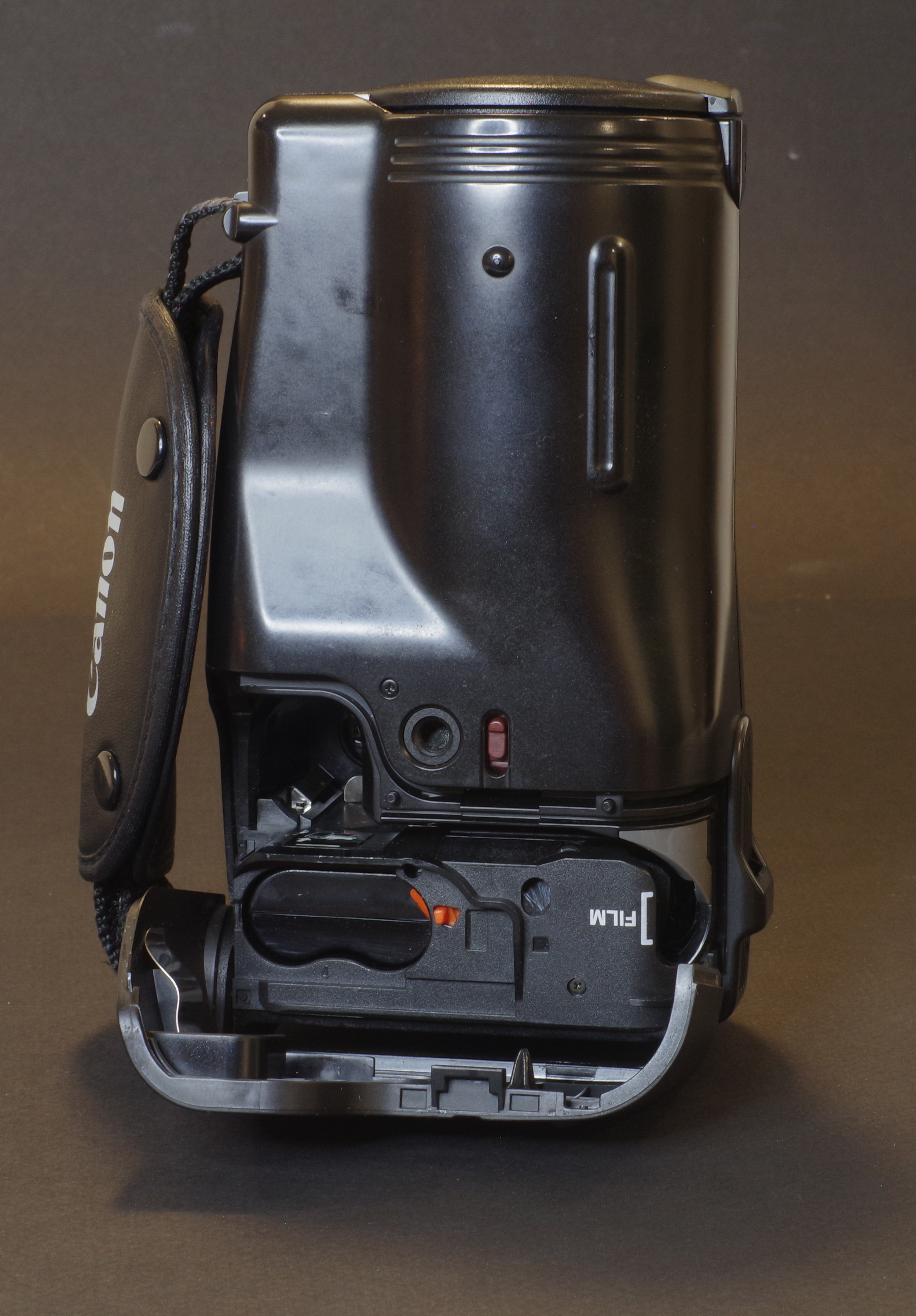
Canon Photura 135 – to load the camera, simply drop the film and pull the leader to the zone marked “film”.

Testing the Photura 135 Caption on Veterans Day in Downtown Marietta, GA

The square at the center of downtown Marietta is one of my favorite spots – Marietta is a big and modern city 15mi from Atlanta, but the square still has this unique “small town America” feeling. Even more so on Veterans Day.

I was impressed by the Photura 135. The first Photura (let’s call it the 105) was already a good camera, but the 135 is significantly improved – the autofocus is much more capable, and it’s really better at determining the exposure, even in tricky situations.

It’s not a Leica M for sure, but it can be used for street photography, with interesting results. Interior photography is still not its forte – the flash flattens the image – but when this camera was launched, no compact-zoom camera was good at that.

Canon Photura 135 – Ilford HP5 – Marietta, Veterans Day 2025

The biggest limitation of this camera is its zoom – or to be precise, its very narrow aperture, in particular at the long end. With a zoom opening at f/8 at the longest focal length, 400 ISO film really looks like a minimum, and at the end of my Marietta escapade, I wished I had loaded the camera with something faster than Ilford’s HP5 (on the Photura there is no way to override the DX coding and push film).

Would I bring this Photura 135 to my next travel destination? Yes, definitely. But I would also bring some 800 ISO film, just in case. The Photura 135 is not as easy to find as the first generation “Photura 105”, but if you’re interested in shooting with a bridge camera, I would recommend you make the effort of locating the “135” – it’s a case of version 2.0 fixing most of the issues of version 1.0.

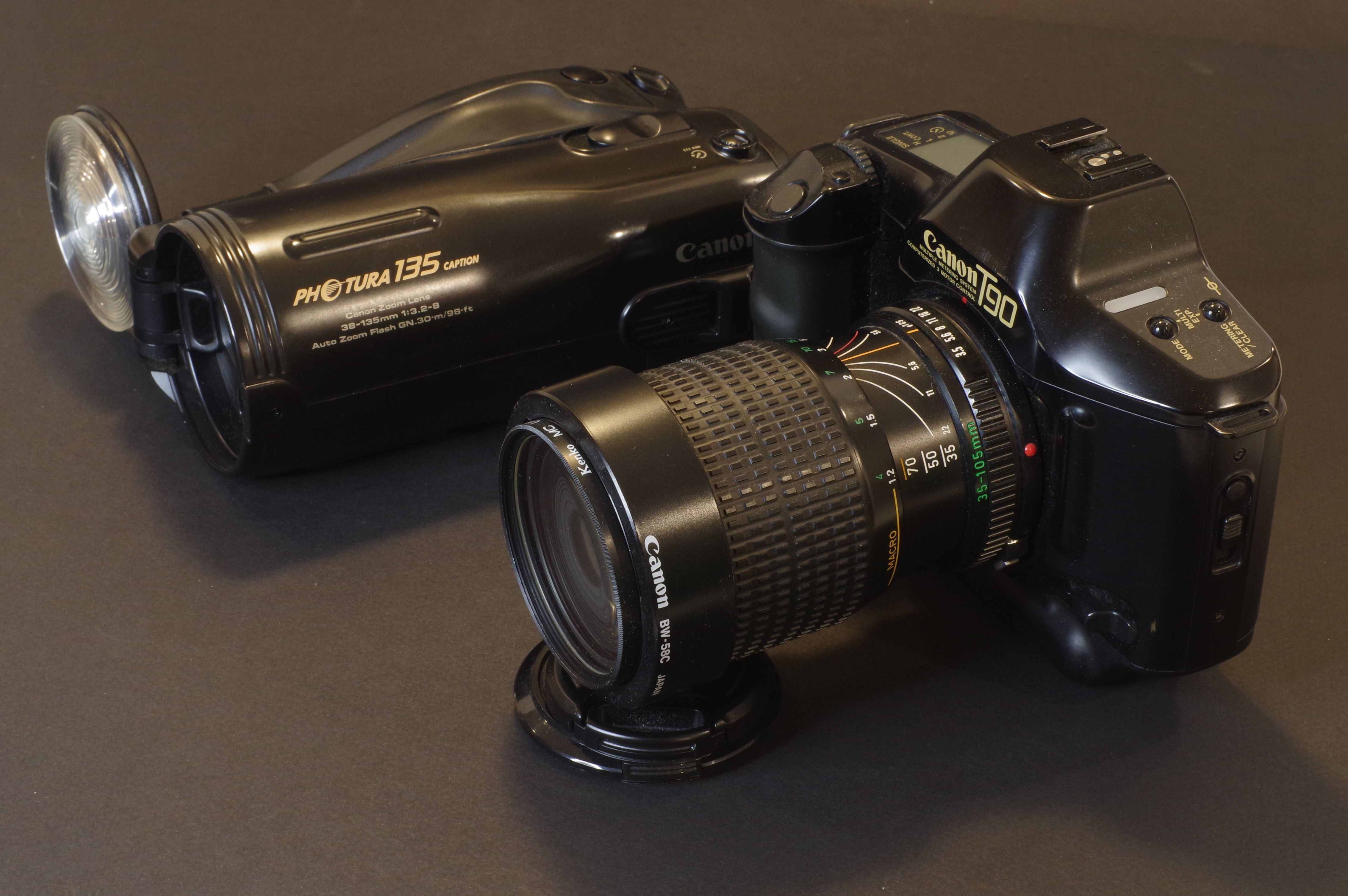
Canon Photura 135 and Canon T90 – a family reunion of sorts the Photura is shaped like a tube and much easier to carry in your luggage than a more conventional camera
Marietta, Veterans Day 2025 – Canon Photura 135 – Ilford HP5 – S curve and micro contrast improved on ChatGPT

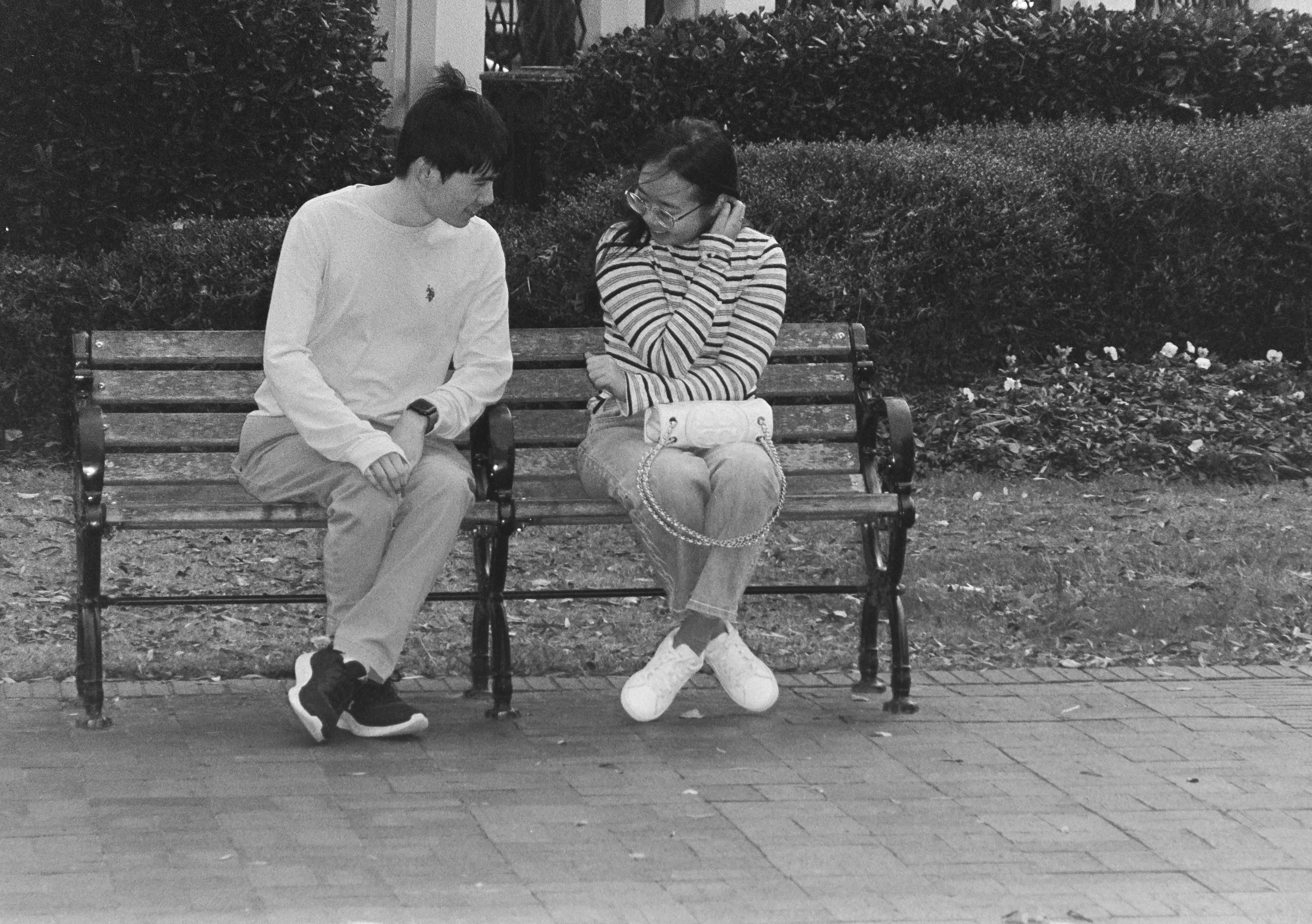
About asking ChatGPT to “Heal” my pictures – I submitted two of the pictures of this series to ChatGPT – for the first one (the man on the left with the walker) it simply changed the color of the shirt (it was bright white and too distracting). The picture of the two kids on the bench was taken at the end of the afternoon, at the long end of the zoom, and was a bit too soft (it lacked contrast and sharpness). I asked ChatGPT to increase the contrast of the image selectively, without touching the mid tones. It played on the two ends of the S curve and then increased the micro-contrast locally. And gave me a one page long explanation of what it had done and why. Everything it did I could have done with Photoshop if I had a Photoshop license, and was skilled enough to pull it off. I’m normally using Lightroom’s “Heal” functions, but in this case, I could not get the result I was expecting and I had to ask ChatGPT for help.

The originals:

Old gear, B&W film and AI – a match made in heaven? I’m sure we’ll have more opportunities to discuss the issue along the year.


Who’s really manufacturing film in 2025?

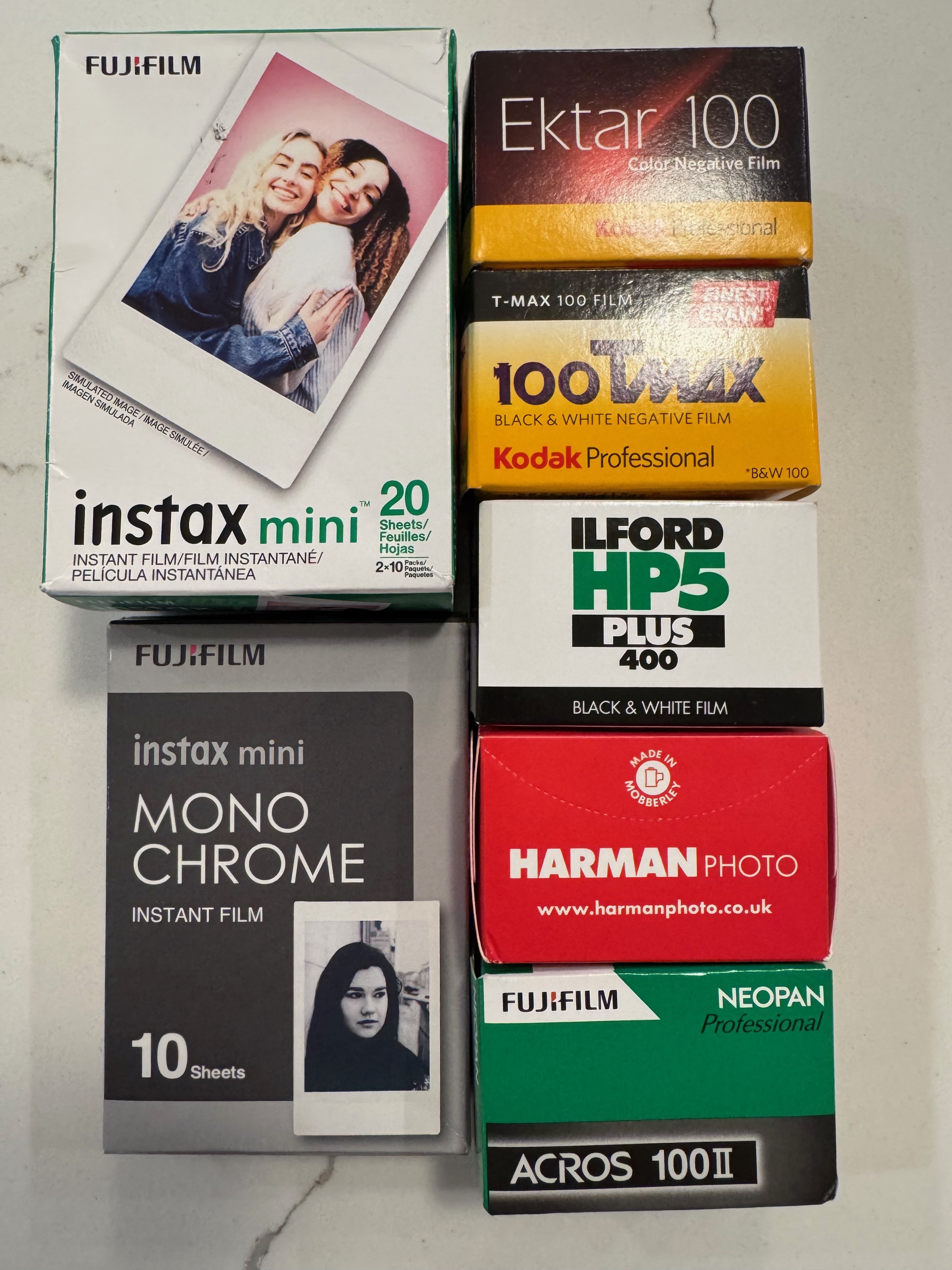
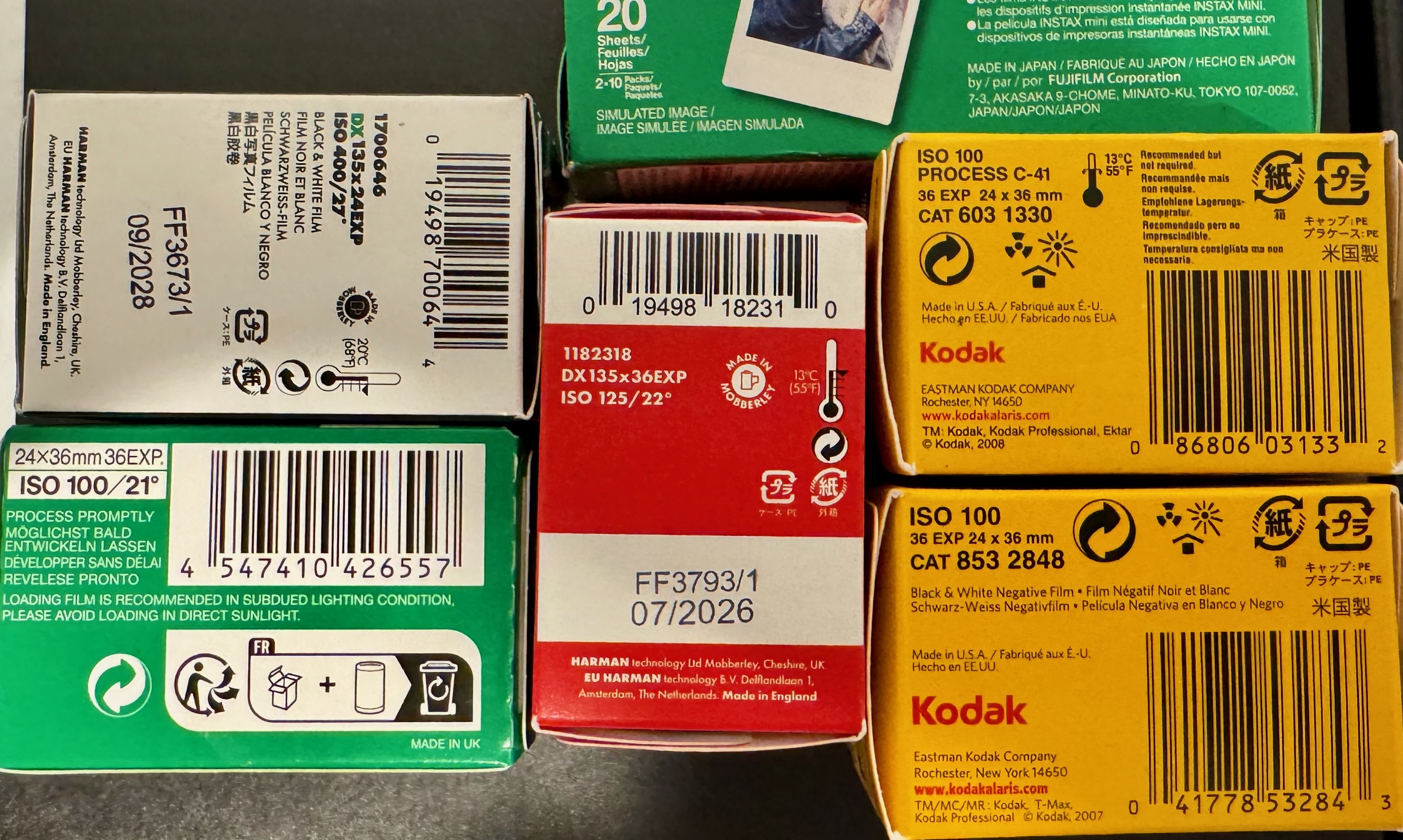
There is a store named Bellows in Little Five Points (a neighborhood in Atlanta) where they still sell a wide selection of 35mm and 120 film. I stopped by yesterday and bought film from Kodak, Harman and Fujifilm.

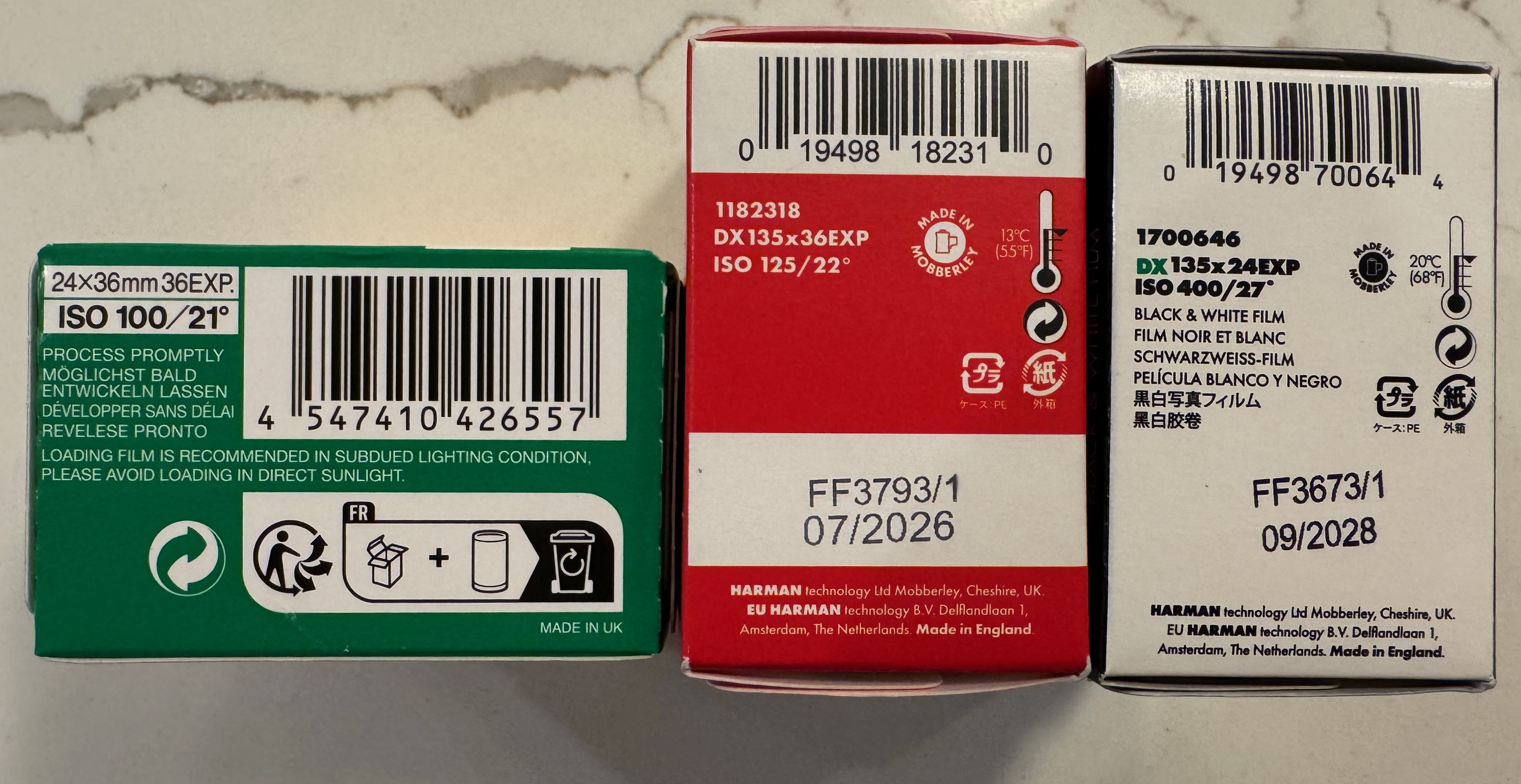
Back home, I looked at the box of Fujifilm Acros 100 II that I had just bought. It clearly mentions it’s made in the United Kingdom. Fujifilm? In England? A quick research confirms it: the Acros 100 II film is made by Harman Technologies Ltd, the British company that manufactures its own Ilford and Kentmere Black & White film, and also supplies B&W film for brands such as Agfa, Rollei, Oriental Seagull and … now Fujifilm. No wonder that Harman can boast of a 80% market share in the segment of B&W photo film.

Made in Mobberley (UK) with pride.

The company currently known as Harman Technologies Ltd is the result of a management buy out of Ilford Imaging UK Ltd, after it went under in 2004. Founded in 1879 by a Mr Harman, the manufacturer of photographic material we know as “Ilford” still operate from their historical facilities in Mobberley, near Manchester, and have added color film to the well known range of B&W film stock (Ilford FP4 Plus, HP5 Plus, XP2, Kentmere) they produce in their plant.

Over its 146 years of operations, Ilford went through an incredible number of acquisitions, mergers, rebrands, splits, receiverships and buy-outs, and as a result Harman Technologies does not even own the “Ilford” brand.

Eastman Kodak, Fujifilm, Harman Technologies – the volume leaders of what remains of the photographic film industry. But who manufactures what, and for whom?

The “Ilford” brand currently belongs to Ilford Imaging Europe GmbH, which inherited it along with the Swiss side of the old Ilford business (which used to manufacture Cibachrome and later Ilfochrome photographic papers). That side of the Ilford historical business went through its own series of plant closures, acquisitions and bankruptcies, and does not produce film or photographic paper anymore. It licenses the use of the “Ilford” brand to Harman Technologies for its B&W products, and simply distributes a range of color photographic products under the Ilford brand.

As a consequence, the current Ilford Ilfocolor film and the Ilford Ilfocolor single use cameras have nothing to do with Harman Technologies or the Mobberley plant (Harman’s own color film is sold as the “Harman Phoenix”), and are probably made by one of the companies that picked up the pieces after the East German (ORWO) and West German (Agfa) film manufacturing giants went under.

I can’t describe how this whole constellation of remote descendants of Agfa and ORWO is organized, as the situation still seems very murky, with insolvencies and lawsuits left and right. The German side of Agfa is long gone, and I don’t know if the current reincarnation of ORWO is still in operation. If they are, it (probably) makes them one of the only four companies in the world still in the color film manufacturing business, alongside Eastman Kodak and Fujifim – the heavyweights, and Harman – the new entrant (*)

At least one small (and reputable) company, ADOX, could salvage some of the industrial assets of the fallen giants (as well as some of the machines of the Swiss side of Ilford), and operates a B&W film plant in Germany.

After this detour through Switzerland and Germany, let’s go back to Fujifilm. Do you know that the Fujicolor 200 film sold over here in the US is manufactured by… Eastman Kodak. Which may not be the case in other parts of the world – Fujicolor 200 film is also packaged in China through a partnership with a local company, presumably to serve the Asian markets.

Made in the US by Eastman Kodak, distributed by Kodak Alaris.

In addition to Eastman Kodak, Harman, Fujifilm and the remnants of the German photographic film industry, a few players still manufacture film: in Belgium, Agfa-Gevaert produce specialty B&W film for aerial photography, Foma Bohemia make B&W film in the Czech Republic, and Ferrania are trying to restart a B&W film factory in Italy.

Photographic film is definitely manufactured in China and possibly in the Ukraine (by China Lucky and Svema respectively) but those brands are not distributed in the US and I have no precise information about them.

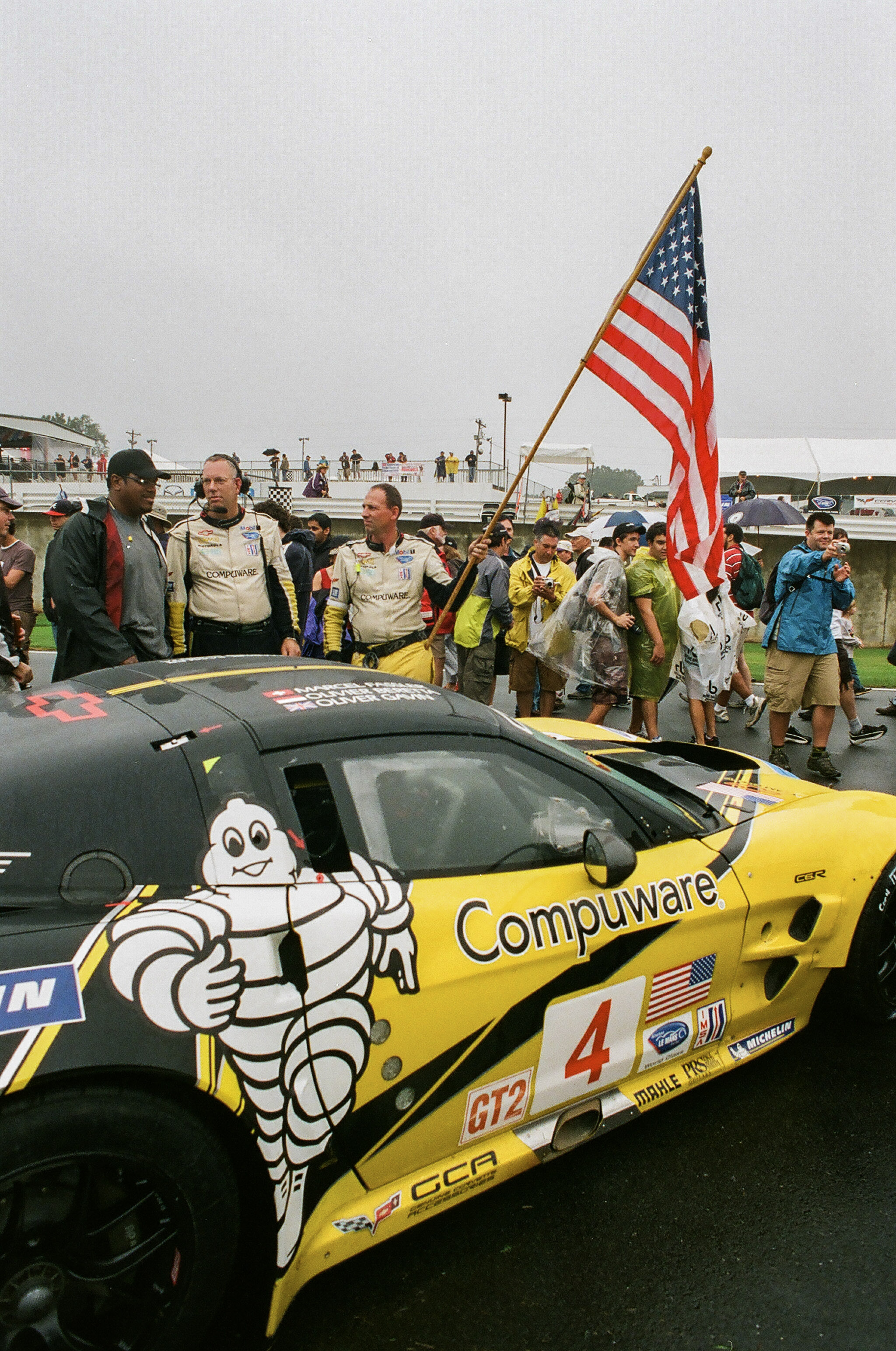
American Petit LeMans (2009 edition). Yellow and American. Like Kodak. Shot on film in 2009 with a Nikon camera.

The rest of the brands (Arista, Cinestill, KONO Manufactur, Leica, Lomography, Rollei, …) may commission the manufacturing of limited batches of their own proprietary film from one of the player listed above, or create their own “experimental” film by altering cinematographic film they buy mainly from Kodak, or simply re-label film produced by Harman, Foma, Adox and a few others.

As for the Instax instant film (one of the fattest cash cows of Fujifilm – $1Billion revenue with a 20% margin in 2024), it’s still made in Japan. Polaroid’s manufacturing operations are split between a main plant in the Netherlands and a smaller unit in Germany (one of the Agfa offshoots) which supplies the negative layer of the instant film. An exception in this industry, Polaroid has reunited under the same owner the brand and the plants, and manufactures and distributes its own products.

Green boxes do not necessarily come from Japan anymore.

There are no reliable statistics about the total value of the photography film market in the world – I’m reading anything between $500 million to $2.5 Billion a year – a fraction of what the market was as its peak in 1999 (Kodak’s revenue alone that year was $17Billion, which would equate to $32Billion in today’s US dollar).

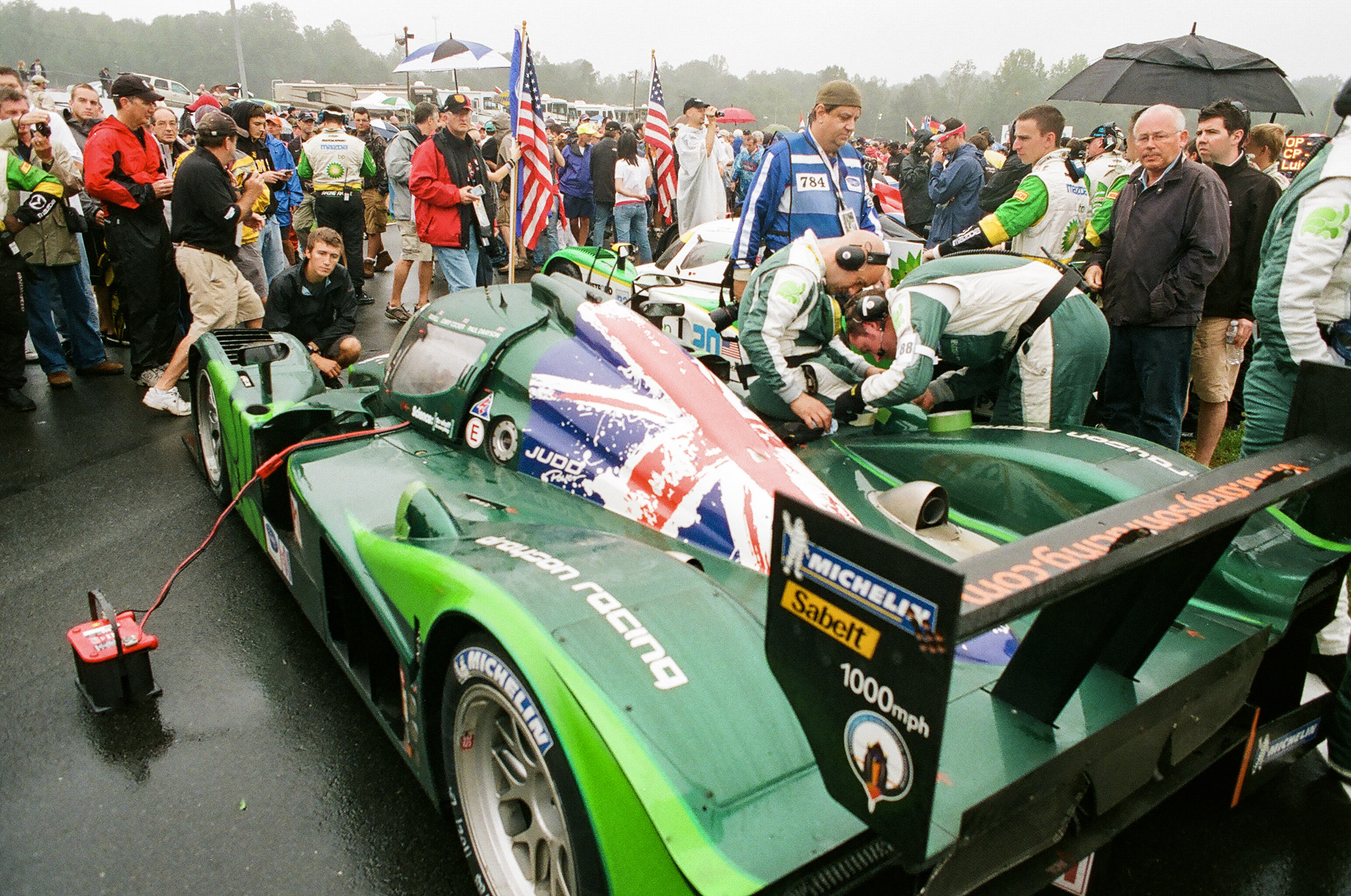
American Petit LeMans – Braselton (GA) – another Japan-England cooperation: the Mazda-Judd Shot on film with a Nikon Camera in 2009

With the exception of Fujifilm, all the big players of the twentieth century (Kodak, Ilford, Agfa, Orwo, Polaroid) have been dismantled, with the ownership of the brands often decoupled from the ownership of the remnants of the manufacturing assets, and the actual manufacturing and distribution activities under the responsibility of new actors. It explains the proliferation of new or resuscitated brands such as ADOX, Harman, Harman Phoenix, Kentmere, Original Wolfen or Rollei.

Does it matter? Not to me – as long as I can find good film to feed my cameras.


(*) Why is Harman entering the color film business, by the way ? They see a strategic opportunity in color film, obviously, and they’re also uniquely placed to take advantage of it because of their experience with chromogenic film.

Harman (as the successor of the pre-receivership British side of Ilford) has been manufacturing monochrome chromogenic film since 1981 (the XP, XP2 and now the XP2 Plus). The XP2 Plus (like the defunct Kodak BW400CN) is conceptually a simplified version of the typical chromogenic negative color film (think Kodacolor or Fujicolor), with only one layer of neutral color dyes as opposed to three layers of colored dyes in the negative color films.

In the heydays of film photography, the benefit of chromogenic monochrome film was primarily that it could be processed with negative color film, in the same machines using the same baths – the photo processing labs and the minilabs did not have to dedicate equipment and chemicals to the XP2 or BW400CN film like they would have had to do with “true” B&W film.


Two good sources of information about film photography:

silvergrainclassics.com

Kosmofoto : the new photographic films released in 2025, so far.


More about film, film cameras and old gear in general in CamerAgX.com:


Paris – Canal de l’Ourq – Leica CL – Summicron 40mm
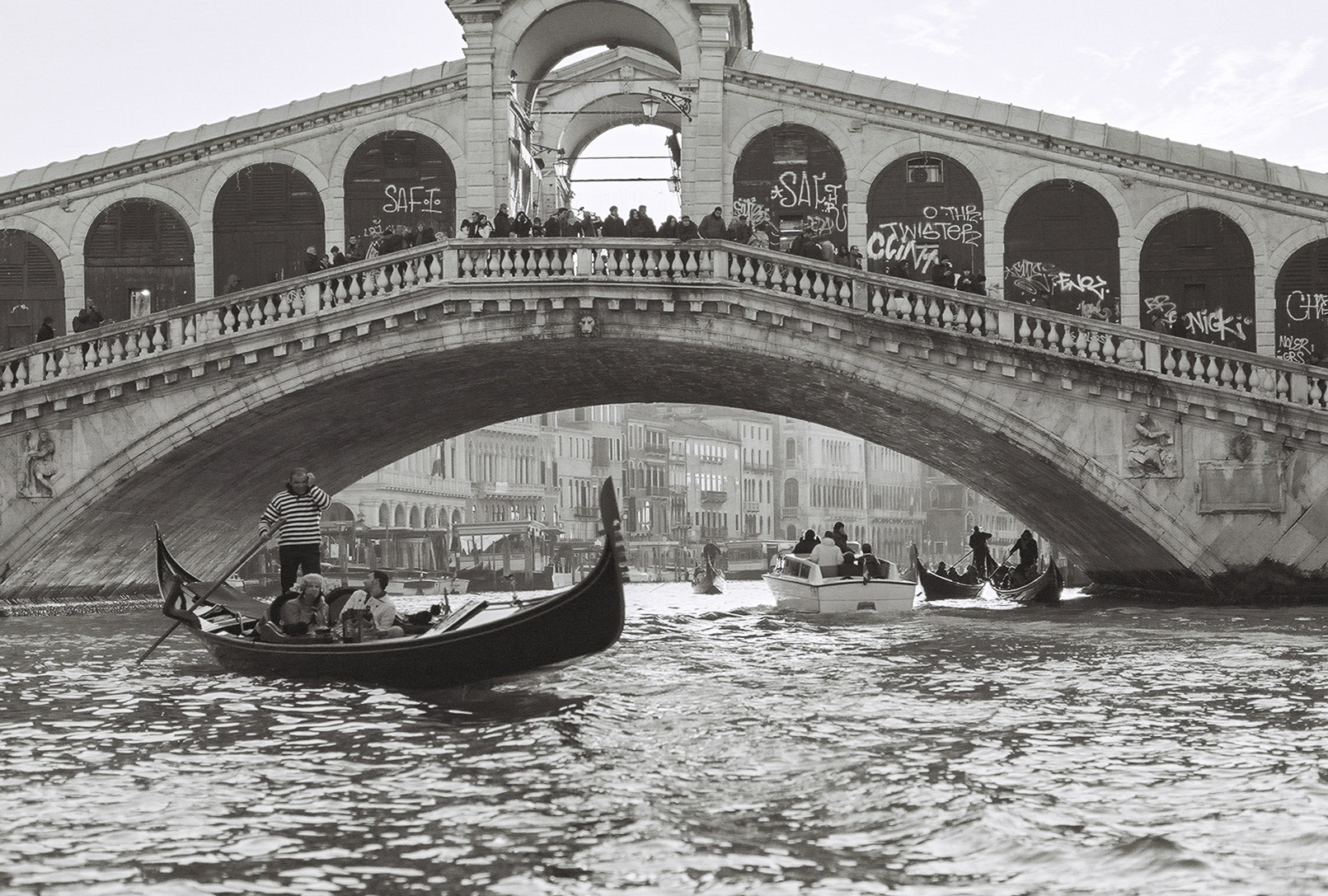
Rialto Bridge, Venice – Nikon FE2.

Lomo Daylight Developing Tank – true to the promise?

I had been tempted to start processing film again for a while, but I did not want to invest in dark room equipment or a dedicated film scanner. Two products launched recently, the Lomo Daylight Developing Tank and the JCC Film Digitizer, promise to make film processing at home easier than it has ever been, and made me take the plunge.

I ordered the “Lomo Daylight Developing Tank” a few weeks ago, and since I had just shot a few rolls of Ilford Black and White film, I put it to its paces.

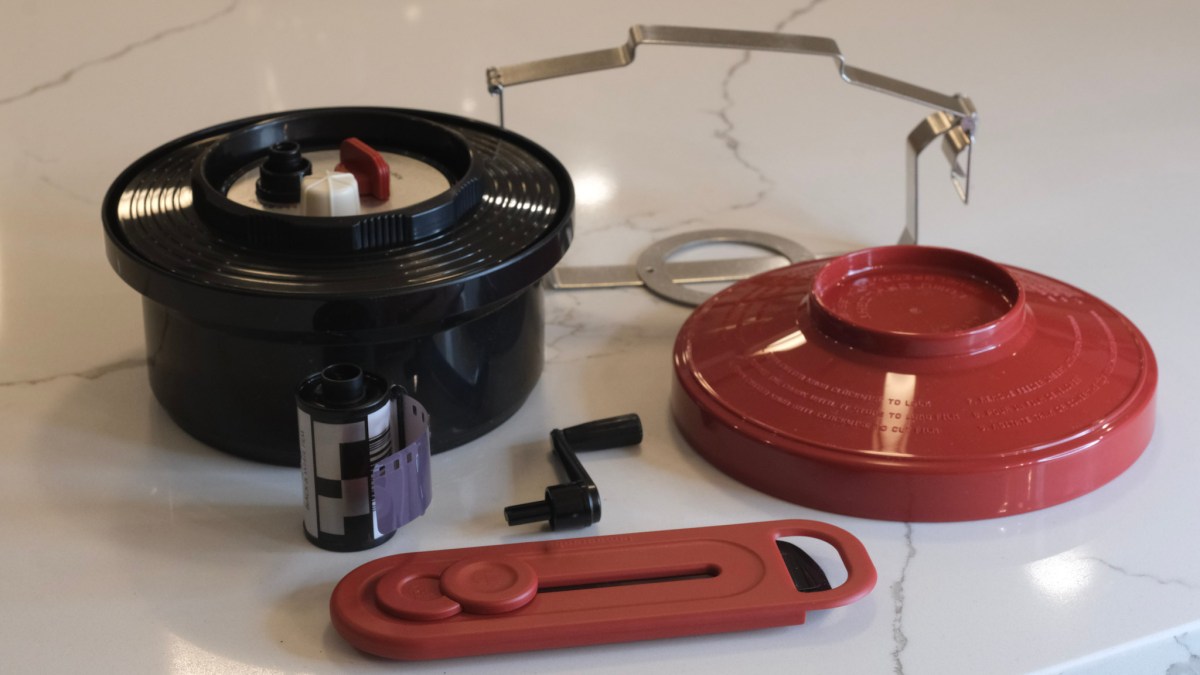
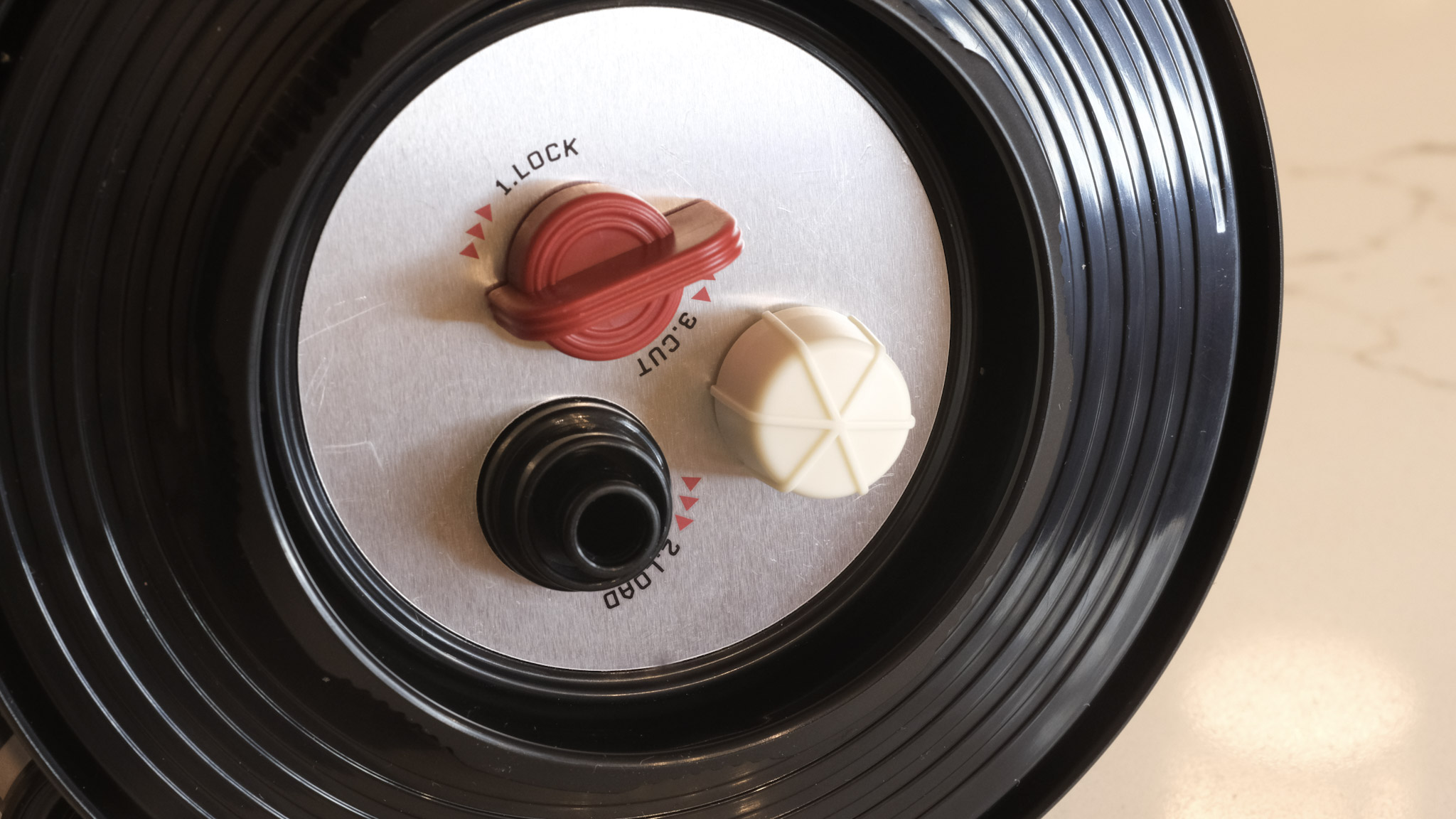
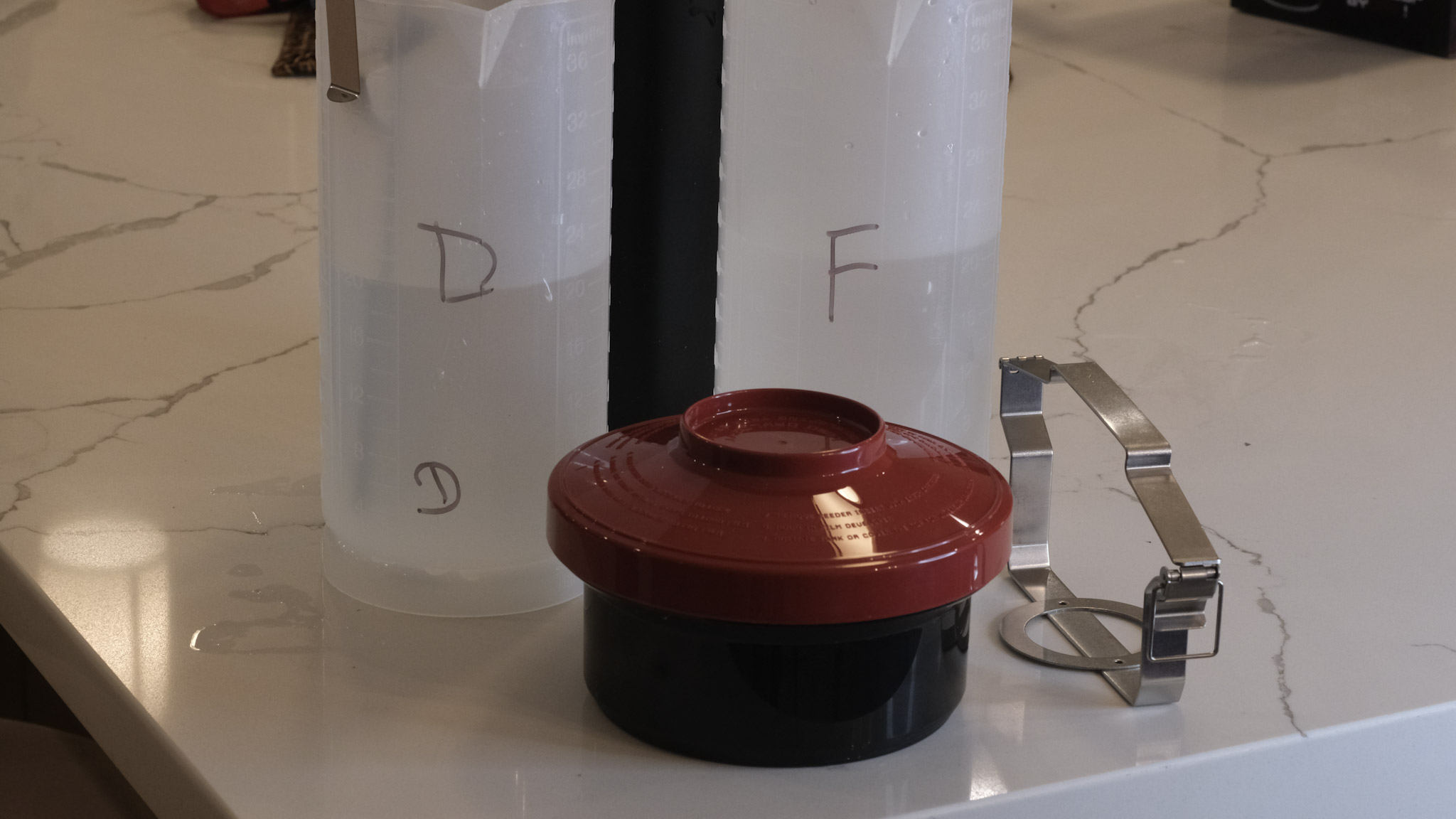
It’s probably best to watch the Youtube video posted by Lomo to see how it works. High level, the development tank contains a spiral reel (on the left in the picture below), and you will use the film loader (on the right) to move the film from the cassette to the spiral. In full daylight.

Where the magic happens: place the cassette of film in the loader and drop it in the development tank. Turn the crank to load the film on the spool inside the tank, remove the film loader, and process your film.

Let’s cut the chase: It works

The set (tank, spiral, loader, film extractor) is build of plastics of good quality and looks durable. It’s very cleverly designed, and it does the job:

  • if you follow the instructions carefully (no user manual, watch the Youtube video at the bottom of this post), it works as promised, and in full daylight: cut the leader of the film, place the cassette in the loader, place the loader in the tank, turn the crank of the loader until all the film has been loaded on the spiral reel, turn a knob to activate a cutter that will separate the film from the cassette, remove the loader from the tank – and from then on, develop, agitate, stop, fix, agitate, rinse – as you would do with a conventional Paterson or Jobo tank.
  • the film is not damaged in the process, and when you open the tank at the end of the development process, you see the film perfectly rolled on the spool.
  • There is no light leaks, and no stain on the developed negatives – the system obviously respects your film.
  • It seems to be fool proof – while I was struggling with a piece of debris (user error, more about this below), I may have lost a few frames, but the rest of the film was never at risk and gave me negatives I can be proud of.
The whole kit (the film leader extractor was included in the kit I purchased).

So, is it the greatest invention since sliced bread, or a solution in search of a problem?

Well, somewhere in between – it’s a clever system, but there are couple of drawbacks.

First, you can only develop one roll of 135 film at a time, when the “market standard”, the Paterson Universal System 4 Development tank, has room for two rolls of 135 film. And because the capacity of a Paterson tank is 600ml, most single use processing kits are designed to be diluted to produce a 600ml solution.

The film loader (right) and the development tank (right). Capacity: 350ml

Unfortunately, the capacity of the cuve of the Lomo is 350ml – so you need to dilute a bit more if you want to process two rolls of film with one dose from a standard processing kit.

Secondly, the film should not be fully rewound, and the film leader should be accessible. If you use a darkroom bag and load your conventional Paterson cuve in the bag, it does not matter that the film leader is still accessible or fully rewound in the film cassette, since you’re going to use a cassette opener to access the film. It’s different with the Lomo.

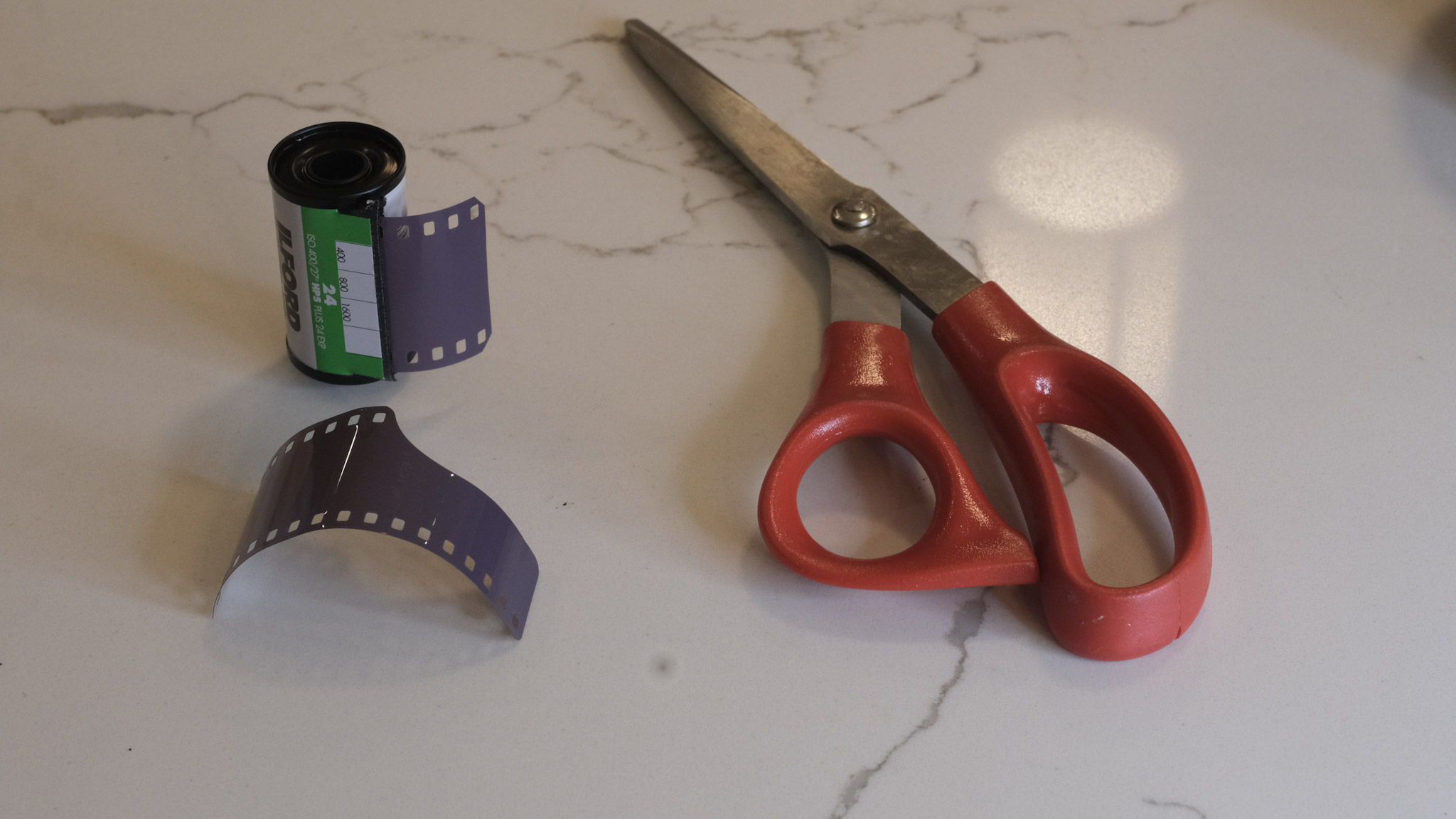
The film leader as to be cut in a specific way before the cassette can be placed in the loader

The Lomo Developing Tank’s loading mechanism only works if the film leader is accessible – if the film has been fully rewound in the cassette, the photographer will have to use a film extractor to pull the leader from the cassette. There is one included in the kit, and it works reasonably well for a film extractor, but it’s an extra step that the user of a darkroom bag would not have to perform.

Extracting the film leader from the cassette – the tool provided by Lomo (top) and my old and trusted Hama extractor. The Lomo tool worked better.

Thirdly, when the loader is finished loading the film on the spool, the operator has to turn the red knob to the left to cut the last section of film and separate it from the cassette – so that the loader (and the now empty cassette) can be removed from the cuve. You have to fully, and decisively, turn that knob to the left.

Because it could happen (it happened to me) that if the cut is not perfect, a little tiny bit of film is kept prisoner in the cutting mechanism and obstructs the very narrow slot where the next (undeveloped) roll of film is supposed to pass to reach the spiral reel. It makes loading the film impossible, until you have found that tiny piece of film and removed it. Lessons learned, the hard way.

Processing my second roll of film, I had to fight to load the film because of a tiny piece of film of the first roll kept prisoner on the cutting mechanism – after I found it and removed it, everything worked fine.

Lastly, when you cut the film to separate the section which is reeled on the spiral from the cassette which still sits in the loader, a short length of film remains attached to the cassette (11 perforations, approximately two inches or 5cm), which (depending on the camera and how you loaded the film) may (or may not) mean that the very last frame of each roll of film will not be processed, and will be lost forever.

As a conclusion

The main benefit of the Lomo Daylight Developing Tank is that it makes film development at home less intimidating for the beginners.

They won’t have to use a darkroom bag, and won’t need to learn how to operate a cassette opener and load the film on a spiral reel just by touch, without seeing what they’re doing.

With the Lomo Daylight Developing system, everything takes place in full daylight, and does not require any particular skill, experience or muscle memory. If the equipment is clear of any film debris and you follow the instructions, it simply works.

Film Loader – detail

The system is intelligently designed, seems carefully built using components of quality, and should withstand the test of time.

At $89.00, it’s probably a bit more expensive than a good quality set composed of a universal tank, a darkroom bag and a cassette opener, but not by much. And as an easy introduction to film processing, it’s worth it.

But…

Does it save time? I doubt it.

First, unless your camera can be set not to fully rewind the film and leave the leader outside of the cassette (or you remember not to fully rewind it if you use a non motorized camera), you will have to extract the leader with a specialized tool before you can place the film cassette in the loader of the Lomo system.

Which is a step you don’t need to go through if you use a darkroom bag and a cassette opener.

Secondly, after you’ve developed your first roll of film of the day, you will have to carefully disassemble, rinse, dry and patiently reassemble the whole system, which takes definitely more time than simply rinsing the components of a Paterson tank.

And if you want to avoid the trouble I experienced with the second roll of film I processed, you will thoroughly check that there is no tiny piece of film obstructing the film insertion slot inside the cuve.

The film is now loaded on the spool – from there on it’s absolutely similar to what you would do with a Paterson tank.

If you are already equipped with a darkroom bag, a cassette opener and a conventional development tank , and know how to use them, I honestly don’t see any benefit in switching to the Lomo Daylight Developing Kit.

And I would not consider developing color film (whose chemistry is much more temperature sensitive) in a Lomo Daylight as well.

As for me? It’s been ages since I used a conventional development tank and a darkroom bag for the last time. I’m pretty sure I would still be able to use it, but I was not be able to locate my old kit – probably lost when moving from one place to another. I had to start afresh. So why not try something different?

The Lomo Daylight Developing Tank is not perfect. It will not be as efficient at processing large quantities of film as a conventional Paterson or Jobo development tank, but I’m not planning on processing a large volume of film (one or two rolls of black and white film per month at the most).

For my use case, the Lomo Daylight makes sense. And used in conjunction with the JJC Digitizing kit, it will give me access to my images a few hours after they have been shot, with a minimal hassle, and no darkroom.

Details – the tank, the spiral reel and the loader. You see the spiral reel for the first time when you open the tank to remove the developed film


More about the film processing at home in CamerAgX


More reviews

Another test of the Lomo Daylight Developing Tank on 35mmc.com: https://www.35mmc.com/21/04/2025/lomo-daylight-developing-tank-a-review/


The reward

The first roll (HP5 Plus) was not a complete success – my bad – I did not configure the timer correctly, but I’m pleased with the second roll (Ilford FP4 Plus)

Atlanta – Beltline – Pentax ME – Ilford HP5 Plus
Atlanta – Centennial Park – Pentax Program-Plus – Ilford FP4 Plus

Digitizing negatives with the JJC Adapter

If you ask a lab to develop your film (I’m using https://oldschoolphotolab.com/), they will scan it for a modest extra fee ($6.00 per film). And if you send them already developed film strips, they will charge you anything between $1.00 and $4.50 per frame, depending on the quantity and on the desired output quality. The scans are made on Fuji or Noritsu machines, and the result is top notch – you just have to be prepared to wait – typically for two weeks – before you can access the files on Dropbox.

But there may be situations when you can’t wait, or you don’t want or are not permitted to send the negatives through the postal service at the other end of the country. There are also cases when the sheer volume of images to scan (and the expected low keep rate of the scanned images) makes using a specialized lab financially impractical.

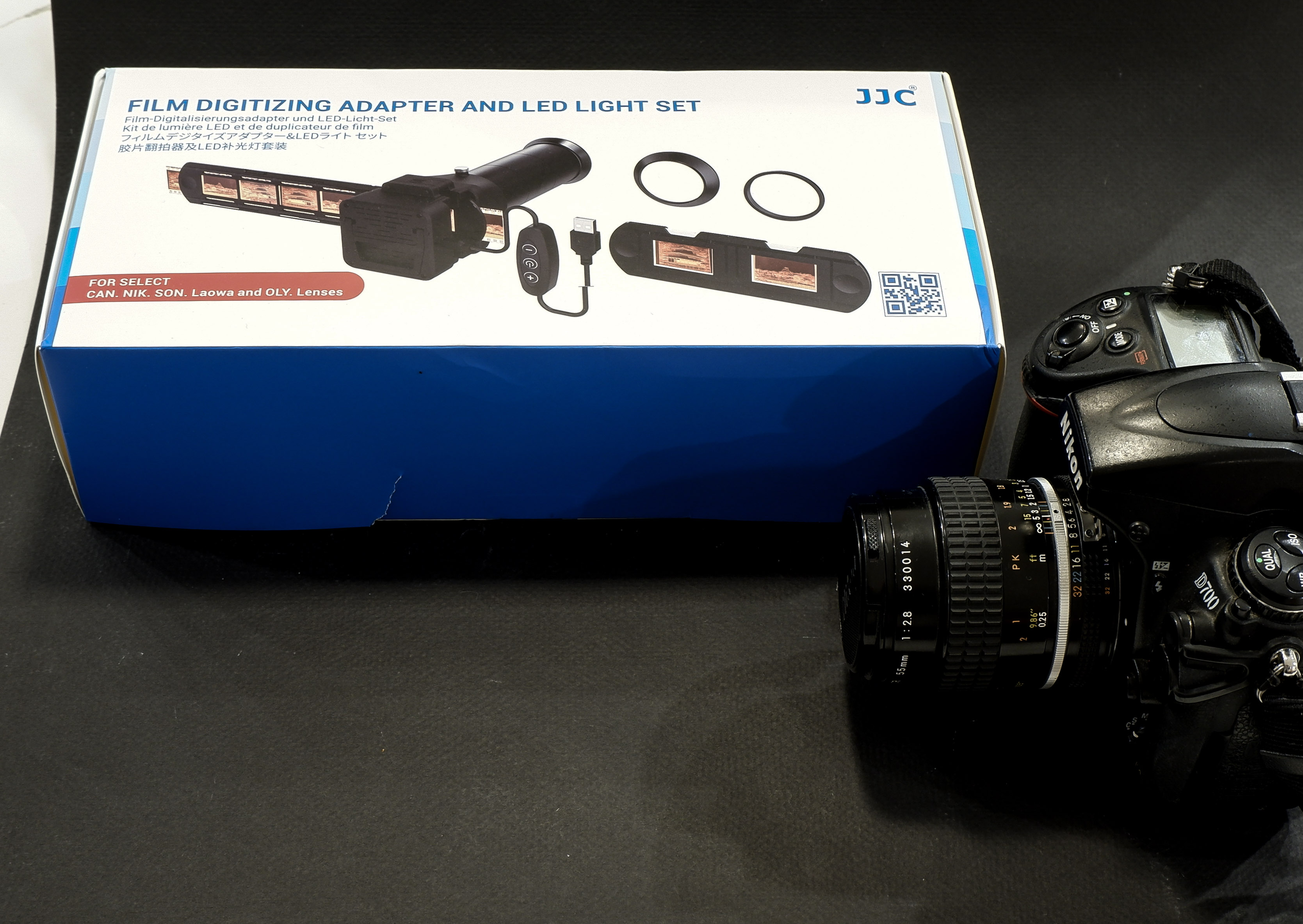
JJC Kit in its box, Nikon D700 ready for action

You can invest in your own scanner – or – taking advantage of the high resolution sensors of modern digital interchangeable lens cameras (dSLRs or mirrorless), shoot the negative frames (or the positive slides) with your camera, and simply upload the resulting files to Lightroom for a final edit.

Nikon were the first to package the necessary hardware in a single product (the Nikon ES-2 adapter, tested in The Casual Photophile: solving scanning with the nikon ES-2 film digitizing kit ). The Nikon kit is dedicated to Nikon cameras and lenses (and only a very limited list of Nikon Macro lenses are supported).

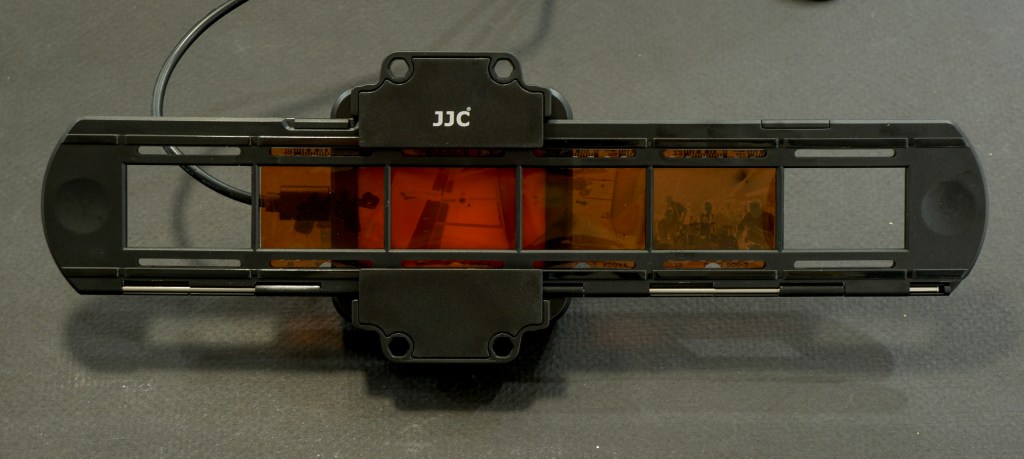
The JJC FDA-S1 Digitizing Kit

JJC have developed a clone of the ES-2, and have opened it to more lenses (they have added support for Canon, Sony, Laowa and Olympus lenses). Regular visitors of CamerAgX may know that when I’m shooting digital, it’s primarily with Fujifilm X cameras (X-T4 and X-A5) but I also have an old Nikon D700 and a much older 55mm Micro-Nikkor AI lens on a shelf, and that’s the gear I used to test the JJC “Film Digitizing Adapter Set”, Ref: FDA-S1.

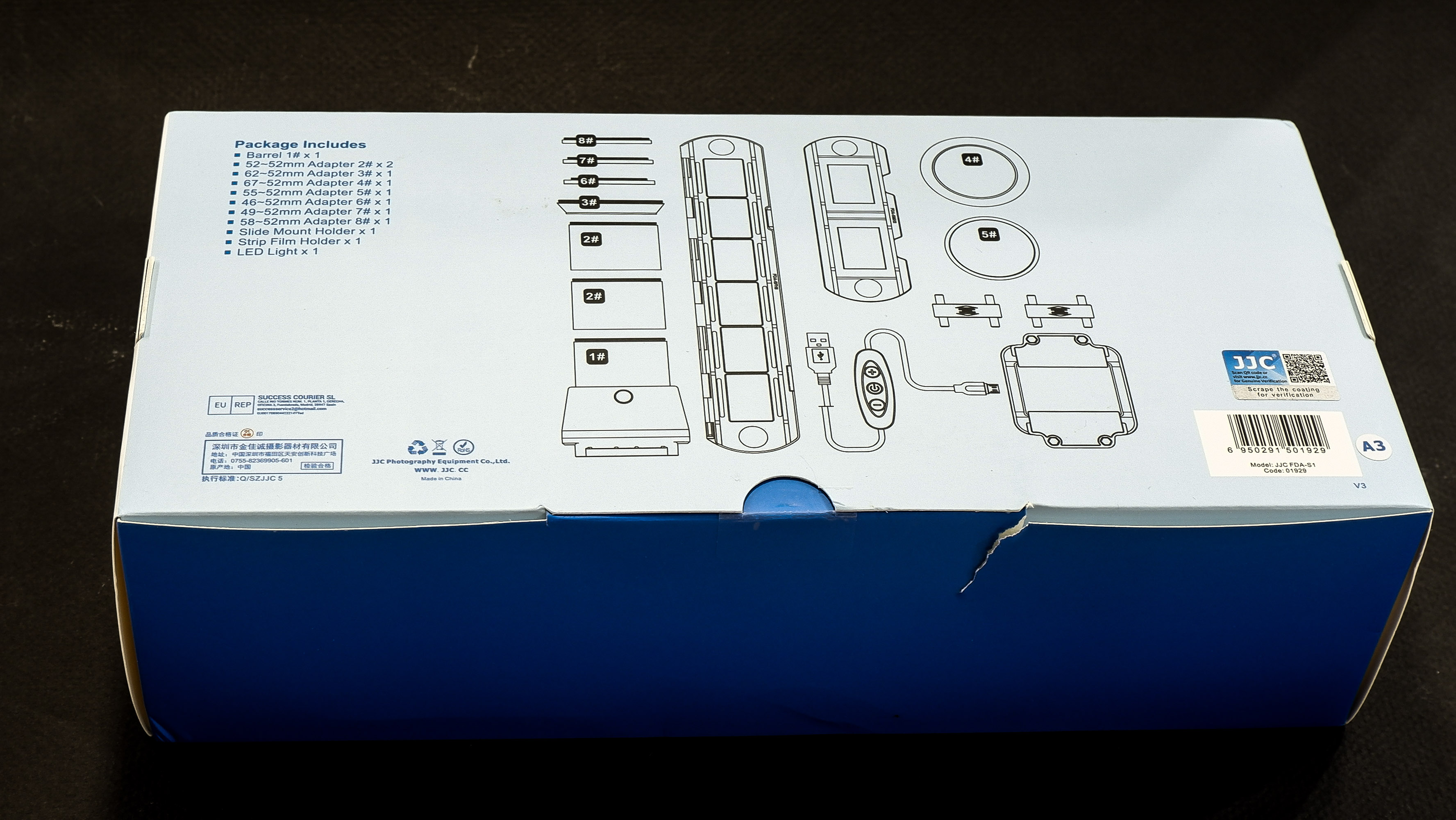
The kit is composed of 8 adapter rings, a slide mount holder, a negative film strip holder and (the unique selling proposition as far as I’m concerned), a USB powered light box. The whole set is well packaged, seems to be made of good quality materials (metal and plastic), and everything works as expected.

First attempt: Scanning with the Nikon D700 and the Nikon Micro Nikkor 55mm f/2.8 AI

The Micro Nikkor 55mm AI is only offering a 1/2 repro ratio when shooting macro. As a result, the image of the negative is only using the central area of the frame of the D700. Not good. It’s made worse by the small resolution of the D700’s sensor – 12 Mpix – over here, we’re only using 3 Million pixels. The scans look blurred and lack detail.

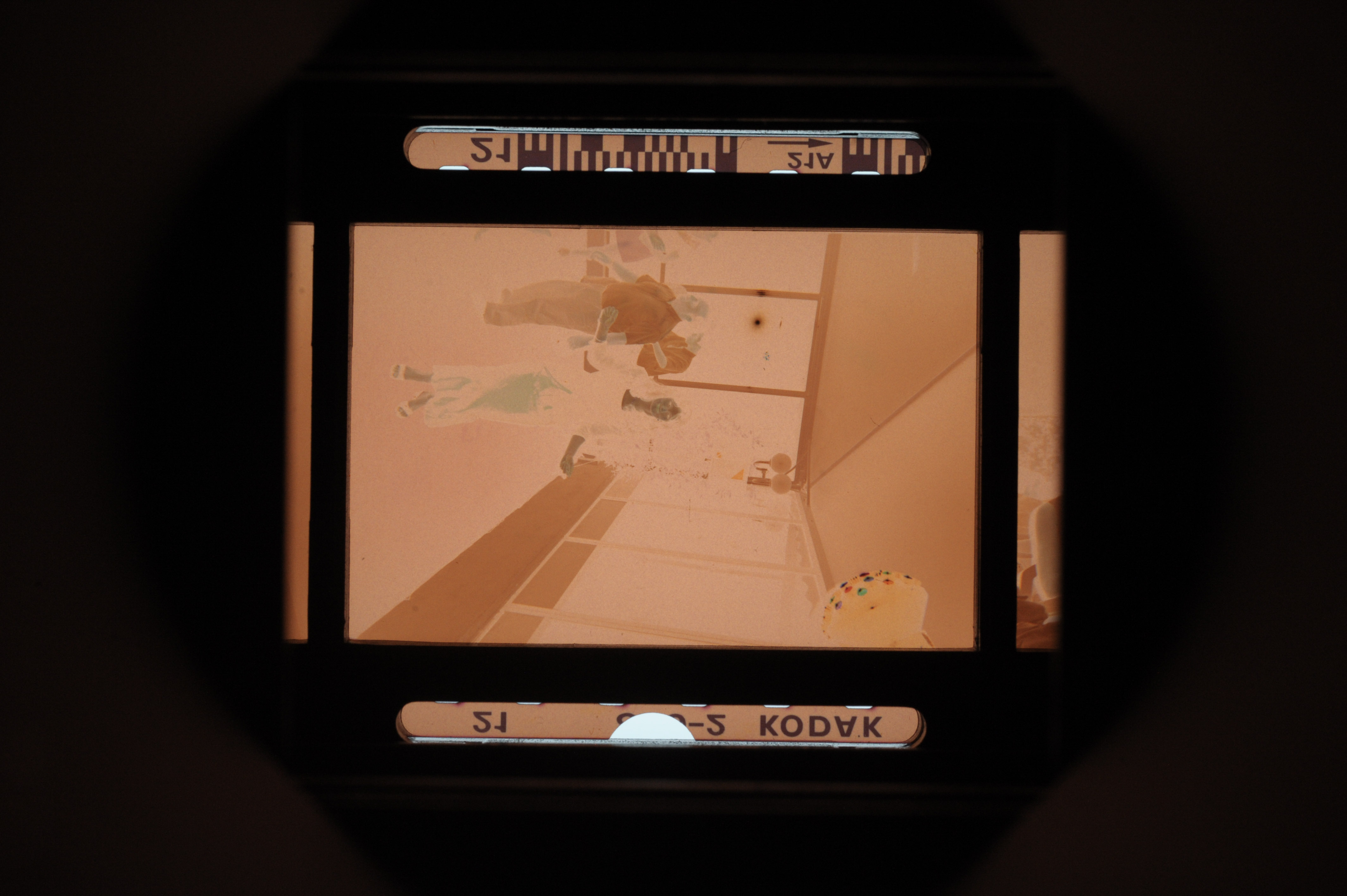
As shot with the D700 – the Micro Nikkor 55mm lens is not a good fit for the JJC adapter

Second attempt: Scanning with an APS-C camera (the Fujifilm X-T4) and Nikon Micro Nikkor 55mm f/2.8 AI

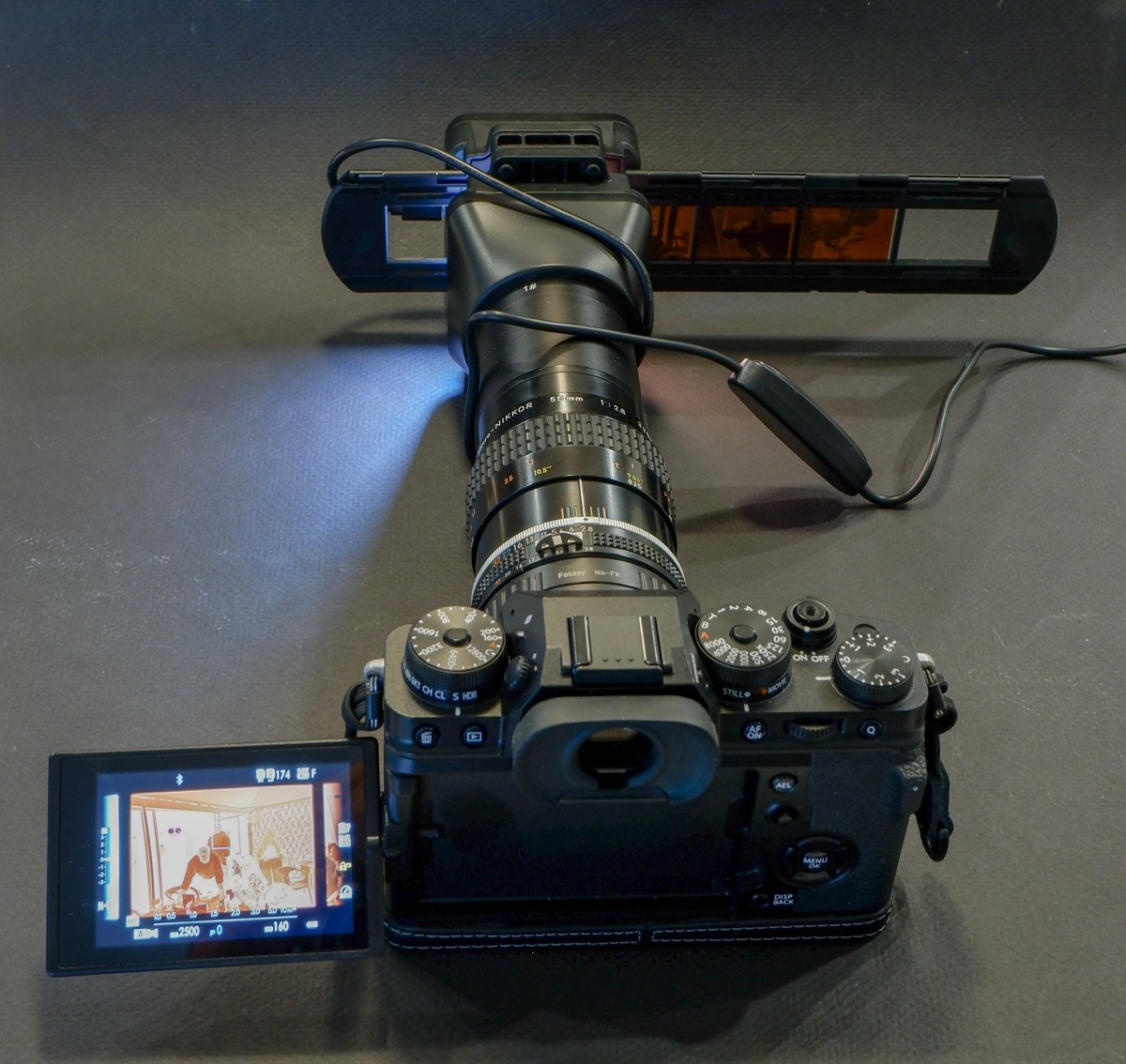
One of the benefits of “mirrorless” cameras is that they can accept all sort of lens adapters. I happen to have a Fotasy adapter which will attach the Nikon AI lens to my Fujifilm X-T4. And the articulated display fo the mirrorless camera is much more comfortable to use than the optical viewfinder of the Nikon D700 for this type of work.

In action – Fujifilm X-T4, Fotasy Adapter, Nikon Micro-Nikkor 55mm, JJC kit

The “scan” fills the frame and is much more detailed.

Much better with the Fujifilm X-T4 – the “cropped sensor” is a good fit for the 1/2 repro ratio of the 55mm Micro-Nikkor AI.

Inverting the scanned image

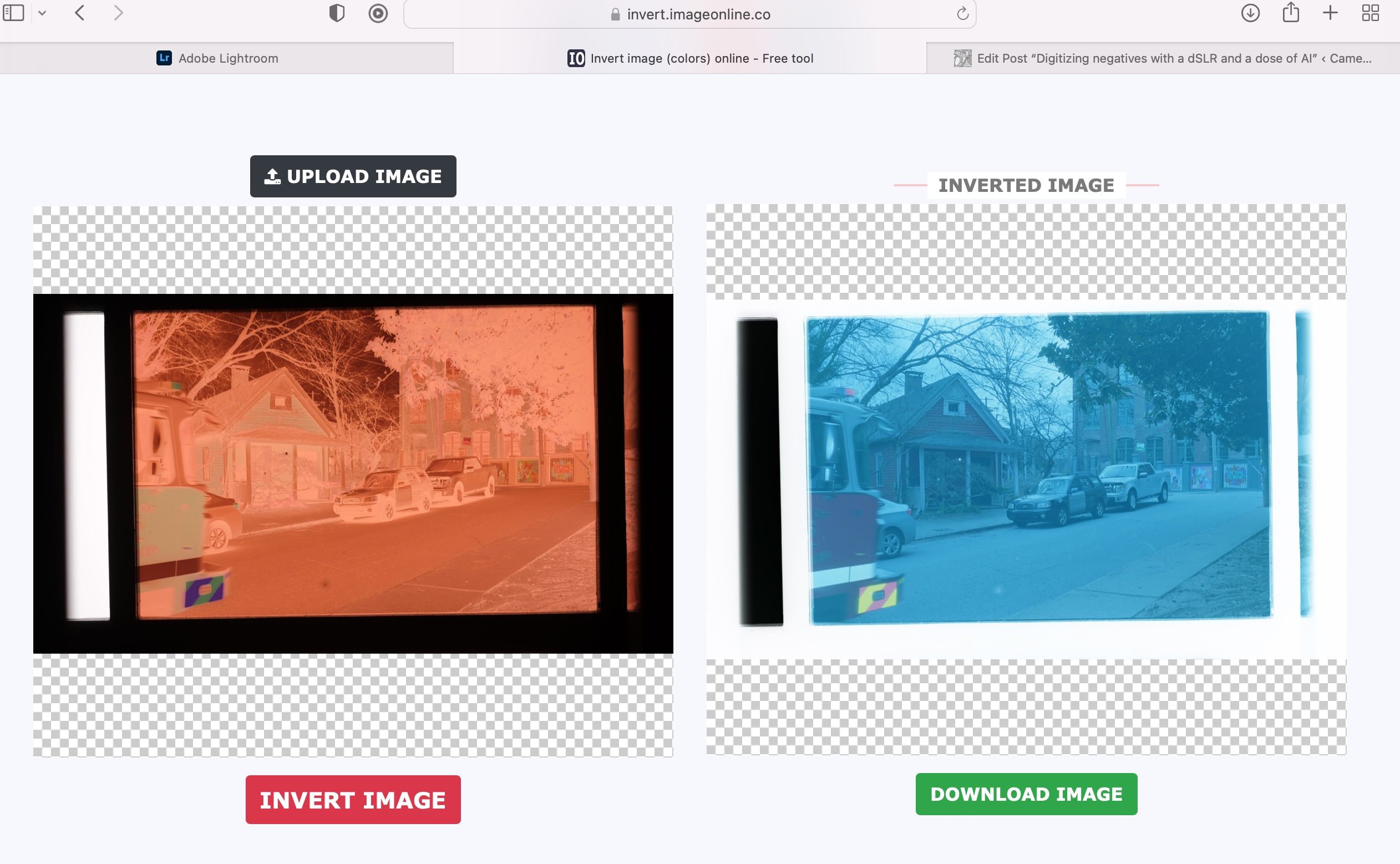
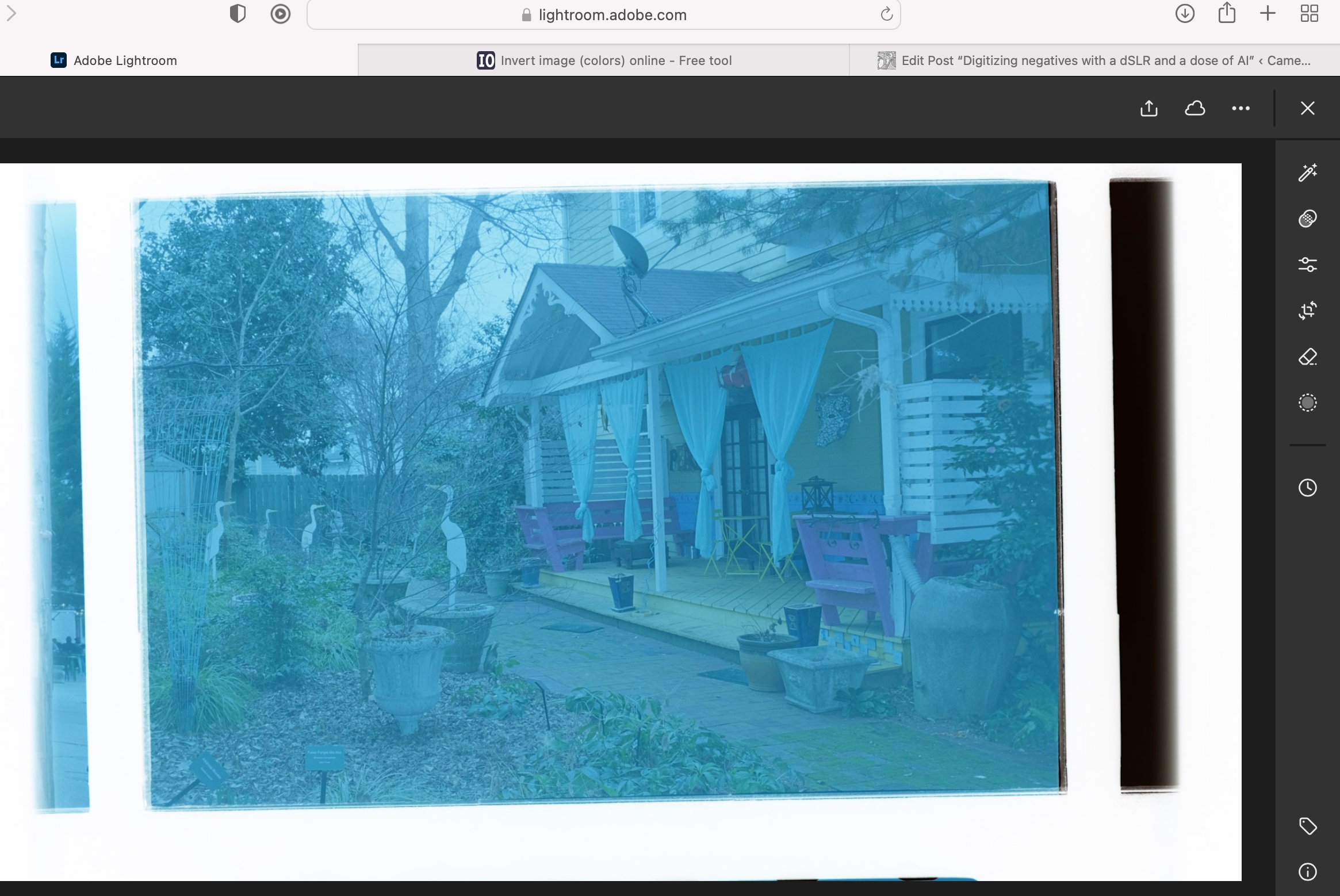
If you were starting from a negative, you have to convert it to a positive image. I tried this free online service (invert.imageonline.co). Better equipped pros will use Photoshop or Lightroom Plug-Ins.

Inverting the image with imageonline.co

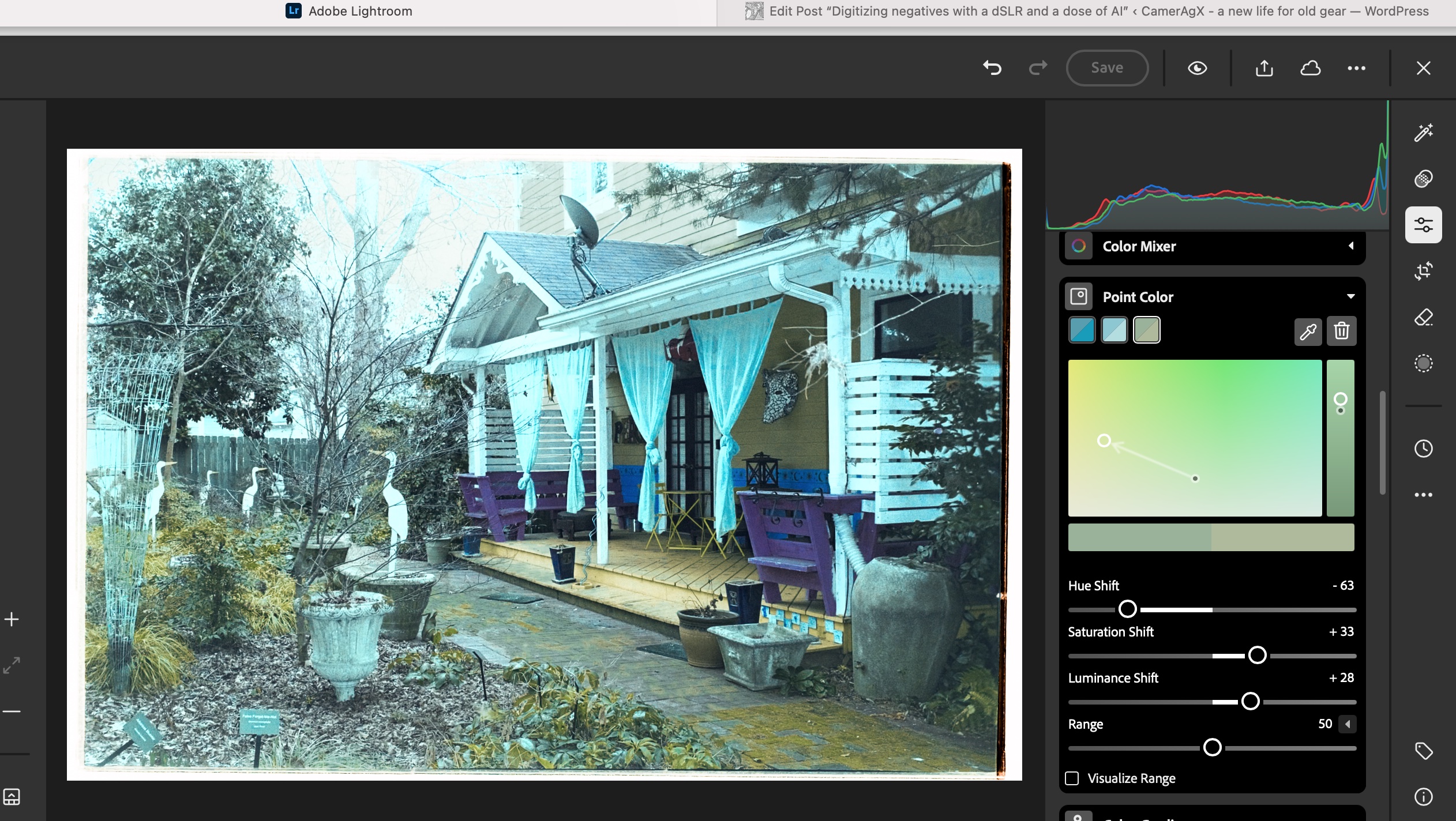
Final touch in Lightroom Mobile

Depending on the pictures, it’s more or less labor intensive. It involves playing with the white balance, the different exposure sliders, and the color channels.

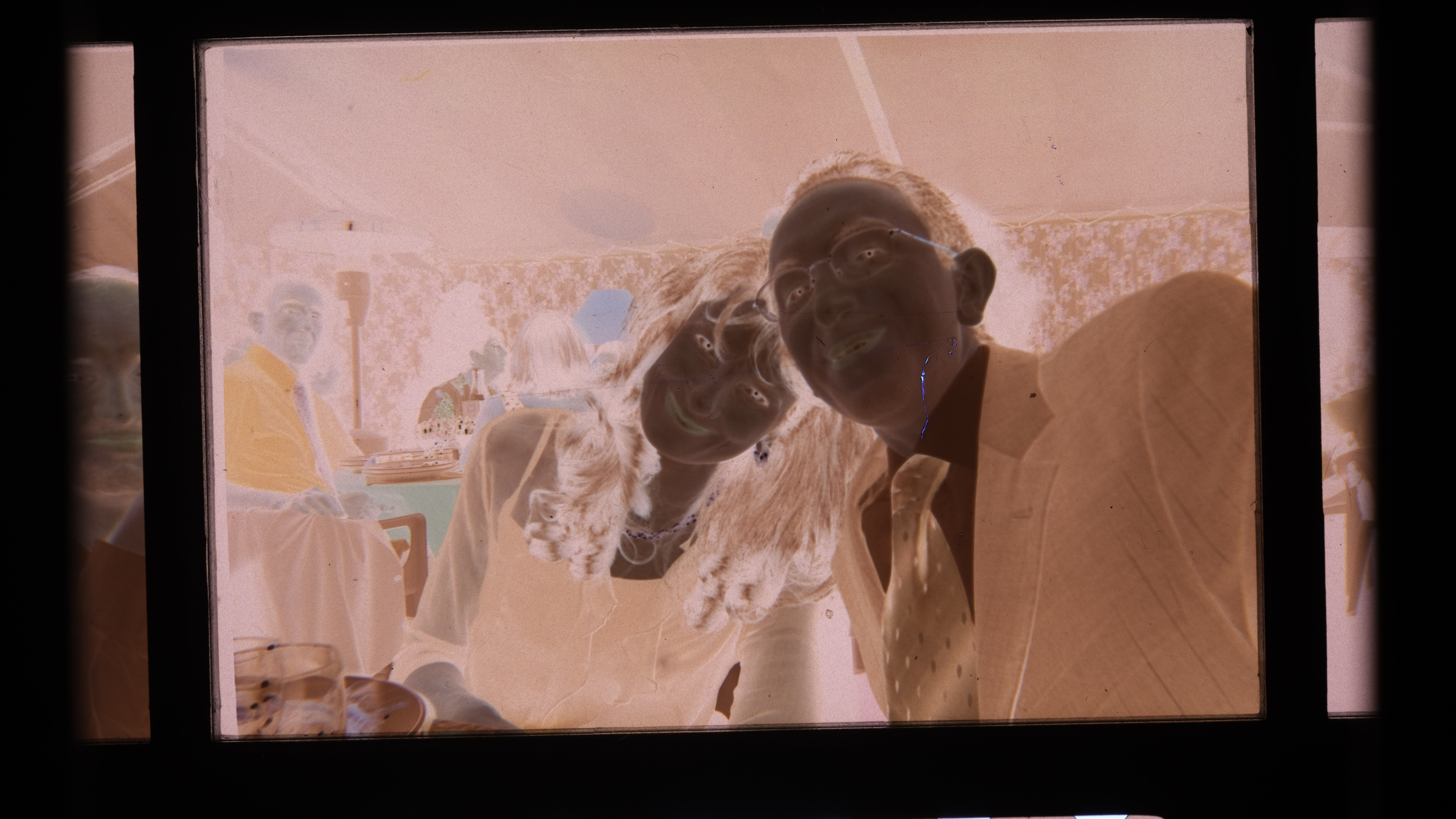
As imported in Lightroom from imageonline.co
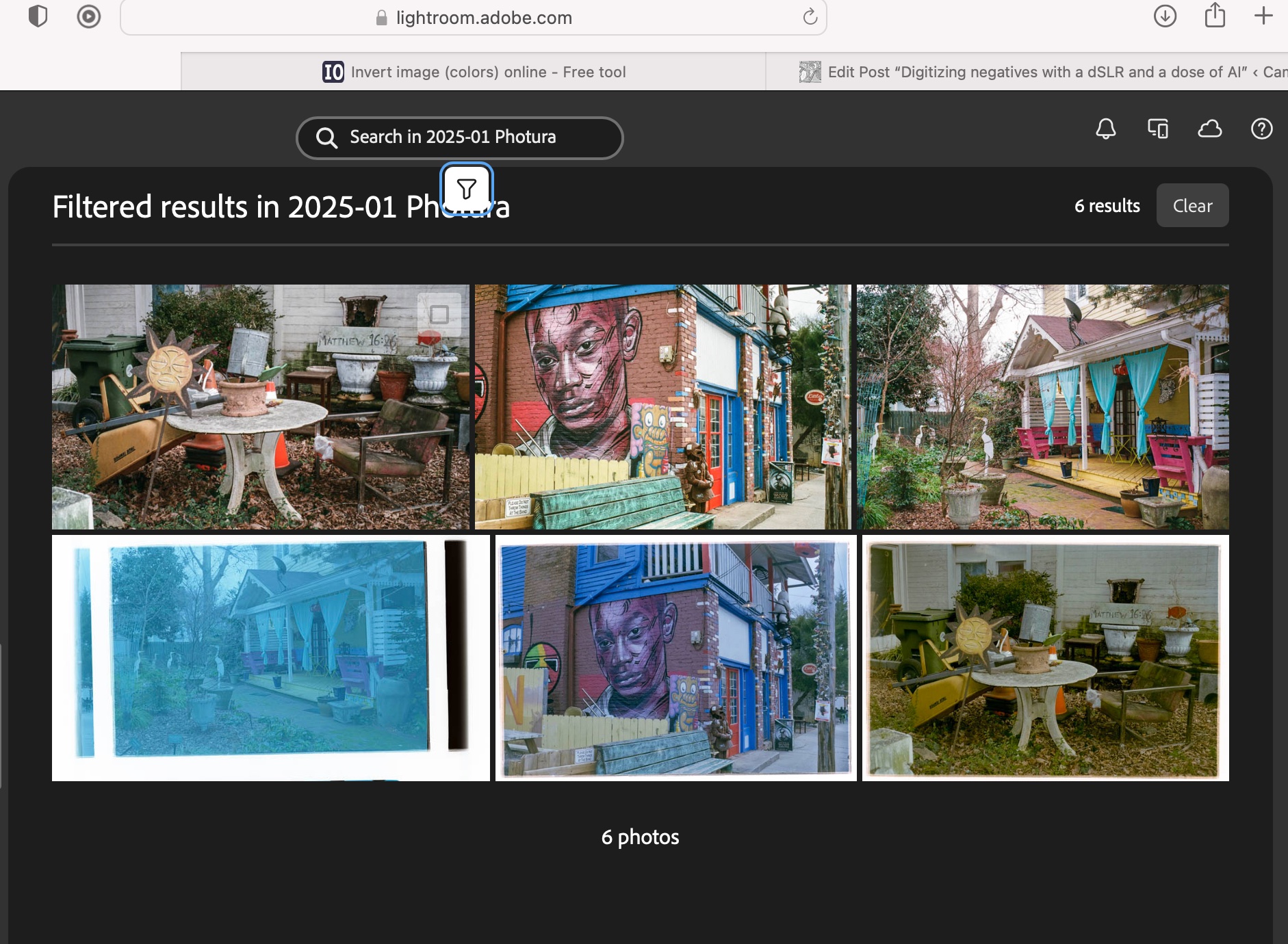
Playing with the sliders in Lightroom with this picture I could not approach the colors of the lab’s scan.

Let’s compare a JJC scan with a pro medium resolution scan

The default resolution of scans performed by the Old School Photo Lab is 2048×3072, delivered as JPEG files. Higher resolution scans can be ordered at an extra cost (resolution: 4492×6774) and they can be delivered as TIFF files.

I’m generally happy with their standard resolution scans (I’ll call them medium res as some labs offer lower res scans as an option) and would only request High Resolution for exceptional pictures I’d like to print in a large format.

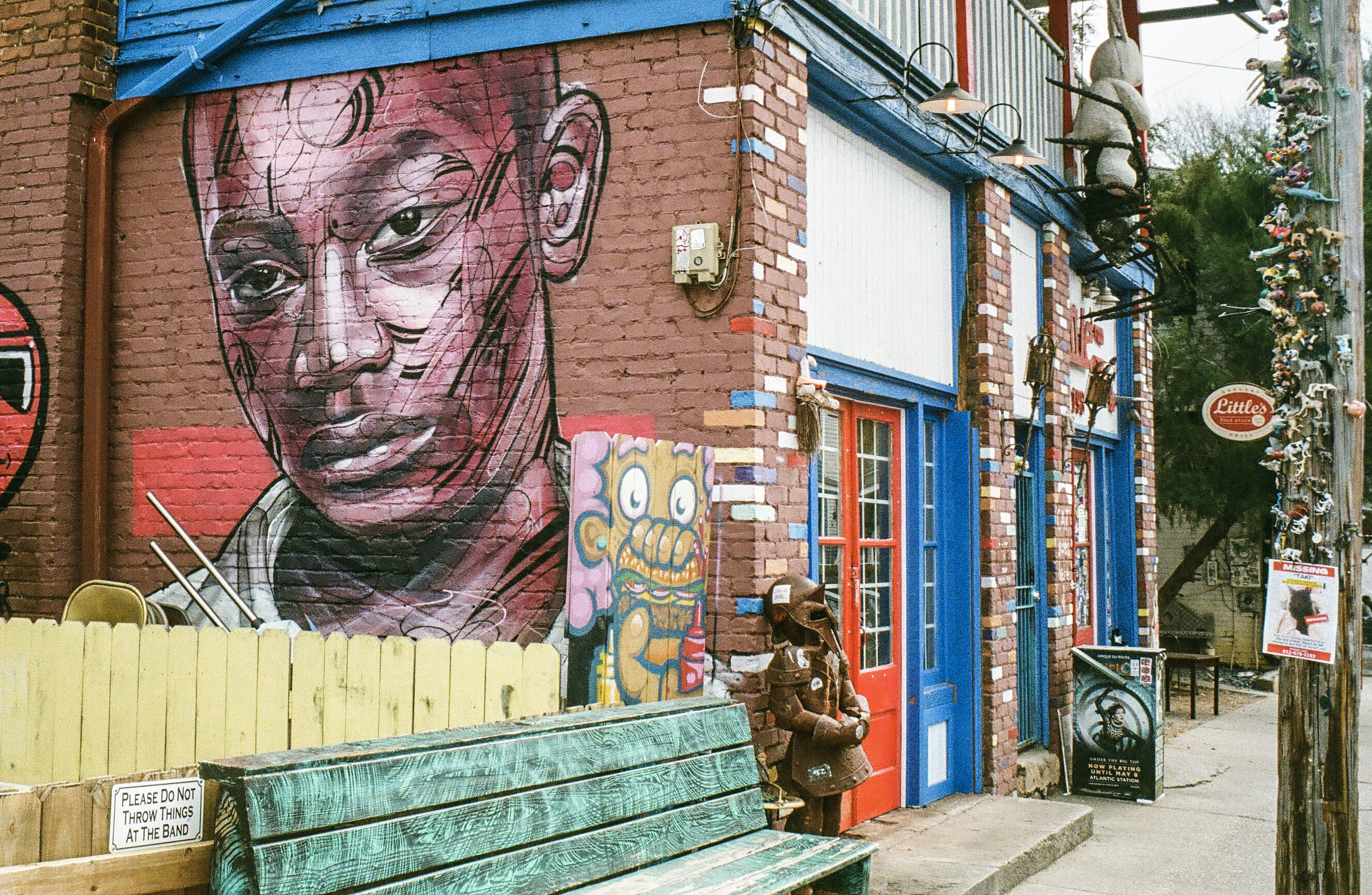
Shot with Kodak Ultramax on a Canon Photura, processed and scanned by the Old School Photo Lab

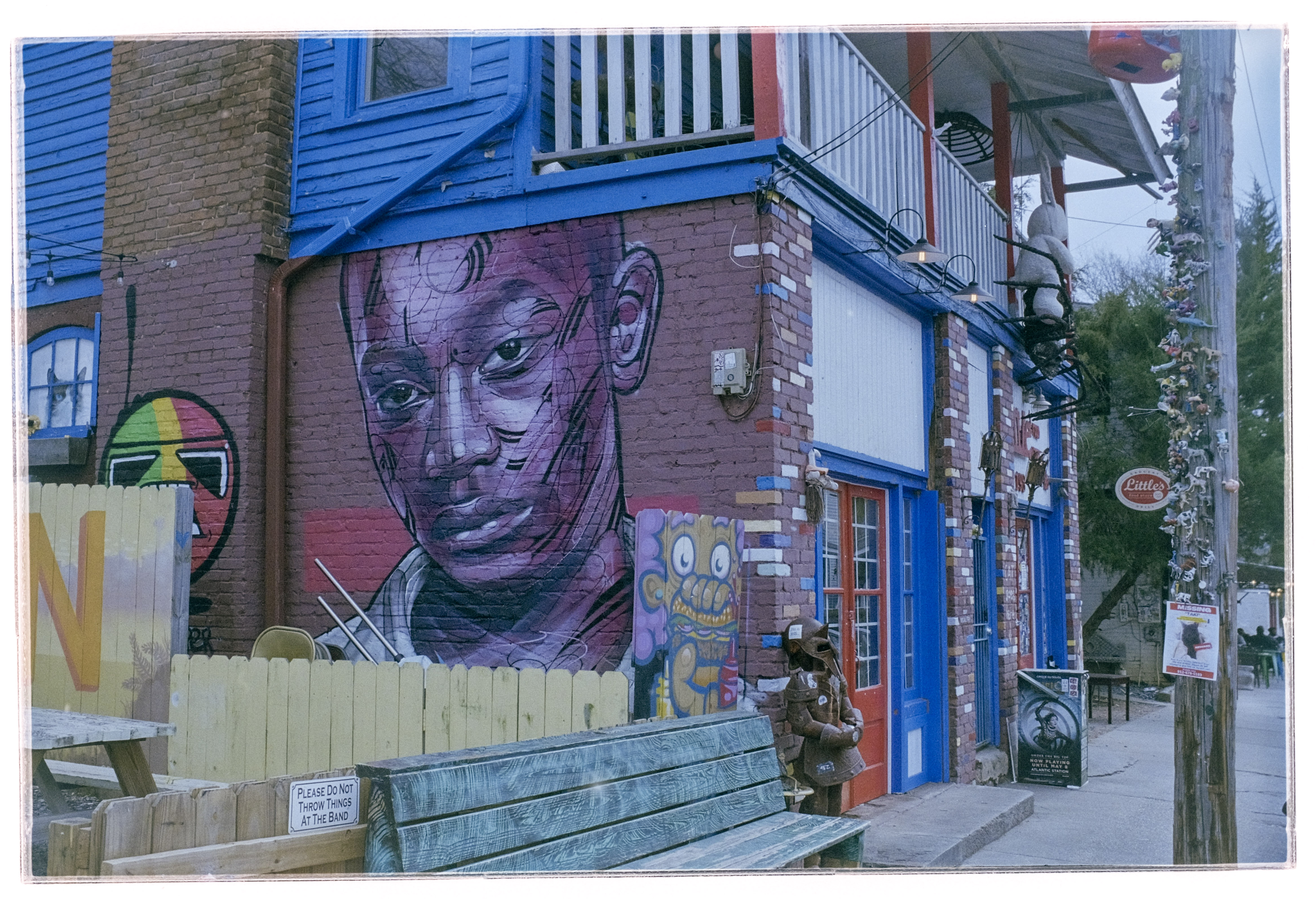
I just received the negatives of a film roll I shot with the Canon Photura a few weeks ago (the scans are made available online as soon as the film is processed, and the negatives returned to you one week later). Let’s compare a scan from a professional lab with an image captured on an APS-C camera with the JJC kit.

Scanned on a Fujifilm X-T4, inverted by imageonline.co and adjusted in Lightroom Mobile.

With the JJC kit and my amateur workflow, getting “good enough” results is easy and fairly quick. The DIY scans are very detailed but the colors still a bit off. Getting something as good as a scan on a Noritsu machine requires precision – the focus on the camera has to be perfect, the color balance has to be exact – but with practice and dedication I’m sure it’s possible to get “pretty close”. At the moment, I’m “pretty close” on some pictures, and totally off on others. Practice makes the master, and I lack practice, for sure.

Conclusion

I did not invest a lot in this test (the FDA-S1 kit cost me less than $100.00), I used an undocumented and unsupported setup, I relied on a free online service to invert the scanned negatives, and I edited the pictures with Lightroom Mobile. Enough to give me a feel for the practicality of the solution, but not enough to get the best possible results. I don’t think using an APS-C camera is an issue (the 26 Mpix of the X-T4’s sensor are more than enough to render a 35mm negative), but photographers who digitize their negatives “seriously” use the personal computer version of Lightroom (Lightroom Classic), with a plug in provided by Negative Lab Pro.

Scans from the lab (top row) vs DIY scans (lower row – the image on the bottom left has not been processed yet).

As a conclusion

The great thing about the JJC Digitizing kit is that it’s an all inclusive hardware solution, which is flexible enough to be used on cameras and lenses not explicitly supported. The USB powered lightbox is a significant plus, which is missing from the Nikon ES-2 kit.

The two main benefits of a scanning workflow starting with the JJC kit are speed – you can scan hundreds of pictures in an hour – and resolution. The biggest limitation is what comes after – inverting the negative and playing with the contrast slider, the color channels and the S curve to make the image usable. In order to get the best possible results at scale, using Lightroom Classic on a PC or a Mac, with a dedicated plug-in is probably the way to go, but it’s a spend I can’t justify – I’m just an amateur photographer, not a pro.

I’ll use the JJC Digitizing adapter as a quick way to reference hundreds or thousands of negatives, and, to share the ones that matter to them with family and friends, on the messaging apps of their smartphones. If I need a high quality scan of one of those pictures, I will still rely on a pro lab.

My most satisfying DIY scan so far.

(*) More about the different versions of Lightroom (Classic, Mobile, Mobile with Premium Features)

Adobe Lightroom (s) – trying to make sense of it all

I started using Lightroom on a Mac in 2008, when “Photoshop Lightroom 2” was launched.

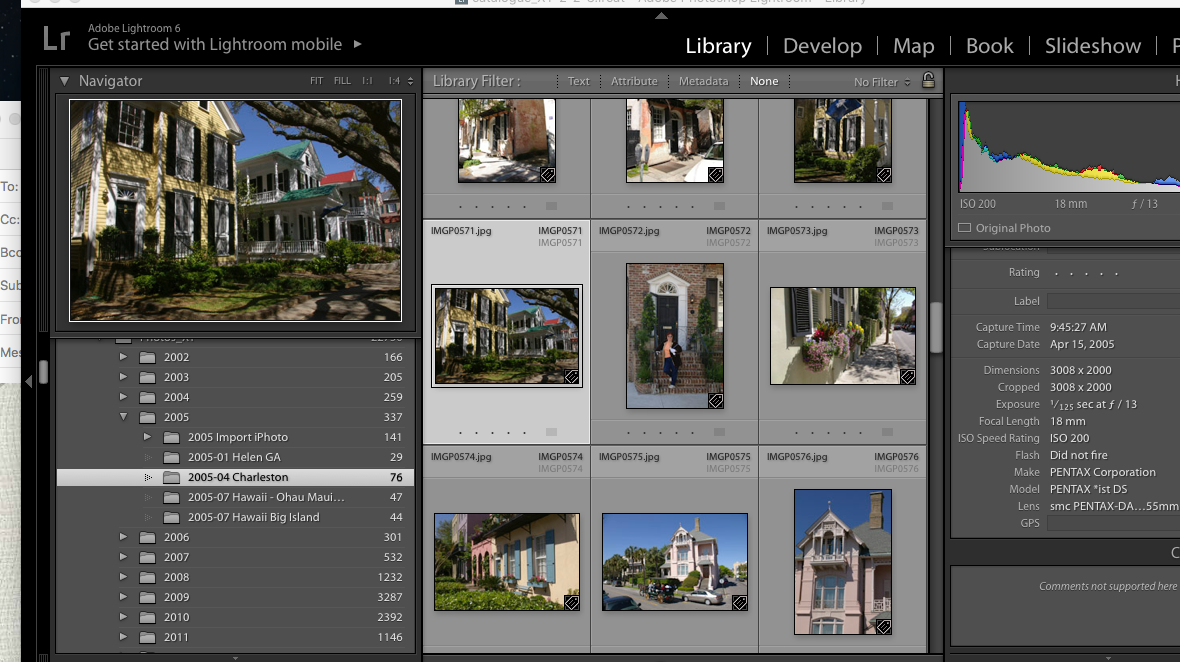
I upgraded regularly up to Lightroom 6, and kept on working with this version until I started progressively using Lightroom Mobile on iOS and iPadOS devices. At some point this year I came to the conclusion that I was not using Lightroom 6 and the old Mac anymore, that all my recent pictures were cataloged and processed on the iPad, and that it made sense to migrate my Lightroom 6 catalog to Adobe’s Creative Cloud.

Using the “Lightroom mobile app” on a iPad – I had not seen how fundamentally different the new cloud based Lightroom was from the old PC or Mac based versions. When some features were absent, I had just assumed it was due to limitations of the iPad or to restrictions imposed by Apple. It’s only when I started considering migrating my Lightroom 6 catalogs to the “new Lightroom” that I could see that Lightroom was at best an umbrella brand, and that there was little in common between the Classic and the (non-Classic) Lightroom.

San Juan, Puerto Rico – shot in 2008 – when I started using Lightroom.

Lightroom 6 and Lightroom Classic are conventional desktop and laptop based applications, that keep a local catalog of the images, and store them on directly attached hard drives and on network attached storage.

The new Lightroom (currently known as “Lightroom”) is a totally different animal. The storage of the images is taken care of by Adobe’s own Creative Cloud. The end users can upload, catalog and edit their images from a Web Interface running in their favorite Web Browser, or from a thin application layer running on smartphones or tablets (iPhone, iPad and Android devices), or on conventional laptops and desktop PCs or Macs. This application layer does not store the images permanently – it just downloads them from the cloud to a local cache when the photographer wants to work with them.

Now, let’s stop for a minute. Yes, you’ve read it right – Lightroom Classic (with the local catalog pointing to the local storage) and the new Lightroom thin app with its cloud storage can run simultaneously on a PC or a Mac. Depending on how you set them up, they will or will not keep their respective collections in sync. In sync, but separated and largely independent.

San Juan, Puerto Rico – Nikon D80 – April 2008

What I had not understood was that even if they look similar upon a cursory examination, Lightroom Classic and Lightroom (the new, cloud based Lightroom) are largely incompatible. Each lives in its own universe – they share pictures and edits transparently, and seem to cohabitate in perfect harmony – but they remain in separate worlds.

You fully realize how different the two products are the day you decide to abandon Lightroom Classic and its local storage, and start considering working exclusively with “Lightroom” in the cloud universe. Naturally, you will want to bring your catalog of Lightroom Classic images to the Creative Cloud, and that’s when you’ll start feeling the pain.

Because the migration of your Lightroom Classic catalogs is painful. In fact, there is no migration as such. When you export a collection to the cloud, Adobe retains your original image as transferred from the camera, but all the subsequent edits to that image will be aggregated in a single all encompassing step. Basically, you will get your original, and the final state of your image after all the edits have been applied. Adobe will also retain the metadata of the picture, the information you have added (title, comments, keywords, flags, stars) but not much else. The original folder structure on your local disks, the smart collections, the photo albums, the slide shows, even geo tagging information – won’t be transferred and will therefore be lost.

Near Pienza, Italy – Fujifilm X-T4 – July 2024, after I definitely switched to “Lightroom mobile app”

It may seem like a huge loss. But I’m an amateur and don’t make a living from my pictures. I’ve already printed the photo albums I needed to print, shared the slide shows I wanted to share, and won’t need to go back and rearrange them. As long as I can keep my pictures as they were when I was finished editing them, I’ll be fine. Having the ability to return to my images from any device, anywhere, without having to worry about storage devices, RAID arrays and off site backups, without even a laptop, has more value to me than the layout of a few photo albums.


Naming conventions….

Adobe has kept changing the names of its “Lightroom” products, and even today, they are not perfectly consistent.

The conventional PC/Mac version of Lightroom, with its local storage, its local catalog, and its very broad feature set, is known as “Lightroom Classic“. Abbreviation: “LrC”

The “new” Lightroom, combining cloud storage and a thin interface running on a browser, a smartphone, tablet, PC or Mac is simply known as “Lightroom“. Some people still call it “Lightroom Creative Cloud” or “Lightroom CC”. But it’s “Lightroom“, abbreviated as “Lr” in the dock of a Mac or a PC, and on the Home screen of a mobile device.

When it’s running on a smartphone or a tablet, “Lightroom” is designated officially as “Adobe Photoshop Lightroom mobile app“, but it’s still abbreviated as “Lr”. The Lightroom mobile app is free but its feature set is limited. In order to work with RAW files, store images in the Adobe Creative Cloud and play with the new generative AI features, you will need to subscribe to Premium features (and you will be using “Adobe Lightroom mobile app with premium features enabled“, abbreviated as “Lr”, of course).


More about the differences between Lightroom Classic and Lightroom when it comes to storage


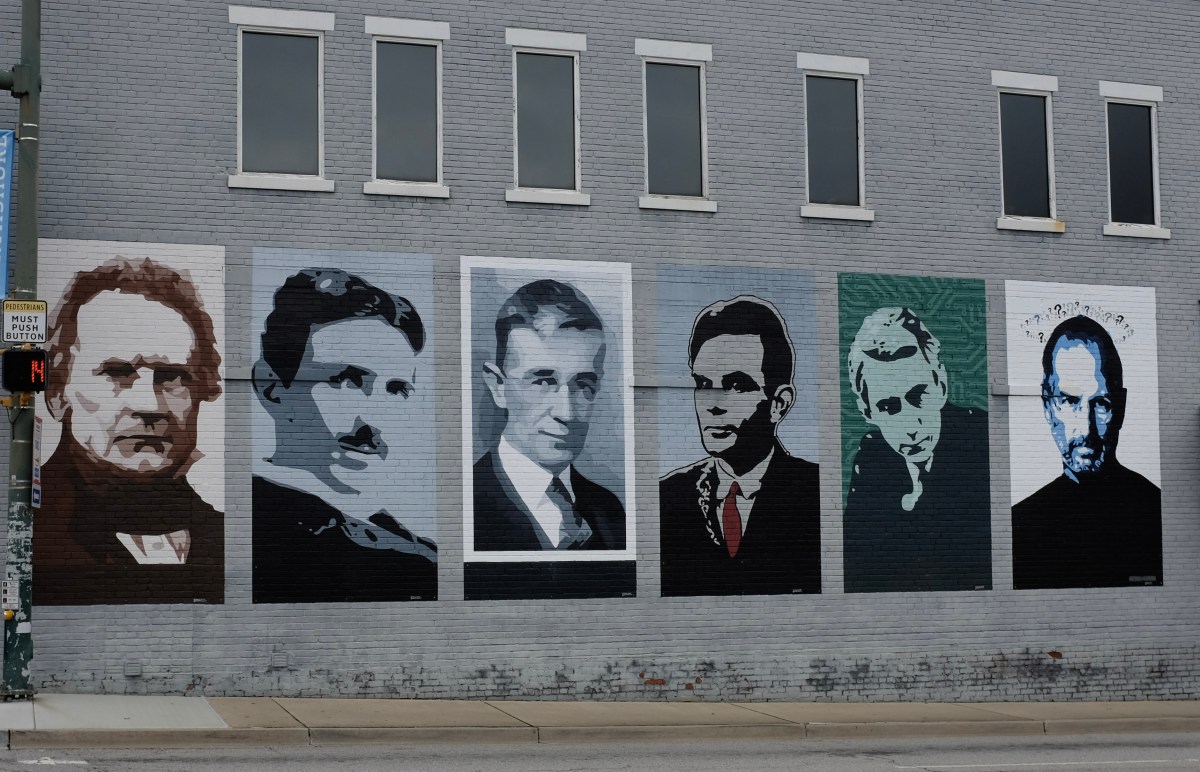
Did you recognize them?

“The Fathers of Technology” : Charles Babbage, Nikola Tesla, Vannevar Bush, Alan Turing, Claude Shannon and Steve Jobs. Corner of Tremont Street and Frazier Ave – Chattanooga, TN

Fujifilm Instax Printer: the gift that keeps on giving

You “take” pictures, but how do you “give back” to the people you’ve just photographed? Here is a suggestion: print the pictures, and give the prints, on the spot, right after you’ve shot them. It’s a nice gift to family and friends with whom you’re sharing good moments, and to the people who have generously let you capture their image, and, maybe, a bit of their soul.

Very few people still create photo albums. Because nobody has prints. Composing a photo-album online takes time, effort and money, and it can be one to two weeks before you receive it. Printing a selection of images on a pocket printer is an easy way to create pocketable photo albums with no hassle; wherever, just when you feel like it, for not much money. Instant gratification.

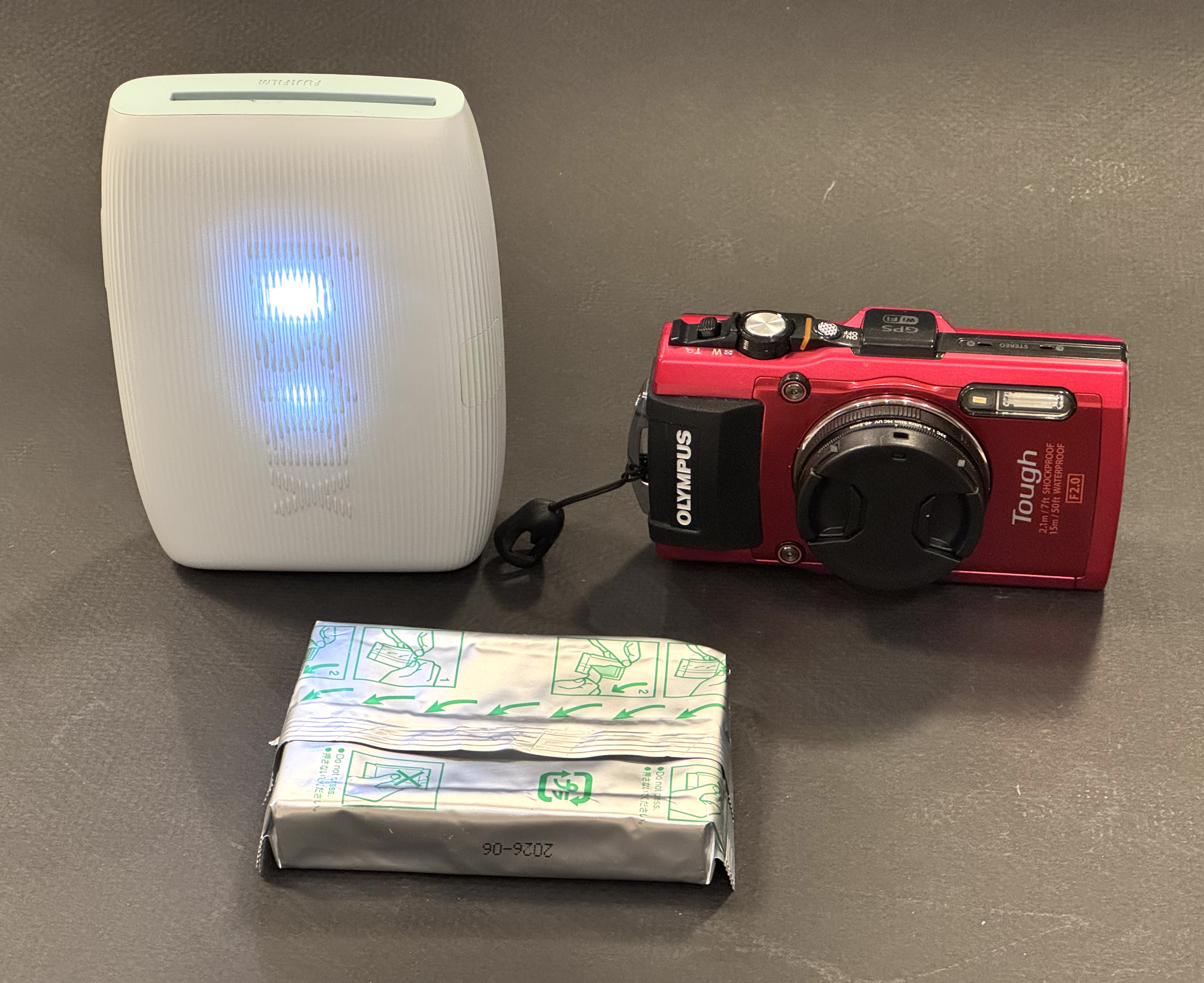
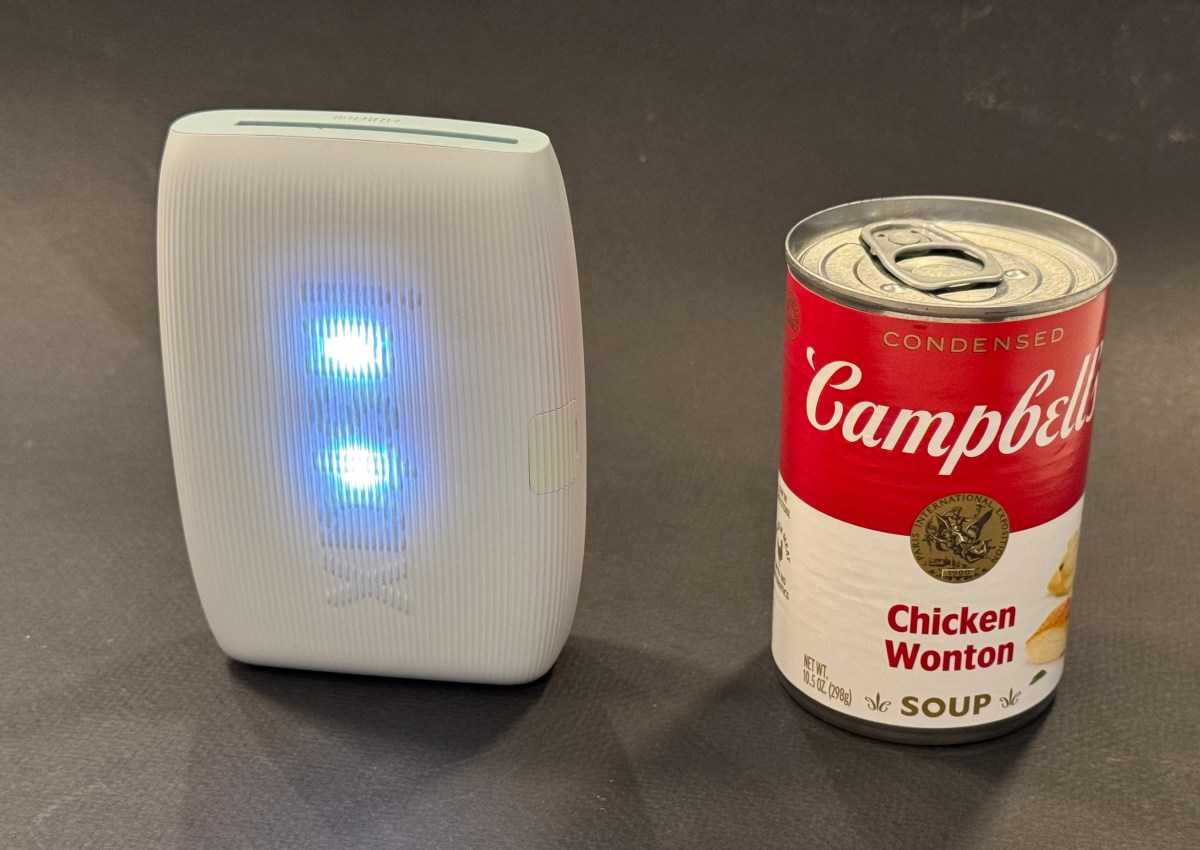
No Campbell Soup for you – the mini Link 3 is about twice the size of a compact camera. It’s totally wireless and the battery is good for 100 prints between two charges.

There are many more ways to use those mini-prints: in Japan school girls insert their Instax prints in plastic cases that they use to accessorize their bags, and I create my own personalized luggage tags – you won’t confuse my suitcase with anybody else’s. Your imagination is the limit.

How does it work?

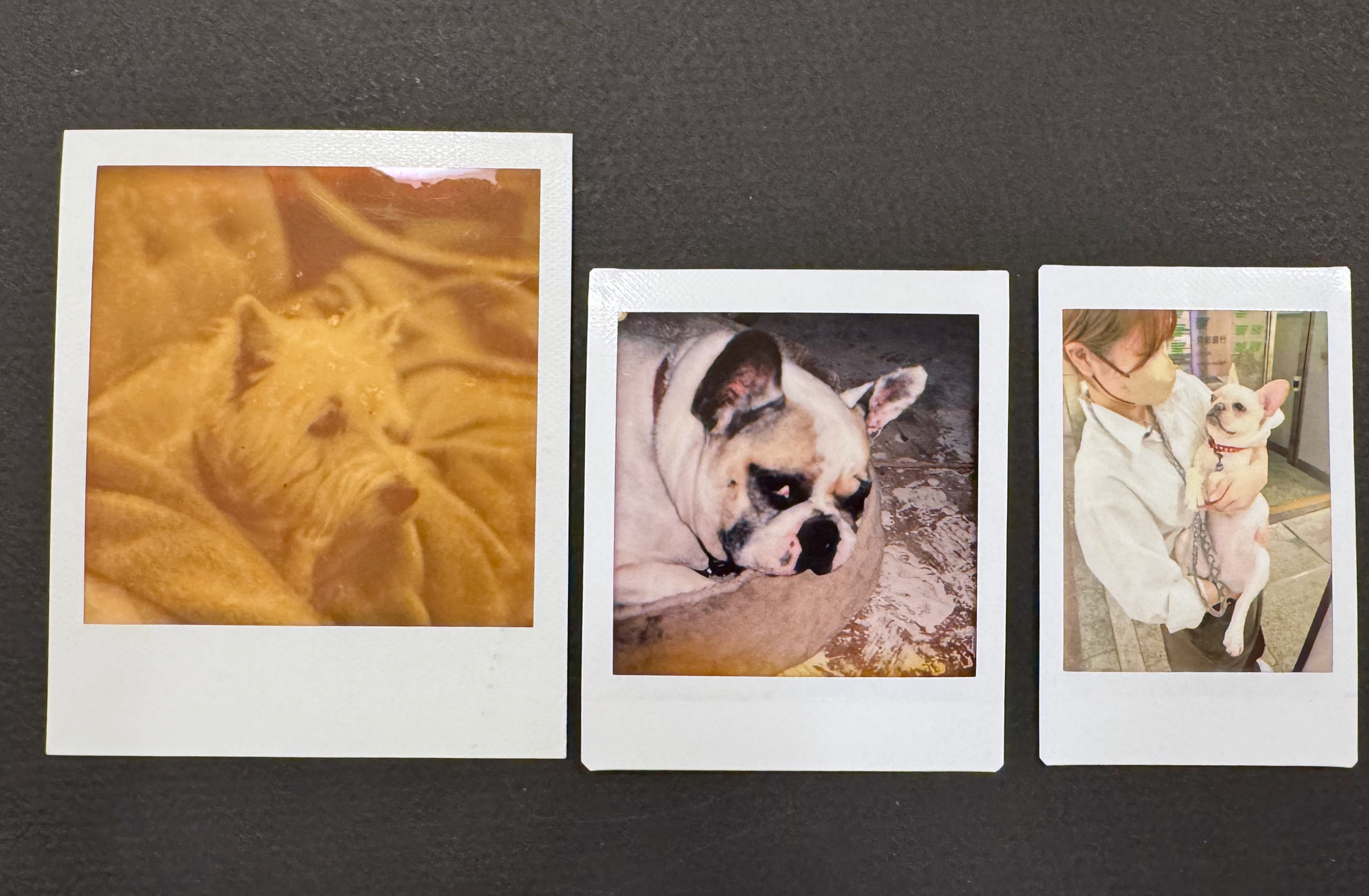
Fujifilm sell their instant film in 3 sizes: Instax Mini (the image is roughly the size of a business card), Instax Square (a bit larger, and square), and Instax Wide (twice the size of the Mini). They manufacture cameras for each of the three formats, as well as dedicated portable printers.

Comparing print sizes: Polaroid SX-70 vs Fujifilm Instax Square vs Fujifilm Instax mini.

Other makers of pocketable printers use different technologies (zero ink paper, generally) but with Fujifilm, it’s about silver halide, of course. Once a print is ejected from the printer, the image needs a few minutes to fully develop, but it’s part of the magic of instant film. Today we’ll focus on Fujifilm’s Instax Mini Link 3. It’s a pocketable, battery operated printer, that, when paired with a smartphone and loaded with a 10 print Instax Mini pack, will print business card size pictures. Of course, there’s an Instax Mini Link app to download and install on your smartphone.

Images can be printed directly from the photo gallery of the mobile device (with Fujifilm’s default settings), but the output will be better if you first bring the images in the Mini Link app, play with the contrast slider (I always boost it a notch), and print them from there.

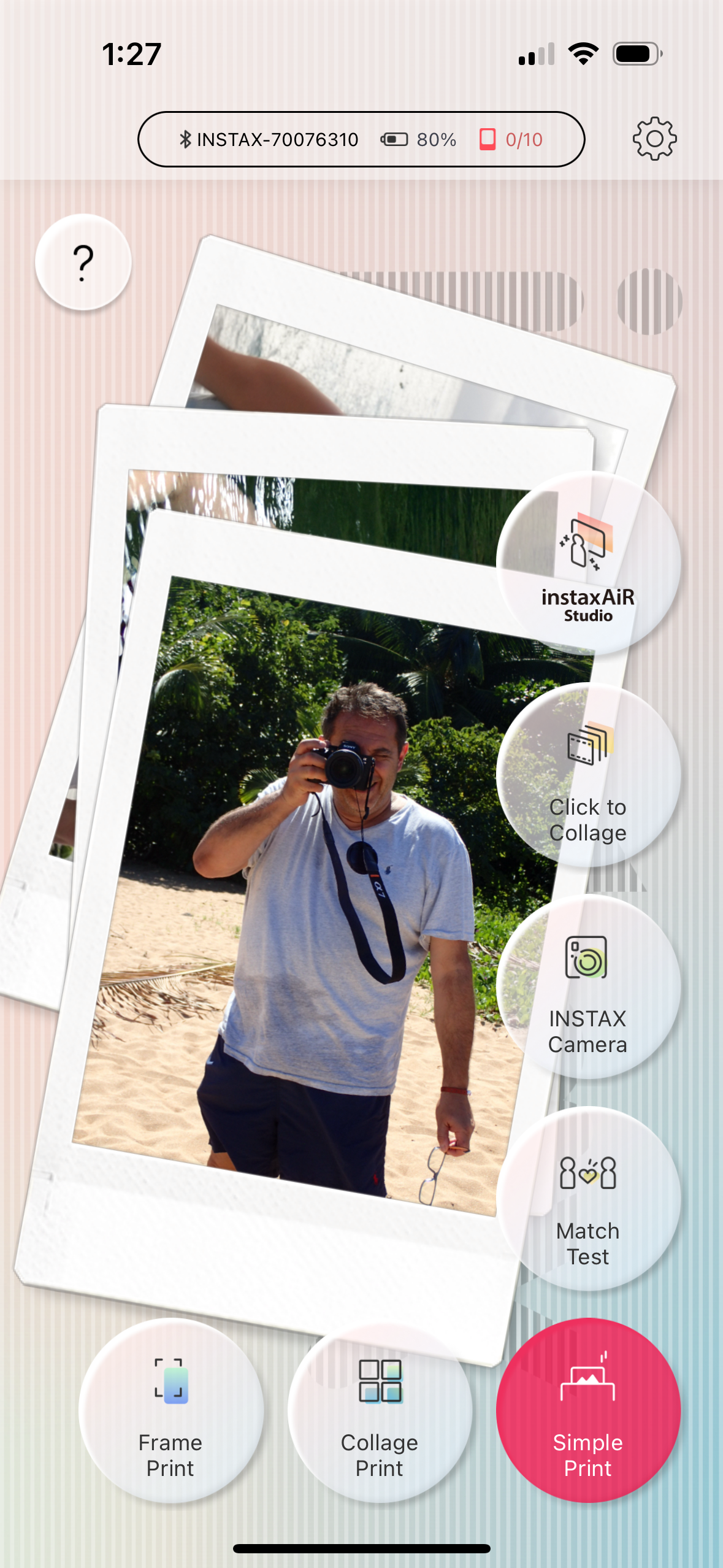
The Mini Link app. For me “Simple Print” will do.

In my experience, the Mini Link transposes the colors and the exposure of the original picture accurately, and its prints are more defined and massively nicer than what you would get if you took a picture with a Fujifilm Instax camera. The Instax film is a much better performer than the very basic Fujifilm cameras designed to consume it, and the printer takes advantage of its potential. When you start from a good picture taken by a smartphone (or a dedicated camera), you’ll be happy with the prints.

The mini Link app and its basic settings.

I understand why people use instant cameras. There is a “fun”, almost magic component to it. But instant cameras are bulky, the quality of the prints generally poor, and if by pure luck you get an interesting picture, it will be unique, and the only way to share it will be to take a photo of it with a smartphone, and print the copies. From a totally dispassionate point of view, it’s a rather inefficient and wasteful way to use a pack of film.

No such issue with the Instax printer. You lose some of the magic – it’s not as “immediate” as pushing the shutter button on a Instax camera and the results are not as unpredictable – but you only print your good images after you’ve had an opportunity to crop them and tweak the exposure parameters on your smartphone. Your “keeper” rate will be very close to 100%, and you will print as many copies as your budget (and your patience) allow.

The image is being printed. It only takes a few seconds.

There is not much else to say about the Mini Link. It simply works. Prints are small and but good enough for the intended use – reminiscing of good times spent with loved ones, and instantly sharing a token of appreciation.

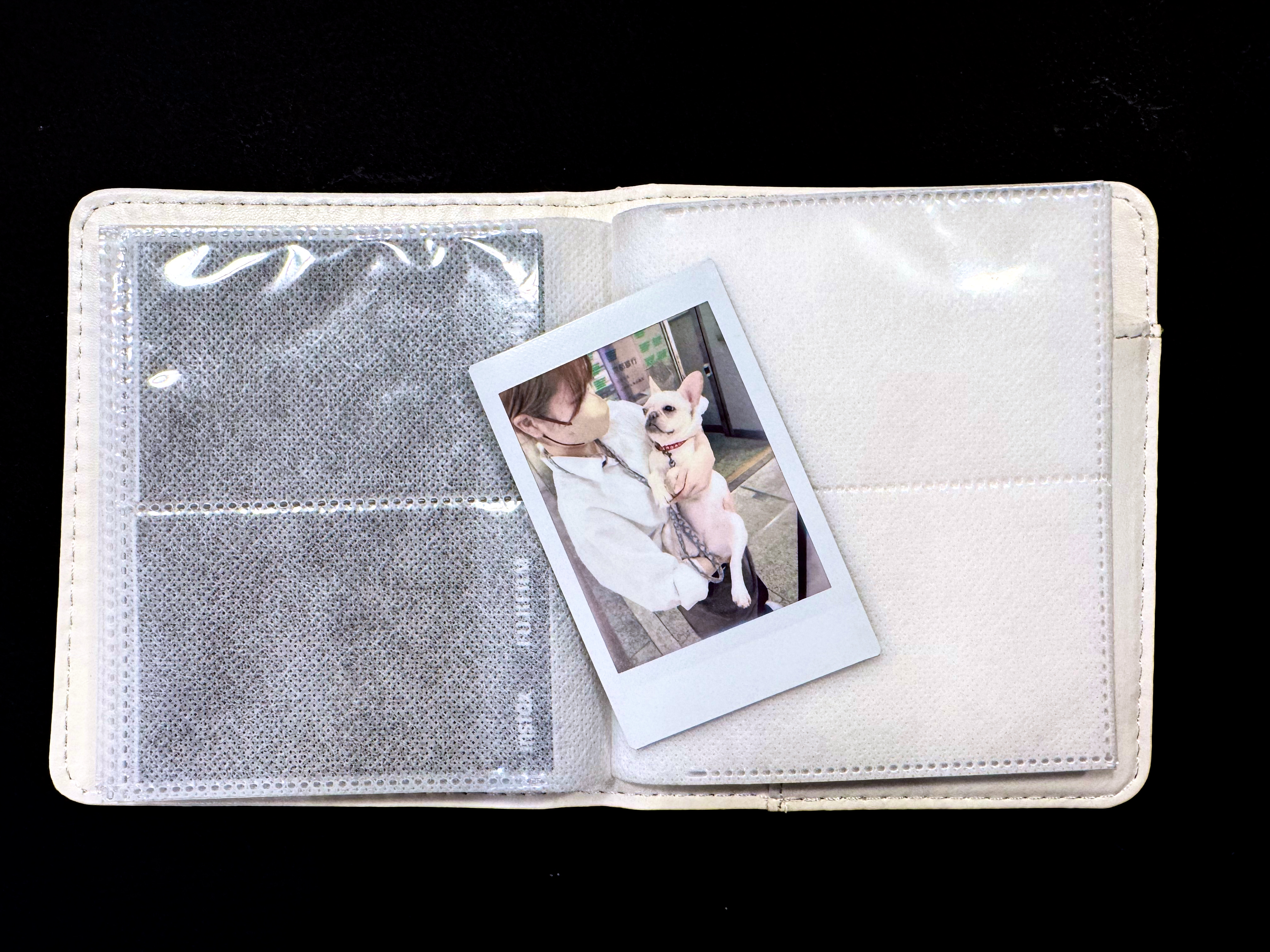
The mini print and one of the mini photo albums proposed by Fujifilm. This one is not particularly nice but came for free with an Instax camera.

The Mini Link 3 comes in three different colors (mine is “matcha green”) and sells for approximately $100. Prints cost a bit less than $1.00 each. I’m leaving mine permanently in my photo bag, and share the love whenever I can.


Hybrid Instax cameras: In addition to conventional “analog” Instax cameras and pocketable printers, Fujifilm also has a few hybrid Instax cameras in its lineup (Instax LiPlay, Instax Evo). Hybrids can be described as Instax printers, with a tiny 5 Megapixel sensor and a lens in the front, and a small color display at the back, packaged as a compact integrated device. The camera captures a digital image, that the photographer can evaluate on the color display, and decide to print, or not to print. Because the images are captured as digital files and saved on a micro-SD card, they can be edited, printed once or multiple times (in camera), and uploaded to a smartphone.

Zero Ink paper – if you over simplify, it’s not dissimilar to the thermal printer technology used to print receipts at the cash register or at the gas pump. But nicer, and more stable over time. The photo paper contains microscopic dye crystals that are initially colorless, and change color when they are heated. I had tested a Zero Ink (Zink) printer from Polaroid a long time ago. The prints aged well. Polaroid, Kodak and Canon are currently selling pockable printers integrating Zink technologies.


Fujifilm’s marketing campaign.

Lightroom for Mobile Premium: migrating images from Lightroom 6
In a previous post, I was debating whether it made sense for me to adopt Lightroom for Mobile and rebuild my workflow and photo cataloging process with it – and the answer was mostly Yes. I had concerns about the inability to perform bulk tagging over an album. I have not found a perfect solution – tags can be copied and pasted from one picture to another one, but as far as I can see, you have to paste the tags on every picture individually. Not ideal.

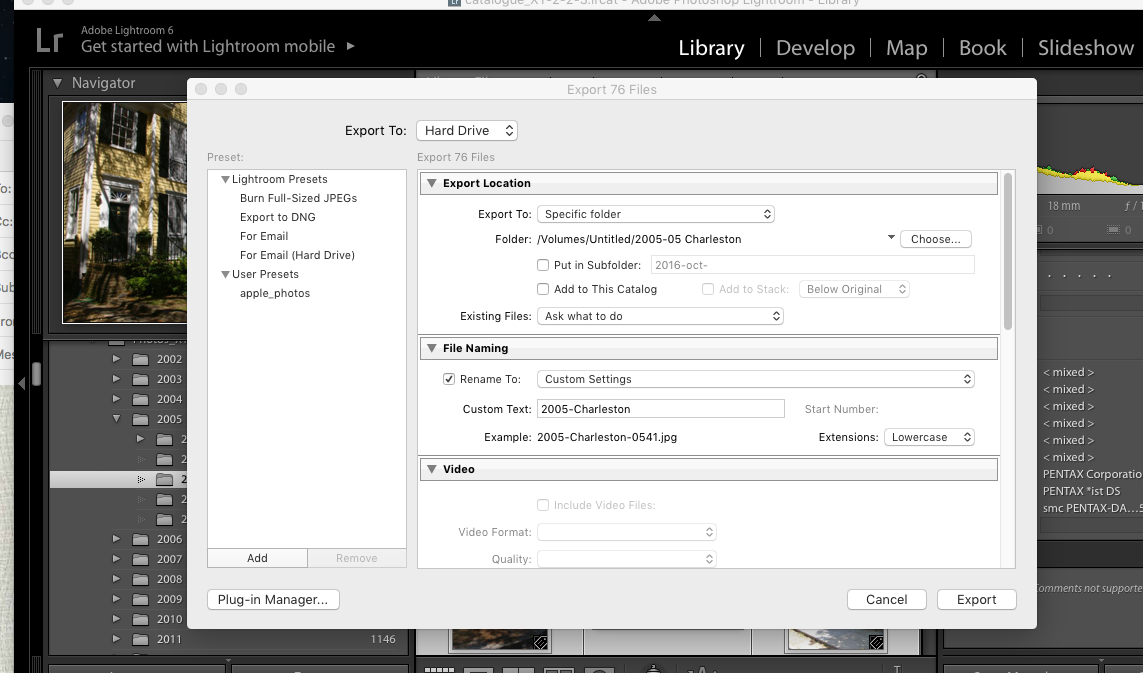
Step #1 : select the folder or the collection to migrate in Lightroom 6

The big unknown was whether I should also migrate my old Lightroom libraries to Adobe Cloud as well. I checked – I have 30,000 photos on my network storage (a mix of proprietary RAW files from Nikon, DNG files and JPEGs). But they only consume 300 GB on the NAS (that’s an average of 10MBytes per picture if you do the math), and it’s likely that nearly half of those images are duplicates (images were generally copied from the memory cards and saved as Nikon proprietary RAW files, then converted to Adobe’s DNG format and saved again). And I tend to keep every image, good or bad, when most pictures should have been culled a long time ago. So, maybe less than 100 GB of keepers. Adobe Cloud storage fees will not send me to the poor house.

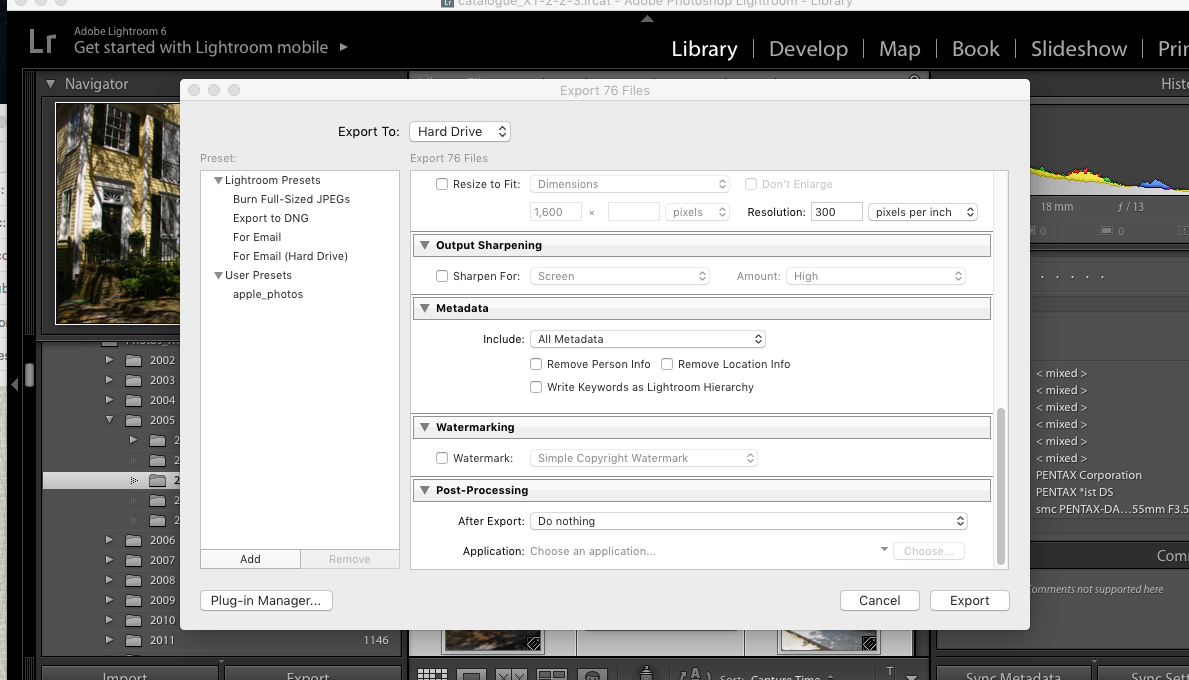
Step 2 – select the pictures and right click to export them (here as jpegs).

Originally, I thought I would simply be copying my old Lightroom 6 catalog file to the Adobe Cloud, and that Adobe would do the rest. It’s simply not the case.

Firstly, not everything is migrated: the history of the edits, the folder structure, the books, slideshows, and smart collections and a few other things don’t make the trip to the cloud (I assume they remain available on Lightroom Classic if you keep licensing it after the migration to Lightroom, but I could not validate this statement for the reason exposed in my second point). For all practical purposes, it looks like Adobe Lightroom Classic and Lightroom (in the Cloud) are two significantly different products – and that a lot is lost during the migration.

Secondly, Lightroom catalogs and files can’t be uploaded to the cloud by Lightroom 6. The migration to Adobe’s cloud can only be performed from a recent version of Lightroom Classic, and upgrading from LR6 to LR Classic is a necessary first step. You can get a 7 day trial version of Classic, so it’s not directly about money. The problem is that Classic only runs on a recent PC or Mac (Windows 10 or better, MacOS 13.1 or better) – and my Mac is an antique by their standards – it won’t run LR Classic. There are other constraints I did not even explore like finding more local storage for the Lightroom cache (with Lightroom, images are stored permanently and at full size in the cloud and replicated to a cache on the PC or the Mac only when they are needed), because I was not going to upgrade to a new Mac just to be able to migrate my Lightroom catalogs.

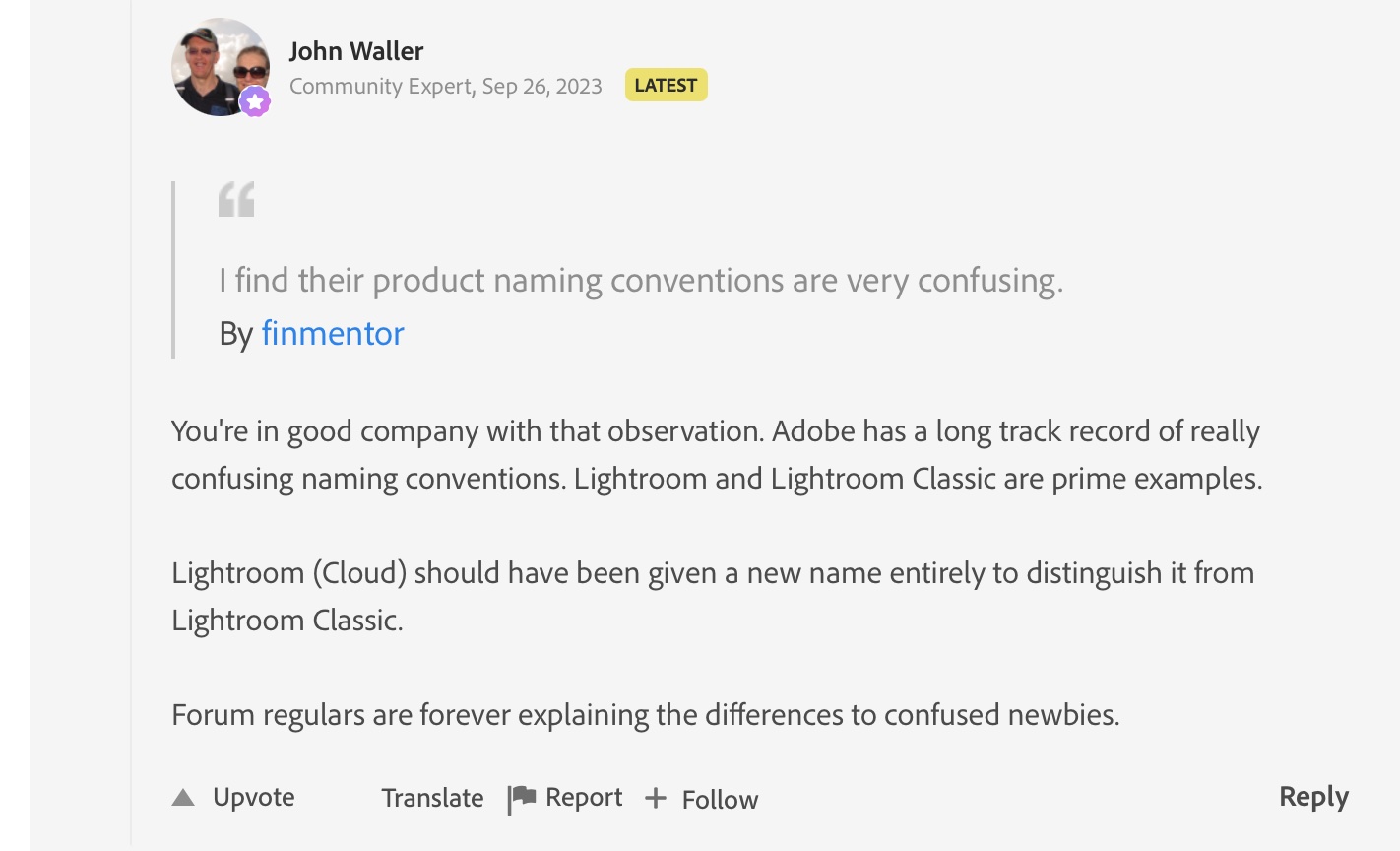
Thirdly, if it sounds clear as mud to you, you’ll be comforted in knowing you’re not alone – from Adobe’s Community Support:

From Adobe’s Community Support

So, considering all of the above, I decided NOT to migrate my Lightroom catalog to Adobe’s cloud. Instead I’ll export already developed JPEGS from Lightroom 6 to Lightroom Mobile, collection by collection.

Step #2 (continued)

I don’t think I’ll miss much. Because so much is lost during the catalog migration, just exporting the Jpegs is going to be almost as good. I’ve been using Lightroom Mobile for a while now, and anything I’ve shot in the last 24 months and that I may need to edit again has already been uploaded to Adobe’s cloud. Anything older than two years was culled and processed in Lightroom 6 a few days after it was shot, and it’s unlikely I’ll need to go back to the original RAW or DNG files and process them again. Keeping the good pictures as JPEGs in Lightroom Mobile makes me laptop free, with images always accessible, easy to consume and share. And if I ever need to re-process a 15 year old RAW file, my Lightroom Folders and Albums are mimicking the folder structure I have on the NAS, and finding the image I need will be easy.

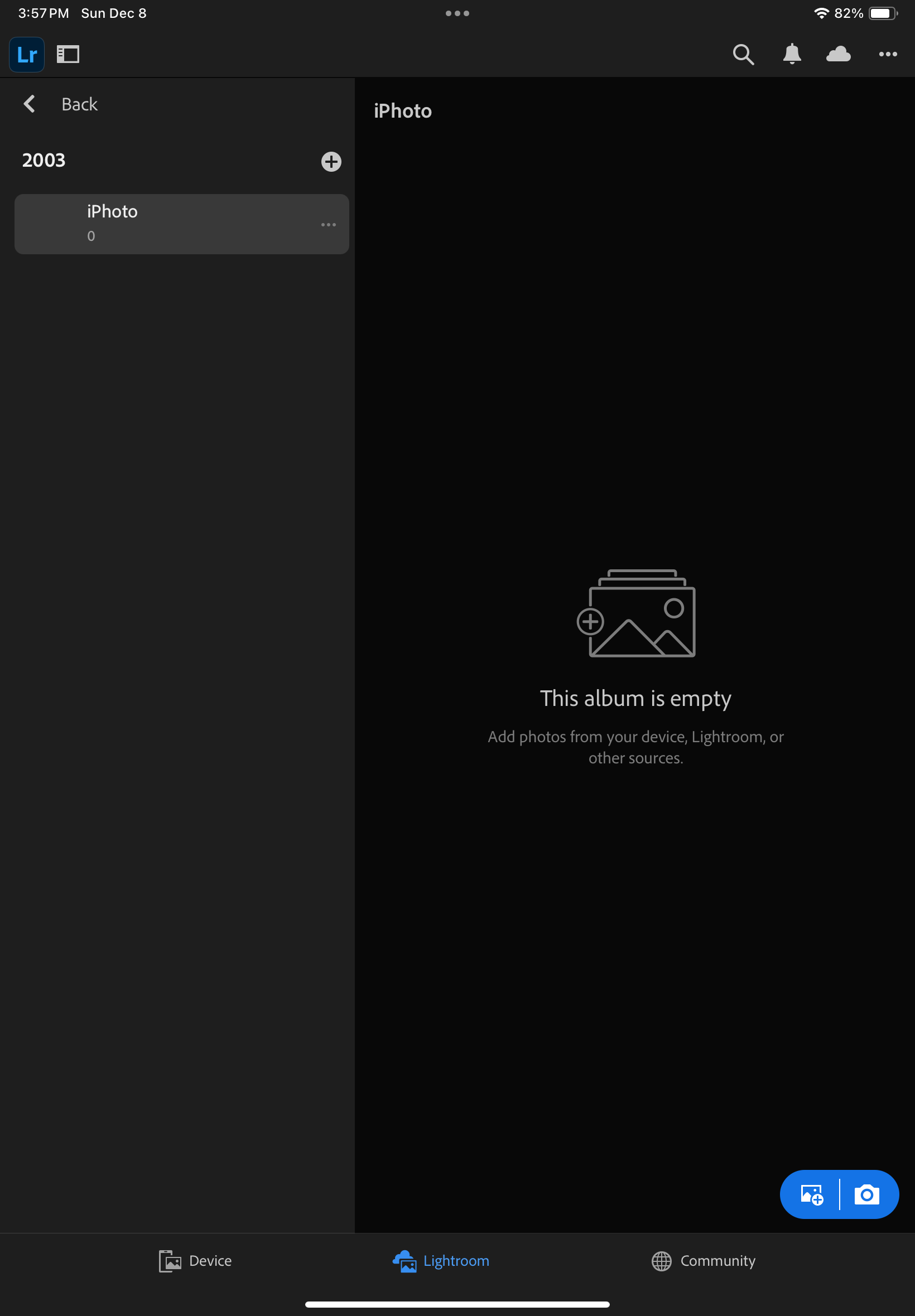
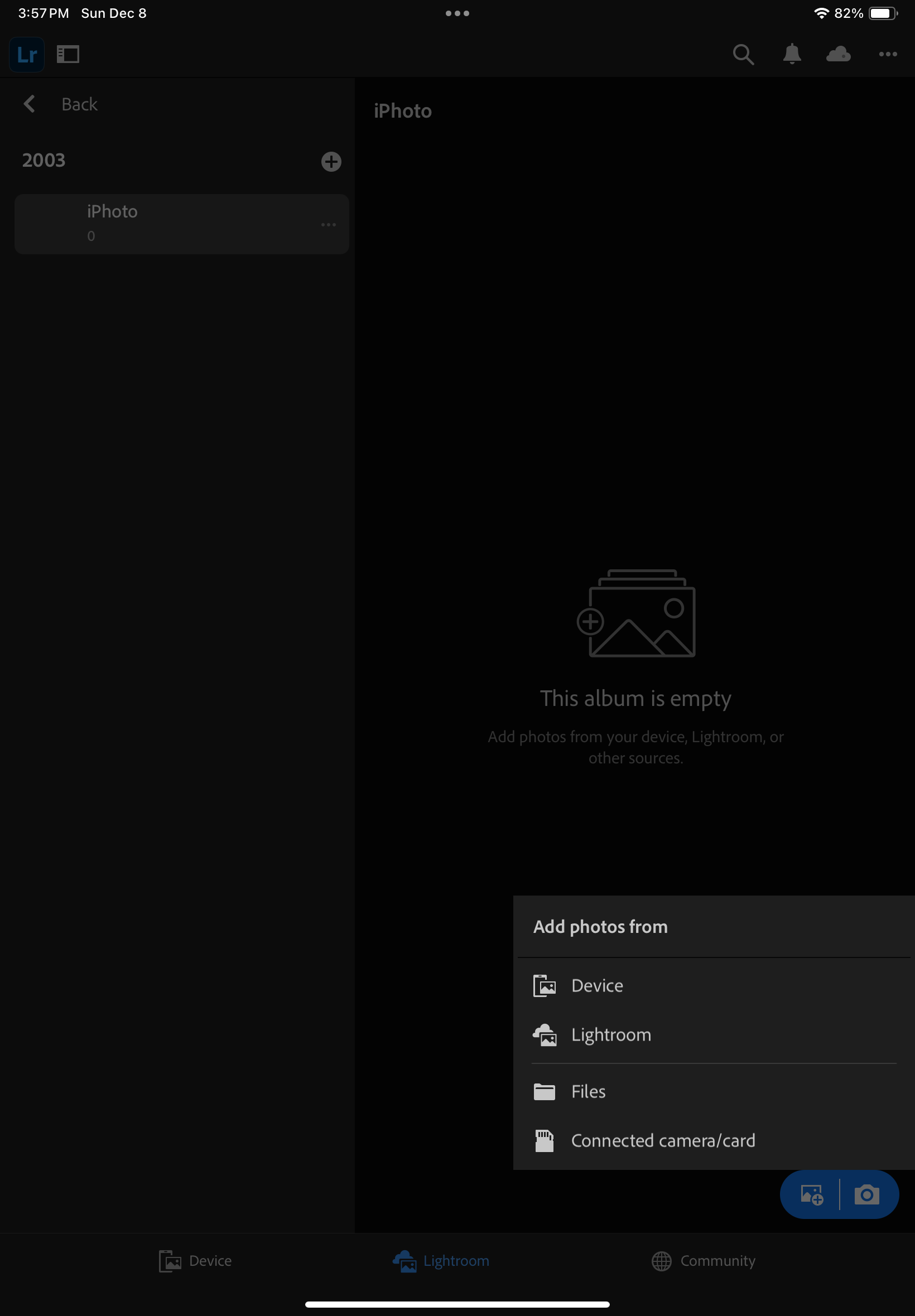
Step #3 – in Lightroom Mobile, create a folder and and album, and press the Add Image icon (bottom right)
Step #3 (continued) – Add photos from Files (because they’re saved on an external volume)
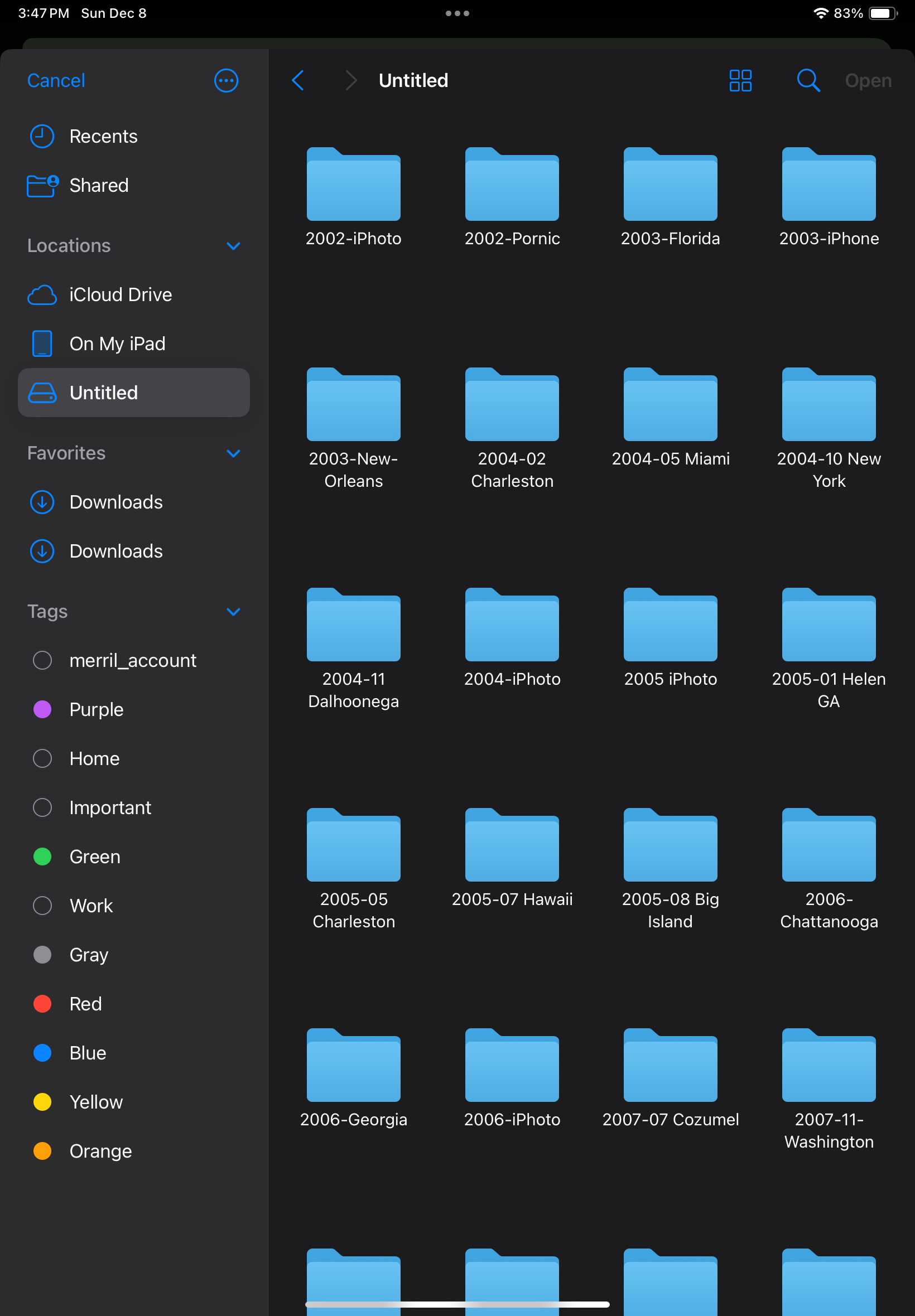
Step 3 (continued) – Select the folder where the photos to be imported are located.
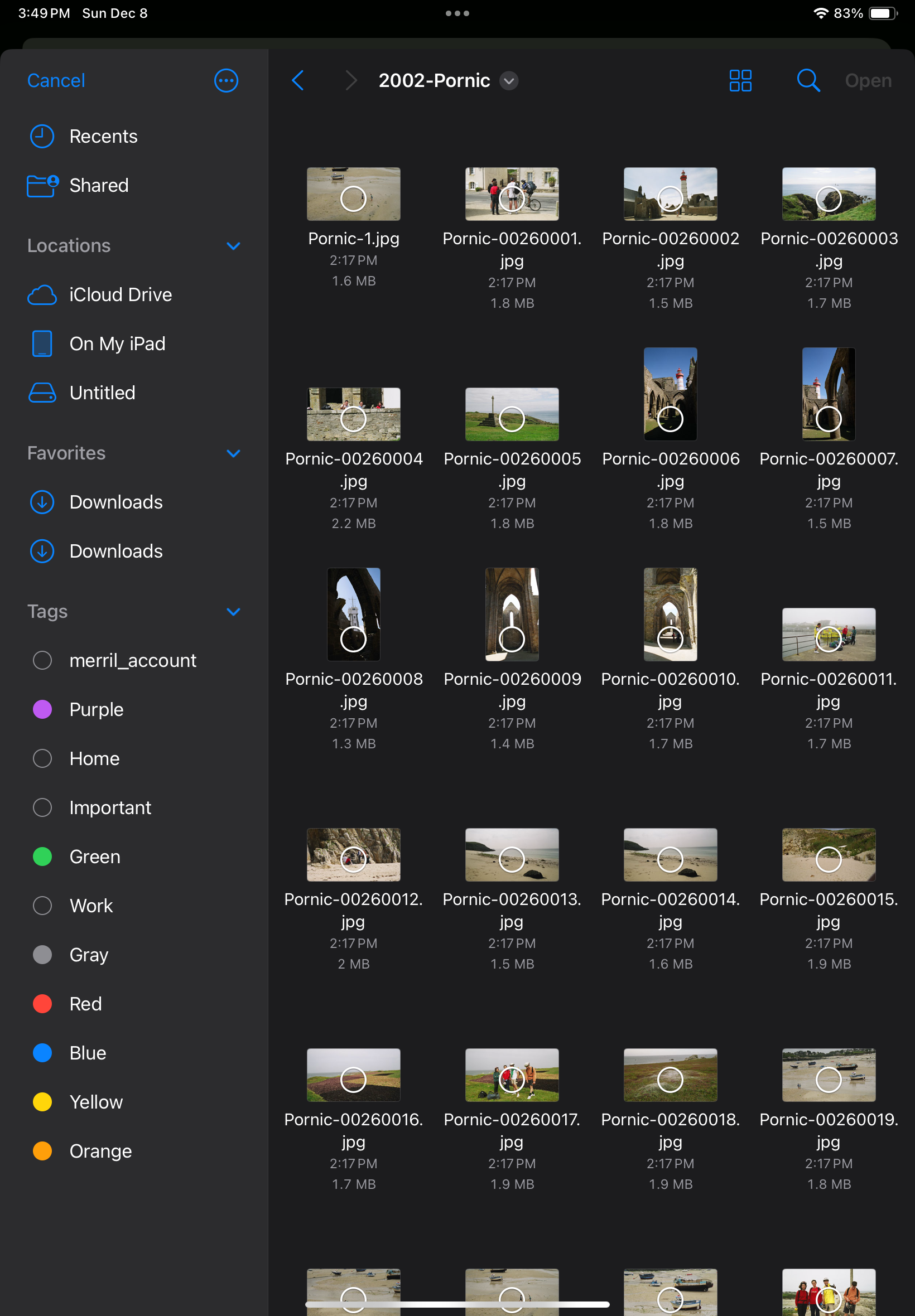
Step #3 (continued) – Select the images to import
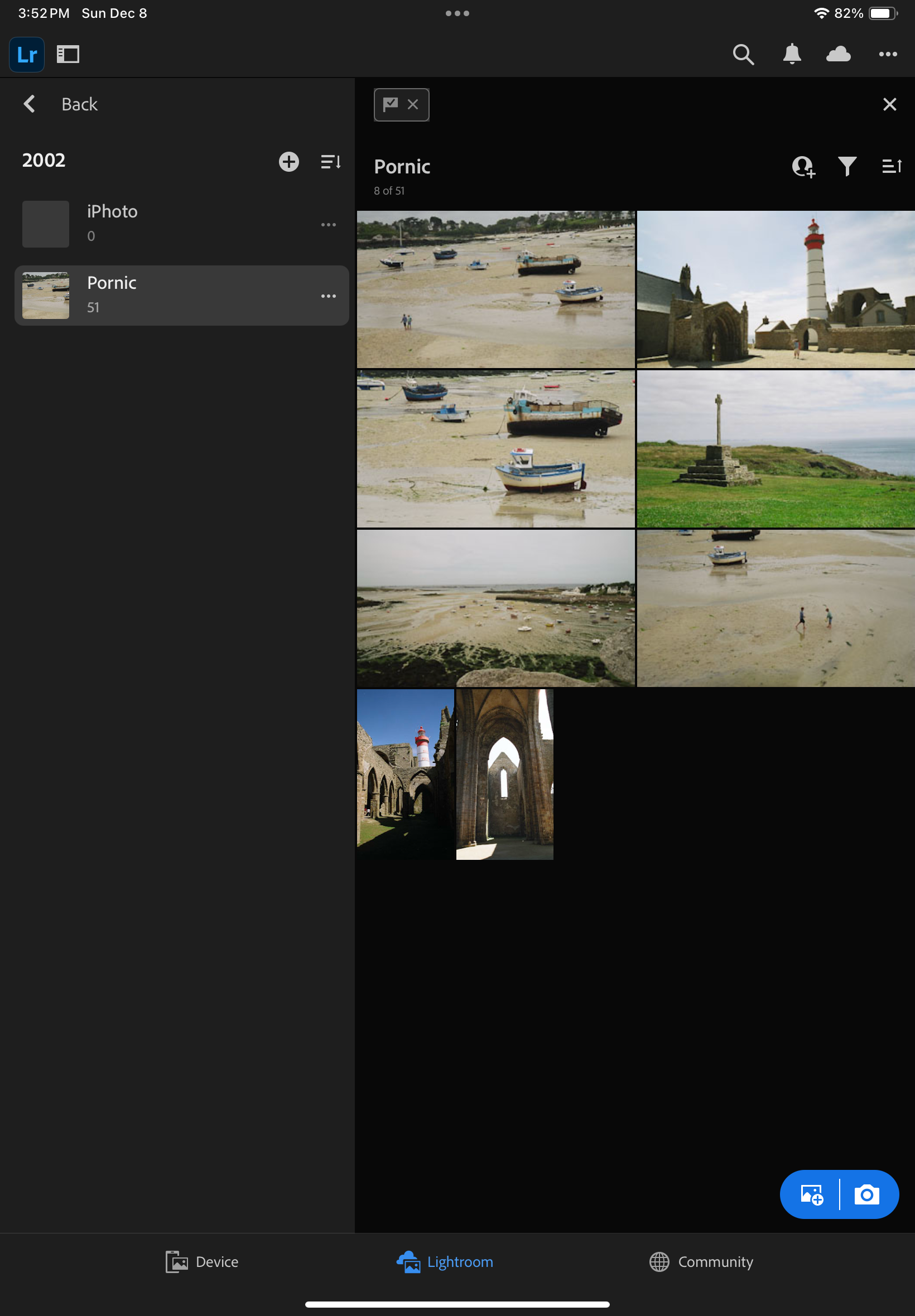
Done.

One thing I took great care of testing was how the metadata associated with each picture was migrated to Lightroom Mobile.

I exported the images as JPEGs, and they reflect the last changes made to the image in Lightroom 6 – if the original image was cropped, its sliders moved left and right, I won’t know it because the log of the edits is not incorporated in the JPEG that Lightroom generates. In other words, the images will be exported in their most recent state without their history, and no roll back of the settings will be possible.

On the other hand, anything else is incorporated into the JPEG image – the metadata recorded originally by the camera or the film scanner, of course, but also the title, captions, keywords and even the flags and the stars added by the photographer and associated with the image in Lightroom’s catalog.

Importing the JPEGs to Lightroom Mobile (or Web) is a breeze – connect the media containing the files to the iPad or to a desktop/laptop (using the Web version on Lightroom in that case), create a folder and an album in Lightroom, and upload the pictures.

The Metadata is preserved during the transfer
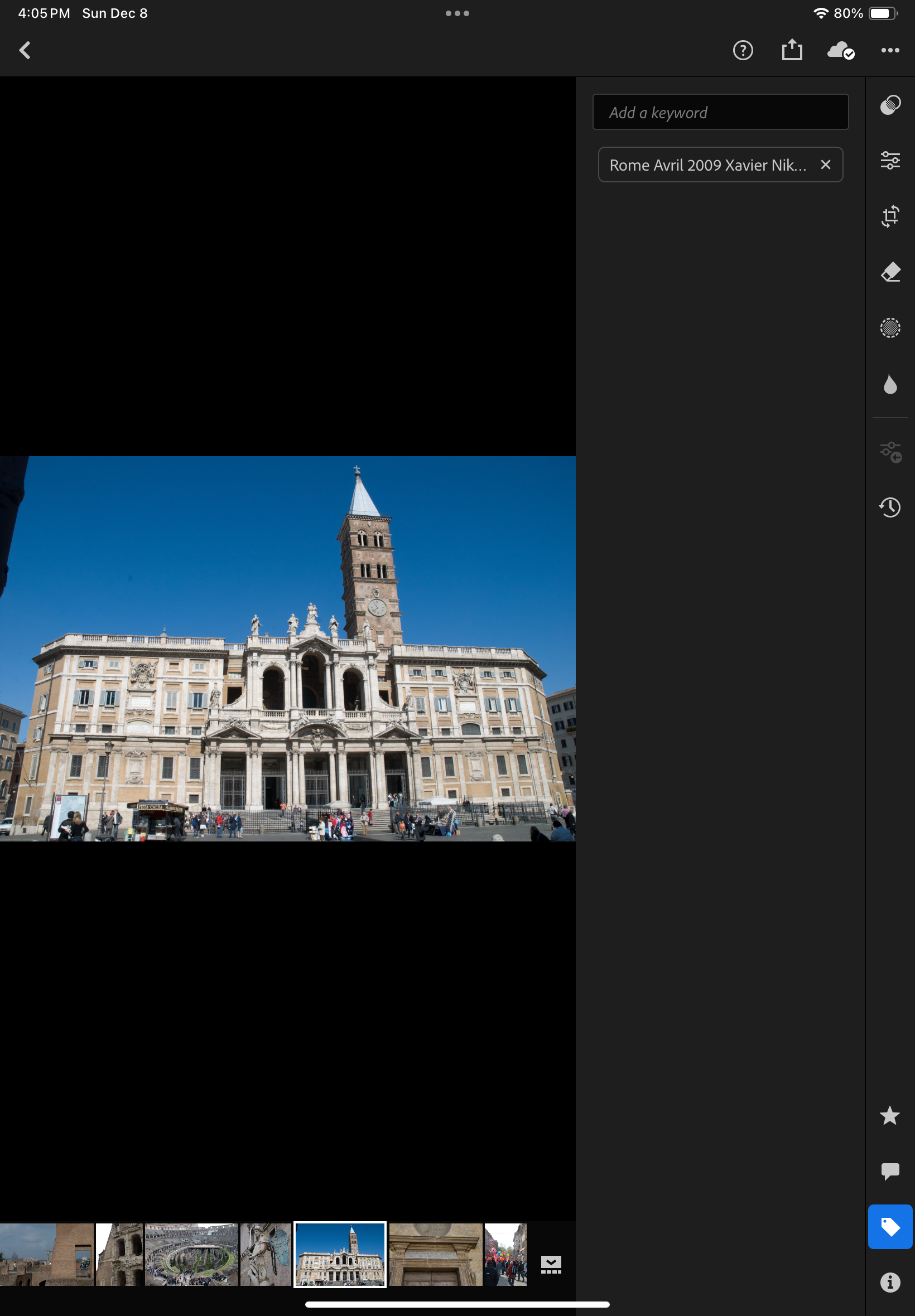
Including the keywords

Experience has taught me that no technical solution is perfect, or eternal. I’ve seen Apple iPhoto and Aperture being abandoned, Lightroom migrating from a perpetual license to a subscription model, and multiple online image storing and sharing services fall into irrelevance or disappear.

At this moment, Lightroom for Mobile with Premium features meets my needs, and I expect it will remain the case in the next few years. Eventually with an upgrade to 1TB of storage. The product is already mature, and it allows me to be laptop free – at least when it comes to photography. I expect Adobe to keep on working on their product. They’ve already started adding AI powered features to make photo editing or masking easier. I simply hope they will also find the time to address some of the little issues that irritate me.

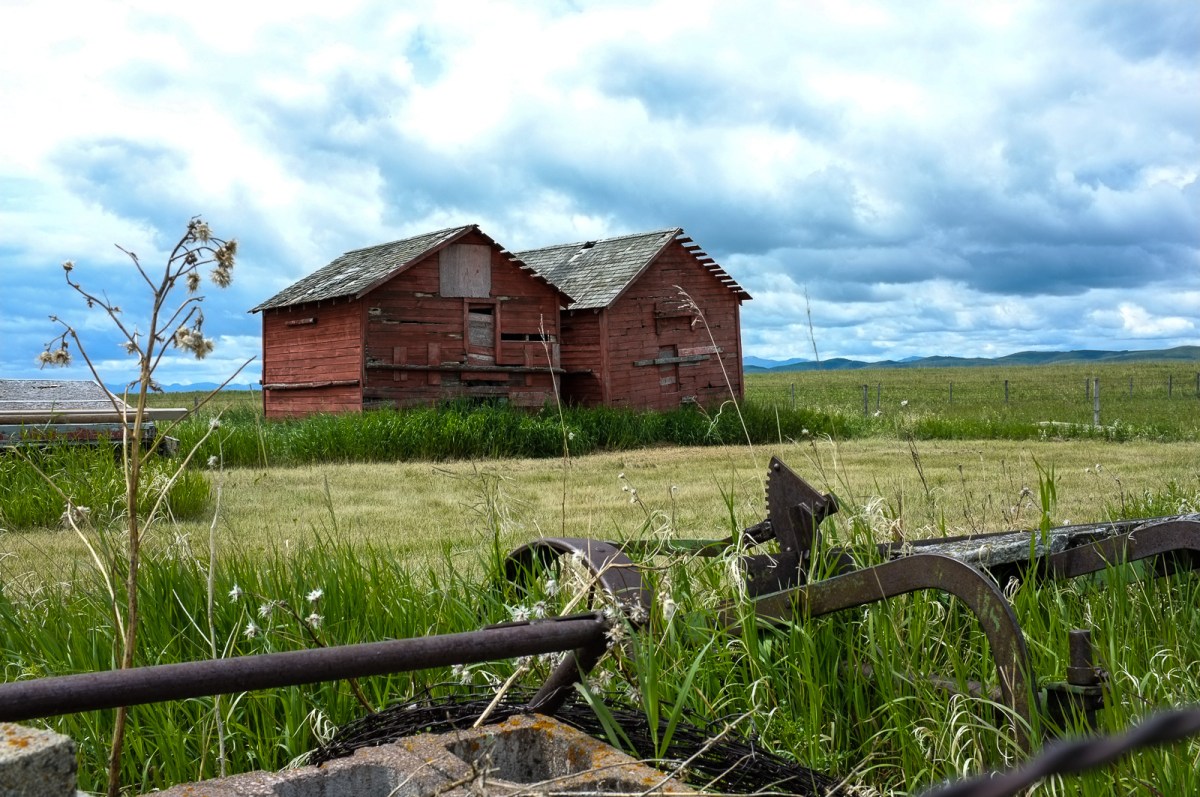
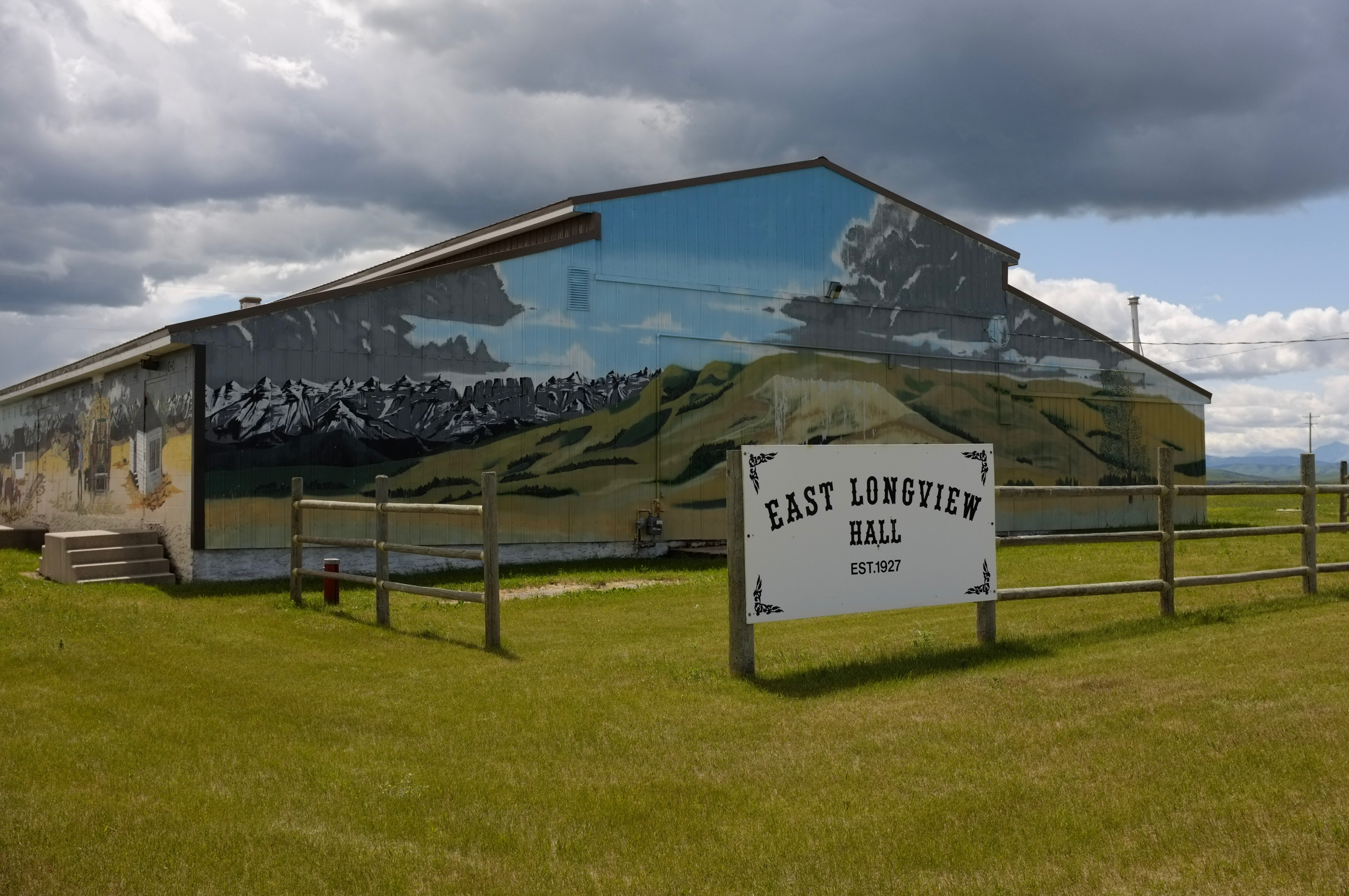
In the rolling grasslands East of Calgary, Alberta – Fujifilm X-100 – June 2016.

More about the migration from Lightroom Classic (with local storage) to Lightroom (with cloud storage).

From the horse’s mouth: https://helpx.adobe.com/lightroom-cc/using/migrate-to-lightroom-cc.html

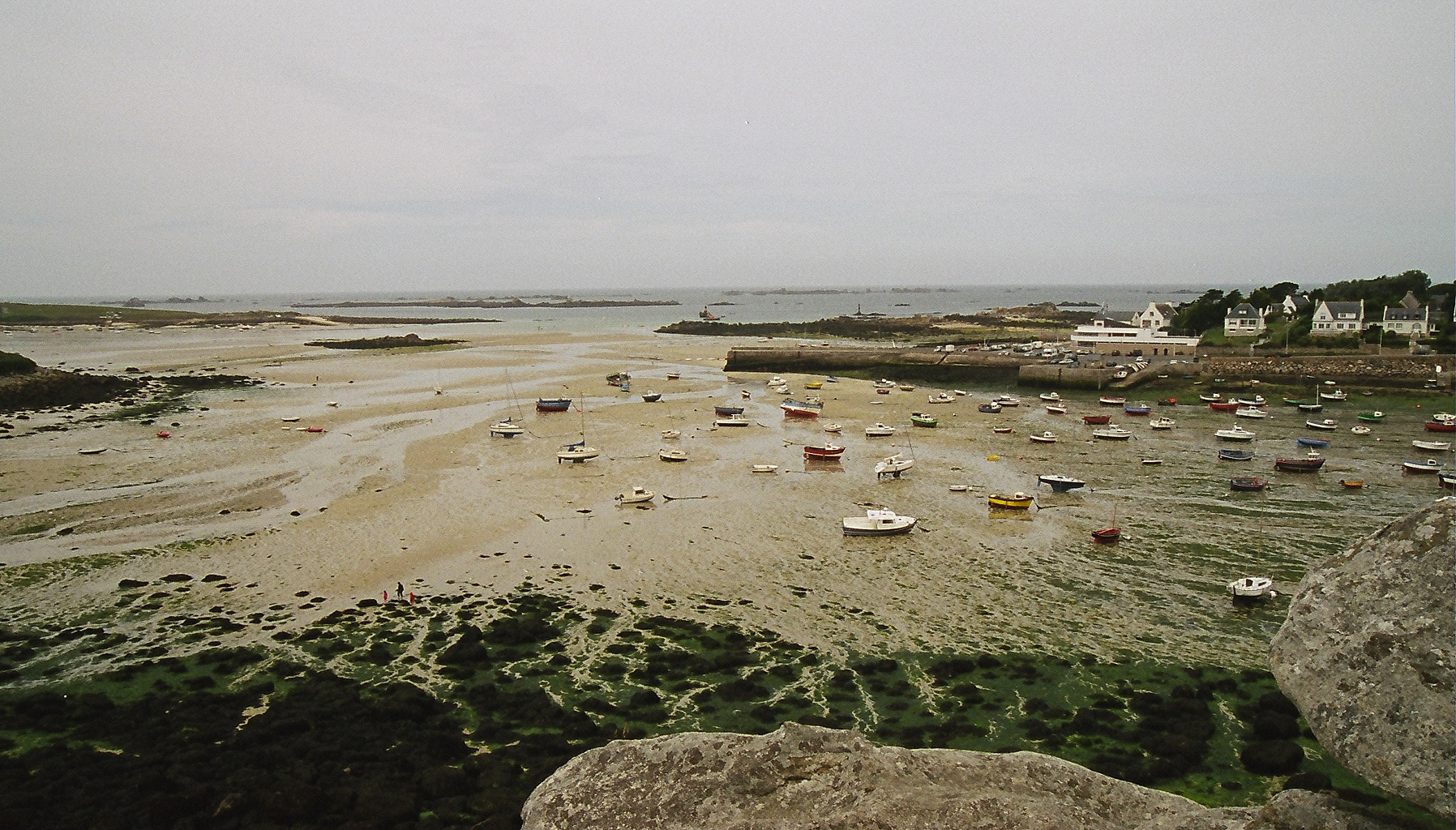
Portsall harbour – the picture was shot on film in 2002 and preserved through multiple migrations (film to scan to CD to iPhoto to Aperture to Lightroom 2 to 6, then to Lightroom Mobile)

Lightroom for Mobile Premium – is a laptop-free workflow really a possibility?

The times when an amateur photographer could wait for a week or two before receiving a set of prints are long gone. With everybody around us shooting with smartphones, we need to publish the pictures taken with our “serious” cameras very rapidly, in a matter of hours if not minutes, if we don’t want our pictures to be yesterday’s news. And since we’re also taking a lot of pictures with our own smartphones, we need a tool that can manage seamlessly our “serious” and our “smartphone” photos and publish them together.

The “photo” app of mobile devices have limitations (editing, cataloging, noise removal and RAW processing are weak); apps and (sometimes services) offered by camera companies are even weaker. Very often, only lower res version of images can be uploaded through a WiFi connection, and sometimes they’re down sampled so drastically they become hardly usable. As for the proprietary cloud offerings of the camera makers, they still have to make a mark. There is real opportunity for a company specialized in image processing tools to shine.

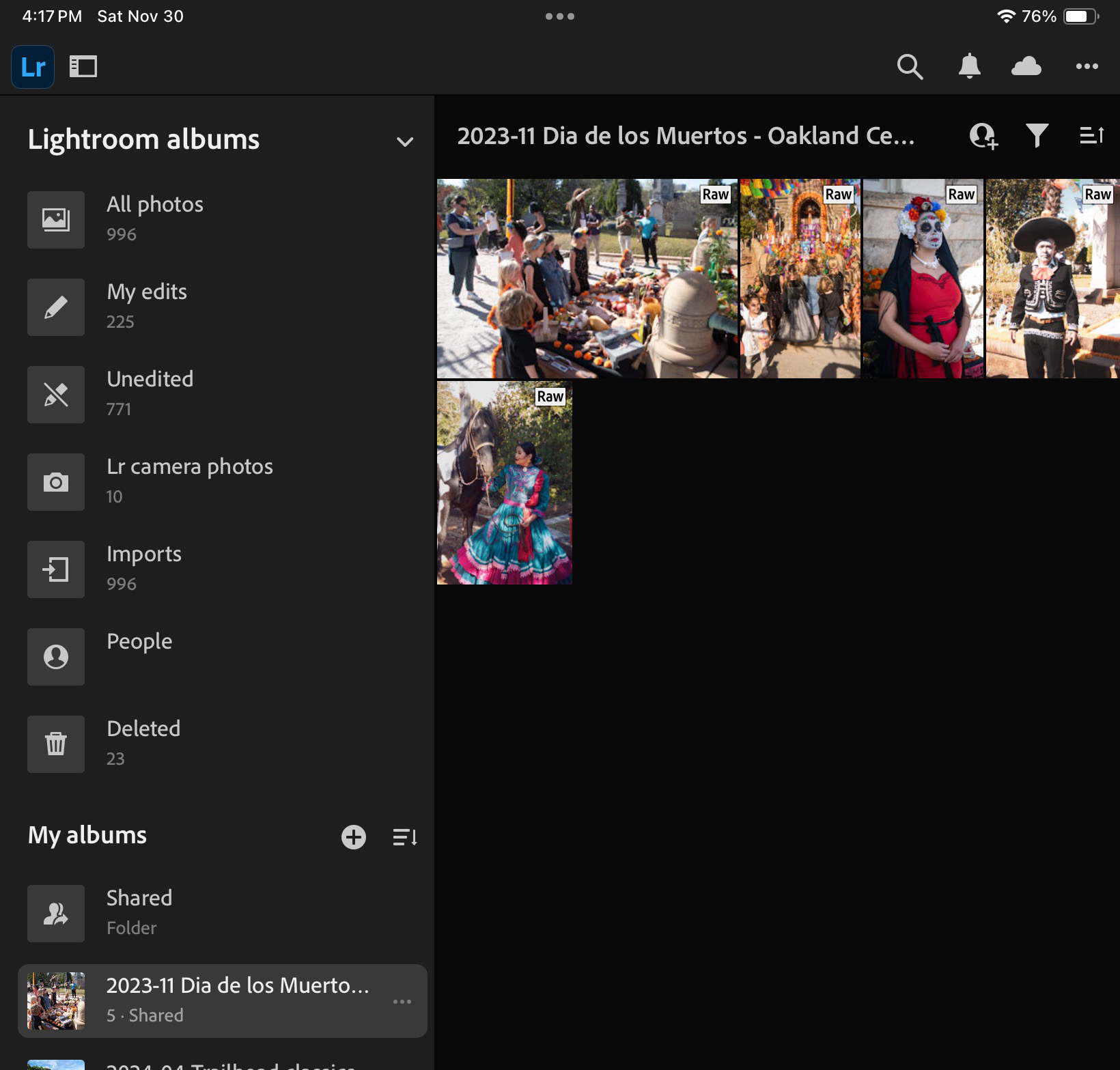
Lightroom for Mobile on an iPad. Some albums are “virtual” and created by default by Lightroom, the rest are “yours”.

Then comes Adobe with Lightroom. Adobe’s Lightroom is primarily a non destructive photo editing tool, with strong cataloging and integration capabilities. In its current iteration, it’s a combination of features made available by software deployed locally on a device running Windows, MacOS, iPadOS, iOS or Android, and of services provided over an Internet connection, with everything tied by a common user interface.

Adobe makes a free version of Lightroom available on IOS, iPadOS and Android, but it’s very limited (no RAW processing, not many image editing options, no online storage, no AI tool) – you can question its real purpose beyond maintaining a presence in the app stores.

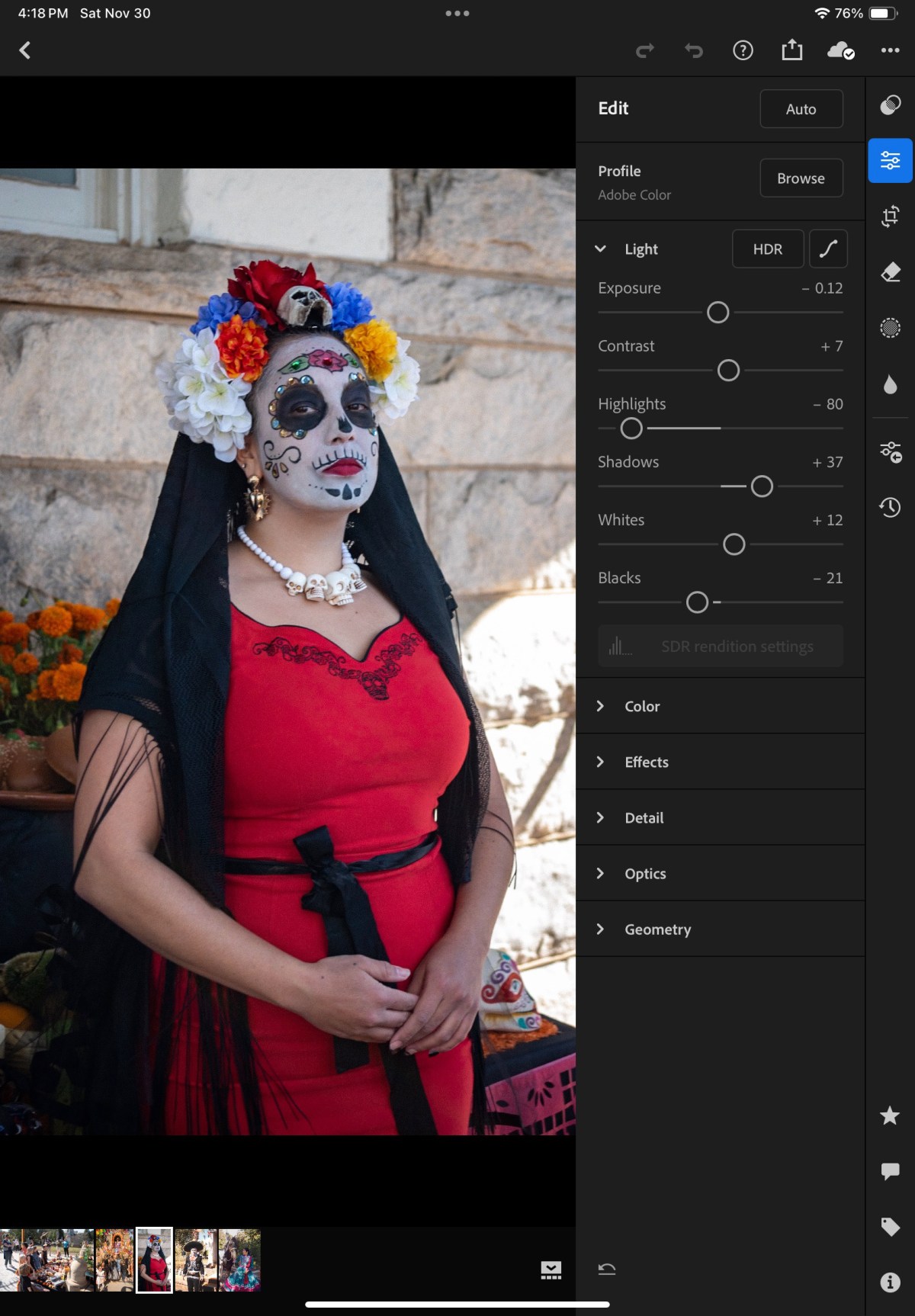
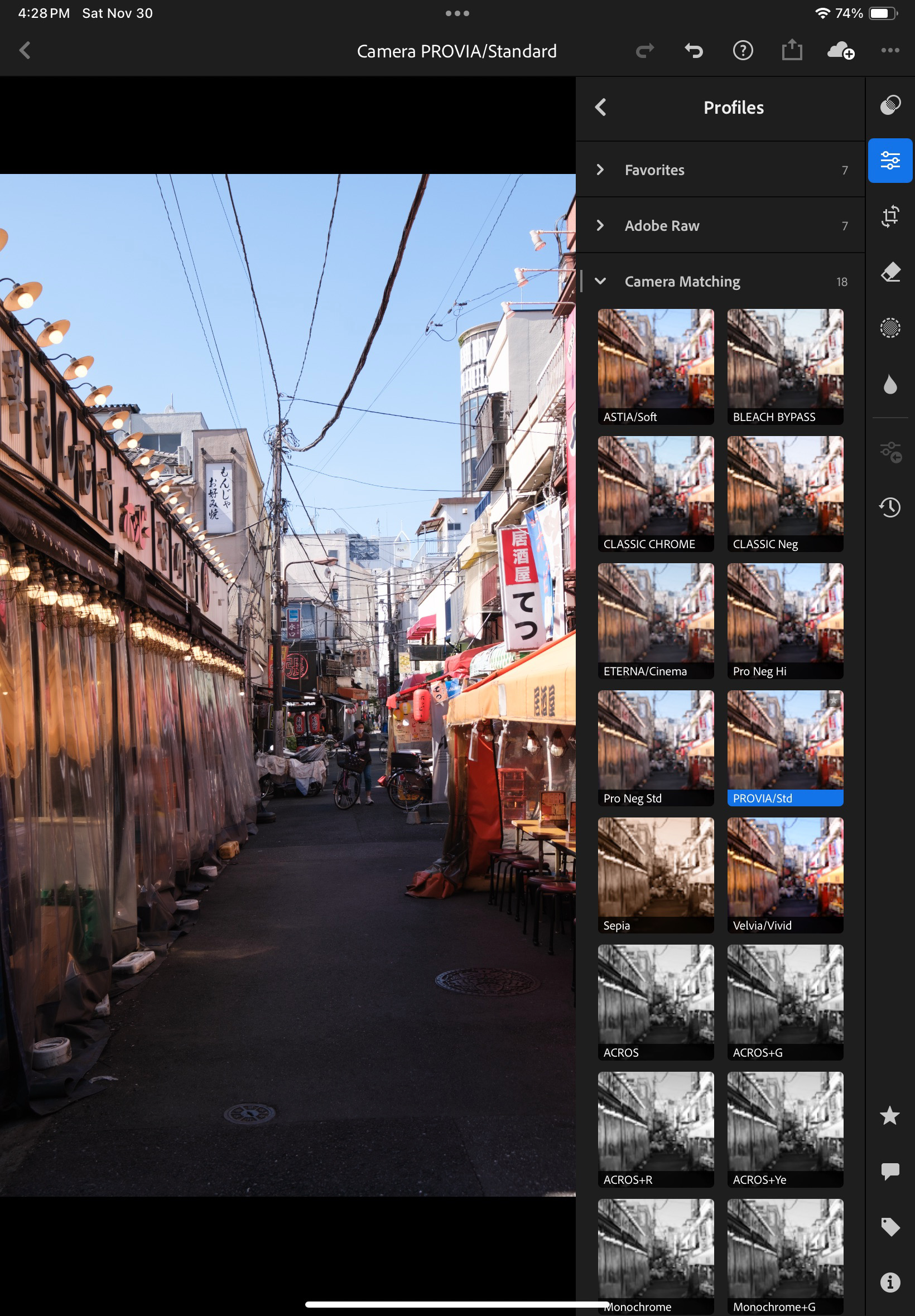
Lightroom applies Profiles to images – Adobe has its set of universal defaults, augmented by the profiles dedicated to a specific camera (here, a Fujifilm X-T4)

Enabling the Premium features – at $5.00 per month on the iPad – addresses those limitations. Lightroom for Mobile Premium processes RAW files, gives access to Adobe’s cloud where it includes 100 GB of storage, and to some AI goodies. That’s what I’m going to review. iOS (iPhone) or an Android versions of Lightroom are generally similar but not 100% identical.

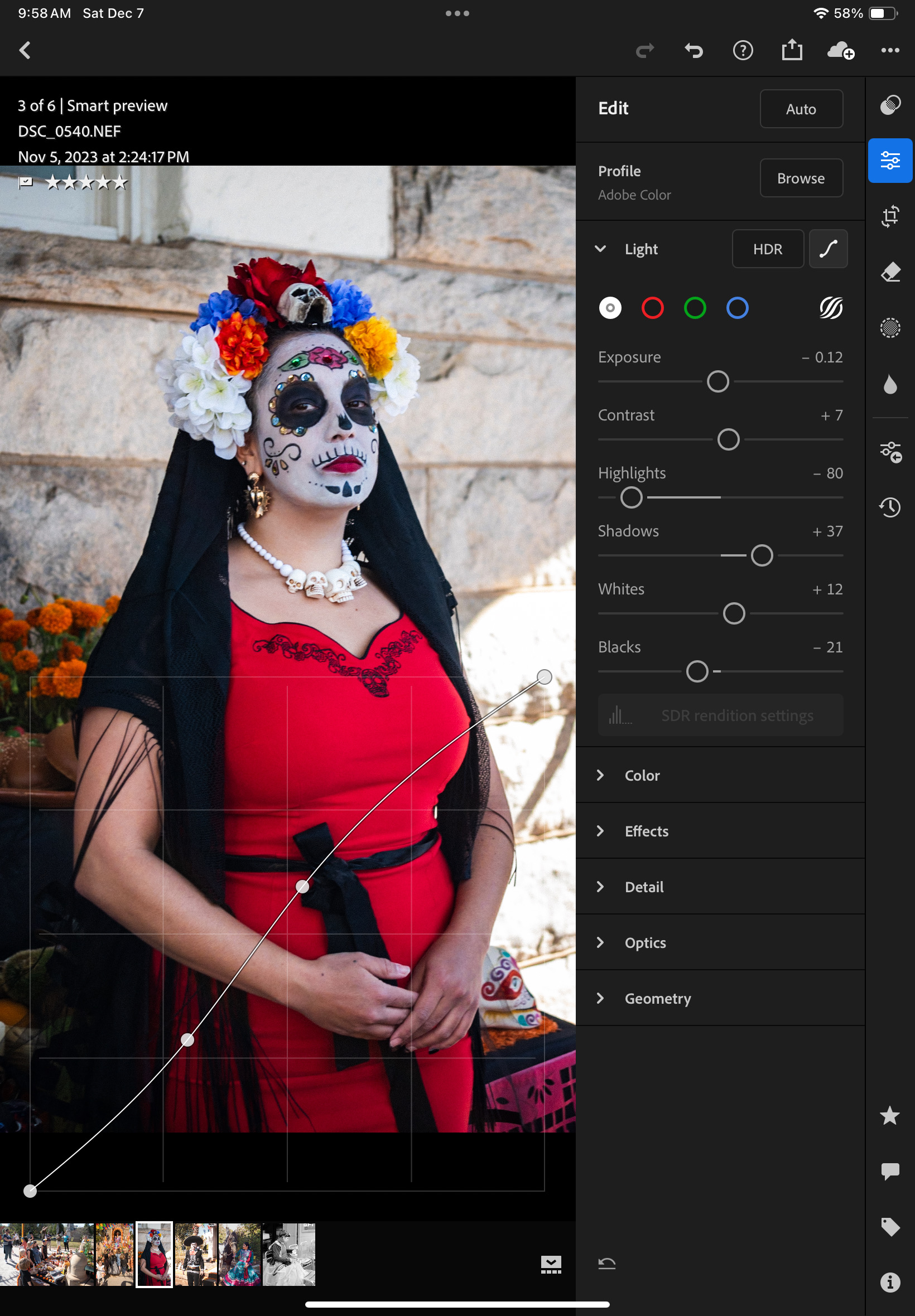
Lightroom for Mobile offers more than Apple’s Photos app. Here, the S curve.

How does it work?

Because of the way the memory of the iPad is managed and protected, Lightroom can only work (edit, catalog, sync to cloud) with images you have imported in the memory space dedicated to the application. You can import images from Apple’s Photo app (it’s seamless) but if you have paid for Lightroom’s premium features, it’s likely that you expect more than what the camera of the iPad can deliver, and better than the low res jpegs that the photo import app of the manufacturer of your camera: you will import images (jpegs, HEIC or RAW) from a storage volume (generally the memory card of your camera), thanks to a reader that you will attach to the usb port of your tablet.
The images remain in a local cache as long as you are working on them. Lightroom takes care of controlling the size of the cache (images are sync’d to Adobe’s cloud as soon as a solid Internet connection is available).

One of the issues with Lightroom on iOS or iPadOS: metadata can’t be added in bulk – each image has to be reviewed individually.

From there on, Lightroom for Mobile with Premium features  ( what a mouthful) behaves more or less like the “full-size” version of Lightroom.

Let’s review what’s great and not so great with Lightroom for Mobile.

What’s great about Lightroom for Mobile

  • Seamless integration with an PC or a Mac running Adobe Lightroom Classic with a large enough Adobe Cloud storage subscription (same images, same edits, same albums, same cloud storage). They can be used in parallel and complement each other.  
  • Seamless integration with Apple’s Photo app, with the iPad file store, and generally iPad apps. And the integration works both ways (imports Photo images in Lightroom, export Lightroom pictures to Apple Photos). You can really create a Lightroom album composed of images taken with the camera of the iPhone and of images imported from a conventional camera.
  • Lightroom also augments the basic capabilities of smartphone or tablet apps; Lightroom can take control over the device’s camera and shoot directly in RAW.
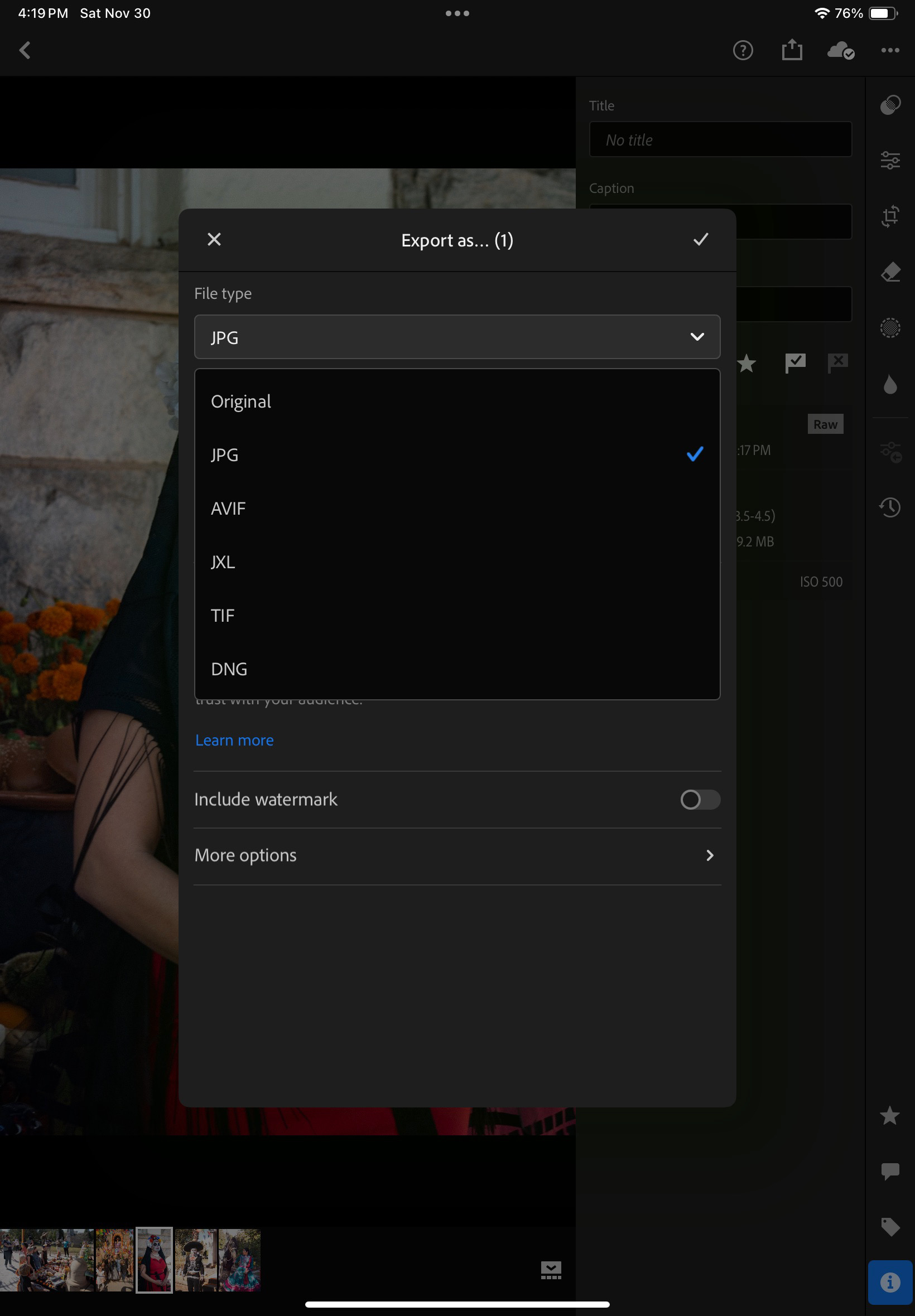
  • Images can be exported out of Lightroom in different formats. As a result, the base promise of Lightroom Mobile: import images from a camera at full resolution, tag, edit and publish them (more or less easily) on many media, apps and social networks – is fulfilled with minimum hassle.
  • Lightroom does not consume too much memory space on iPad (it manages a local cache intelligently)
  • it offers enough to support a Raw or a JPEG/HEIC workflow, at least for an amateur taking a few dozens pictures a day.
  • because it’s a combination of Software as a Service and mobile app, updates are frequent and the product is regularly improved. 
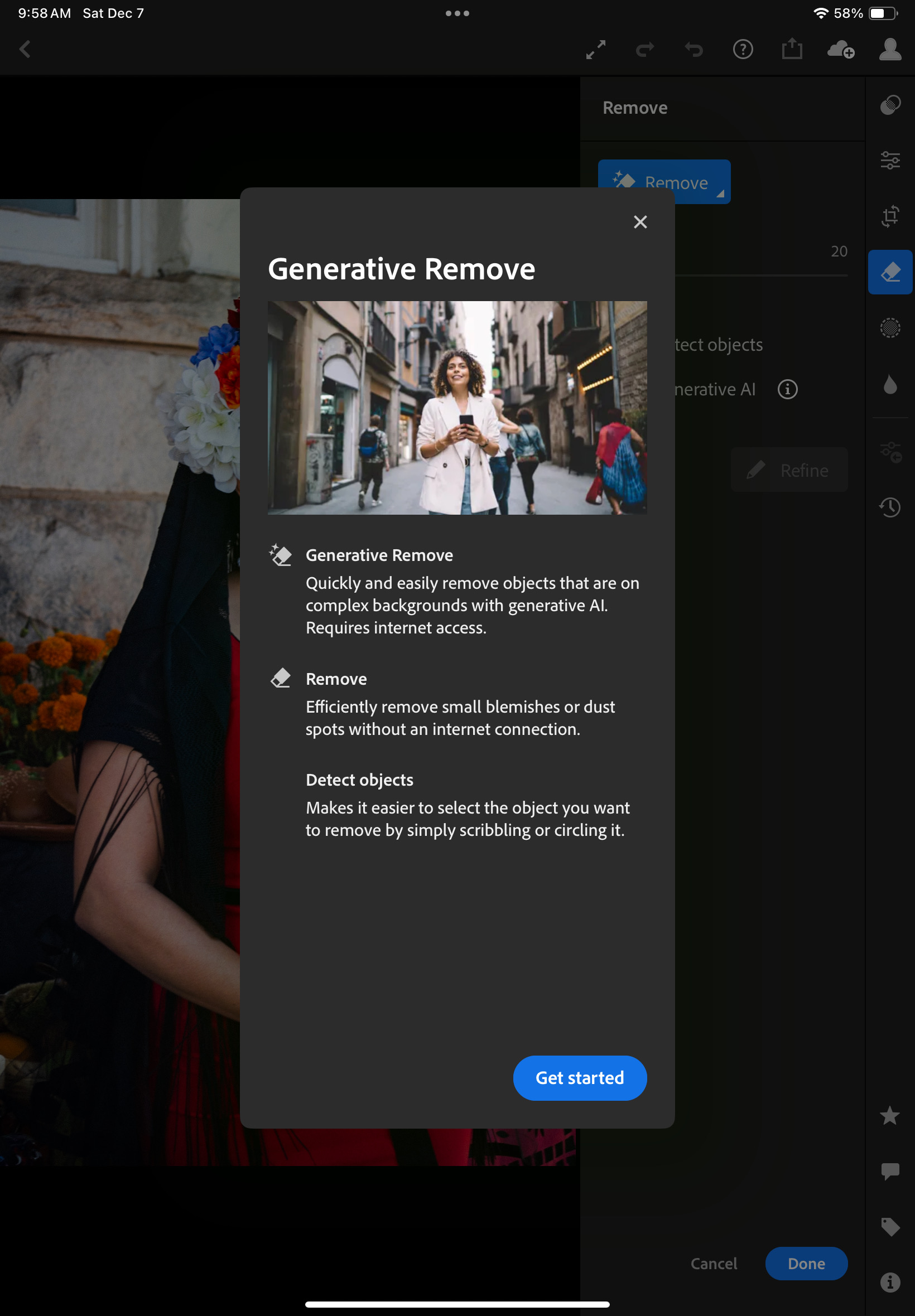
  • Generative AI options are included in the subscription. They’re not perfect but they help – no need for Photoshop most of the time.
Edited images can be exported in different formats and different levels of resolution.

What’s not so great:

  • The confusion about versions, product capabilities , subscriptions: the definition of the different Lightroom products changed multiple times over the years, the offerings are still different depending on the platform, there are incompatibilities between versions, the bundles are inflexible and force you to subscribe to Photoshop. At the moment, “Lightroom” designates the version running on Mobile and in Web browsers, as well as on PCs or Macs, with the images stored in the Adobe Cloud. “Lightroom Classic” is the PC and Mac only version, and depending on the application settings, your images will be stored locally or in Adobe’s Cloud.
  • Lightroom for iPadOS is not totally similar to Lightroom Classic for Windows or MacOS – important features are missing (metadata batch update, side by side comparison of  images, ordering printed photos albums, to name a few);
  • The iPad version is also missing features compared to the Android version (updating the metadata of multiple images at the same time, for instance). But the opposite is also true (iPad has features that Android tablets don’t have). 
  • Beyond 100 GB the cloud storage upgrade options are available by increments to 1TB for roughly $10.00 /month.
  • If you don’t want to pay for more Adobe’s Cloud storage, you will need to pay instead for a license combining Lightroom, Lightroom Classic and Photoshop for $9.99 / month, and keep the storage local (* on Dec 17th 2024, Adobe have announced they would stop offering this option to new users). Lightroom Classic will run on a laptop/desktop, and the images will reside in local drives (directly attached hard disks or NAS). But that will require you to own a laptop or a desktop, configure redundant storage (mirrored or in RAID arrays) and subscribe to an off site backup plan. Also, integration with Lightroom for Mobile will not be so seamless anymore, and will require some planning before off site expeditions, since the cloud storage is limited to 20GB.
  • If money is no (or less of an) object, you will opt for the combined Lightroom+Lightroom Classic+Photoshop license, which comes with 1TB of storage, for $19.99 / month. Additional storage will cost you roughly $10.00 per additional TB. It’s the most flexible but also the most expensive solution.
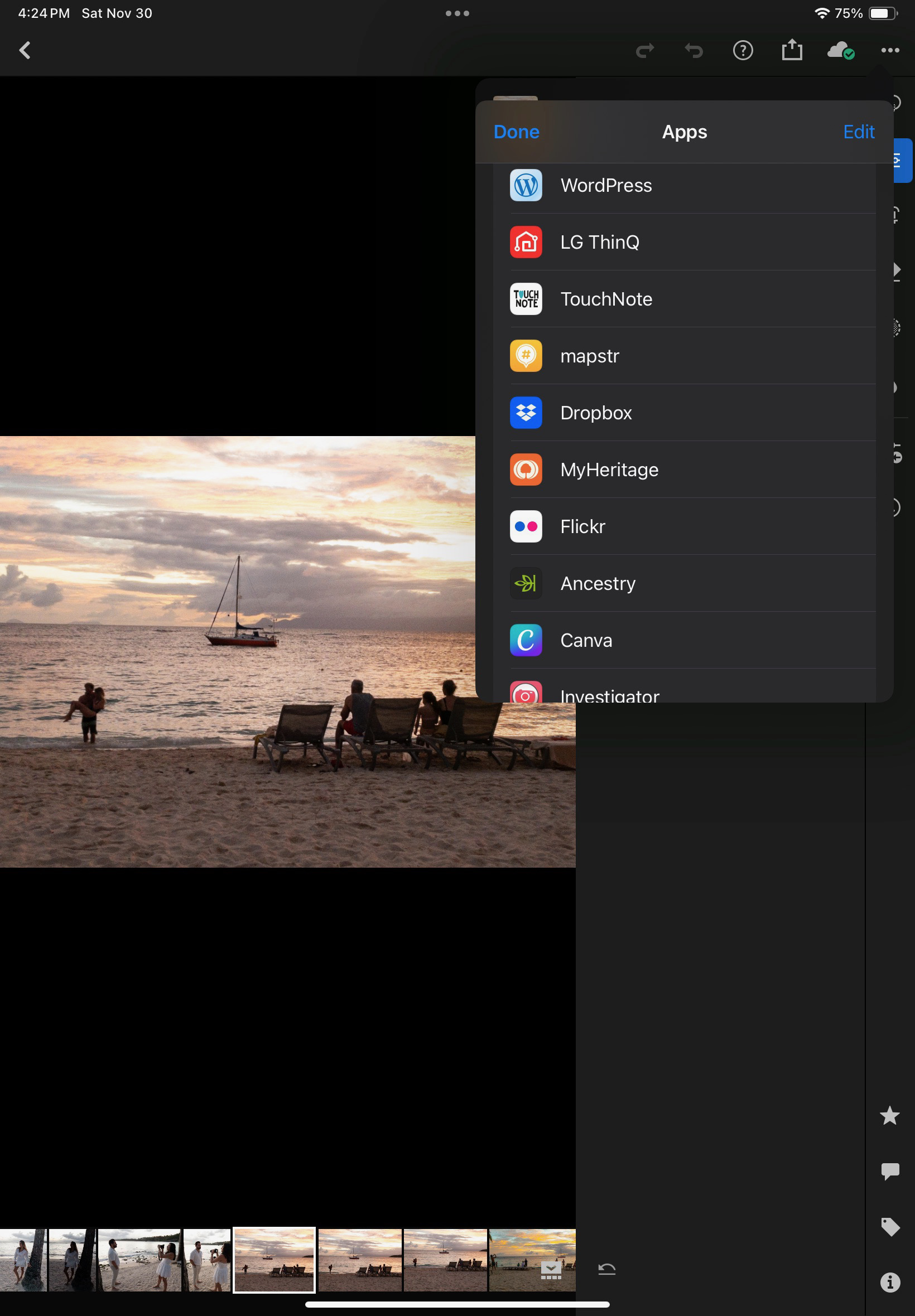
Edited images can also be “Shared” with other applications residing on the iPad. “Share” plays the role of Connectors on Lightroom Classic.

Conclusion

So, is a laptop-free Lightroom workflow a possibility? At this moment,  for an amateur like me, Lightroom Mobile, despite irritating limitations, will be good enough most of the time, and has unique capabilities: it’s the only practical way to work on the pictures taken with my “serious” camera, catalog them and share them while on the go, without having to carry a laptop. I just need my phone or my tablet and a USB-C card reader. But – as this review is being written – there are still important features missing in the mobile version, that would require the full Adobe Photographer subscription and a full featured PC when I’m back home.

Premium comes with AI.
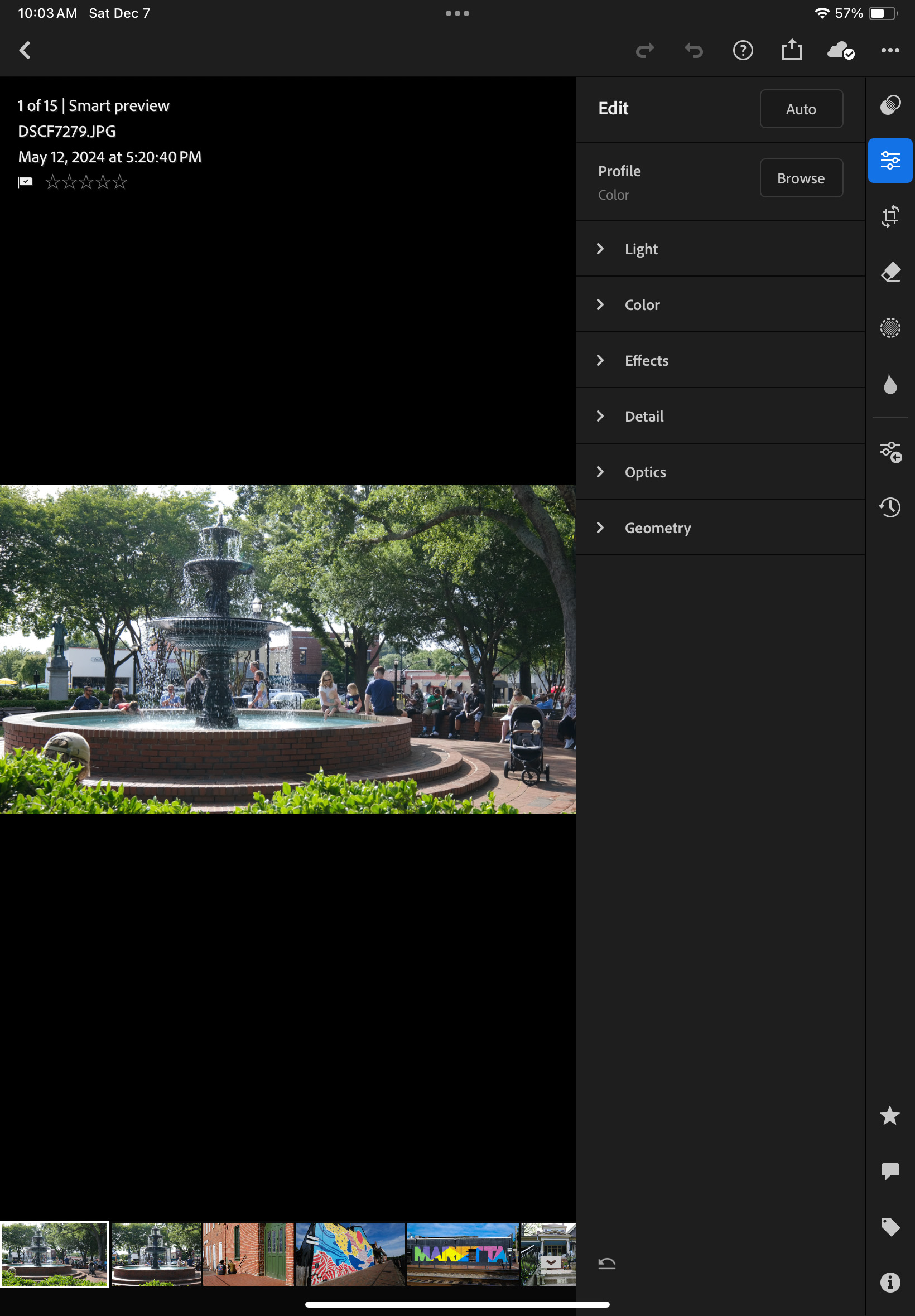
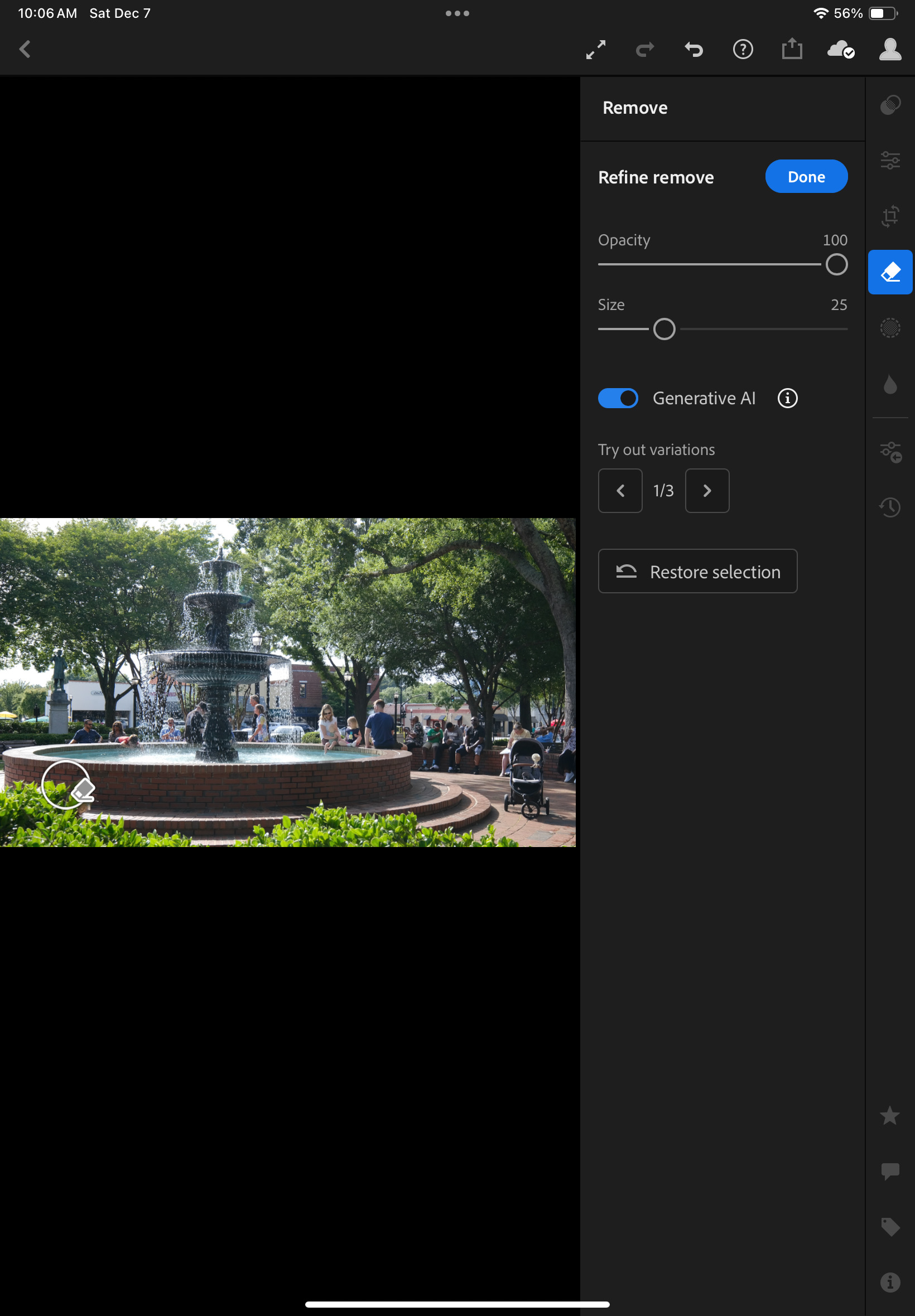
I want to remove the baseball cap of the person sitting just behind the shrubs on the lower left of the picture.
Generative AI removes it. No need for Photoshop: you just designate the object to remove with your fingers.
The result is not perfect and the bricks are not perfectly aligned – but it took me less than 2min. to remove the cap, just pointing it with my finger, in Lightroom Mobile.

I work in IT and have witnessed the migration to cloud computing – I tend to trust cloud technologies and Software as Service offerings, and my preference is to rely totally on Adobe’s cloud services instead of having to manage hardware, storage and backups at home. Provided the cost is acceptable. I still have a very old laptop running an old (pre subscription) version of Lightroom, and a NAS with an Amazon Glacier backup. Moving my Lightroom catalog and 15 years worth of pictures to Adobe’s Cloud is tempting, I just have to understand how it could be done, what I would be losing in the migration, and validate that Adobe’s storage cost is not going to send me on a path of financial ruin.

one last word… what are HEIC image files? 

HEIC: images created following the High Efficiency Image Format (HEIF) – (Cf Wikipedia‘s description). Widely seen as a replacement for the JPEG format, HEIC reached the mainstream when Apple made it the default image format of the iPhone. Most modern operating systems now support HEIC. HEIC images are 50% smaller than equivalent JPEGs, and support up to 16 bit color depth. Mid 2024, the top of the line cameras from Canon, Fujifilm, Nikon and Sony all support 10 bit HEIC.

More about Lightroom for Mobile

The Pentax P30 – the last mass market manual focus SLR

With 3 million units sold between 1985 and 1997, the Pentax P30 (known as the P3 in the “rest of the world”) is the last mass market manual focus SLR to come from a major manufacturer (*). Originally designed as a simple entry level tool for amateurs, it was rapidly upgraded to support more auto-exposure modes, and became the go-to camera for a generation of learners and enthusiasts, who wanted to grow their skills but were not ready to purchase an expensive and overly complex auto-focus camera.

In this blog entry, I’ll use indifferently the names P3 and P30 – even if in theory the American models were P3s, Pentax also sold P30s in the US.

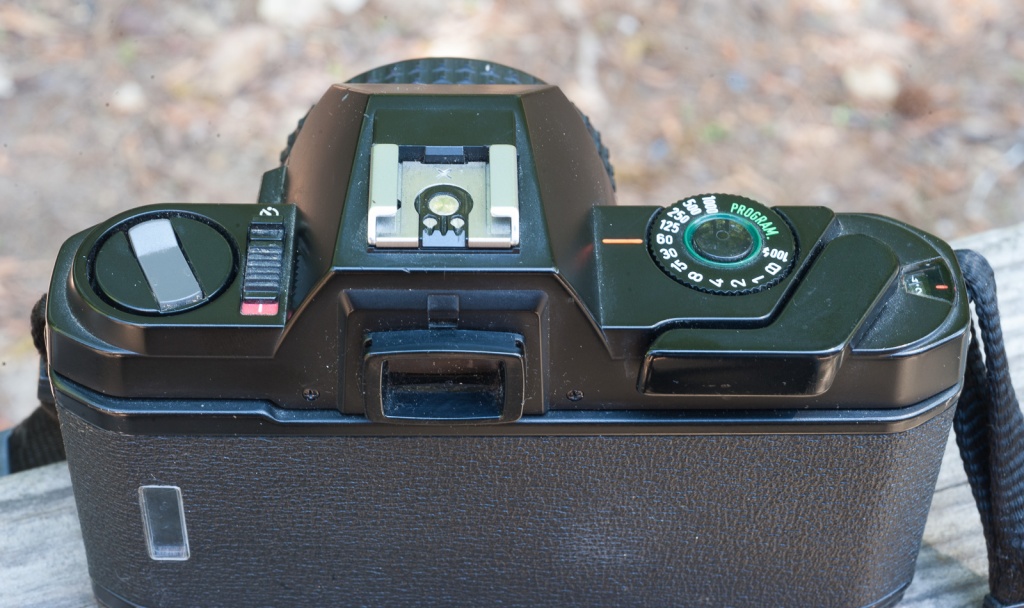
On the P3, film winding and rewind are manual, but the winding lever and the rewind crank are recessed and from a distance one could believe the camera is motorized. Note the very large on-off switch (left).

In parallel, Pentax was still selling another manual focus SLR, the K1000, whose technical roots went as far back as 1964 (the first Spotmatic camera), and the production of both cameras was stopped in 1997 to make room for a much more modern model, the ZX-M.


Contrarily to many previous entry level SLRs from Canon, Fujica or Nikon which were excessively simplified, even the first version of the P30 was a well specified model, at the same time easy to use for casual photography (it had a reliable Program Mode and a good viewfinder), and capable enough for the enthusiast or the motivated learner (it could also be operated in semi-auto mode, and had easy to use exposure lock and depth of field preview commands). It was also pleasantly designed, and better built than many cheap entry level SLRs from lesser brands.

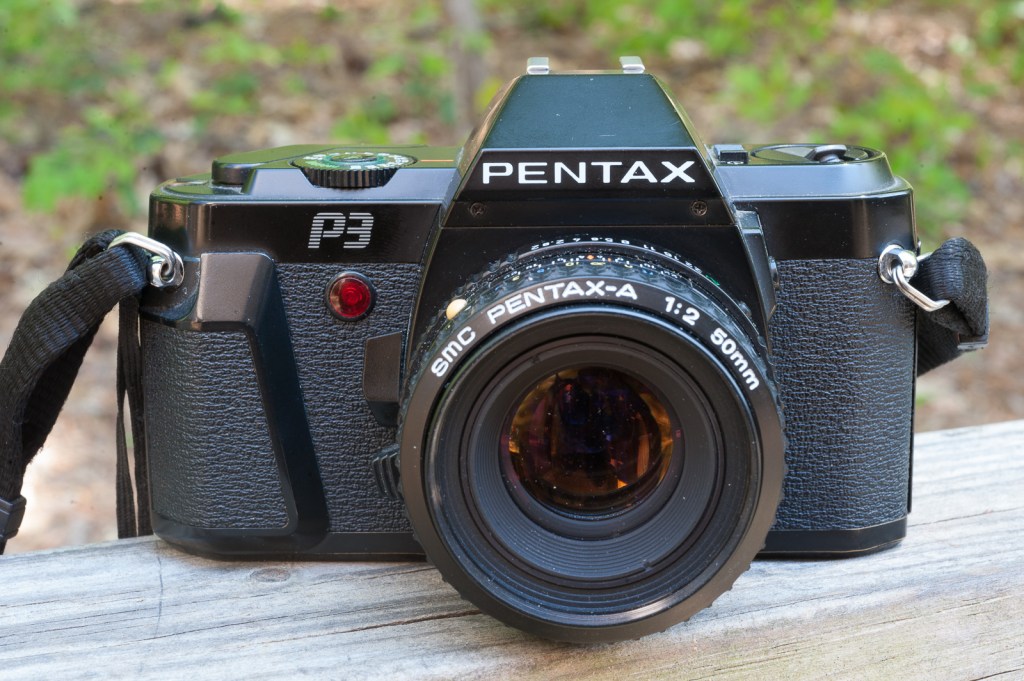
Pentax P3 – all controls are well positioned and large enough, even for photographers with big hands

The original P30 had two big weaknesses:

  • even if it did its best to hide the film rewind crank and the shutter lever, it was still a non-motorized camera, when some of its direct competitors (other entry level cameras operating primarily in Program mode like Canon’s T50) were relieving the photographer from the chore of loading and unloading the film.  Even though the film loading process was greatly simplified (you align the end of the film with a red marker and the camera takes care of the rest), you still have to rewind the exposed film (press the rewind button, pull the rewind crank, and turn and turn until all the film is safely back into the cartridge). I assume it was a trade-off (non motorized cameras are smaller, lighter, quieter and cheaper, and they don’t need expensive and short lived lithium batteries)  but cameras with motorized film loading and rewind are much easier to use for a true amateur.
  • It only worked in the Program mode with the (by then) relatively new Pentax KA lenses (manual focus with electrical contacts to control the aperture), and Pentax users upgrading from a K1000, KM, KX, MX, ME, MG, MV who had bought Pentax K lenses a few years earlier were condemned to the Manuel (semi-auto) exposure mode.

The first weakness was inherent to the base design of the camera and not much could be done – but that second weakness was easier to fix: in 1988 Pentax added an aperture priority auto-exposure mode to the P30n. The camera would remain virtually unchanged from thereon, except for the color of the body and the orientation of the split screen telemeter when it became the P30t in 1990.

A few months ago, I bought a P30 (a first generation model, still made in Japan) for the lens that came with it (on auction sites, it’s often cheaper to buy a lens with a camera attached to it, than the lens alone). I needed the lens for a Pentax Super-Program I had just bought. But I ended liking this P3 more than the Super-Program, and those cameras are so cheap that I rapidly purchased a P30n and a P30t – the aperture priority automatic exposure versions of the camera. In retrospect, that was a bad idea. But more about this later…

The P30 is a bit larger than the Super-Program, which leaves enough room for a conventional shutter speed dial, it is also easier to load with film, and it’s one of the first SLRs to have adopted DX coding. There is no exposure compensation dial, (just a very useful exposure lock button, which I tend to prefer), the shutter is a bit slower (1/1000 sec only), and the viewfinder is not as informative (only the shutter speed is indicated, there is no way to know the aperture selected by the camera in program mode) – but the column of bright LEDs at the left of the viewfinder is easier to read than the two small and dark LCD displays at the bottom of the Super-Program’s focusing screen .

Pentax P3 (first generation)

Where was it made?

The P30 proudly shows it’s made by Asahi Pentax in Japan. The P30n shows it’s manufactured by Asahi Pentax Co in an undisclosed country (some copies have an “assembled in China” sticker, so there’s no real doubt about its provenance), while the P30t is simply “assembled in China, under license and supervision of Asahi Pentax” – which means that manufacturing had been outsourced to a local Chinese partner.

P30, P30n, P30t – the differences

On the outside, not much. There’s more metal in the P30 – the film door, the bottom plate, which are replaced with good quality plastic molded components on the P30n and P30t. There may have been variations during the long production run of the P30n/t, bu they all share the same plastic bottom plate with its new and improved battery compartment door.

Technically, the major difference is that the P30n and P30t have an extra position on the shutter speed dial: a big green “A” for aperture – the cameras offer Aperture Priority Auto-exposure – with any Pentax K lens: the photographer selects the aperture, and the camera picks the right shutter speed, which is indicated by a LED on a scale at the left of the viewfinder. The other modes (Programmed auto-exposure and semi-auto) are still available.

Reliability?

Pentax P30 – the part in the background in the yellow circle acts as a sort of ratchet when the photographer pulls the winding lever to advance the film and cock the shutter. On broken cameras, it takes multiple actions on the winding lever to fully lock the ratchet in place.

It’s a light camera designed for amateurs – it’s not a tank guaranteed for 250,000 exposures. But, normally, a well preserved copy gently used by amateurs should be expected to work. It’s not exactly the case here.

I had no problem initially with the P30, but the P30n and the P30t I bought afterwards have the same issue: a single action on the winding lever is not enough to cock the shutter: the P30n generally requires two very slow actions (which means every other frame is wasted), and the P30t only cocks the shutter after multiple and extremely slow actions on the winding lever, when it does at all.

  • it makes the cameras unusable in the real life.
  • it’s not uncommon for the P30 – there are multiple messages in Pentax forums about this issue
  • I removed the bottom plate of both cameras, and could very distinctly see the culprit – a lever in the shutter mechanism that doesn’t engage completely (too much friction in the assembly or a spring too weak to pull the lever to the “cocked” position). Two suggestions on the forums: lubricate the assembly with silicon, or cock the shutter a few hundreds times to loosen the assembly – I’ve tried the hundred times method (as well as my tried and tested “hair dryer” method) with no success so far. And buying $20.00 worth of specialized lubricant to fix a $10.00 camera looks pretty much like throwing good money after bad.
  • The P30 that I considered immune to the quirks of the P30n/t has also started misbehaving – it did not let me rewind the film to the end, I had to wait for my return home to open the film door of the camera in a dark room, and push the last 10 inches of film in the cartridge manually. And my dark room being what it is, I probably lost 15 shots in the process, if not more.
  • Three cameras, three issues, all related to the shutter cocking and film advance and rewind mechanisms – that’s too much for bad luck – there is something intrinsically flawed with this line of cameras – they don’t age gracefully and can’t be relied upon.

How much?

There is little love for the P30 – postage often costs more than the camera itself – and I’m talking standard domestic US Postal Service rates here. The reliability issues mentioned above probably play their part here.

As a conclusion

Two non functioning cameras out of three, and a third that misbehaved while I was trying to rewind the film – that’s a major disappointment – I’ve never experienced such a thing with any camera maker before, even with the Fujica AX series which have a pretty bad reputation.

When it works, it’s a very pleasant camera. But the risk that is does not is simply too high. My verdict: avoid.


(*) – After the P30 was retired from the market in 1997, a few manual focus SLRs kept on being released and manufactured by other major camera makers (the Nikon FM3a, the Contax Aria and the Leica R9 come to mind) but they were more expensive niche products made in small quantities (a total of 112,000 copies for the FM3a, and 8,000 for the R9, for instance); they did not address the “mass market”.


More about Pentax (and other) cameras in CamerAgX


Out of the three P30s I recently purchased, only one was usable. It made the trip to Savannah in my photo equipment bag. But after it refused to fully rewind the roll of film I had just exposed, it also found itself out of commission, leaving me with no choice but to finish the week-end with the excellent (and so far, reliable) Fujifilm X-100t.

Savannah, GA – Wormsloe Plantation – Fujifilm X-100t – the gate was built in 1913, the live oak trees were planted in the late 1800s, but the plantation itself has been occupied by the British colonists and their remote descendants since 1733.
Wormsloe Plantation – the oldest remaining structure built by British colonists in Georgia (1736)
Wormsloe Plantation – the Salt Marsh – one of the functions of the plantation was to control the access to the city of Savannah through the Marsh – an English military outpost was located nearby.
Live Oak – Spanish Moss – Savannah as you’ve always imagined it…