Lightroom – upgrading from Mobile Premium to the Lightroom 1TB plan

We’ve already discussed in those pages the complexity of the range of the Adobe Lightroom products, and the fact that some versions of Lightroom are only available in the Apple and Google app stores, while others are to be procured directly on Adobe’s Web store.

More about Adobe Lightroom in CamerAgX

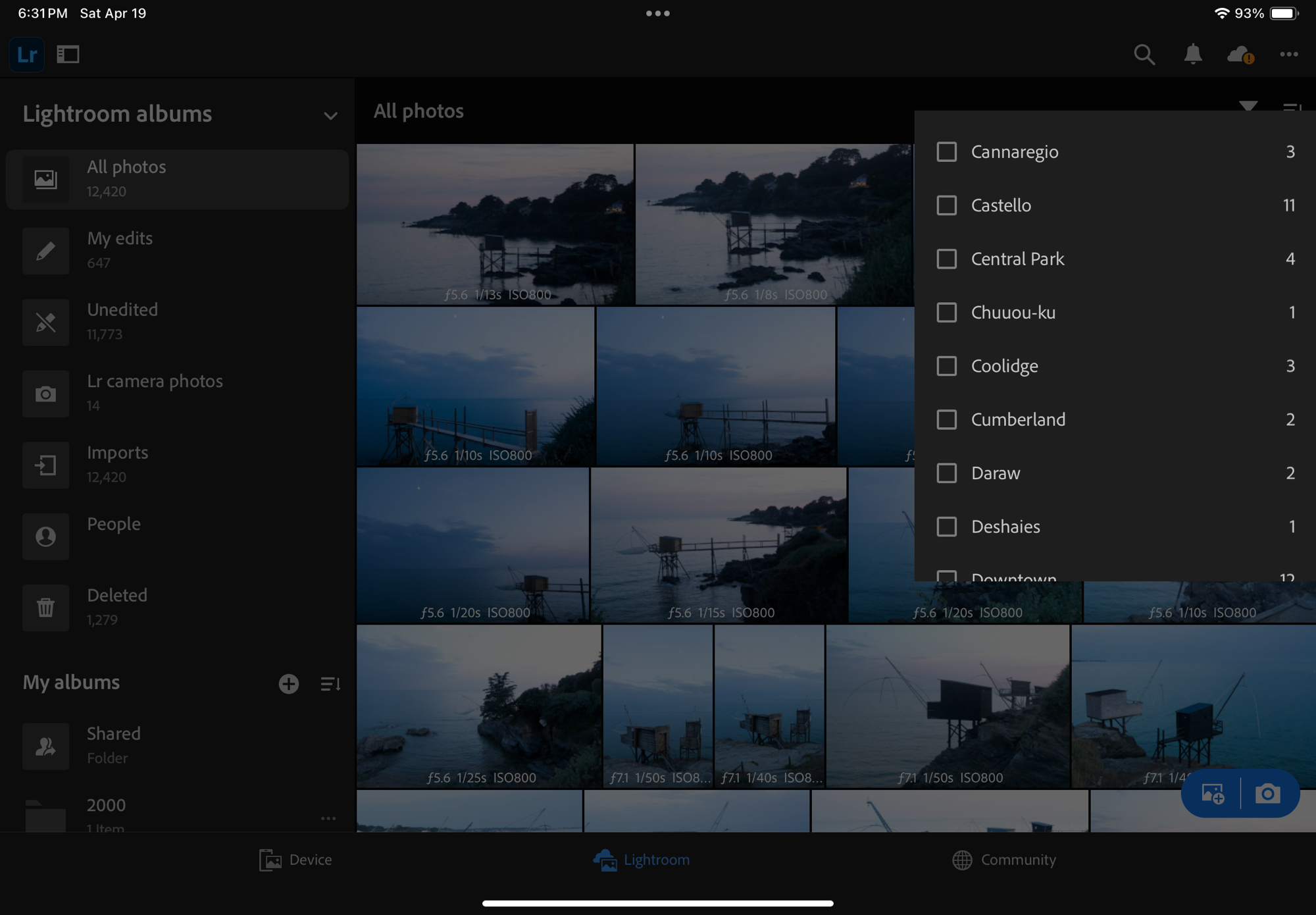
In the mobile app stores, there is a free version of Lightroom Mobile which does not offer much more than what the native (and very good) photo apps that Apple and Google propose. If you’re serious about cataloging and photo-editing, you’ll have to subscribe to “Photoshop Lightroom Mobile with Premium Features” for $49.99 (one year, pre-paid) in Apple’s or Google’s mobile app stores. It gives you access to an enhanced set of features on the phone, tablet and web browser versions of Adobe Lightroom, as well as an allocation of 100 GB of storage in Adobe’s Creative Cloud (Lightroom Mobile and Lightroom Web keep a few Gigabytes worth of picture replicas in a local cache, but the full size original pictures are stored in the Adobe Cloud, and the application can’t operate if the cloud storage is full).

Lightroom Mobile on the iPhone – “please start deleting unneeded items” – not much of an upgrade path if you believe the message on this iPhone. Wrong. There is an upgrade path. But not in the Apple App Store.

If you reach the limit and need more storage (I reached the ceiling with approximately 15,000 pictures), there is no way to only buy more storage capacity from Apple, Google or Adobe. To get more storage space in the Adobe Creative Cloud, you have to subscribe to an Adobe Lightroom or Photography Plan directly on Adobe’s online store, and there is no refund for what’s left of your subscription in the app stores of Apple and Google. Ideally you should wait until you get very close to the expiration date of the mobile subscription before you switch to Adobe’s.

It looks bad enough on paper. How is it in the real life?

Lightroom for Web – same Mobile Premium subscription as above, but here Adobe lets you know that there is an “upgrade” option. It brings you to Adobe’s store where you can only subscribe to Adobe’s Lightroom or Photography Plans.

Upgrading from a mobile version of Lightroom

The upgrade is seamless. If you use Lightroom Mobile, you already have an Adobe ID (distinct from your Apple or Google app store IDs). Simply connect to the Adobe store, sign in with your Adobe ID, pick the photography plan you need, flash your credit card (it’s costing $119.99 if you pre-pay one year in advance), and you’re done. There is nothing to reinstall, nothing to configure. Within a few seconds, you will see your storage limit raised by an increment of 1TB in your mobile or Web apps.

The Mobile Premium subscription was just upgraded to the Adobe Lightroom plan. There are still a few weeks left in Apple’s Lightroom Mobile Premium annual subscription and the total cloud storage subscribed is 1.1 TB (100 GB from Mobile Premium, 1TB from the Lightroom Plan).

The upgrade to a Lightroom Plan also gives you an entitlement to two extra laptop/desktop versions of Lightroom, “Lightroom” (a thin client version of Lightroom formerly known as Lightroom CC), and “Lightroom Classic”, the current iteration of the “fat client” Lightroom application that Adobe has been selling since 2007. Lightroom and Lightroom Classic can both be installed on the same Windows or MacOS machine, and will take advantage of Adobe’s Creative Cloud to keep their respective libraries in sync.

“Lightroom” (represented in the dock of a Mac by the “Lr” icon) is similar in principle to Lightroom Mobile or Web, except it doesn’t run from an App or a Web browser, but from a local client installed on your machine. Its library of images is stored in Adobe’s Creative Cloud, not on local storage, but it benefits from more local image caching options, including the ability to replicate folders and albums locally, in which case it operates even without an Internet connection.

LR Classic (represented by the “LrC” icon) is the successor of Lightroom 6. It’s a large (fat-client) application installed on the local disk of a Windows or MacOS machine, which relies on local storage (directly attached or network attached drives) to store as many Lightroom libraries as needed. The storage is under the photographer’s responsibility, who has to manage, backup and protect what could amount to terabytes of data.

In summary, Lightroom Mobile (with Premium features) and Lightroom Web are products relying primarily on cloud storage, with limited local caching capabilities. Lightroom is also primarily relying on cloud storage, but has more manageable replication capabilities. Lightroom Classic, on the other hand, is designed as a stand alone product relying on local storage, which can, on demand, keep folders and albums in sync with the Adobe Creative Cloud – so that they can also be accessed from mobile devices.

One consequence is that you may have up to three versions of the same Lightroom album on a PC or a Mac: one created in Lightroom’s local cache, one in Lightroom’s local replica, and one in a Lightroom Classic library.
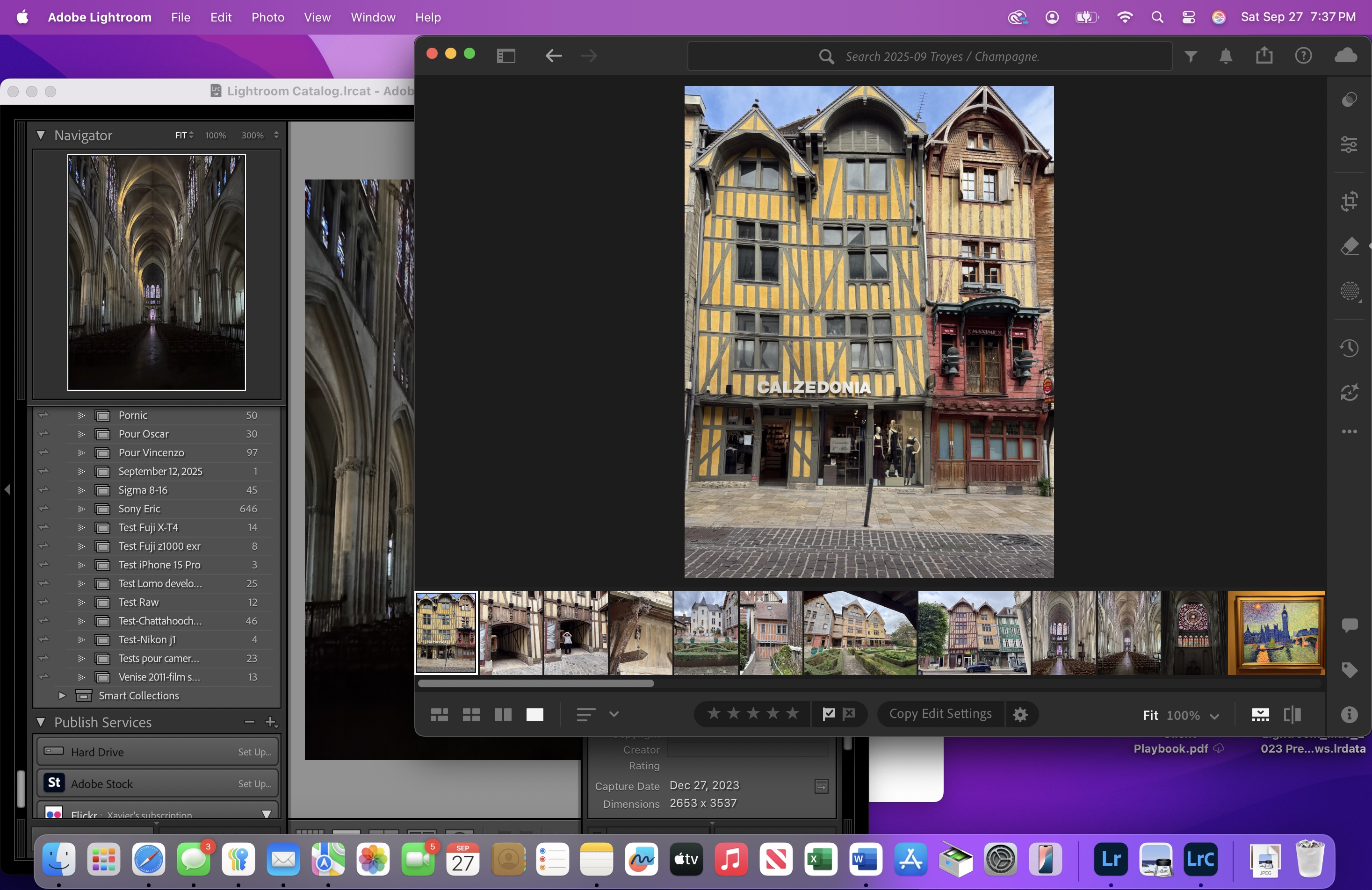
Lightroom Classic (on the left) and Lightroom (thin client) running here simultaneously on the same Mac. Lightroom Classic works with a local library, Lightroom from images stored in the Adobe Creative Cloud.

A surprise: the images don’t look the same when you are editing them in Lightroom Web and Lightroom Classic

All versions of Lightroom always preserve the original image uploaded by the photographer, and the edits are saved as instructions (metadata) in some sort of log. When time comes to export the final image as a JPEG or a TIFF file or to print it, Lightroom starts from the original image at its full resolution and re-applies the changes and transformations described in its log.

However, Lightroom Mobile, Web and PC/Mac are primarily cloud based products, and – by default – only keep a small subset of the photographer’s library in a local cache, where “smart-previews” are stored at a reduced resolution (up to 2640 points on the longest edge). You can force the system to download a full size version of the image, but if you don’t, the edits will be performed on a “smart-preview” at the reduced resolution. Lightroom Classic, on the other hand, relies on local storage (and is not bandwidth constrained) and always shows you the image at full resolution.

Calvi (Corsica) Pointe de la Revellata – Olympus TG-5 – the image looks great on Lightroom for Web (2640 pts on the longest edge for the smart-preview), but at full resolution in Lightroom Classic, it does not seem that sharp anymore.

You don’t really see the difference between a smart-preview and the full resolution of an image on a smartphone or even a tablet (the screen is too small), but when you start using Lightroom Classic on a PC or a Mac where you only had used Lightroom Web before, the difference can be striking – an image that looked sharp enough as a smart preview on Lightroom Web may suddenly look much too soft when shown at full resolution by Lightroom Classic on a 8k monitor.

Not really a surprise … but

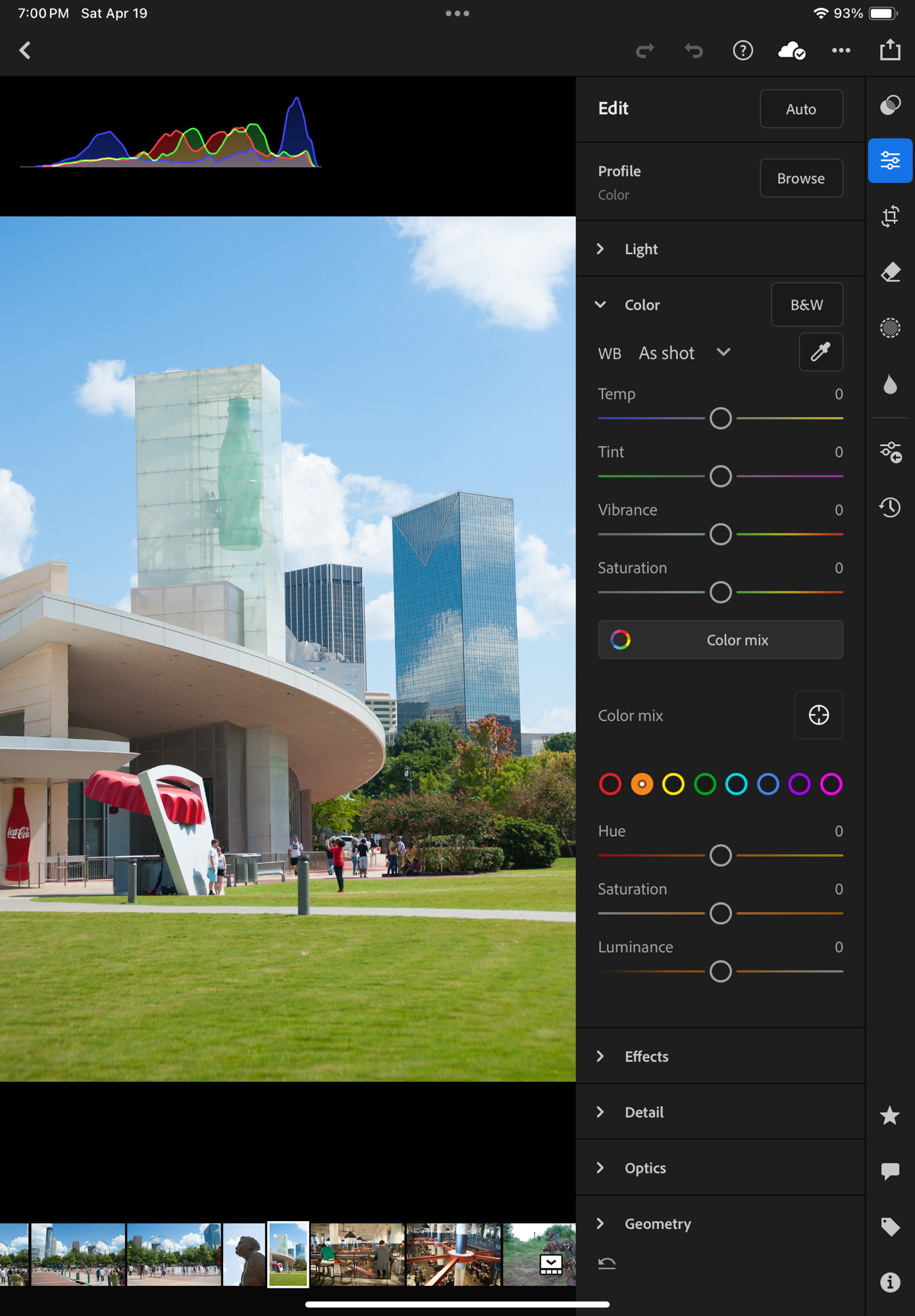
The smartphone and tablet versions of Lightroom have more or less similar capabilities, and they’re not very different from Lightroom Web. Lightroom (the laptop/desktop thing client) sits somewhere between Lightroom Web and Lightroom Classic.

Its feature set is close to the mobile and Web versions, but, being written for desktop and laptops machines, its UI is menu driven and more similar to Classic. Its photo-editing capabilities are more elaborate than Mobile or Web, and because PCs and Macs generally support larger monitors than tablets, the images can be shown at a higher resolution.

Lightroom Classic is also menu driven, but is a totally different animal altogether. As mentioned above, it stores everything in local libraries (catalogs in Adobe parlance), and can, if requested, sync its local libraries with the Creative Cloud, one at a time or as a group. But it’s a partial, asynchronous replication, that the photographer has to manage. Classic also offers features which are completely missing on the other versions of Lightroom, like the ability to run all sorts of plug-ins, interface with Google Maps, or create photo-albums and slideshows.
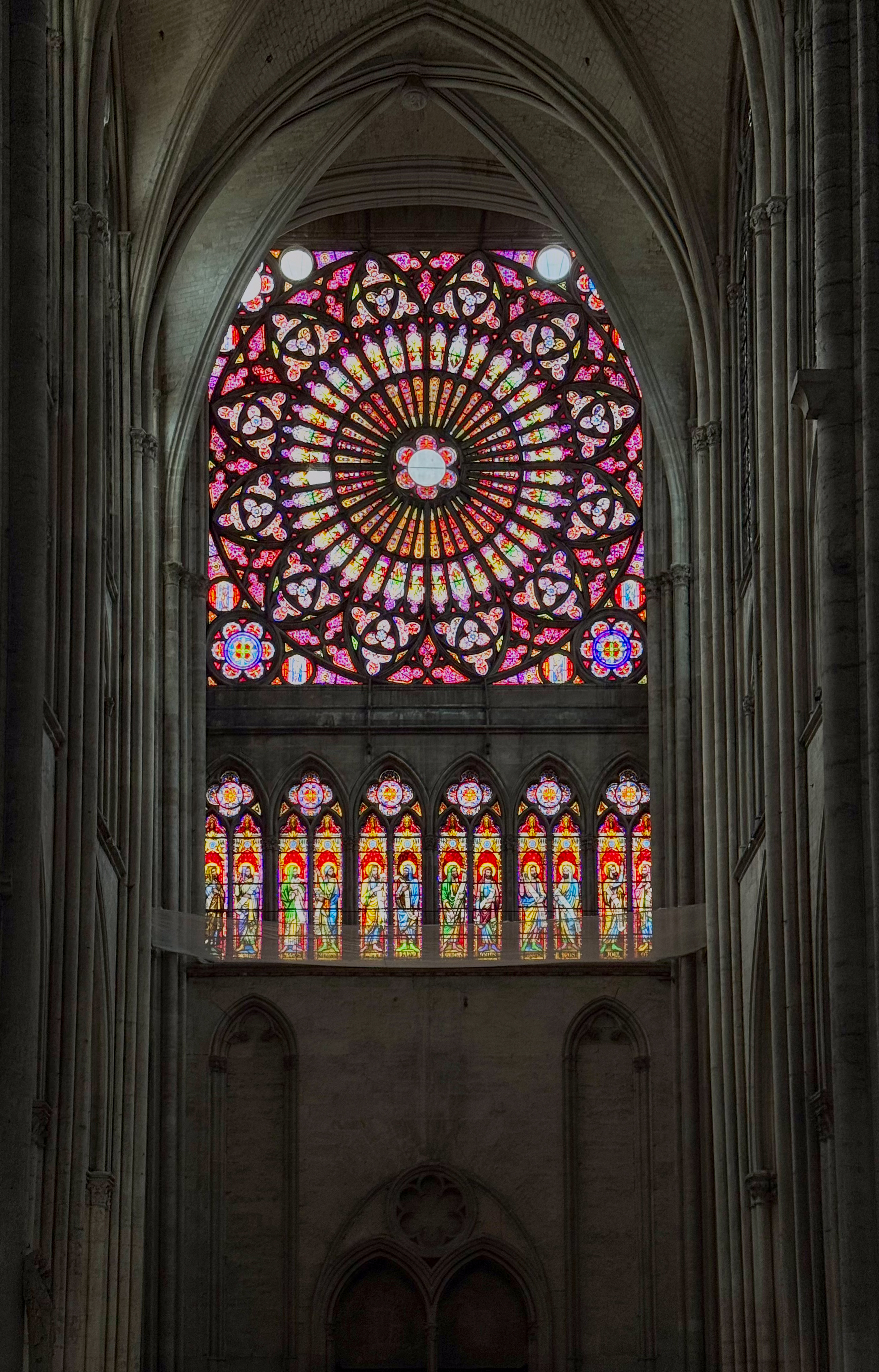
Troyes, France – the cathedral – iPhone 15 Pro – edited in Lightroom

Is the upgrade to an Adobe Lightroom plan worth it?

  • if you need more than 100 GB of cloud storage, and want to keep on using Lightroom for Mobile, you don’t really have a choice. If you don’t plan on using Lightroom on a PC or a Mac, you end up paying an extra $70/year for 900 extra gigabytes of storage. Not exactly a bargain.
  • if you have a desktop or a laptop, you get everything you had bought for $49/year in the mobile App Store (phone, tablet and web apps, with 100 GB storage), plus Lightroom and Lightroom Classic, plus 900 GB of extra storage, for “only” $70 more per year. A much better deal.
  • whether you install Lightroom Classic on your PC or not is another story – it’s a complex product, and the integration with the rest of the Adobe Lightroom family not that straightforward.
  • but Lightroom (for PC or Mac) is very pleasant to use, fully integrated with Creative Cloud, and a perfect companion for the Mobile versions of Lightroom. I strongly recommend you use it.
  • Lastly, once you’re in the Adobe world, you are not limited to 1TB of Creative Cloud storage. You can further increase your allocation up to 10 TB by increments of a few terabytes at a cost of approximately $10.00 /Terabyte/month.

The ideal use case – the one that will maximize the benefits of an Adobe Lightroom or Photography Plan – is that of photographers who need to store huge volumes of pictures in multiple libraries (catalogs) in their home or office IT infrastructure, but want at the same time the ability to work with a limited subset of their images while traveling – adding or editing pictures from a smartphone, a tablet or a laptop. They will take advantage of all the versions of Lightroom, and of the synchronization capabilities between them that Creative Cloud brings.

Troyes, France – the center of the city has been totally restored recently. Worth a visit.

If you don’t need or don’t want to manage multiple local photo libraries, you can still rely primarily on Lightroom Mobile and Lightroom for PC or Mac, that work very well together, and only fire up Lightroom Classic occasionally to use a specific plug-in or create a photo-album.

One last word: Adobe photography plans are available through subscriptions, that bundle multiple products and services. The content and price of those subscriptions have been known to change frequently over the recent years. I believe that my description of the bundles and the cost of the subscriptions are accurate when I write these lines at the end of September 2025. But it may change without notice in a few months, and will most probably be different in the years to come. If you’re considering spending your hard earned money on Lightroom, do your due diligence before committing to a one year plan.


Troyes, France

More recent content in CamerAgX


Catalog, Print or Delete? What to do with your pictures after you’ve shared them on social media?

I’m afraid most people rush to share the pictures they take, attaching them to emails, text messages, or publishing them on various forms of social media. Images – or more precisely the interest of their family, friends and followers for those images – tend to be ephemeral. Shot, shared, forgotten.

If you visit these blog pages, I’ll assume that you’re interested in photography. And I will bet that when you shoot pictures, they’re important to you, and you take time to reference and archive them. If you still shoot film, you probably store the negatives and slides in binders with their contact sheet, and if you shoot digital, you certainly rely – at a minimum, on Apple or Google’s photo management services – or, more likely, use more specialized software to catalog, process and archive your images.

Of course, beyond the few Gigabytes of free storage you get with your smartphone (5 GB with Apple, 15 GB with Google), you need to pay a monthly suscription fee – $3.00 /month for 200 GB with Apple, $2.00 for 100 GB with Google. It’s not much to store 10,000 to 20,000 images (assuming 10 Mbytes /image) – but I’m surprised by the number of people I know who go regularly through their Photo apps and delete images they like (and might be happy to look at again five years from now) just for the sake of saving two or three dollars a month.

Sunset at the beach. Near St Anne, Guadeloupe

And when, for an happy event (wedding, graduation, big life milestone …) they’re being asked to send a few of their images to contribute to a family slide show or to a shared photo-album, they can’t find any – or so few.

At the risk of being provocative, I’ll say that in photography, Archival and Retrieval are at least as important as taking the pictures in the first place. So, what are the options?

The Photo Management Service provided by the OS vendor of your phone, tablet or personal computer.

We’re talking of Apple Photos, Google Photos, and Microsoft… Photos, of course. The “App” is the front end of a set of cloud based services, that provide photo storage, editing, cataloging and sharing capabilities, increasingly with the help of AI.

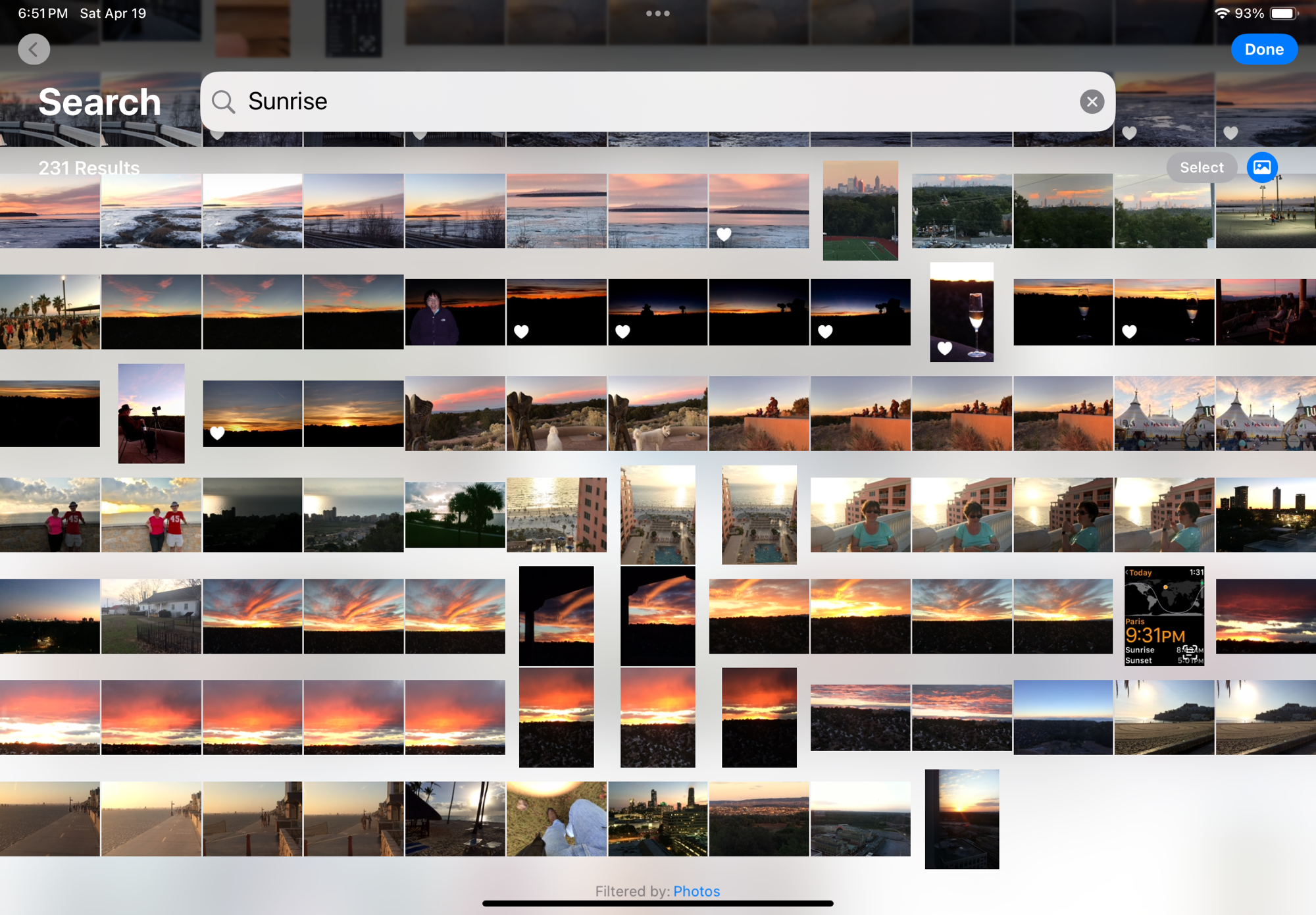
Apple Photos on iPad – search for “sunrise” – “sunset” returns almost identical results

Even without being passionate about photography, it’s easy to accumulate a few tens of thousands of pictures in a few years. The challenge is to organize them, and to retrieve the one you need without having to spend hours browsing galleries.

The photo management apps try and organize your photo library by date (easy), by theme, by trip, but what’s particularly impressive are the search capabilities – the app is using information it reads in the images (like the name tag of a dog), combining that with what it knows for sure (like the date and the GPS coordinates stored in the picture file) and what it has learned about you and your entourage to help you retrieve images. Without requiring you have entered captions or keywords to identify your subject. If Jules is a dog, it will answer questions such as “Jules in Chattanooga in 2014”. It even works with objects: “My Jeep in Destin” returns pictures of my Jeep in Destin, FL, “pictures of a ball pen” returns… ball pens, and searching for the word “dawn” will return all the pictures taken at sunrise (and sunset – the search algorithm is not perfect).

Searching for “Jules in Smyrna” – Apple Photos has read the name tag of the dog.

If the picture has been taken with a smartphone, it will be managed “natively” by the app. If it has been taken with a dedicated camera, the image will first need to be imported – most cameras vendors provide their own app that will transfer selected images from the camera to the Photo app of the device over a WiFi connection.

For Apple and Google, what matters the most is their ability to retain their client in their eco-system in the long run, from phone to phone to phone (they call that the stickiness). Once you’ve stored 10,000 photos in their Photo app, you’ve put yourself in a very sticky situation, and you will think twice before switching to the other side. Of course, transferring your images from Apple to Google or Google to Apple is always possible, but it won’t be immediate or straightforward and you may lose some information in the process (some metadata, and proprietary features like Apple’s Live Photos and RAW files, for instance).

Tarpon Bay, FL
Sunset, Tarpon Bay, FL

Photo cataloging / photo editing tools from specialized software vendors

If Apple or Google’s photo apps don’t give you enough, or if you don’t want your images to be stored in a cloud, or you don’t want to pay a monthly subscription fee and would rather buy conventional perpetual licenses, there is certainly a specialized photo management software that meets your needs.

Generally speaking, dedicated photo management software will offer more options for tagging the pictures, and more powerful photo editing tools, but, if the example of Adobe is representative of the industry, will not be as good as Apple and Google at automatically organizing and easily retrieving your images: they still rely predominantly on captions and keywords to identify an image.

Specialized photo management tools offer more image editing options

If you opt for local storage, you will have to invest in physical storage (directly attached drives or NAS) and you will need to protect your images with a good backup system (preferably off site, if you want it to protect your images from disasters). And off site backup plans have a cost.

… but the search is still heavily based on keywords and captions that have to be entered when the image is uploaded.

Cloud storage options are very broad – going from general purpose storage services like iDrive or Dropbox to more specialized offerings like Adobe’s Lightroom “Photography Plan” – but once you’ve exhausted the limited time promotional offers, the prices are relatively similar – around $10.00 /month for 2TB for most of them. iDrive seems to be the cheapest, Dropbox is in the same ballpark as Apple and Google ($9.99 /mo for up to 2TB). As of this morning, Adobe’s “Photography Plan” includes 1TB of storage for $11.99 /month, but in all fairness the cost also includes the Lightroom Mobile, Web and Classic subscription fees, so it’s not that bad of a deal.

What are the alternatives? Placing prints in a photo album?

A physical photo album is not a substitute for an electronic catalog, but it’s a mostly forgotten way to keep the images you love together, and return to them when you feel like it. You can even scan the prints if you can’t find the negatives or the original digital files (I’ve done it, shame on me), so it’s also a form of backup.

I lost the negatives a long time ago – but I had a photo album and scanned the print

The ability to create photo books used to be integrated in the photo cataloging apps: the option existed in Apple’s iPhoto – you picked the images, worked the layout and (of course) paid a hefty fee, and Apple would send you a printed photo album with a little Apple logo on the back. I’ve not used a recent version of Adobe Lightroom Classic but I believe the option to create photo books still exists (in conjunction with the Blurb photo book printing service). It does not exist on the “non-classic” versions of Lightroom.

Photo albums of all types and sizes (printed by Mixbook, ifolor, Apple, and self printed Fujifilm Instax)

Maybe the combination of Lightroom Classic and Blurb is still the reference to beat – but I’ve not been impressed with the alternatives – I tested Mixbook – and while the quality of the printed books was satisfactory, I found the solution difficult to use and also very expensive.

If you need multiple copies of a photo album, creating a photo book with one of those services makes sense, although it will cost you, but if you only need one copy, it may be simpler, faster and cheaper to print the pictures at home, and place them in a good old (physical) photo album.

Fujifilm’s Instax film is available in three sizes, so are the Instax Printers.

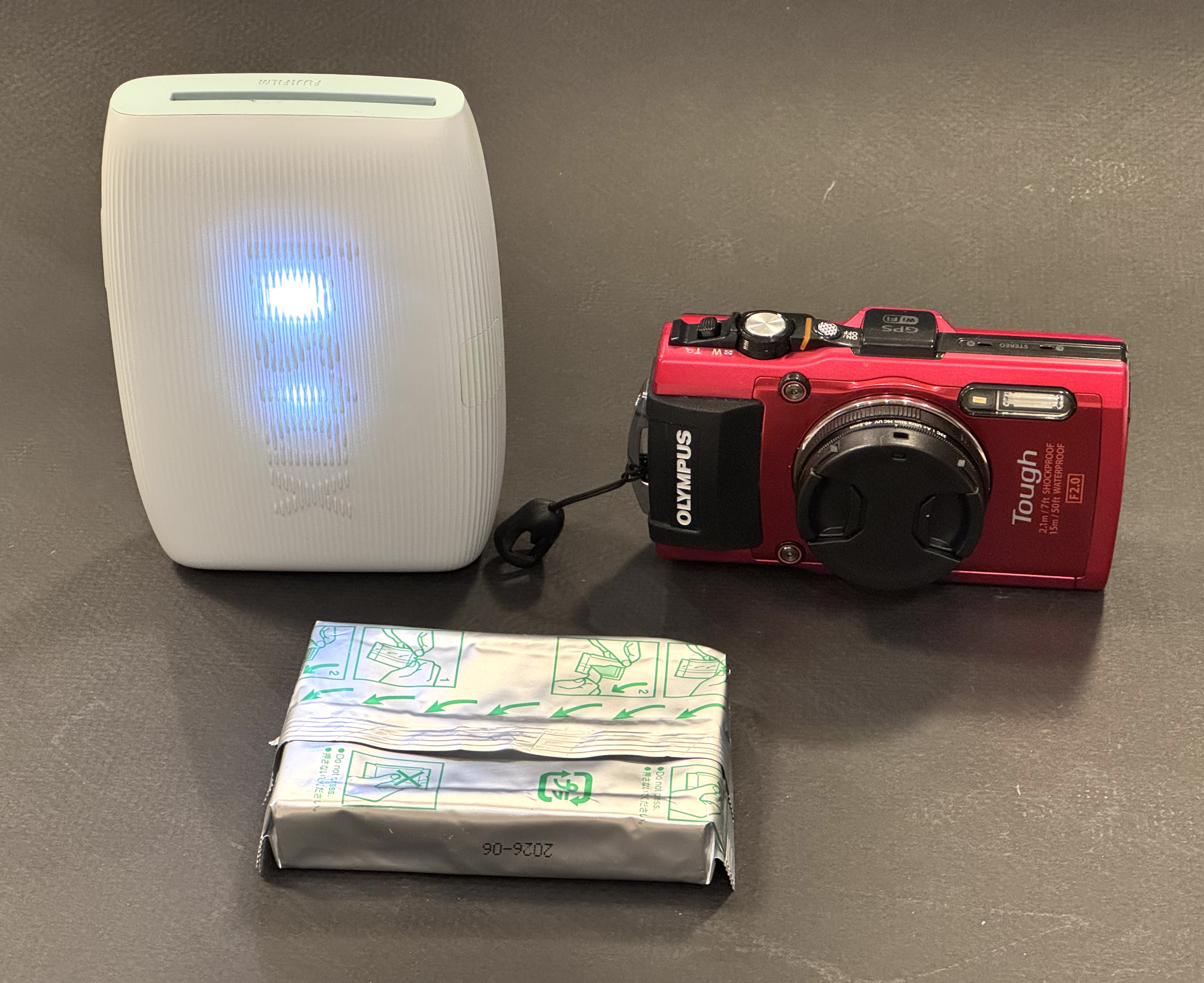
Last by not least, Canon, Fujifilm, HP, Kodak and Polaroid (in alphabetical order) all propose easy to use ultra-portable printers, that will let you print images from a smartphone or a tablet – and place them in small photo albums that they can also provide. Fujifilm and Polaroid printers use instant film packs, Canon, HP and Kodak use a technology named “zero ink” (a sophisticated thermal paper). In my personal experience, assembling a mini photo album of 20 pictures is quick, easy, and ultimately cheaper than configuring a photo book from Blurb, Mixbook and dozens of their competitors.

More about Lightroom Mobile and Instant Film printers:


More sunsets

Lake Lanier, July the 4th
Belem, Portugal
Paris, Place de la Concorde

Lightroom for Mobile Premium: migrating images from Lightroom 6

In a previous post, I was debating whether it made sense for me to adopt Lightroom for Mobile and rebuild my workflow and photo cataloging process with it – and the answer was mostly Yes. I had concerns about the inability to perform bulk tagging over an album. I have not found a perfect solution – tags can be copied and pasted from one picture to another one, but as far as I can see, you have to paste the tags on every picture individually. Not ideal.

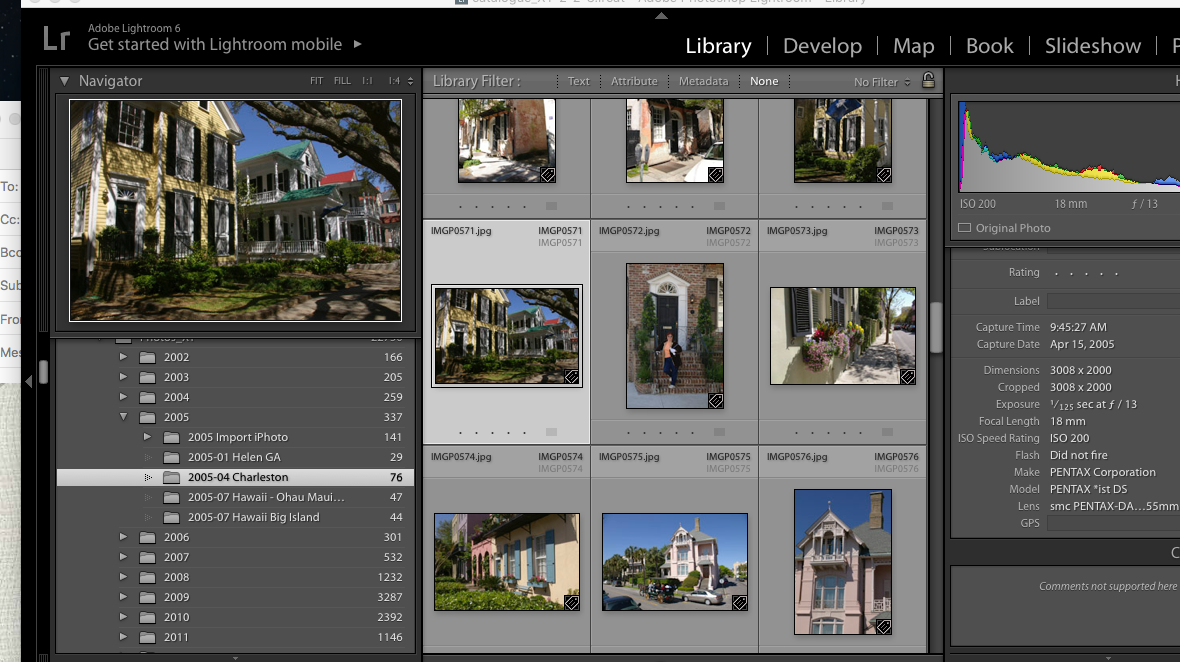
Step #1 : select the folder or the collection to migrate in Lightroom 6

The big unknown was whether I should also migrate my old Lightroom libraries to Adobe Cloud as well. I checked – I have 30,000 photos on my network storage (a mix of proprietary RAW files from Nikon, DNG files and JPEGs). But they only consume 300 GB on the NAS (that’s an average of 10MBytes per picture if you do the math), and it’s likely that nearly half of those images are duplicates (images were generally copied from the memory cards and saved as Nikon proprietary RAW files, then converted to Adobe’s DNG format and saved again). And I tend to keep every image, good or bad, when most pictures should have been culled a long time ago. So, maybe less than 100 GB of keepers. Adobe Cloud storage fees will not send me to the poor house.

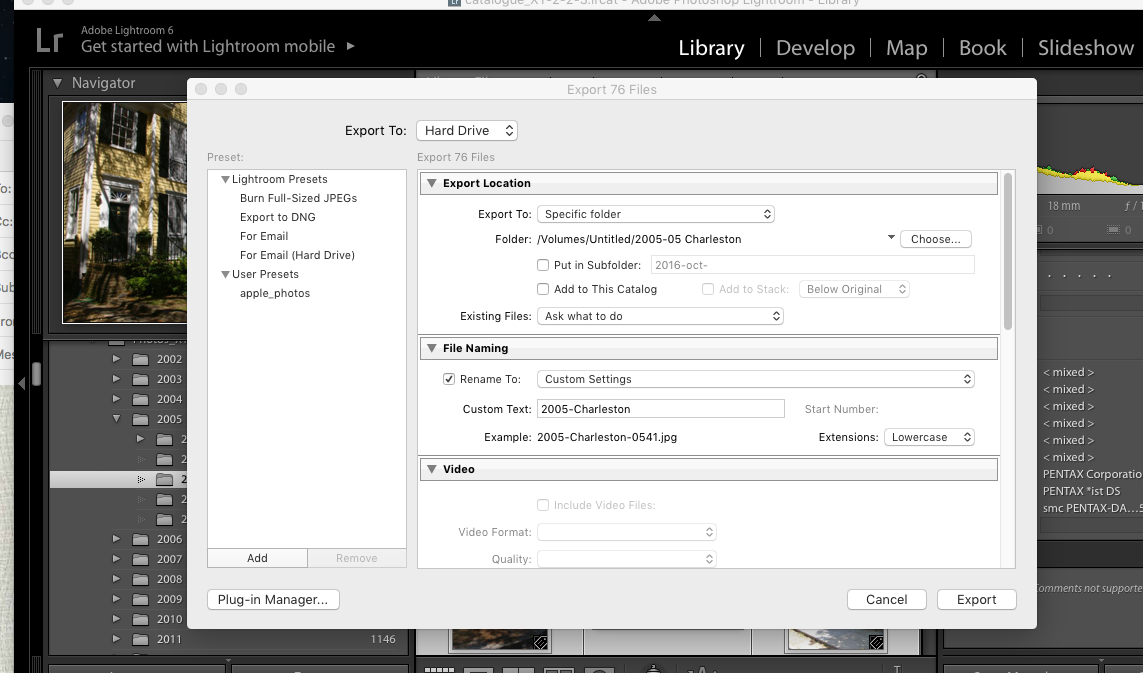
Step 2 – select the pictures and right click to export them (here as jpegs).

Originally, I thought I would simply be copying my old Lightroom 6 catalog file to the Adobe Cloud, and that Adobe would do the rest. It’s simply not the case.

Firstly, not everything is migrated: the history of the edits, the folder structure, the books, slideshows, and smart collections and a few other things don’t make the trip to the cloud (I assume they remain available on Lightroom Classic if you keep licensing it after the migration to Lightroom, but I could not validate this statement for the reason exposed in my second point). For all practical purposes, it looks like Adobe Lightroom Classic and Lightroom (in the Cloud) are two significantly different products – and that a lot is lost during the migration.

Secondly, Lightroom catalogs and files can’t be uploaded to the cloud by Lightroom 6. The migration to Adobe’s cloud can only be performed from a recent version of Lightroom Classic, and upgrading from LR6 to LR Classic is a necessary first step. You can get a 7 day trial version of Classic, so it’s not directly about money. The problem is that Classic only runs on a recent PC or Mac (Windows 10 or better, MacOS 13.1 or better) – and my Mac is an antique by their standards – it won’t run LR Classic. There are other constraints I did not even explore like finding more local storage for the Lightroom cache (with Lightroom, images are stored permanently and at full size in the cloud and replicated to a cache on the PC or the Mac only when they are needed), because I was not going to upgrade to a new Mac just to be able to migrate my Lightroom catalogs.

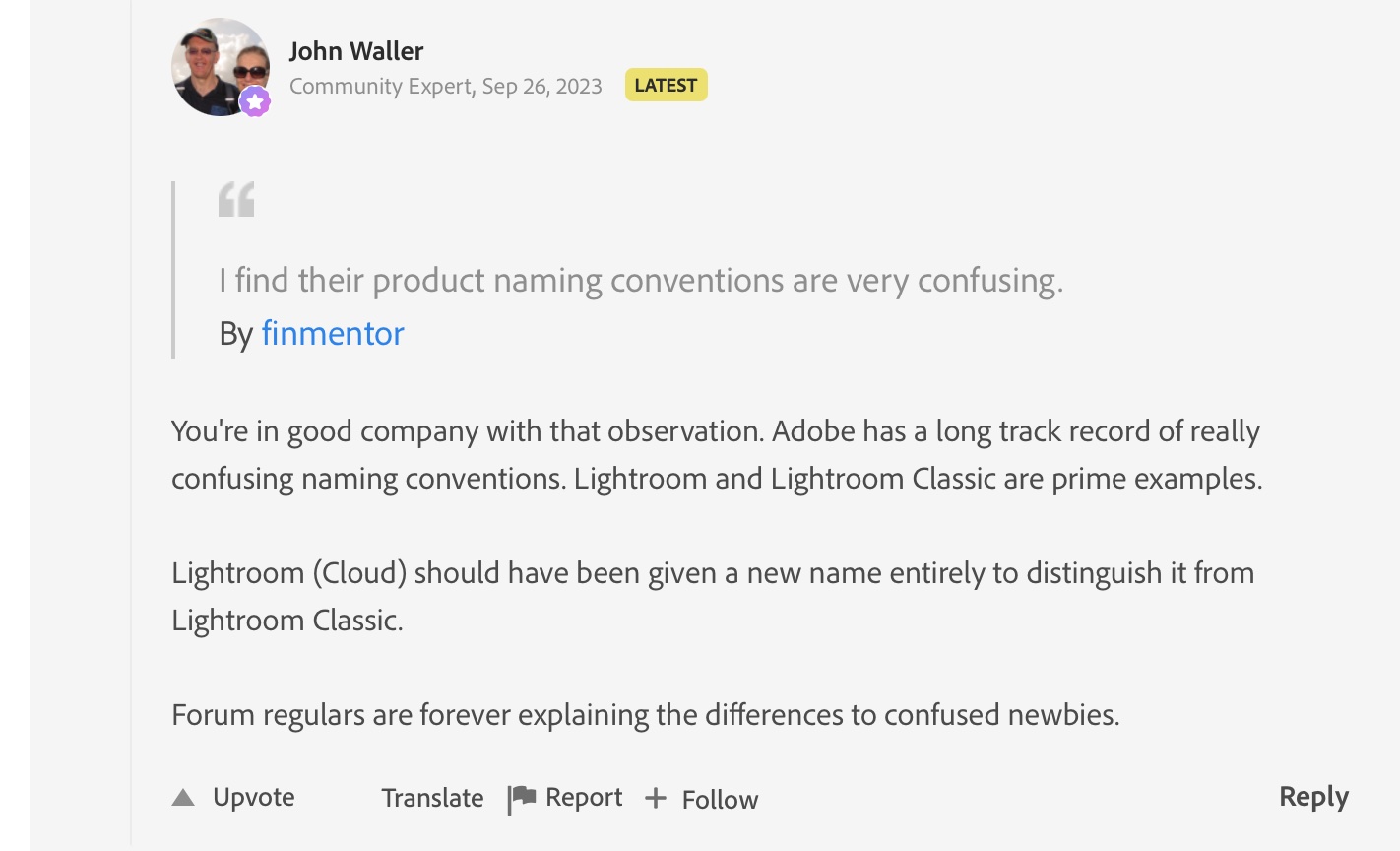
Thirdly, if it sounds clear as mud to you, you’ll be comforted in knowing you’re not alone – from Adobe’s Community Support:

From Adobe’s Community Support

So, considering all of the above, I decided NOT to migrate my Lightroom catalog to Adobe’s cloud. Instead I’ll export already developed JPEGS from Lightroom 6 to Lightroom Mobile, collection by collection.

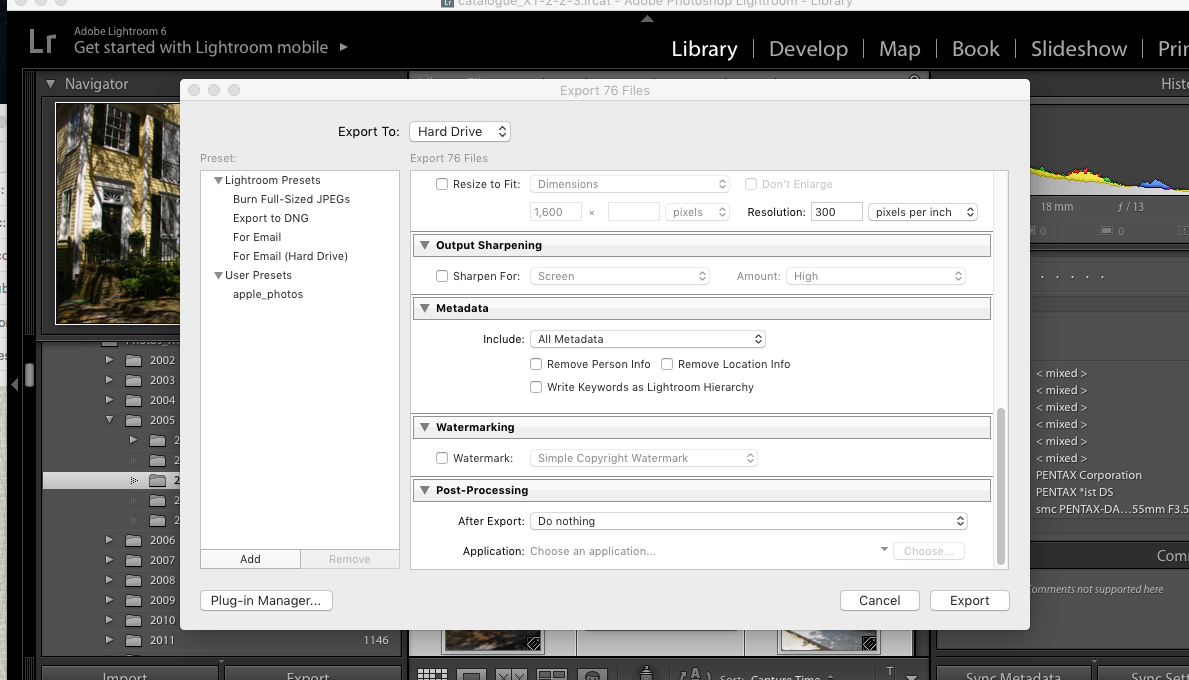
Step #2 (continued)

I don’t think I’ll miss much. Because so much is lost during the catalog migration, just exporting the Jpegs is going to be almost as good. I’ve been using Lightroom Mobile for a while now, and anything I’ve shot in the last 24 months and that I may need to edit again has already been uploaded to Adobe’s cloud. Anything older than two years was culled and processed in Lightroom 6 a few days after it was shot, and it’s unlikely I’ll need to go back to the original RAW or DNG files and process them again. Keeping the good pictures as JPEGs in Lightroom Mobile makes me laptop free, with images always accessible, easy to consume and share. And if I ever need to re-process a 15 year old RAW file, my Lightroom Folders and Albums are mimicking the folder structure I have on the NAS, and finding the image I need will be easy.

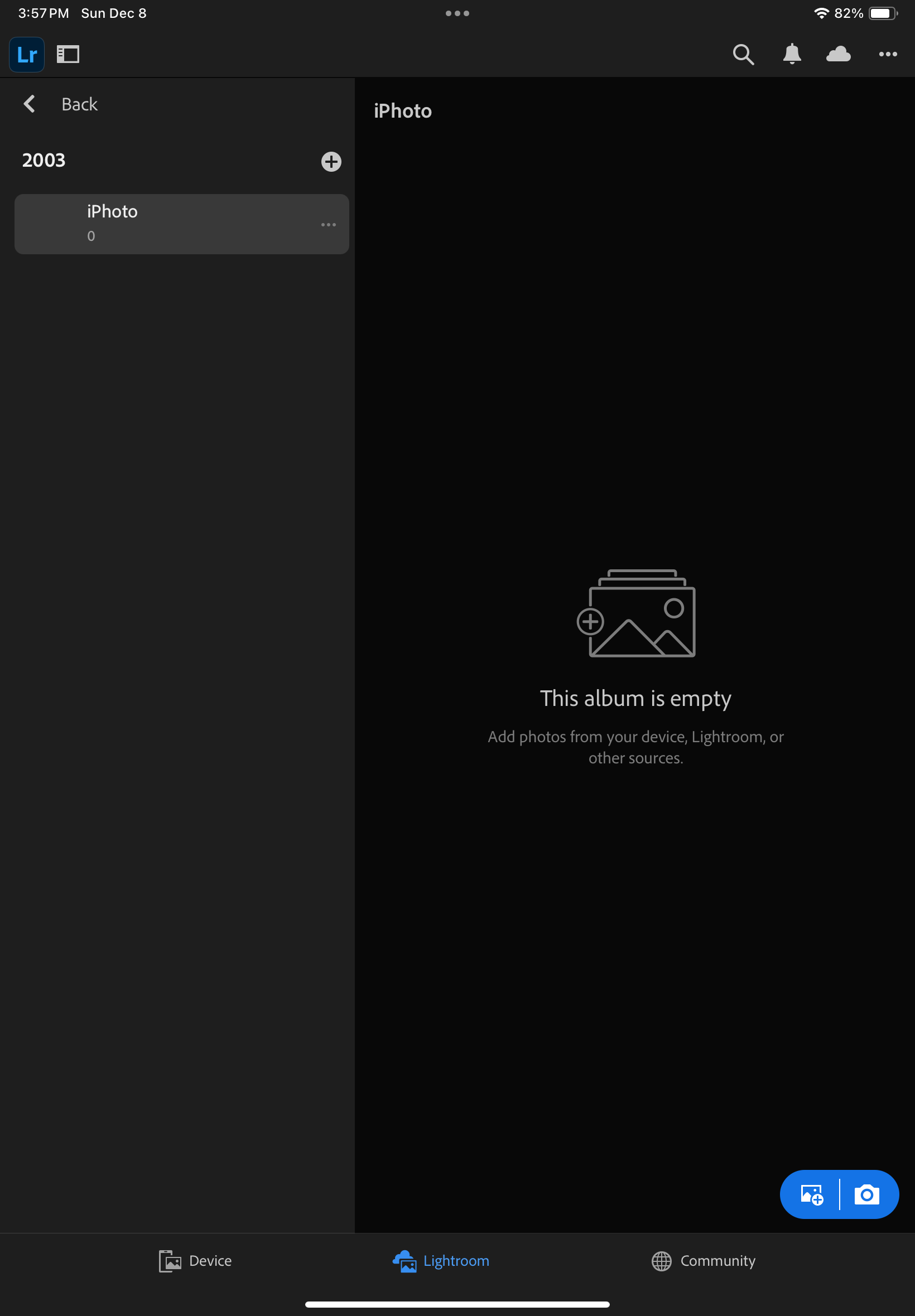
Step #3 – in Lightroom Mobile, create a folder and and album, and press the Add Image icon (bottom right)
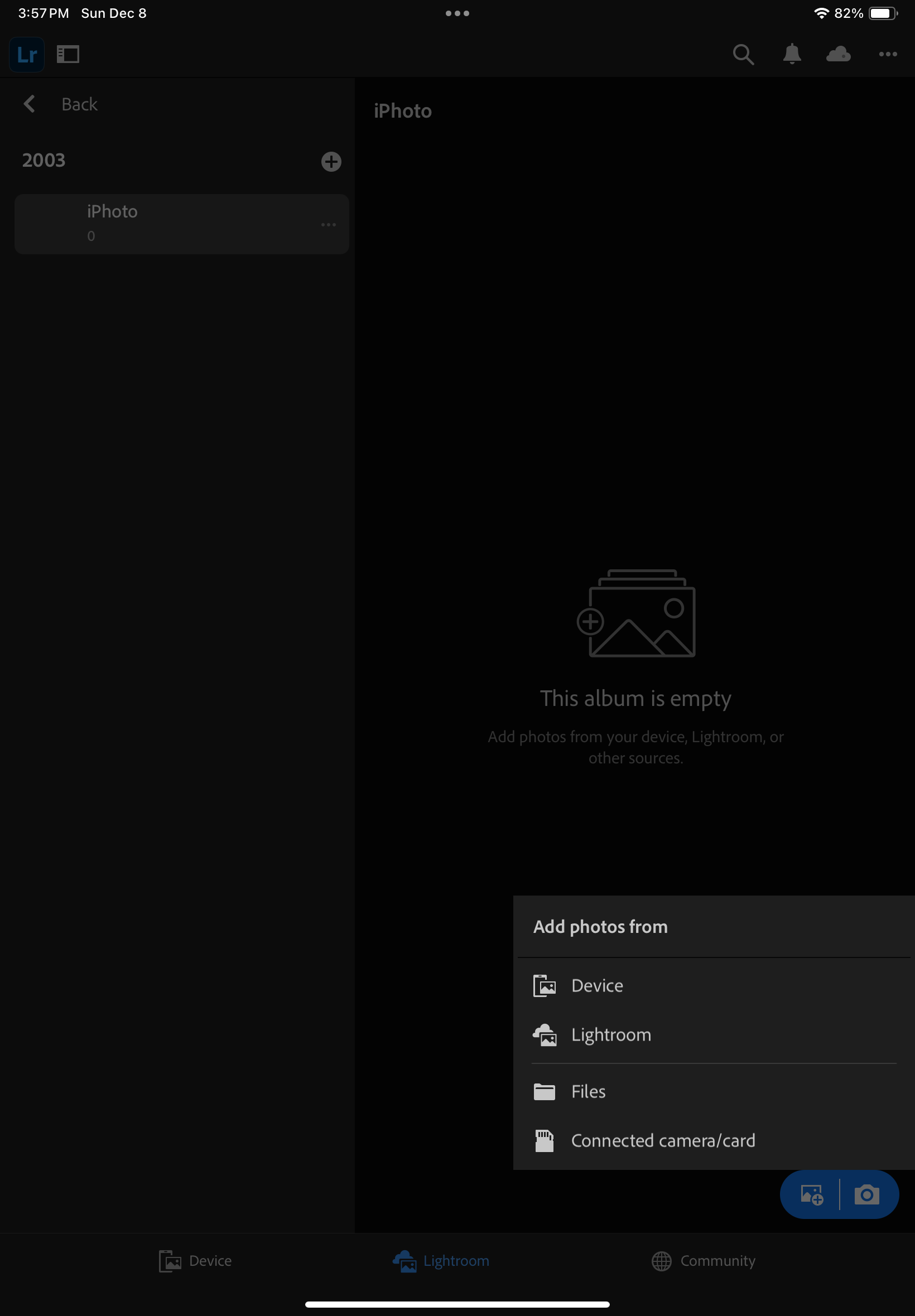
Step #3 (continued) – Add photos from Files (because they’re saved on an external volume)
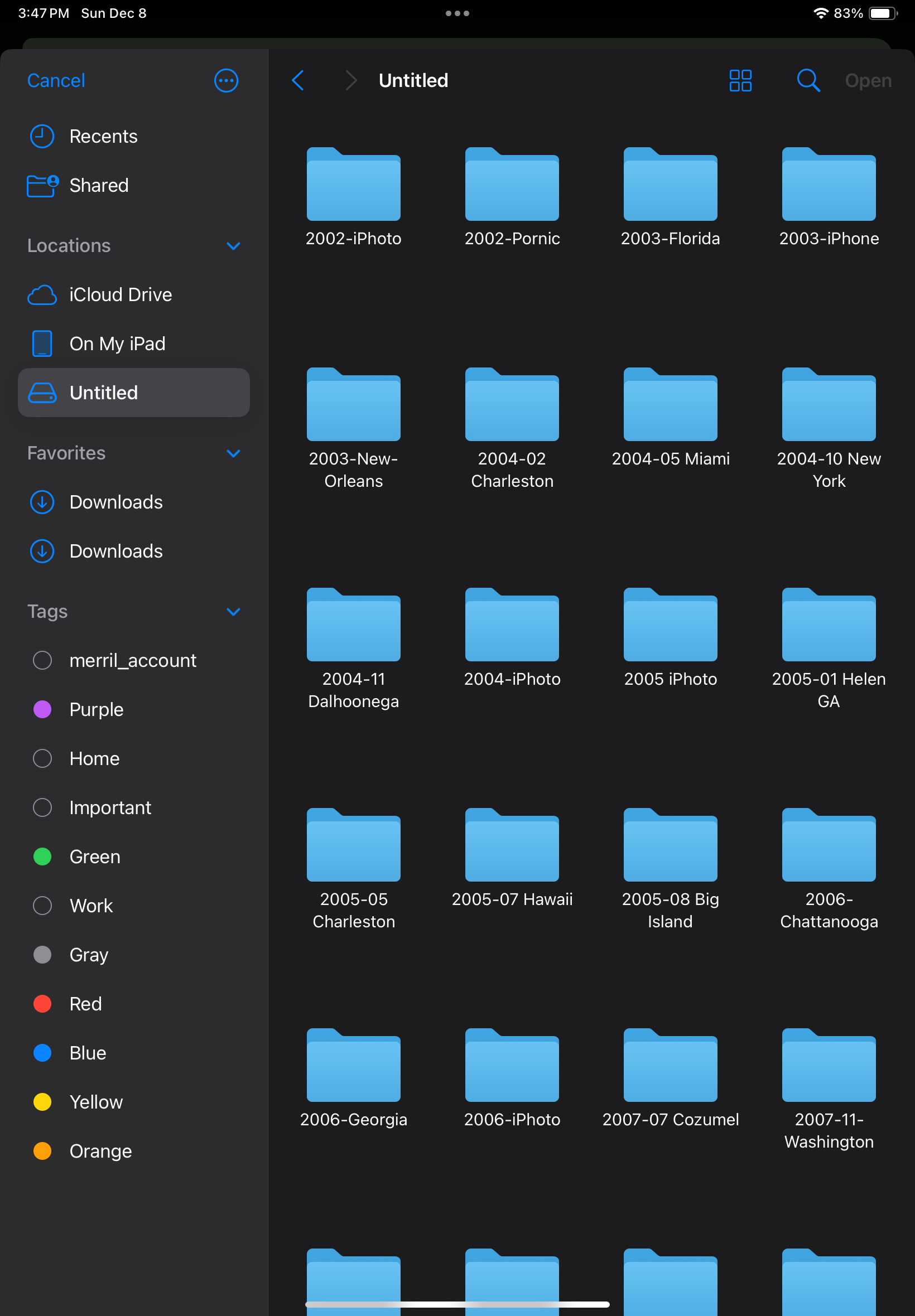
Step 3 (continued) – Select the folder where the photos to be imported are located.
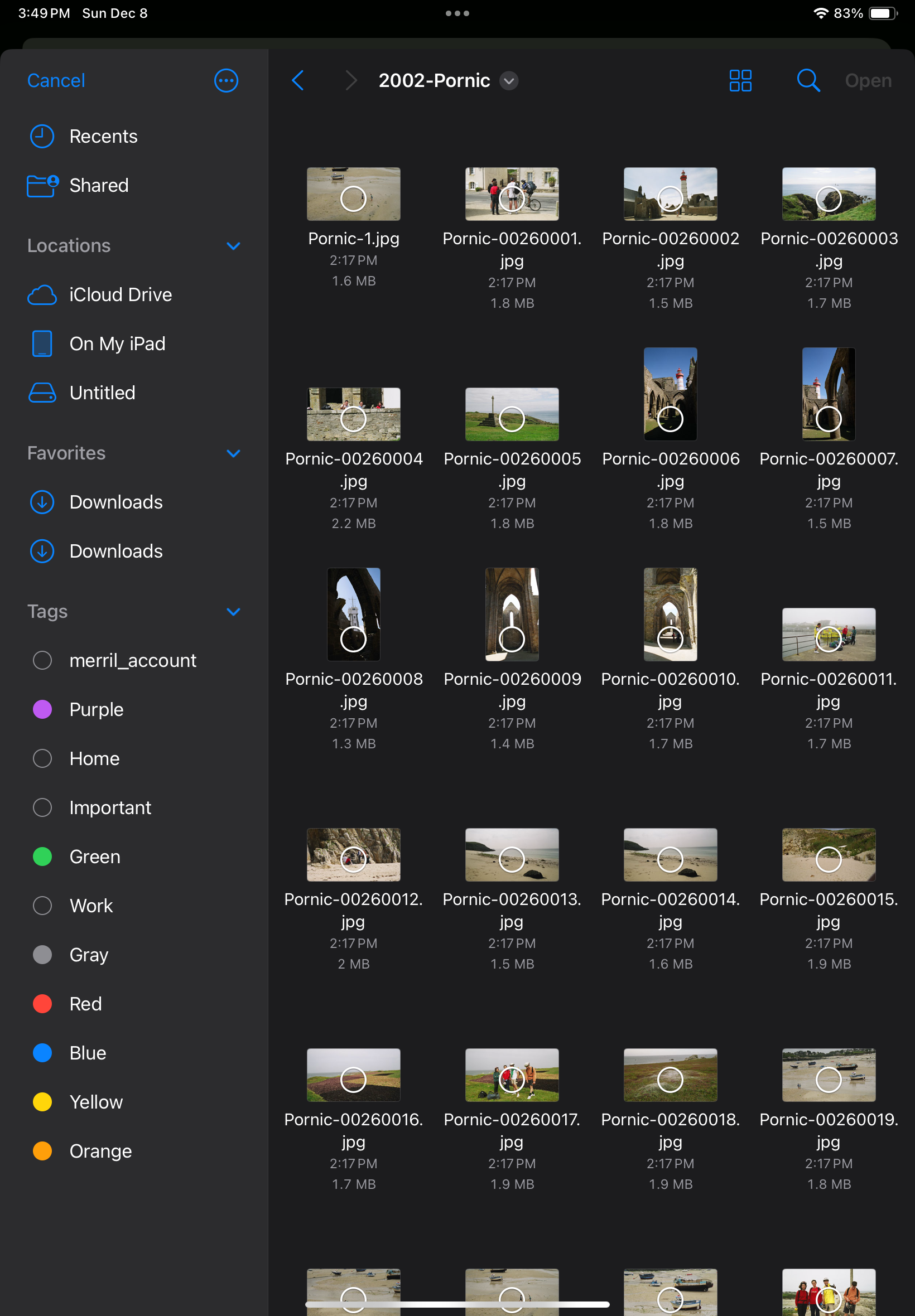
Step #3 (continued) – Select the images to import
Done.

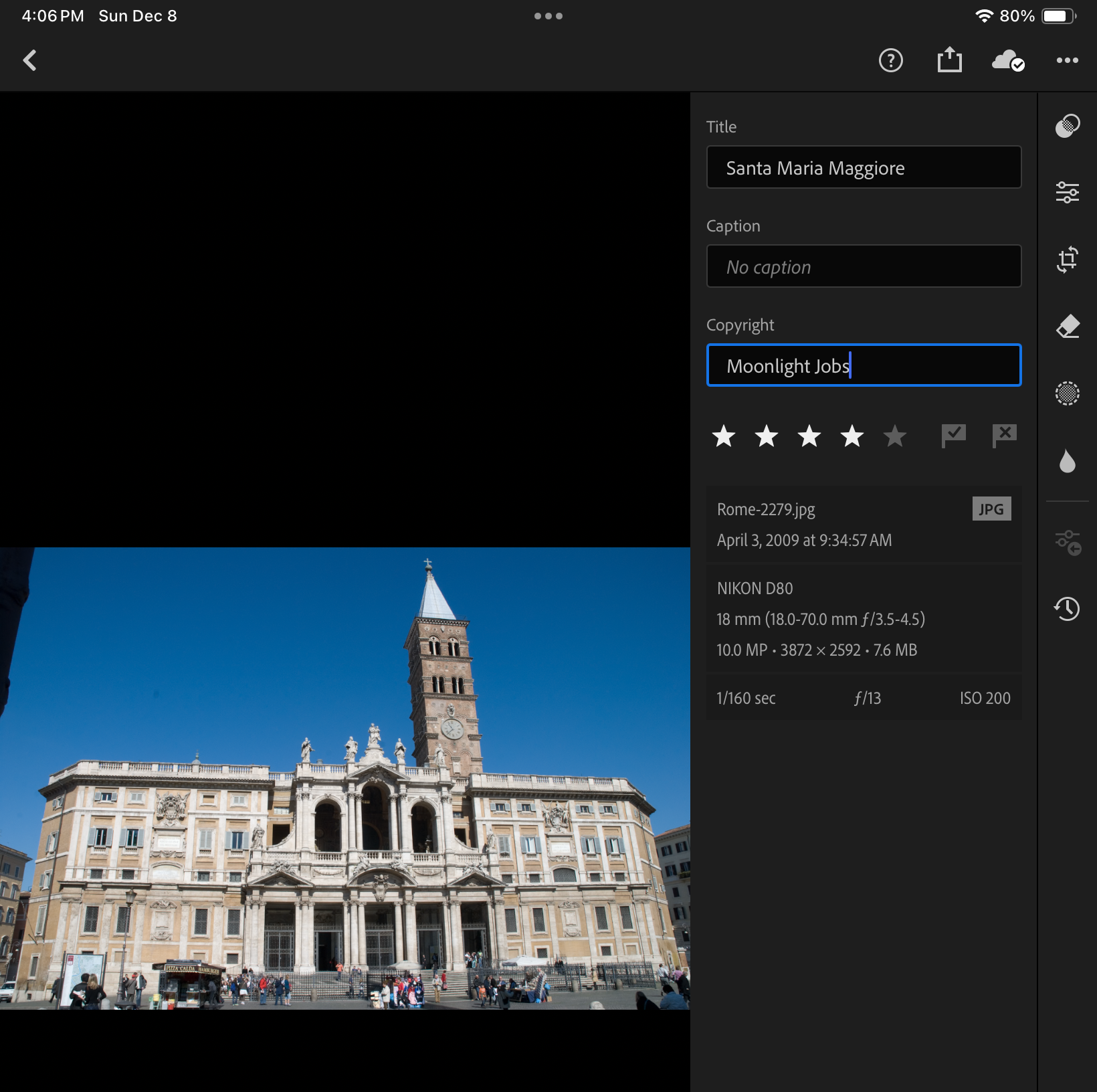
One thing I took great care of testing was how the metadata associated with each picture was migrated to Lightroom Mobile.

I exported the images as JPEGs, and they reflect the last changes made to the image in Lightroom 6 – if the original image was cropped, its sliders moved left and right, I won’t know it because the log of the edits is not incorporated in the JPEG that Lightroom generates. In other words, the images will be exported in their most recent state without their history, and no roll back of the settings will be possible.

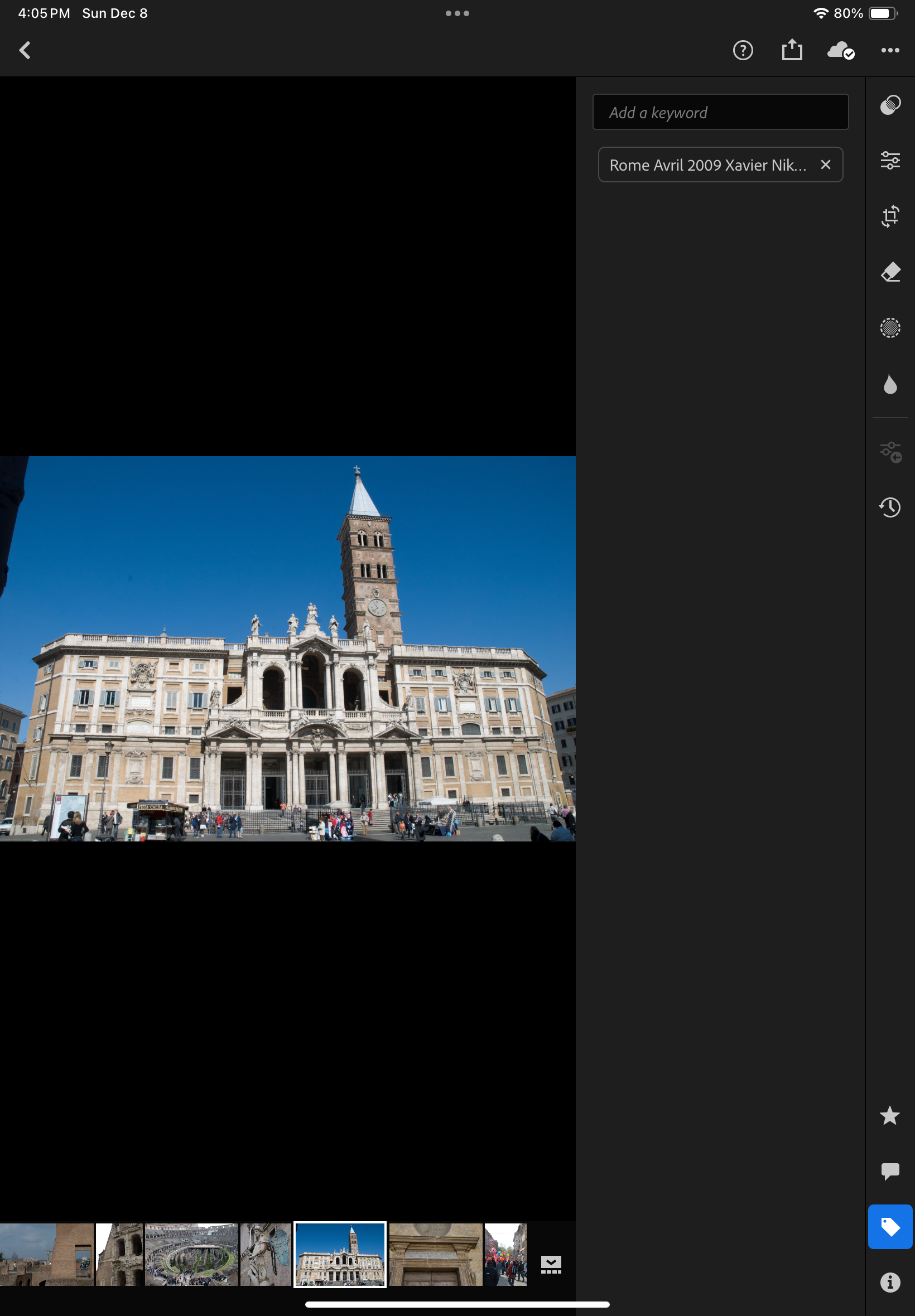
On the other hand, anything else is incorporated into the JPEG image – the metadata recorded originally by the camera or the film scanner, of course, but also the title, captions, keywords and even the flags and the stars added by the photographer and associated with the image in Lightroom’s catalog.

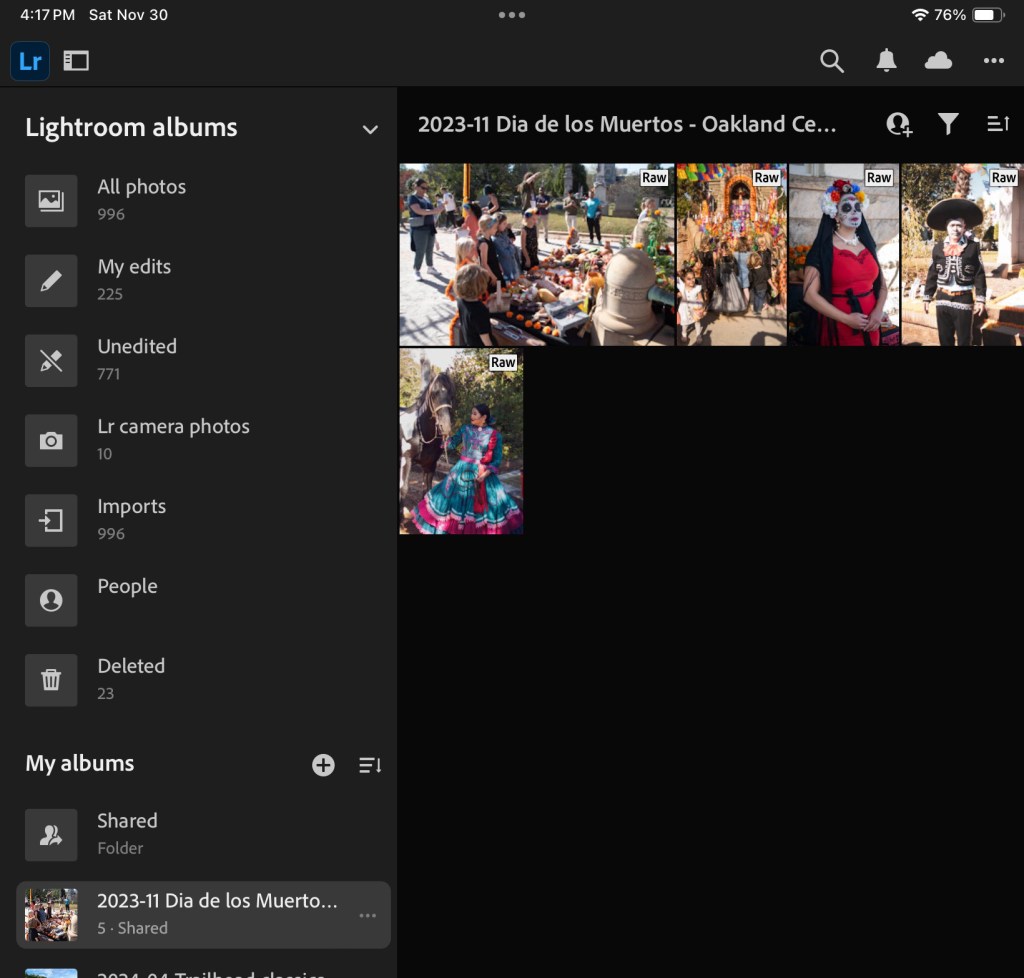
Importing the JPEGs to Lightroom Mobile (or Web) is a breeze – connect the media containing the files to the iPad or to a desktop/laptop (using the Web version on Lightroom in that case), create a folder and an album in Lightroom, and upload the pictures.

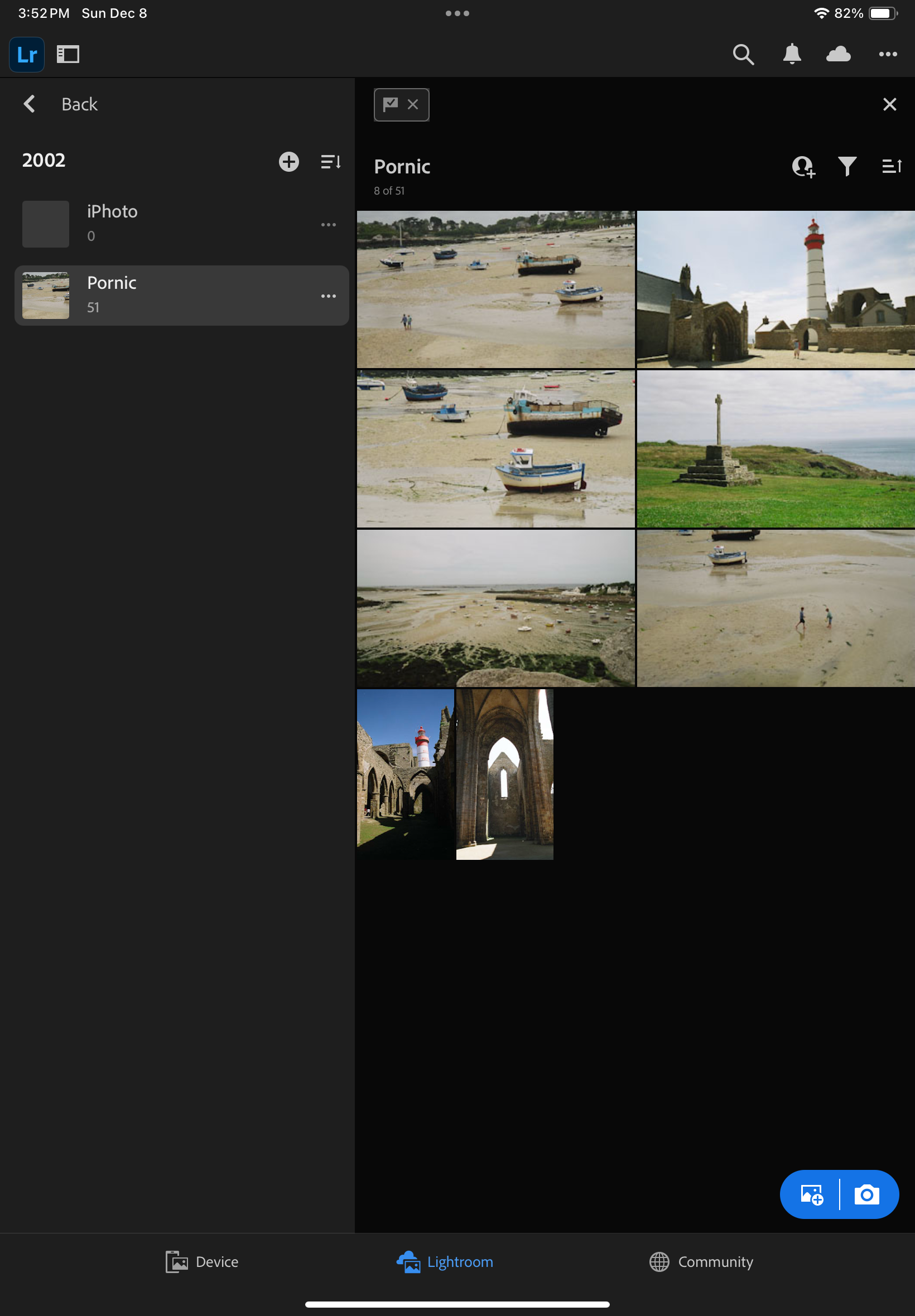
The Metadata is preserved during the transfer
Including the keywords

Experience has taught me that no technical solution is perfect, or eternal. I’ve seen Apple iPhoto and Aperture being abandoned, Lightroom migrating from a perpetual license to a subscription model, and multiple online image storing and sharing services fall into irrelevance or disappear.

At this moment, Lightroom for Mobile with Premium features meets my needs, and I expect it will remain the case in the next few years. Eventually with an upgrade to 1TB of storage. The product is already mature, and it allows me to be laptop free – at least when it comes to photography. I expect Adobe to keep on working on their product. They’ve already started adding AI powered features to make photo editing or masking easier. I simply hope they will also find the time to address some of the little issues that irritate me.

In the rolling grasslands East of Calgary, Alberta – Fujifilm X-100 – June 2016.

More about the migration from Lightroom Classic (with local storage) to Lightroom (with cloud storage).

From the horse’s mouth: https://helpx.adobe.com/lightroom-cc/using/migrate-to-lightroom-cc.html

Portsall harbour – the picture was shot on film in 2002 and preserved through multiple migrations (film to scan to CD to iPhoto to Aperture to Lightroom 2 to 6, then to Lightroom Mobile)