A backup strategy for the images you edit in Lightroom Creative Cloud

My big 2025 photography project was to move all my pictures out of my hardware dependent local storage, and migrate them to Adobe’s Creative Cloud. I knew I would not convert my Lightroom 6 catalogs (theoretically possible, but too cumbersome), but the folders on the Network Attached Storage device (NAS) where the originals were stored had always been carefully organized. I thought I would not lose much by not converting the catalogs. I subscribed to Adobe’s Lightroom Creative Cloud (first through the Apple Store, later directly on the Adobe Store), and uploaded all the original images, folder by folder, to Lightroom. The process was described in detail is a series of blog entries dedicated to Lightroom.

Which means I’m now trusting Adobe for preserving 28 years of scanned negatives and digital images in their cloud. What can possibly go wrong?

A recent post by Jim Grey (about “the lost photos era”) and interactions I’ve had with cloud service providers in a professional context brought back to my attention that storing my images in a cloud was a good first step but not enough.

Rome – Fontana de Nettuno – Piazza Navona. Nikon D80 – Jan 2010

The “shared responsibility model”

All cloud service providers (CSPs) operate under a shared responsibility model. It’s the CSP’s job to ensure that their technical platform remains available and secure, and that the data entrusted to them can be recovered in case of a disaster in their data centers. As the client, it’s your responsibility to “govern your content”: manage the uploads, the regular cleanups, and configure how the data is accessed and shared.

The grey area is of course backup – CSPs generally commit to recovering your data at Day Minus One if something really bad happens to their infrastructure, but they won’t be obligated to do anything if you deleted a folder by mistake, or if you wanted to recover a group of files as they were at a specific point in time. CSPs generally consider that backups and restores are the responsibility of the client.

Although Adobe is a reliable company, I know I have to protect my images from a catastrophic error on their part, and from a major mistake (fat finger?) on mine.
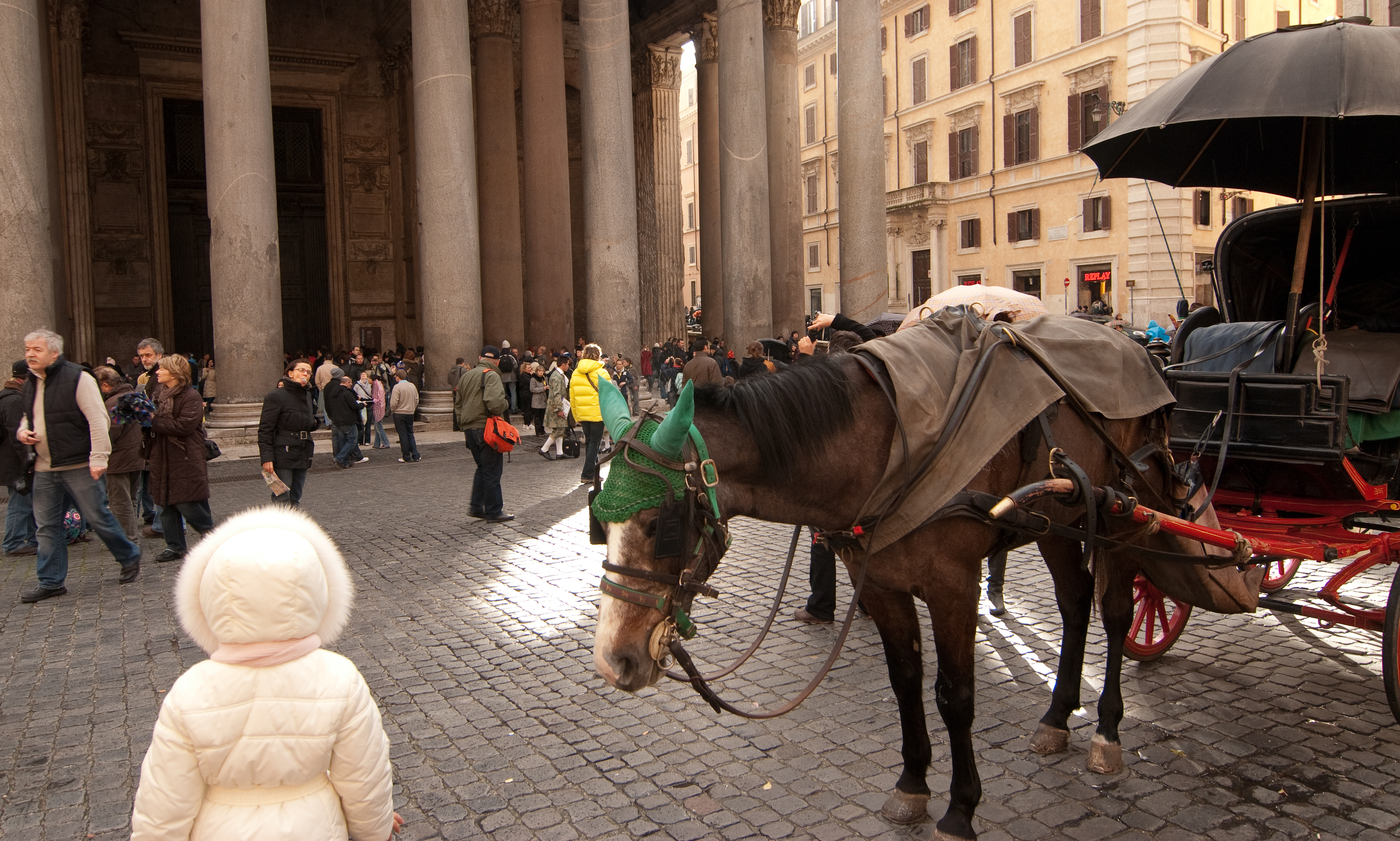
Rome, Jan 2010 – Nikon D80

A reminder – the differences between Adobe Lightroom and Adobe Lightroom Classic

Adobe Lightroom Classic is the current iteration of Adobe’s original image edit and management software, launched in 2007 as Lightroom 1.0.

It’s a “fat client” application designed to work on Windows or MacOS workstations (desktop or laptop), which stores your images locally (on the hard drive of your workstation or on some form of higher capacity local storage, DAS or NAS). Lightroom maintains at least one local catalog of your images, which contains all the ratings, flags, titles, captions you have entered, as well as a log of all the edits and setting changes (crops, exposure, color balance, sharpening,…) performed on the images.

The system is totally self contained – but as everything (catalog, images and edits) is kept locally, it’s your responsibility to manage the storage, the backup and the disaster recovery of your images.

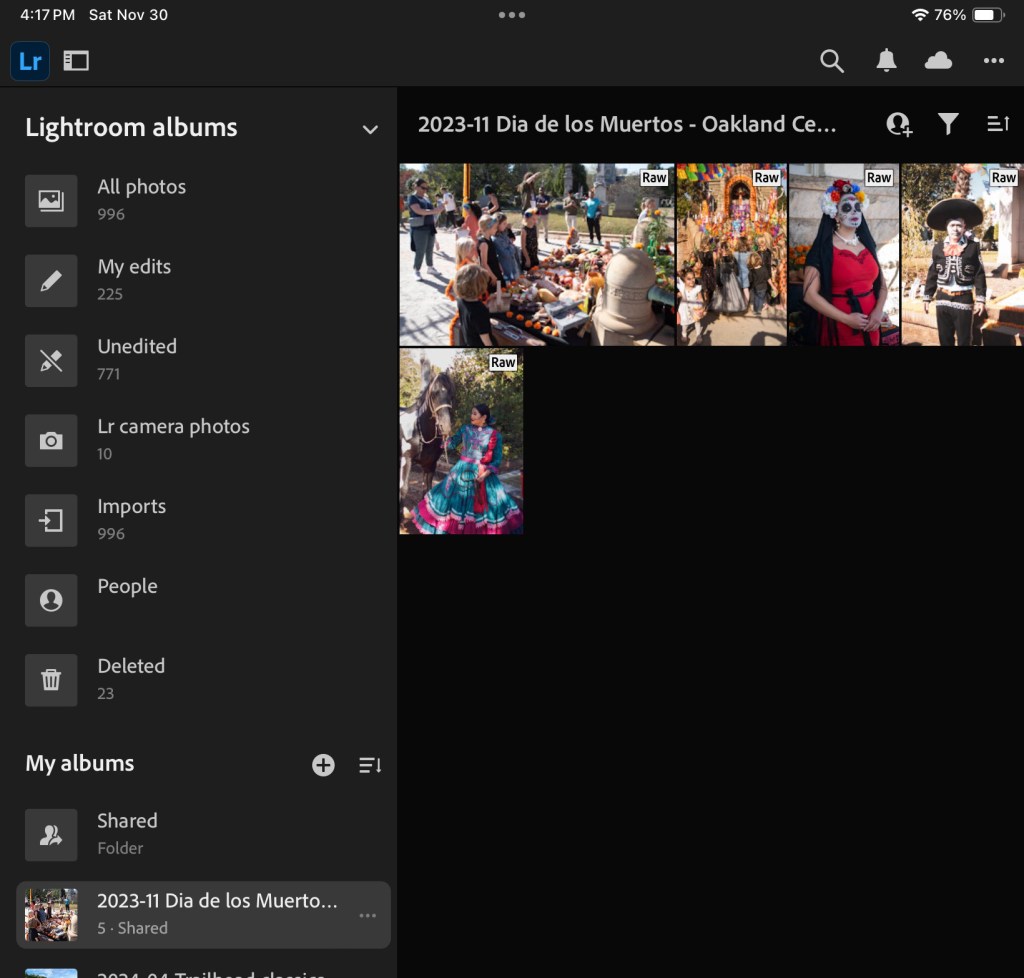
Under the same Lightroom brand, Adobe is selling a totally different range of cloud based products simply named Lightroom or Lightroom CC, whose lightweight clients run on a smartphone (iOS or Android), a tablet (iPadOS or Android) and on a desktop or laptop (Windows or MacOS). All those products share the same on-line library (hosted on Adobe’s Creative Cloud).

Contrarily to Lightroom Classic, the Creative Cloud versions of Lightroom (smartphone, tablet, PC or Mac) don’t keep any image or catalog on your device – just a cache to reduce the response time. The whole system works very well: I can upload images from my camera through a smartphone while traveling, perform light edits on a tablet at the hotel the same day, and spend more time perfecting the images on a laptop when I’m back home – it’s seamless. As long as I keep paying for the subscription, of course. And bar a catastrophic event in Creative Cloud.

Rome – Fontana de Nettuno – Piazza Navona. Nikon D80 – Jan 2010

Backup workflows don’t live forever

Even if the image formats themselves (jPEG and DNG) have been remarkably stable over the last 20 years, the hardware, the software and the cloud services offerings have not stopped evolving – and what used to work reliably ten years ago does not work any more. Which means that every now and then, we need to take a hard look at our workflow and re-engineer it.

When I put it in place in 2018, my image preservation workflow made sense – I was using Adobe Lightroom 6 running on a Mac to edit my photos and manage my libraries. Lightroom 6 was keeping the catalog on the local hard drive of my Macbook and was pointing to a volume on the Netgear NAS to store the images themselves. I was also running a backup application named Arq on the Macbook, and using it to keep a backup of the NAS in Amazon’s long term storage, AWS Glacier.

Along the years, this finely tuned workflow crumbled.

First, the OS of my old MacBook stopped being supported, and I saw its capabilities decline progressively as it could not access the services that Apple (and others) kept on making more secure with more refined security protocols and longer encryption keys.

To make the matter worse, Netgear decided to get out of the network storage business – my RN214 NAS still works, but is not supported and (of course) its OS and its built-in backup apps are not updated anymore.

Last but not least, AWS has now sunset Glacier as I was using it – it’s not a stand alone product anymore, just a storage class in the S3 product portfolio, using different APIs.
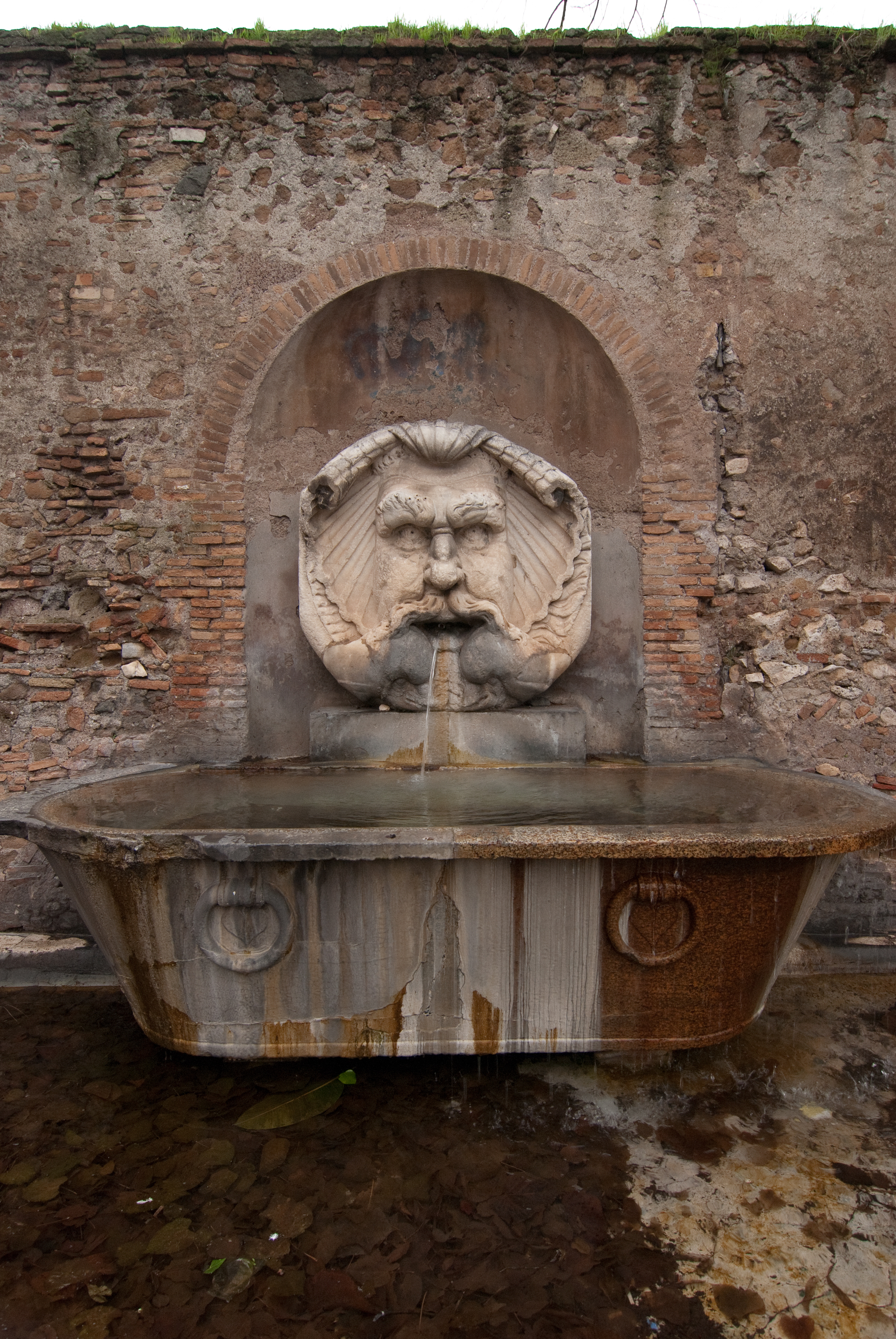
Rome, Jan 2010 – Nikon D80

My storage and backup strategy was crumbling and I had to act. That’s why I migrated the libraries themselves to Adobe’s Creative Cloud last year, and why I’m now implementing a new backup and restore workflow now.

My new workflow – saving the “digital negatives

As often nowadays, I called ChatGPT for help. The workflow it recommended, and that I implemented, is still based on Adobe Creative Cloud being my primary image store, the “source of truth”. Lightroom (the PC/Mac edition of Lightroom) on my MacBook will act as a sort of gateway to the NAS, and the NAS volume will store my local replica of the originals stored in Creative Cloud.

It’s important to remember that for Lightroom, a local storage volume is nothing more than the place where it stores a local cache. What is being replicated to the local volume is the source image – the original JPEG or raw files exactly as they were originally uploaded from the camera – before any transformation, optimization or edit was performed. The images are grouped on the SAN by date (one folder per year, one subfolder per day) and the album structure you defined in Lightroom is not respected. Again, it’s a cache that we use as a way to backup our source images, not a backup of the final images after Lightroom has processed them.
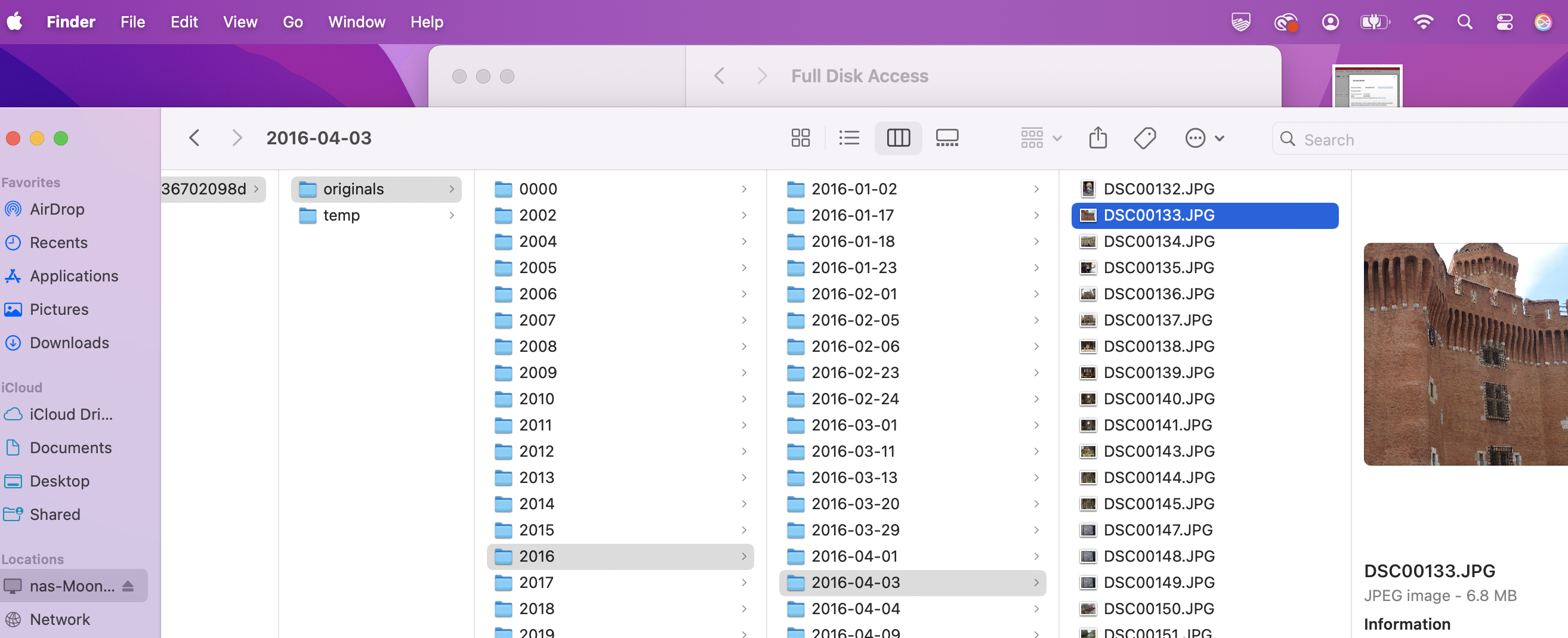
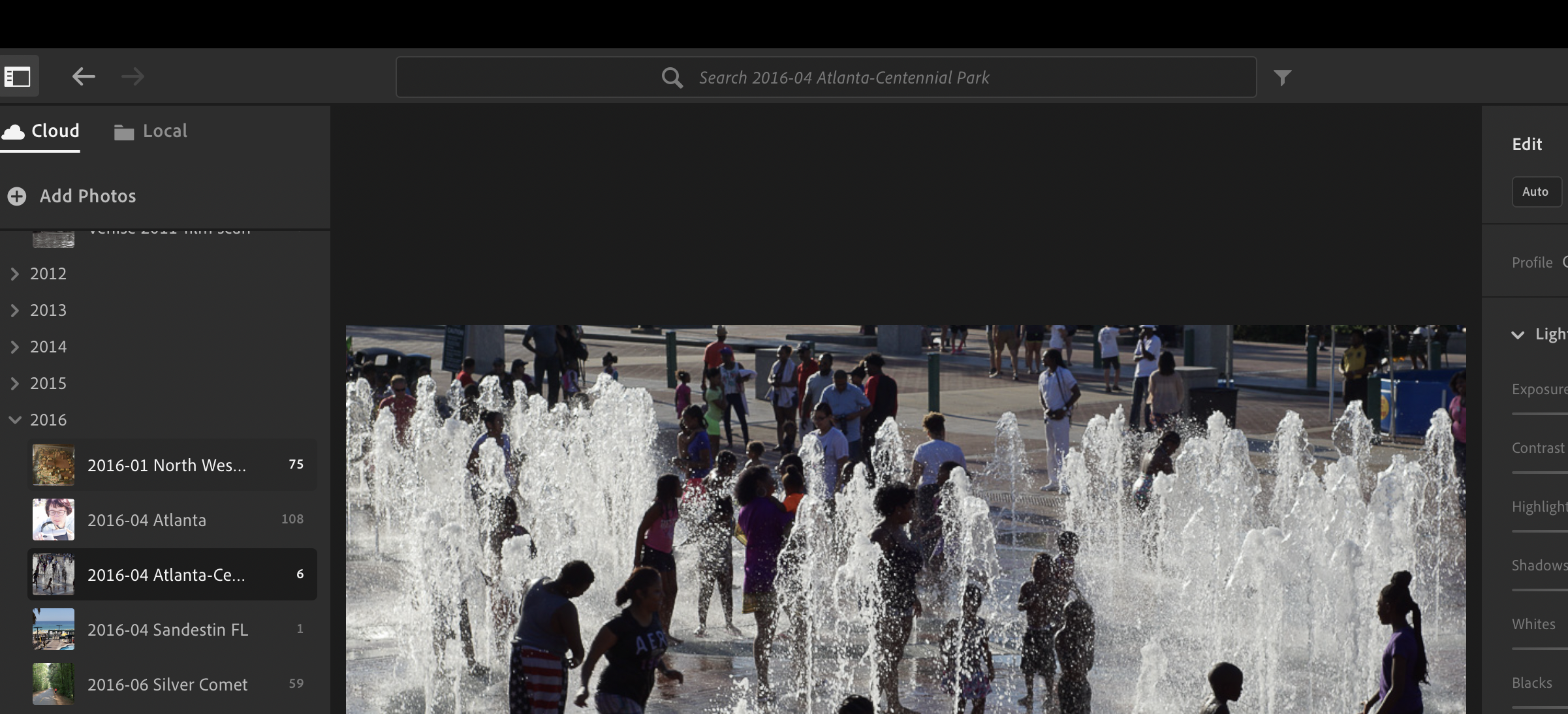
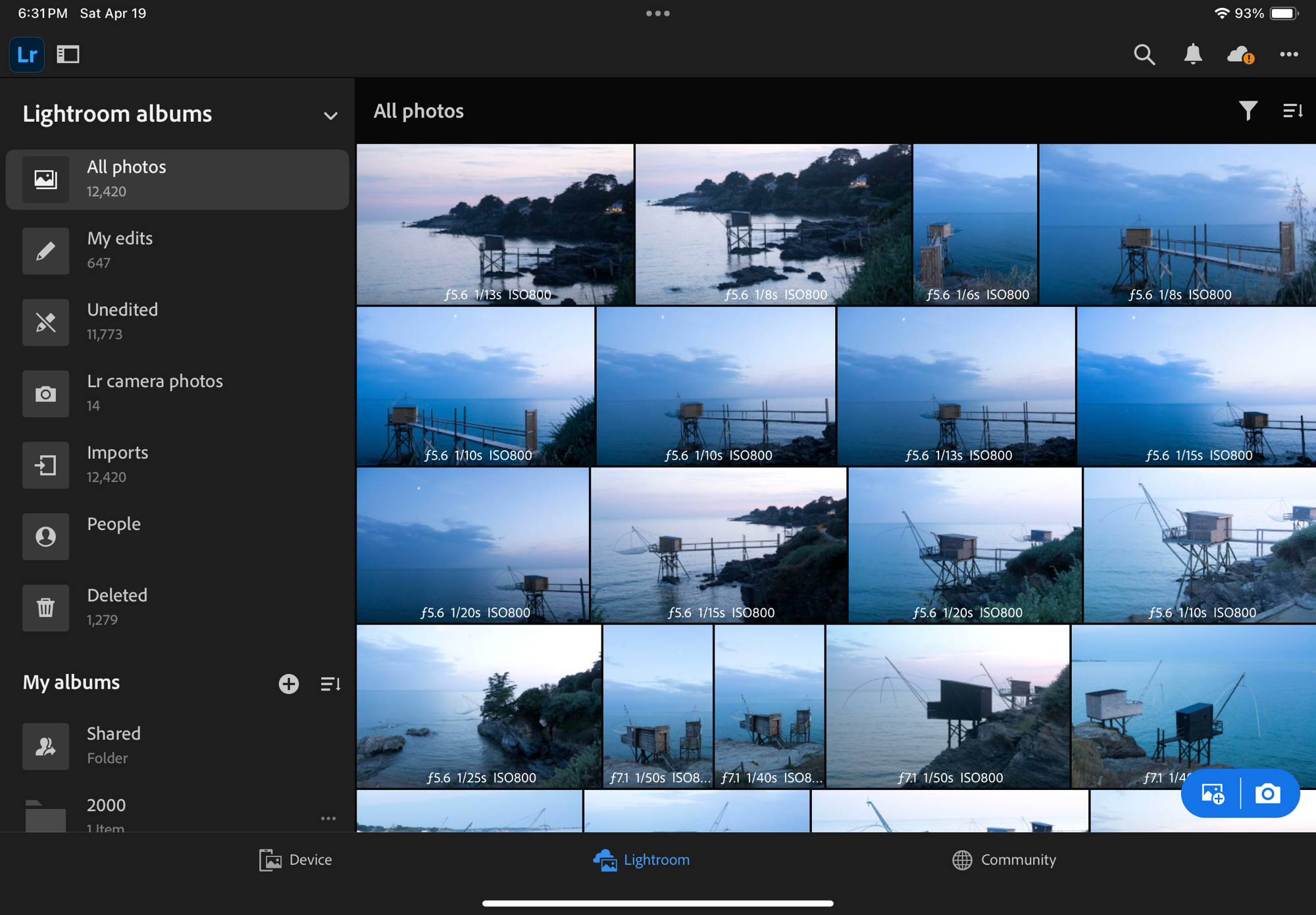
The local cache on the SAN shows the original files grouped by date of capture – the Lightroom Album structure and the edits are not preserved, only the original image itself (compare with the structure of April 2016 in Lightroom, as shown below).
Lightroom CC – the folder/album structure (here, April 2016). In Lightroom the images are grouped in user defined folders and albums.

How to setup Adobe Lightroom

Once the Mac is logged in the Network Attached Storage volume, simply click on the “Adobe Lightroom” option at the top left of the screen, select “Cache”, and under Performance, check the “Store a copy of all originals option”, and point to the folder of the NAS where the original images will be dropped.

The sync process is managed automatically by Lightroom. Every time you add new pictures to Lightroom, it will start replicating them to the SAN.

If you’re working with Lightroom away from your home network, no problem. Adobe will consider that the cache is not available, and will download the images from the cloud.
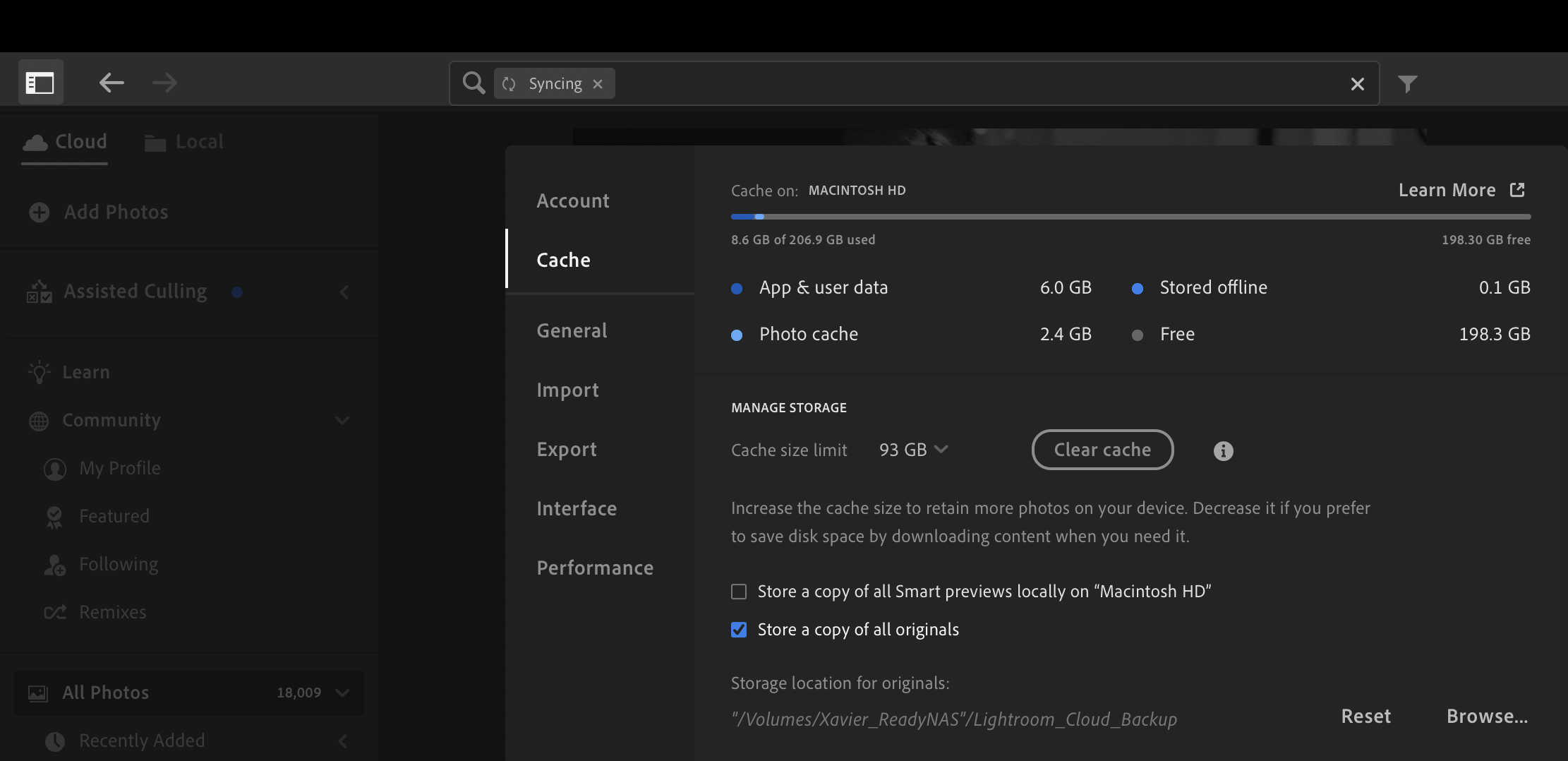
In Lightroom CC – check the “Store a copy of all originals” option and point to the NAS as a the local storage

Creating an off-site backup of the Network Attached Storage volume

The primary storage location of my images is Adobe Creative Cloud. I keep a replica of the originals on a network attached storage device (NAS) at home. It’s a pretty solid data protection system, but it’s only keeping one replica of Creative Cloud’s originals – and a replica is not a backup (because it only keeps the most recent version of a file). It is not very complicated or expensive to make it even more robust, and create an off site backup of the original images.
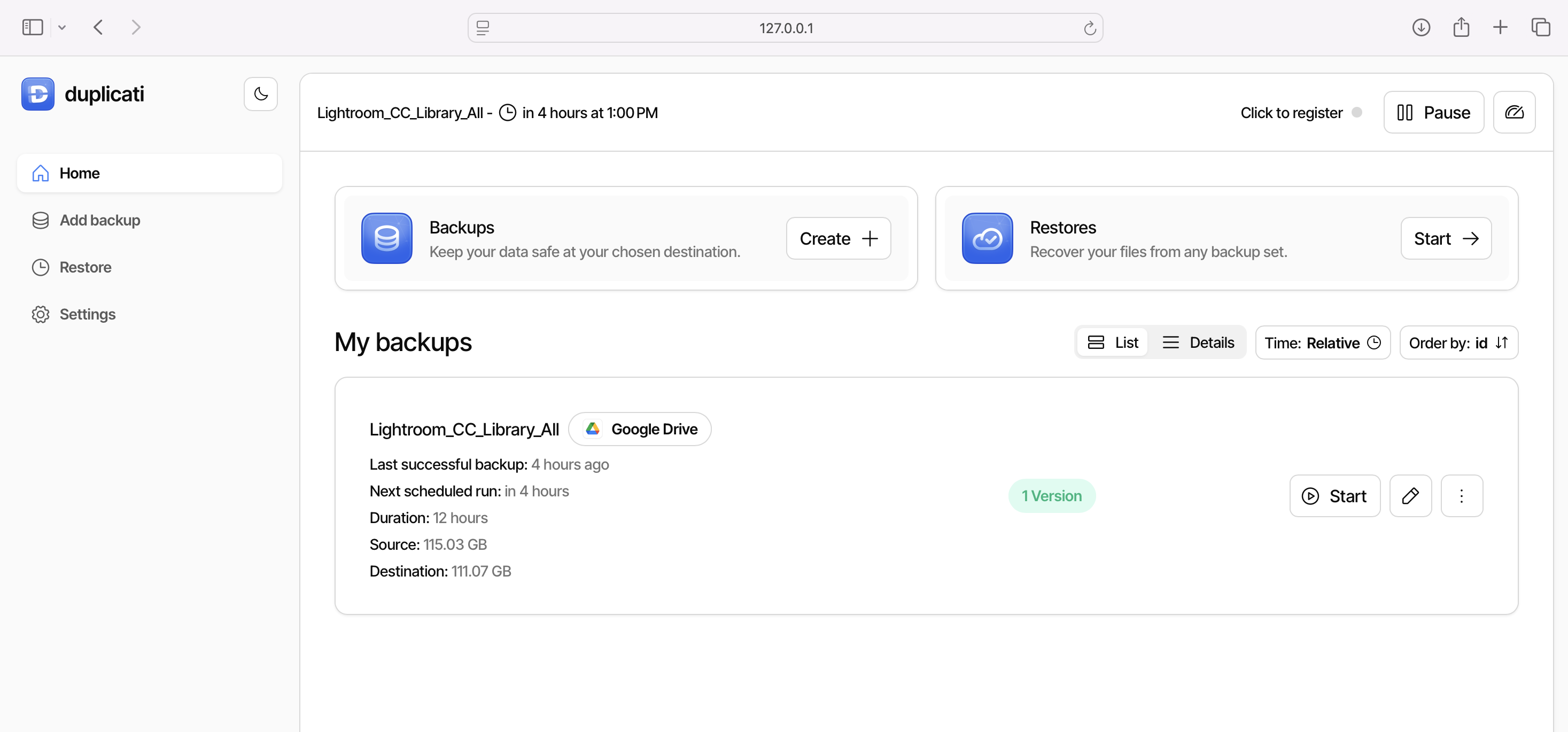
Duplicati – the backup job (it took it 12 hours to backup 110 Gbytes of pictures – not bad at all).

That’s what I used to do with Amazon Glacier – and having an off site backup of my photo library was a saving grace when my first Netgear NAS device gave up the ghost. Restoring the images from Glacier took a week, but it’s better than losing everything.
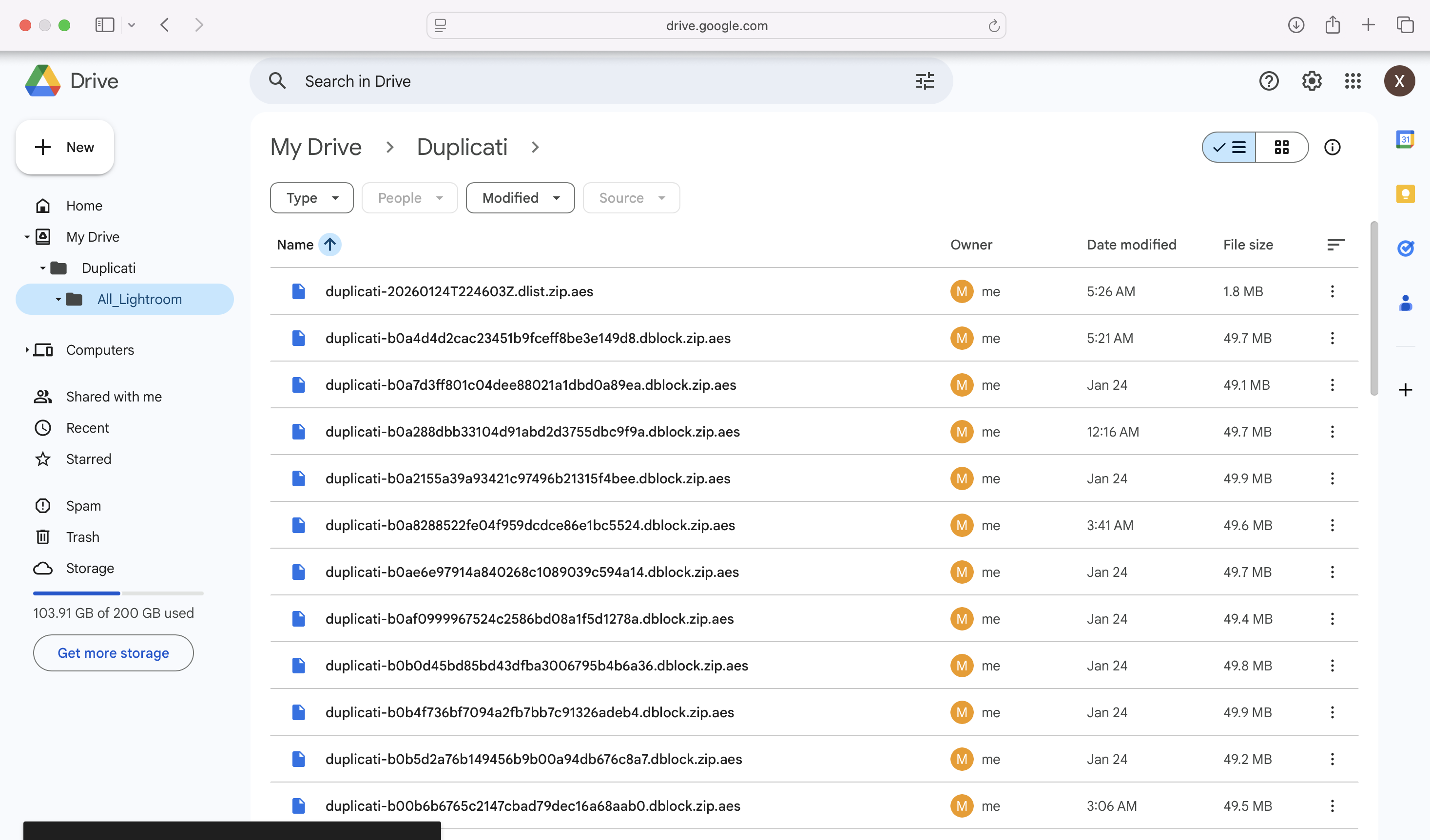
The target Google Drive after the backup – the data is grouped in blocks of 50 Mbytes.

This time, I tried different options (Arq, Backblaze) which for various reasons (performance, cost, no support of network attached devices) did not work for me. My current setup is based on an open source software named Duplicati, which is pushing the Lightroom replica on the NAS to a Google Drive. It works, backups are reasonably fast (around 2.5 Mbytes/sec), and it’s flexible enough: I can recover a specific image in a few minutes if I need to.

Validating that the setup works

Backup and restore workflows are fragile, and they can fail for all sorts of reasons (expired passwords or keys, OS or software upgrade, hardware or network related issues, human error). And it’s not because the backup is successful that the restore will be.
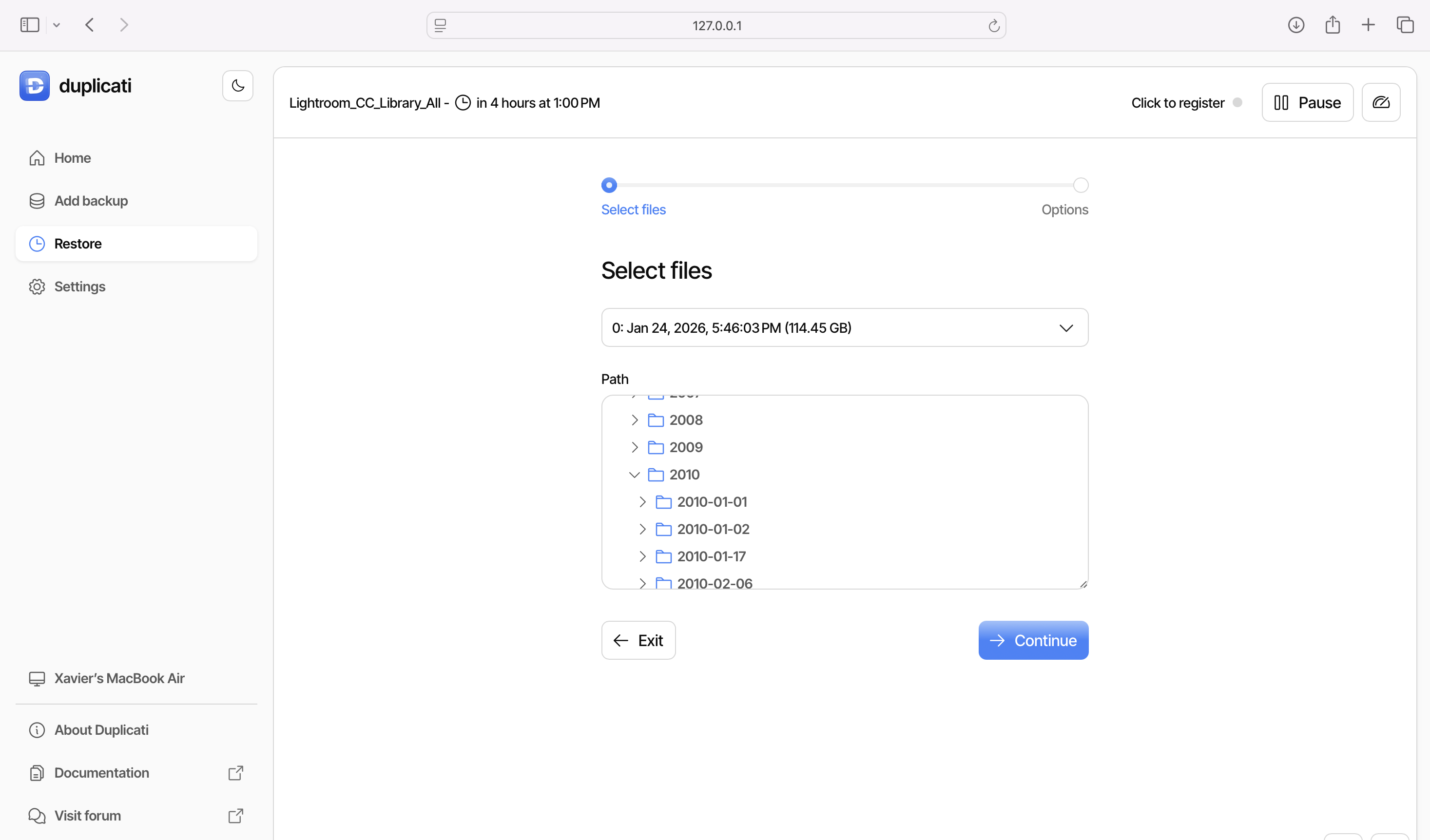
Restoring the data – selecting the document to restore is easy and the restore takes no more than a few minutes.

I had to validate that, with the Mac and Lightroom CC up and running, and the NAS volume mounted, that:

  • any new image added to the Lightroom CC library was replicated to the SAN, in its original state,
  • the backup software would catch the new image and back it up to the Google drive,
  • and that I could restore any image or any group of images as needed.

The tests were successful.

Saving the final images

You may also want to preserve a copy of the final state of your images, after Lightroom has applied all of its edits.

The challenge of course is that in Lightroom, the images don’t really have a final state. Adobe keeps your original photo and a sort of log of the transformations you performed, and dynamically creates a file containing the image you want after you have requested an export. You pick the quality, the dimensions, and the file format (small JPEG, large JPEG, PNG, TIFF, DNG, …) with or without sharpening – depending on what you intend to do with the image (email attachment, social media, photo gallery, photo album, print, …). And the image you need is created on the fly.
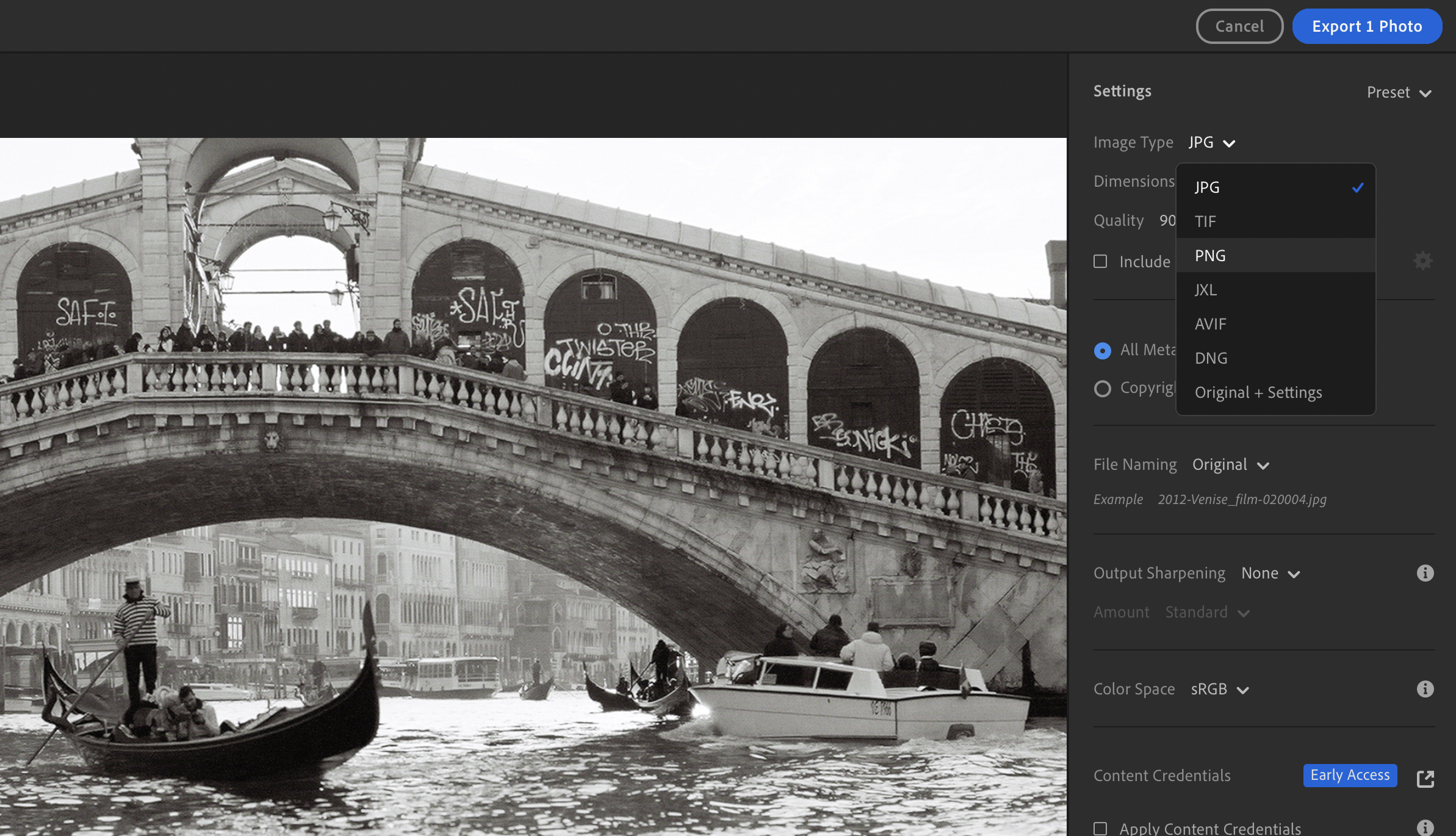
Lightroom – so many ways to export a photo

I understand that a professional photographer delivering images to many clients may want to keep a trace of what was delivered, and have an archival system specifically tuned to preserve them. (And pros may prefer working Adobe Lightroom Classic, anyway).

I’m not in this situation and I’ve never really given much thought about it. I simply export the images I need to the same shared folder in Apple’s iCloud, that all my Apple devices (iPhone, iPad, MacBook) can access.

Final words

In the days of film, it was not easy (or cheap) for amateur photographers to create duplicates of their color slides or their negatives, and store them in a second location as a backup. Photographers were at the mercy of fire, floods and burglaries, and could lose the images of a lifetime in a few minutes.

Digital images can be easily duplicated, and the duplicates stored in totally different locations, on totally different media. The setup described here is very easy to implement: a NAS is not even needed (the local SSD of a PC or a Mac would work as well), and many of our subscriptions (Microsoft Office Family for instance) already include 1 TB of storage and could be used as backup target.


More about Lightroom and fifty five camera reviews:

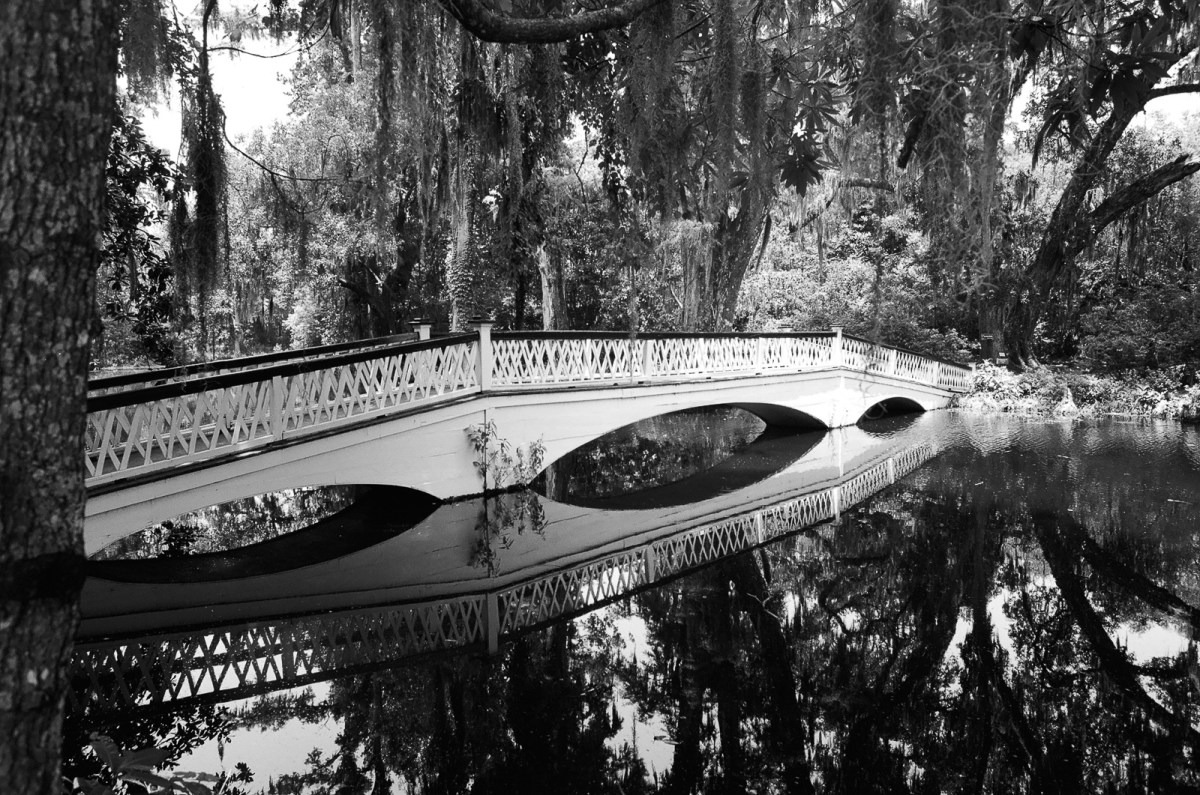
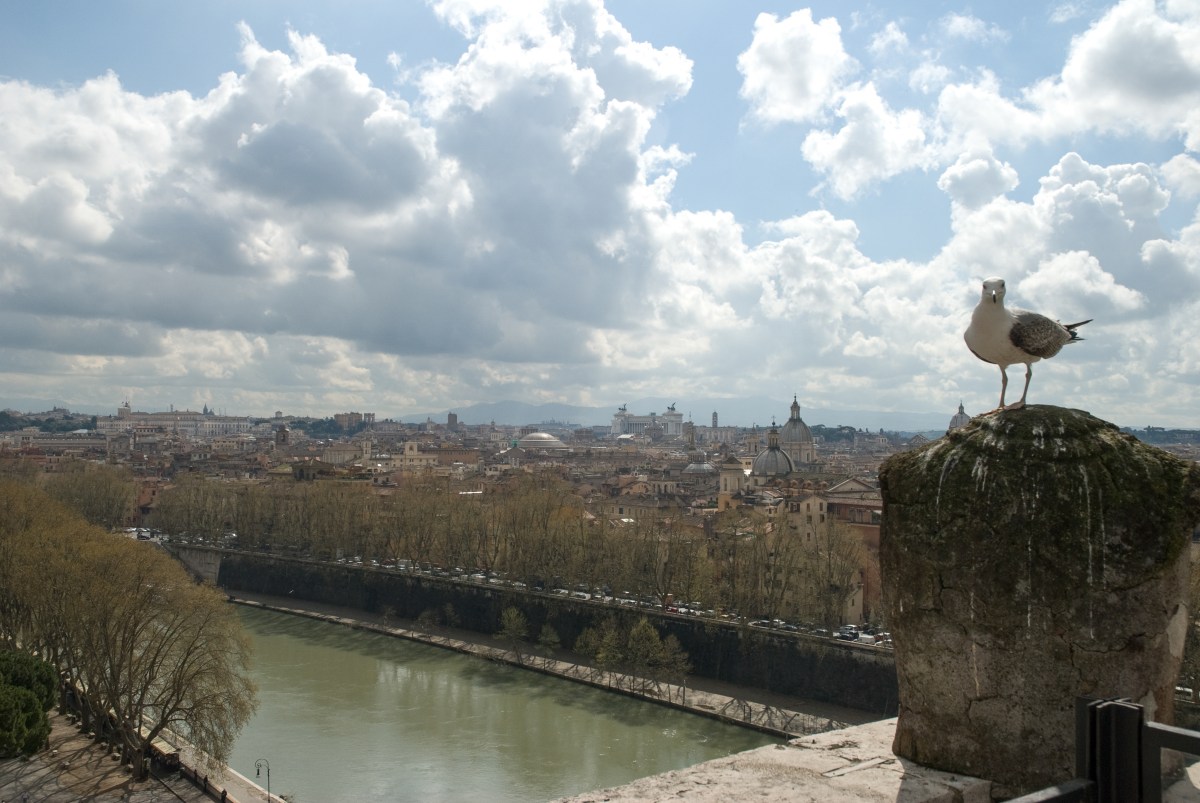
All the images of this series were shot in Rome, in April 2009 and in January 2010, with a Nikon D80. They were saved as originals on multiple generations of storage, recovered from a catastrophic NAS failure, and imported in Adobe’s Creative Cloud last year. I just adjusted a few sliders before exporting them to WordPress.

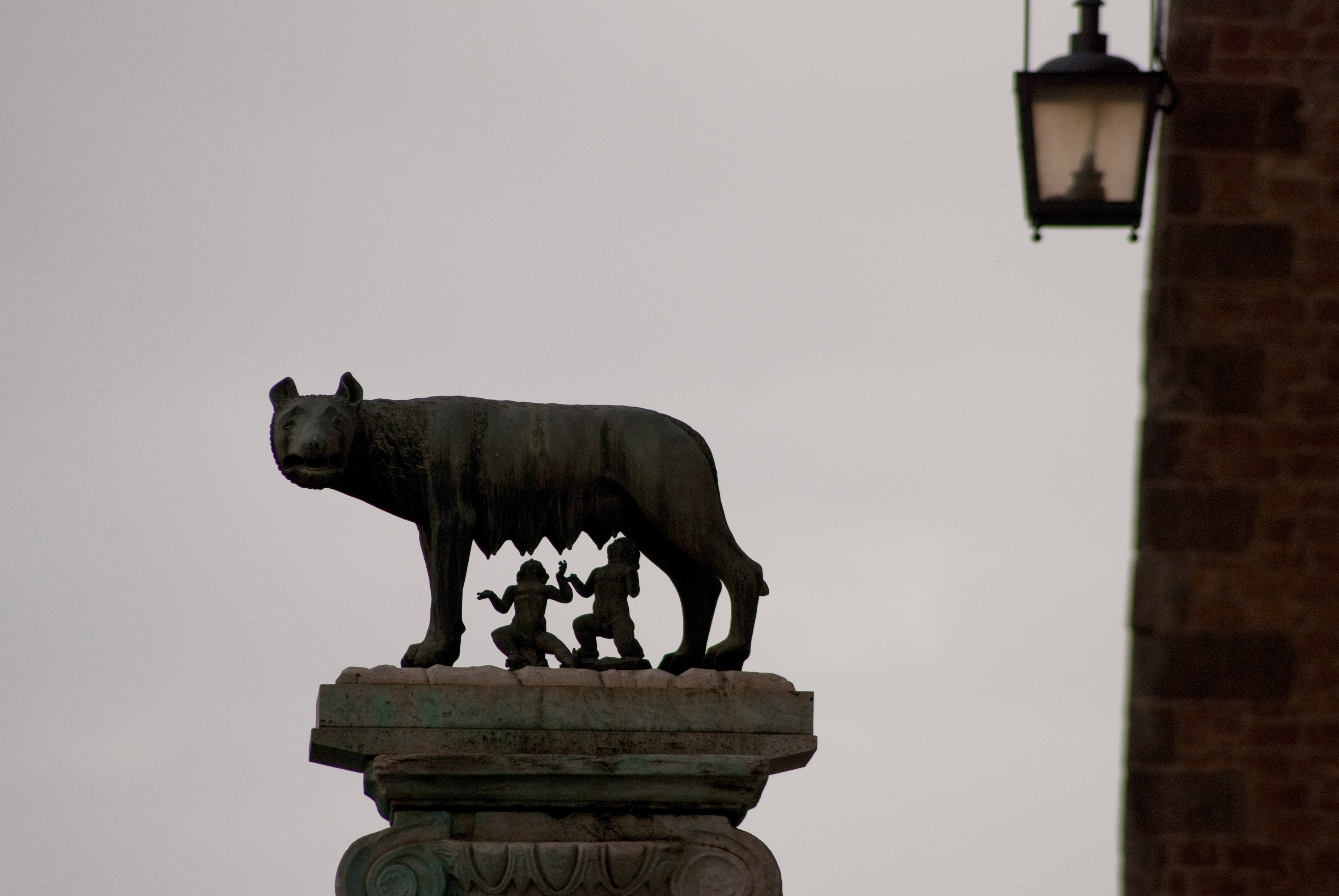
Rome, Jan 2010 – Nikon D80

Storage – Netgear ReadyNAS RN 214

I’m not a professional tester of IT equipment. And this blog is primarily about film photography. But I can’t avoid addressing the issue of digital image storage: unless you develop your film in a dark room, use an enlarger and get large prints the good old way, the images on your film will be digitized at some point, will be consumed digitally, and will have to be stored and archived on digital media. Because Adobe Lightroom is more flexible than the proverbial cardboard shoebox.

Over the years, I’ve been using consumer grade storage systems from brands like Buffalo and LaCie, until I settled on a Network Attached Storage system (a NAS) from Netgear. The RN104, that I purchased in 2014, fulfilled his duties honorably until last year, when it started to misbehave: the disks got corrupted  (probably because of an unstable supply of power) and I had to restore the data from a backup on Amazon Glacier. More recently a power spike (probably due to a bad connection between the external power brick and the NAS enclosure itself) fried the motherboard and gave me an opportunity to reconsider my allegiance to Netgear, and to consumer grade NAS in general.

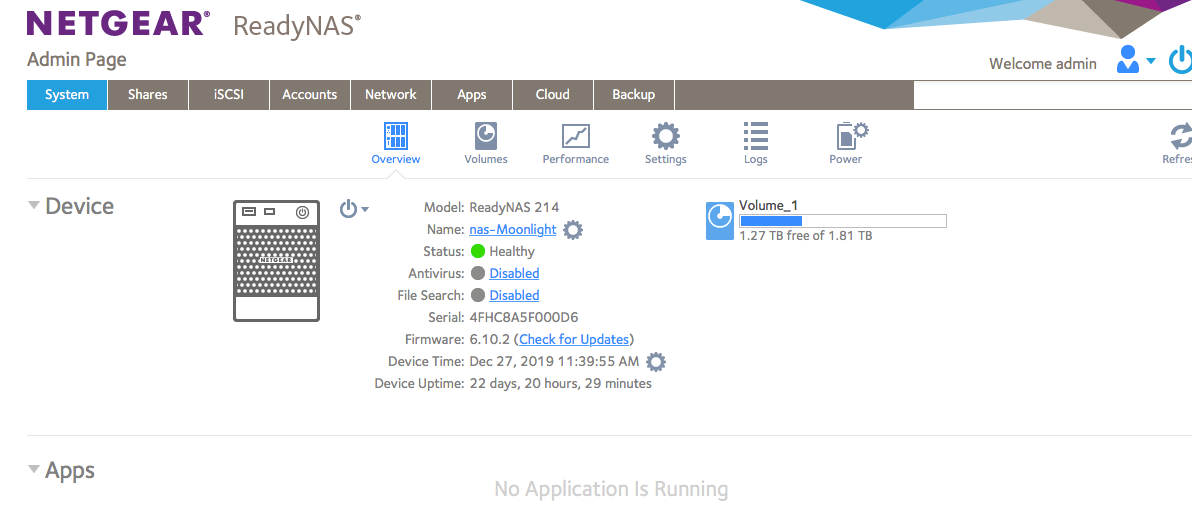
netgear system page
Netgear – the system admin page (overview)

netgear_readynas_214
Netgear ReadyNas 214

What I’m asking is pretty simple: I don’t want to store Terabytes of images on a single laptop equipped with a single drive – I want to store my pictures (RAW and jPEG) on a device accessible by the computers (PC, Mac, iPad) connected to my wireless LAN. That device has to be local – I’m using Lightroom to catalog, upload, edit and print my images, and a broadband connection would be far too slow if I used some form of cloud storage as the primary location of my pictures. That perfect device should also act as a Time Machine target for the backup of my Macs. And of course, because hard drives are inherently fragile, I want the device to offer some form of disk redundancy – ideally, it should be also be able to backup its data on a low cost, on-line archival service.

Most of the recent NAS devices (from Netgear and from competitors) meet those basic requirements. They can also stream video (they take care of decoding) and, because their OS is generally based on some Linux distribution, they can be used as multi-purpose servers (not only as file servers, but also as application servers to run Drupal, Joomla, php, or Python applications, for instance). I have no use for those features and they’ve not been part of my evaluation criteria.

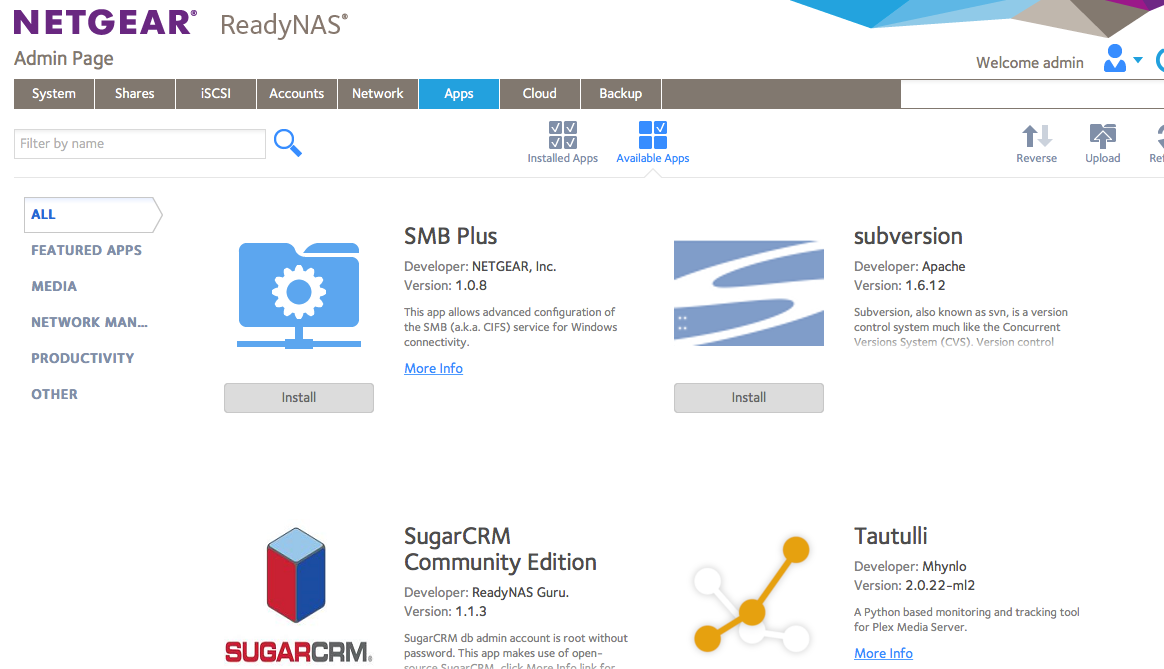
netgear_apps
Netgear – some of the applications that can run on the system

  • So, what I’m looking for?
    • a NAS,
    • solidly built (case, power supply, connector)
    • with removable drives – that can be moved to a SAN enclosure of the same family, without losing configuration or data (in case the original enclosure dies, or a capacity upgrade is necessary)
    • with good data protection (RAID 5 or better)

The Netgear RN104 met the requirements for the most part:

  • most of the issues I have encountered with my old RN104 have been power supply and power supply connector related – with dreadful consequences for the data on the disks and ultimately for the chassis itself.
  • until the big crash last year, the NAS was configured with RAID-X, the proprietary implementation of RAID in Netgear’s devices. With RAID-X one disk is reserved for parity, the other disks store data (it’s more or less equivalent to RAID 4). With Raid-X, volumes are easy to expand, but if you lose more than one disk, you’re dead in the water.
  • the Western Digital RED 1TB disks  that I bought separately for it (the Netgear chassis can be purchased diskless) proved flawless

When the RN104 chassis finally died, I considered buying a Sinology or Qnap enclosure, but I would have had to reformat the drives and restore everything from the Amazon Glacier backup, again. Sinology and Qnap are well considered on the marketplace, but seem to use the same type of external power supply brick as the Netgear, and maybe even the same dreaded power connectorUnfortunately, chassis with a built in power supply are much more expensive. 

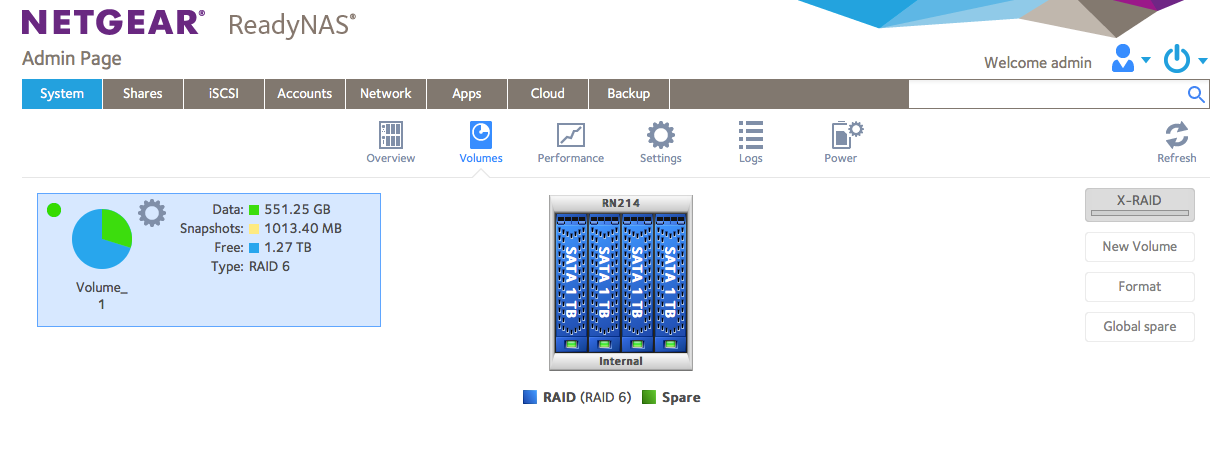
netgear volumes page
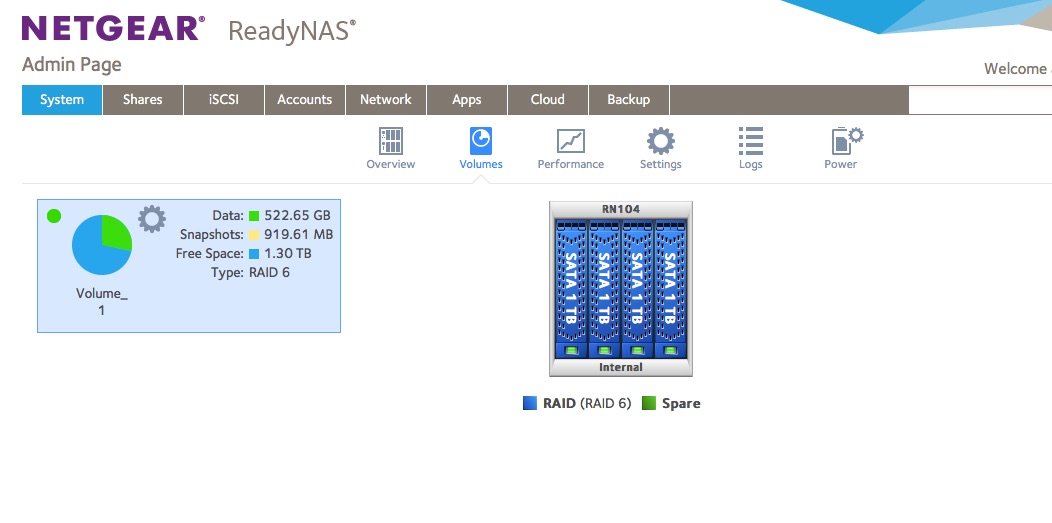
Netgear – all 4 disks healthy – it’s configured with Raid 6 (too many drawbacks with X-RAID in comparison)

Ultimately, buying a new Netgear NAS device appeared to be the lesser evil. The RN214 unit I bought accepted my old Western Digital drives and recovered its configuration automatically from them. It was on line in less than 15 min after I had received it. Performance seems to have massively improved during the last 5 years. The new units  have a quad core ARM processor at 1.4 GHZ and 2GB  RAM, as opposed to a single core processor at 1.2 GHz and 512 MB RAM for old  model. The power brick and the connector are the same, but being new, everything clicks reassuringly and I hope they will age better than their predecessor.

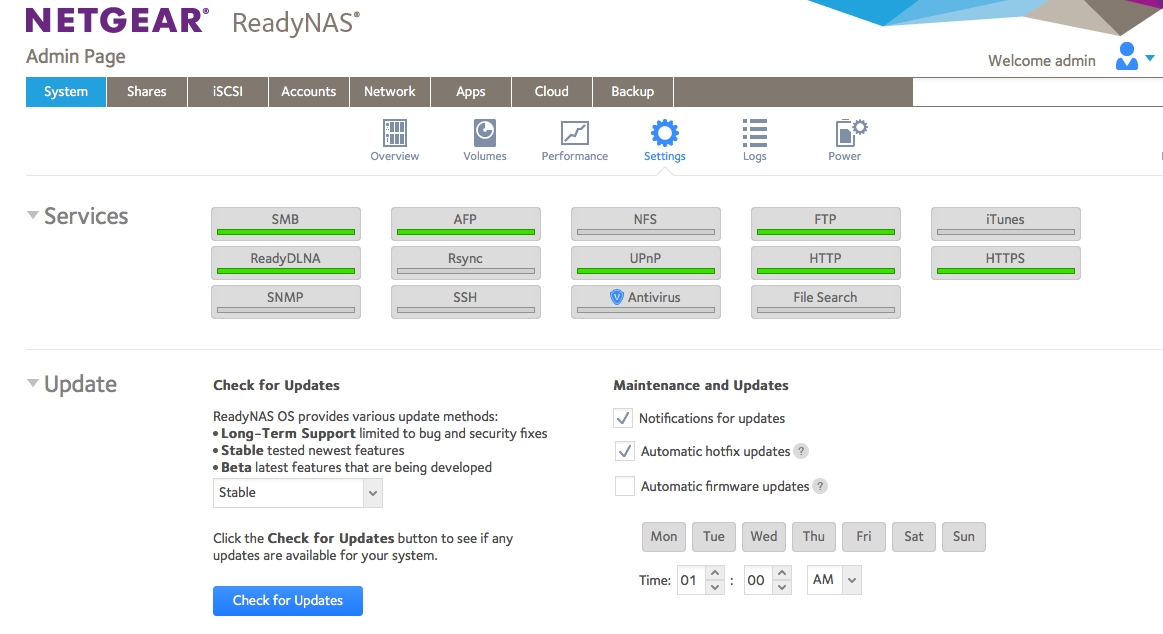
netgear services
Netgear – services enabled on my system

The operating system is the same  as before (Netgear 6.10), the unit accepts the same additional applications (plus a video streaming app that could not have worked on the old unit). As before, the unit can connect to a few external cloud storage services to backup its data (but not to Amazon Glacier, unfortunately) and the Web user interface is reasonably pleasant to use. I did not have to configure this unit (the config information is stored on the disks and moves to a new enclosure when you swap the drives) but my recommendation would be to read the manual carefully if you want to configure a unit from scratch (the factory defaults are not always the best, in my opinion).

I paid $250.00 for the diskless unit (it’s discounted at the moment). Netgear also offers models pre-populated with disks. There is a good warranty on the hardware, but tech support is only available as an extra-cost subscription (storage issues can be vexing,  hard to diagnose and time consuming to fix, and I understand Netgear can’t offer free support on a device  sold for a few hundred dollars). But Tech Support won’t get your data back if your disks are too badly corrupted, so a good backup is your best friend.

Back to photography, now…


PA14161144816
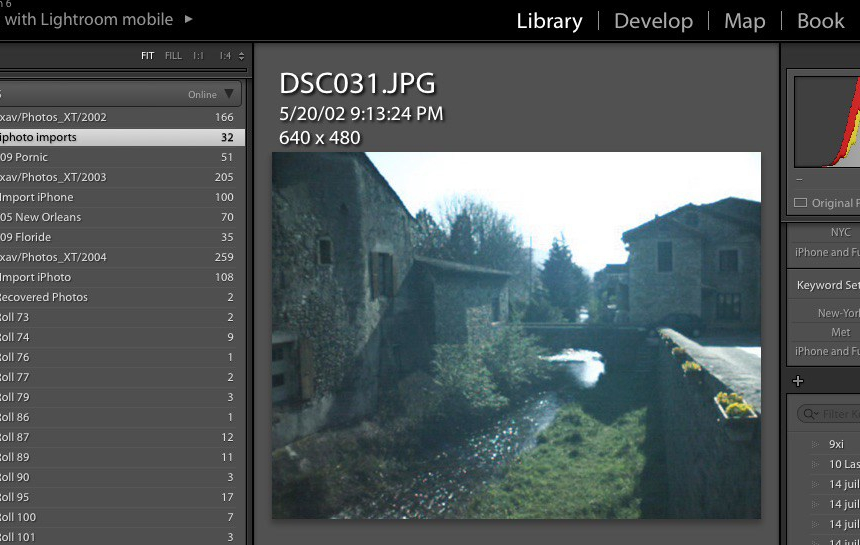
One of the oldest pictures on the Netgear – Shot in 2002 – scanned and copied from system to system ever since – Pornic – France – Minolta Vectis S1


Back to the keyboard…

I have not abandoned this blog – I’ve just been pretty busy lately (a new job, a house renovation going on, and my Netgear ReadyNAS RN104 crashing again – I simply hope I won’t have to restore 2 TeraBytes of images from Amazon Glacier again).

The review of the Canon AT-1 that I published yesterday had been in the works for six months, and there will be more Canon related pages in the coming weeks (I found a restored Canonet QL17 in an antique show – maybe it’s going to make me more comfortable with rangefinder cameras – I brought my old Leica CL back in service to have a point of comparison). I added two old mirrorless (digital) cameras and a strange pancake lens to my Fujifilm arsenal, and I’m trying to spend more time with my favorite SLR, the Nikon FE2 and with Kodak’s Porta 400 film.

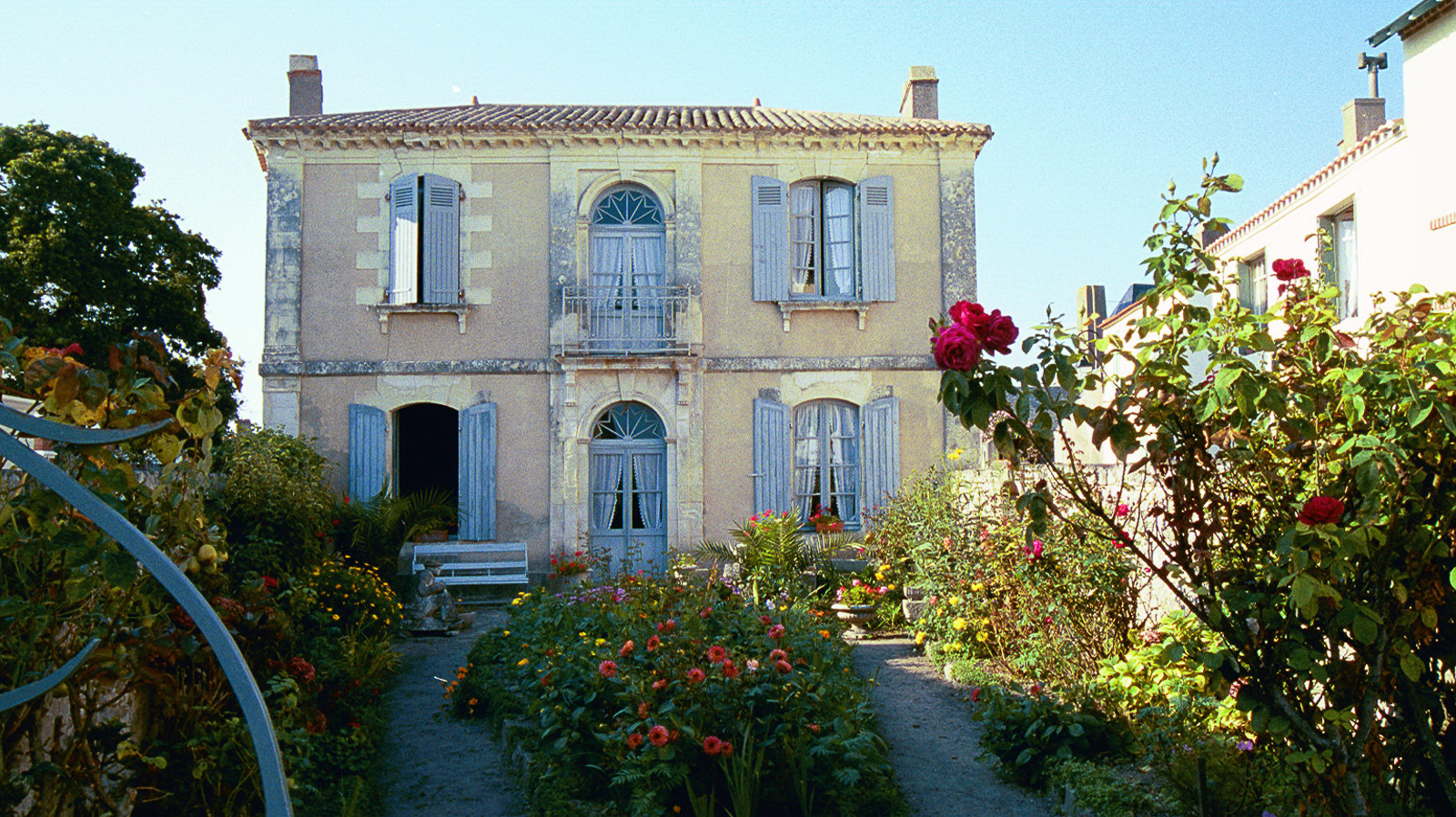
2019-01-Narbonne12
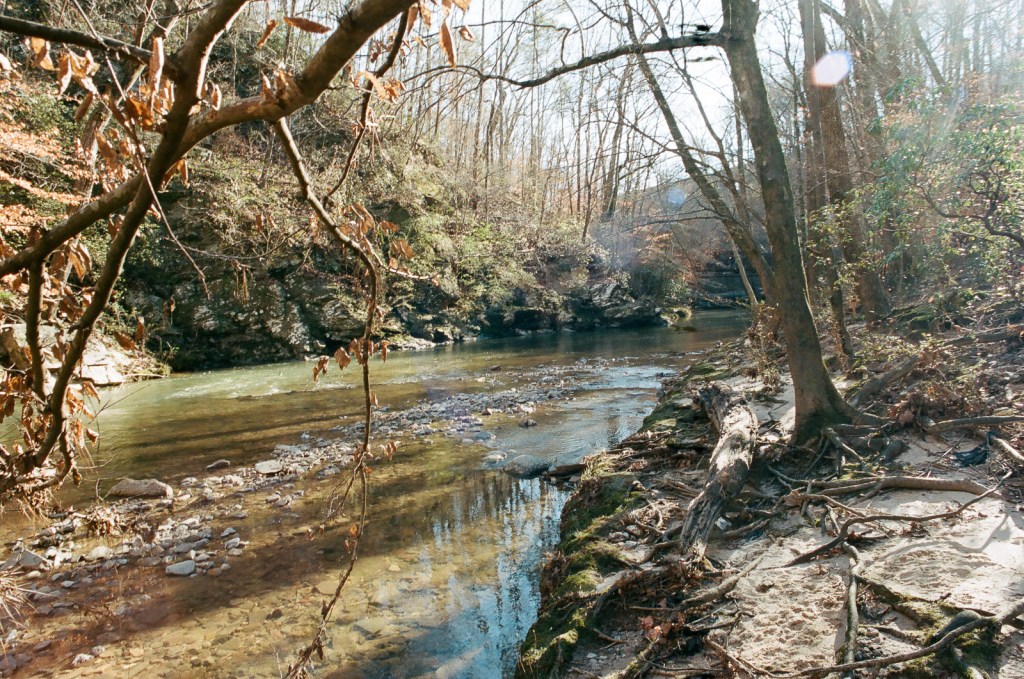
Rottenwood Creek, Atlanta –  Canon AT-1 – Lens Canon FD 24mm f/2.8

So… compact rangefinder cameras, Nikon SLRs and dSLRs, early Fujifilm mirrorless cameras, Kodak film, you’ve got an idea of what I’m working on.

Please come back regularly, or follow my updates on twitter @xtalfu.


559376120001_0
Miami- Wynwood  -Street art – Unknown tourists – Leica CL – Fujicolor 400.


Amazon Glacier – an archival solution for your digital memories

One of the biggest challenges of digital photography is the long term archival of the images. And because slides and negatives are generally scanned, and end up in the same post-processing chain as “native” digital images, they’re subject to more or less the same issues (I guess that you could still go back to the original negative or the slide and re-scan it, but you would have to locate it first).

lightroom
This early digital picture was taken in 2002 with a Samsung digicam and stored in iPhoto. But it was imported in Lightroom at a later date and is still accessible.

There are three big obstacles to the long term preservation of pictures in a digital world:

  • the long term availability of the digital asset management software,
  • the evolving file format standards
  • the inherent fragility of the medium used for storage

Users of the original version of Apple iPhoto, of Apple Aperture, of Microsoft Expression Media and of plenty of other discontinued products have not lost the original images stored in their photo libraries, but they have lost an easy way to access them – and in some case, of all the changes and adjustments (crops, exposure, contrast and curves) they had performed. Of course, it’s always possible to port the images to … the standard of the moment: Adobe Lightroom, but it may require a serious effort.

Adobe Lightroom is not about to disappear (on the contrary, it has become a de facto monopoly), but Adobe may progressively price it out of the reach of amateurs: they have already transitioned to a subscription-only licensing model, which may make sense for professionals, but is costly for amateurs who used to perform an upgrade every 5 years or so…

Surprisingly, evolving standards have not been too much of an issue so far – after early challenges by patent trolls were defeated, JPEG has led a quiet life. Evolutions of JPEG are being discussed in the international standardization bodies, but they promise to maintain backwards compatibility. At this stage, jpeg is still jpeg, tiff is still tiff, and we can still read files saved 15 years ago.

The proliferation of RAW file formats (how many for Nikon or Canon already? ) is also a potential issue, but computer Operating Systems and RAW converters still keep up – and support most of the old RAW formats, even though it’s probably wise to keep a JPEG or a DNG version of your images, just in case.

readynas_working
A NAS in working order (here, a Netgear Readynas with 4 1TB drives, all up) and Raid 6 configured.

Which brings us to the worst issue by far – the medium (tape, CD, DVD, hard drive, cloud blob) used for storage.

  • the storage needs have exploded (24 Mpixel is the new normal, and I know amateurs who refuse to shoot with anything less than a 40 Mpixel camera, like the Pros) – shooting 10 Gigabytes worth of images per day has nothing exceptional anymore,
  • At the same time, the capacity of WORM devices (CD, DVD, …) has stagnated,
  • solid state media is still expensive,
  • spinning hard drives have capacity but are fragile,
  • in spite of all the promises, consumer grade Network Attached Storage (NAS) is far from 100% reliable,
  • on line backup/archival services and cloud hosting services come and go (many vendors have decided to leave the consumer market, while some services are tied to a specific brand of computer or smartphone hardware), and some free photo sharing services may sell your secrets to advertisers (“if you’re not paying for the product, you’re the product”).

corruped_pict
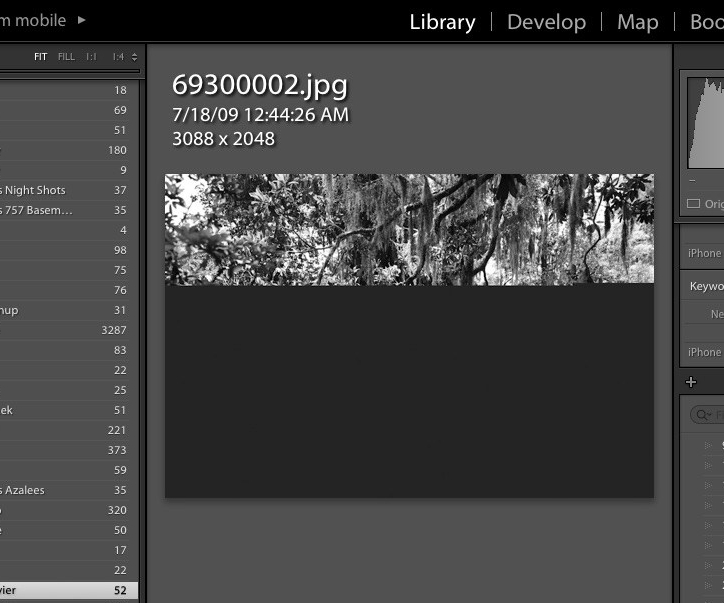
Images can also get corrupted – without a good backup, the image would be lost forever (Lightroom does not store the images in its catalog, just the metadata and the “development” instructions, the issue is with the NAS or with the file sharing protocol).

For  long term storage at home, hard drives are currently the best option, but at least in my case,  they’ve been quite unreliable: over the last 10 years,

  • I lost two hard drives on my personal laptop, before I upgraded to a SSD – which has less capacity but seems to fare much better when it comes to reliability,
  • I lost a hard drive on the Apple Time Capsule I was using for backups (Green Seagate Barracuda)
  • I lost a LaCie network attached hard drive (a Barracuda also, I’m afraid)
  • Files got corrupted (see above),
  • the Netgear ReadyNAS RN104 (with four 1 TB drives arranged in a so-called X-RAID) lost its file allocation tables (even if the Western Digital Red disks were still OK) and had to be reinstalled from scratch – without using X-RAID this time, but under a proper RAID 6 scheme instead.

Netgear issue
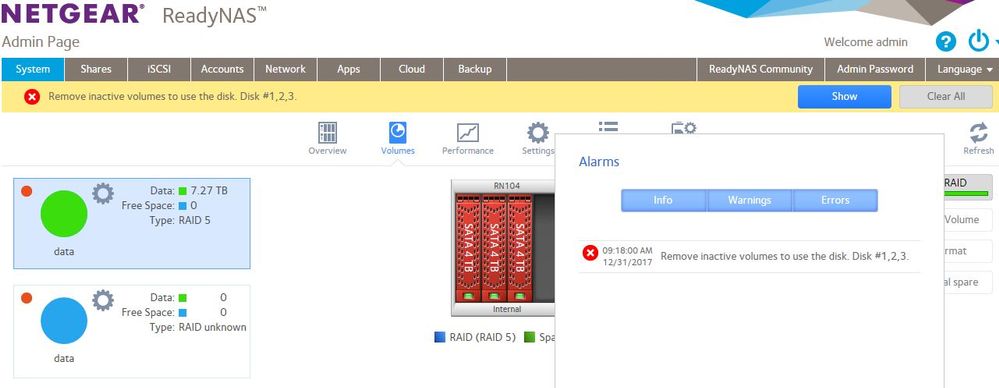
The dreaded Netgear error message – search “ReadyNAS – Remove inactive volumes to use the disk. Disk #1,2” on Google to see other examples (source: Netgear Communities Forum)

Fortunately, I’ve always had relatively good backups (not 100% success at recovery – there’s always something that falls thru the cracks, but close enough)

Here is how my pictures are processed and protected, currently:

  • if I’m using a modern digital camera:
    • while traveling – I upload the files to my iPhone over Wi-fi at least once a day – then Apple syncs it to my Photo library in iCloud. It’s not a full backup – my Fujifilm XT-1 camera only uploads JPEG files via Wi-Fi, it does not upload the RAW files, and with a resolution limited to 1776×1184 (a bit above 2 Mpixels)  – but it’s convenient, good enough for social network updates, and better than nothing if the SD card fails or the camera is stolen,
    • the “exposed” SD or CF card are copied as soon as possible to the SSD of a  laptop;
    • and I store the SDs for up to 6 month before reformating and reusing them.
  • if I’m shooting with film:
    • I don’t have any form of backup until the film has been sent to the lab, processed and scanned (it’s the rule of the game with film – but it always makes me uneasy when a drop an envelope with a few irreplaceable rolls of film in a USPS mailbox, even if they have a 100% reliability record with me so far).
    • when the scans are available, I download them to the SSD  of the laptop, and  when I receive the negatives from the lab, I keep them in the proverbial shoebox.
  • once the JPEGs, the RAWs and the scans are on the laptop,
    • there is an automatic backup process to an external HDD drive (using Apple TimeMachine), to the NAS (TimeMachine again), and to Amazon Glacier (using the ARQ backup application)
    • I upload the pictures to the Netgear NAS for Lightroom processing and archival,
    • and the Netgear NAS is backed up to Amazon Glacier using the ARQ client of the Mac.

arq restore
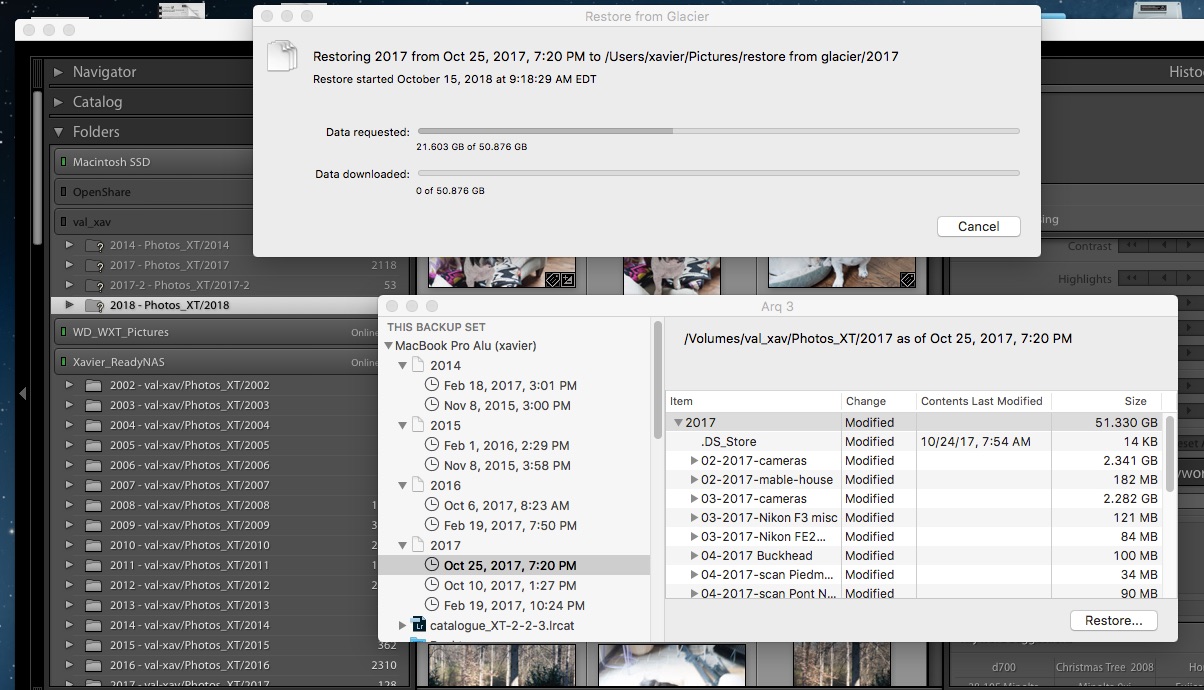
ARQ backup – the restore request is being processed by Glacier. In the background, Lightroom with the folders already restored on the ReadyNAS.

Amazon Glacier

  • Amazon Glacier is the long term archival service of AWS (the Amazon Cloud). Storage is extremely cheap ($0.004 per GB per month) and Amazon keeps multiple encrypted copies of the data in multiple AWS data centers.
  • There are all sorts of interesting features for Enterprise clients. But it’s not the exclusive domain of IT departments and the man in the street can also store files on Amazon Glacier.
  • Now there’s a catch: data retrieval is not instantaneous (Amazon needs 3 to 5 hours to start processing the request in the standard retrieval mode) and it’s not free either ($0.01 per Gbyte in the standard mode) – which is perfectly fine if you remember that Glacier is about long term storage. Consider the typical use cases for an amateur photographer:
    • you lost the pictures of that fantastic trip you made 10 years ago – it’s not going to be an issue for you if Glacier starts retrieving the pictures 5 hours from now,
    • you lost a hard drive and its local backup with 1 TB of pictures (to a flood, a fire, a burglary, a massive power surge) – again, you’re not going to complain if the data retrieval actually starts a few hours after you requested it: you’ll be happy to retrieve  your files, even if it takes time (assuming 1TB, that would be 44 hours on a 50 Mbits broadband circuit continuously operating at that speed, which means much more time in reality) and you will have to pay a few dozens of dollars for the service.

Arq

  • Arq is a backup solution for Mac OS and for Windows, leveraging the storage and archival services provided by a large selection of public cloud services. I’ve been using it in conjunction with Glacier for a few years, and it’s proved its worth a few times already.

It may seem like overkill – but massive hardware failures, catastrophic events and user errors happen, sooner or later. If you don’t want to lose your pictures eventually, do something, now.


Definitions, Buzzwords and Acronyms:

Archive: collection of records kept for long term retention. Typically, archives are not actively used.

Backup: “process of making extra copies of data, that will be used to restore the original in case it is lost or corrupted”

AWS: Amazon Web Services – the on-demand cloud computing platform of Amazon.com

Cloud (cloud computing): Cloud computing is shared pools of configurable computer system resources and higher-level services that can be rapidly provisioned with minimal management effort, often over the Internet. Cloud computing relies on sharing of resources to achieve coherence and economies of scale, similar to a public utility. (Wikipedia)

HDD: hard disk drive – they’re called hard disk drives because there are made of a few hard, metallic disks spinning at high speed, with tiny mechanical arms moving a magnetic head a few microns above the disks. The technology has been here forever, hard drives are cheap, offer a large capacity, but are somehow unreliable over the long run. (see Backup, above)

NAS (NAS Drive): Network Attached Storage – appliance containing one or more hard drives, connected to a LAN, that provides file level data storage to PC or Mac clients. Practically, a NAS is a small file server, generally running a version of Linux, with an easy to use Web based configuration interface. For the user of a PC or a Mac, the NAS just presents itself as another storage volume in Windows Explorer or in the finder. Models supporting two or more disk drives generally offer redundancy mechanisms (mirroring, RAID) to minimize the consequences of a hard drive failure.

RAID: (Redundant Array of Independent Disks): a technology that provides data redundancy and performance improvements in storage systems using multiple physical disk drives. Having a NAS configured with RAID is not the panacea and does not dispense from running regular backups: RAID usually protects the data if one disk fails, but it does not protect against a massive failure (two or more disks fail, a disk controller corrupts the data) or against human error (files erased by mistake).

SSD: solid state drives. With a SSD, information is stored on microchips. There is no moving part. SSDs are both faster and more expensive than Hard Drives, that’s why they are used in laptops, but not in long term storage systems.


69320016
An image restored from a backup – Atlanta – Nikon FM – Nikon 24mm AF