
We’ve already discussed in those pages the complexity of the range of the Adobe Lightroom products, and the fact that some versions of Lightroom are only available in the Apple and Google app stores, while others are to be procured directly on Adobe’s Web store.
More about Adobe Lightroom in CamerAgX
In the mobile app stores, there is a free version of Lightroom Mobile which does not offer much more than what the native (and very good) photo apps that Apple and Google propose. If you’re serious about cataloging and photo-editing, you’ll have to subscribe to “Photoshop Lightroom Mobile with Premium Features” for $49.99 (one year, pre-paid) in Apple’s or Google’s mobile app stores. It gives you access to an enhanced set of features on the phone, tablet and web browser versions of Adobe Lightroom, as well as an allocation of 100 GB of storage in Adobe’s Creative Cloud (Lightroom Mobile and Lightroom Web keep a few Gigabytes worth of picture replicas in a local cache, but the full size original pictures are stored in the Adobe Cloud, and the application can’t operate if the cloud storage is full).

If you reach the limit and need more storage (I reached the ceiling with approximately 15,000 pictures), there is no way to only buy more storage capacity from Apple, Google or Adobe. To get more storage space in the Adobe Creative Cloud, you have to subscribe to an Adobe Lightroom or Photography Plan directly on Adobe’s online store, and there is no refund for what’s left of your subscription in the app stores of Apple and Google. Ideally you should wait until you get very close to the expiration date of the mobile subscription before you switch to Adobe’s.
It looks bad enough on paper. How is it in the real life?

Upgrading from a mobile version of Lightroom
The upgrade is seamless. If you use Lightroom Mobile, you already have an Adobe ID (distinct from your Apple or Google app store IDs). Simply connect to the Adobe store, sign in with your Adobe ID, pick the photography plan you need, flash your credit card (it’s costing $119.99 if you pre-pay one year in advance), and you’re done. There is nothing to reinstall, nothing to configure. Within a few seconds, you will see your storage limit raised by an increment of 1TB in your mobile or Web apps.

The upgrade to a Lightroom Plan also gives you an entitlement to two extra laptop/desktop versions of Lightroom, “Lightroom” (a thin client version of Lightroom formerly known as Lightroom CC), and “Lightroom Classic”, the current iteration of the “fat client” Lightroom application that Adobe has been selling since 2007. Lightroom and Lightroom Classic can both be installed on the same Windows or MacOS machine, and will take advantage of Adobe’s Creative Cloud to keep their respective libraries in sync.
“Lightroom” (represented in the dock of a Mac by the “Lr” icon) is similar in principle to Lightroom Mobile or Web, except it doesn’t run from an App or a Web browser, but from a local client installed on your machine. Its library of images is stored in Adobe’s Creative Cloud, not on local storage, but it benefits from more local image caching options, including the ability to replicate folders and albums locally, in which case it operates even without an Internet connection.
LR Classic (represented by the “LrC” icon) is the successor of Lightroom 6. It’s a large (fat-client) application installed on the local disk of a Windows or MacOS machine, which relies on local storage (directly attached or network attached drives) to store as many Lightroom libraries as needed. The storage is under the photographer’s responsibility, who has to manage, backup and protect what could amount to terabytes of data.
In summary, Lightroom Mobile (with Premium features) and Lightroom Web are products relying primarily on cloud storage, with limited local caching capabilities. Lightroom is also primarily relying on cloud storage, but has more manageable replication capabilities. Lightroom Classic, on the other hand, is designed as a stand alone product relying on local storage, which can, on demand, keep folders and albums in sync with the Adobe Creative Cloud – so that they can also be accessed from mobile devices.
One consequence is that you may have up to three versions of the same Lightroom album on a PC or a Mac: one created in Lightroom’s local cache, one in Lightroom’s local replica, and one in a Lightroom Classic library.
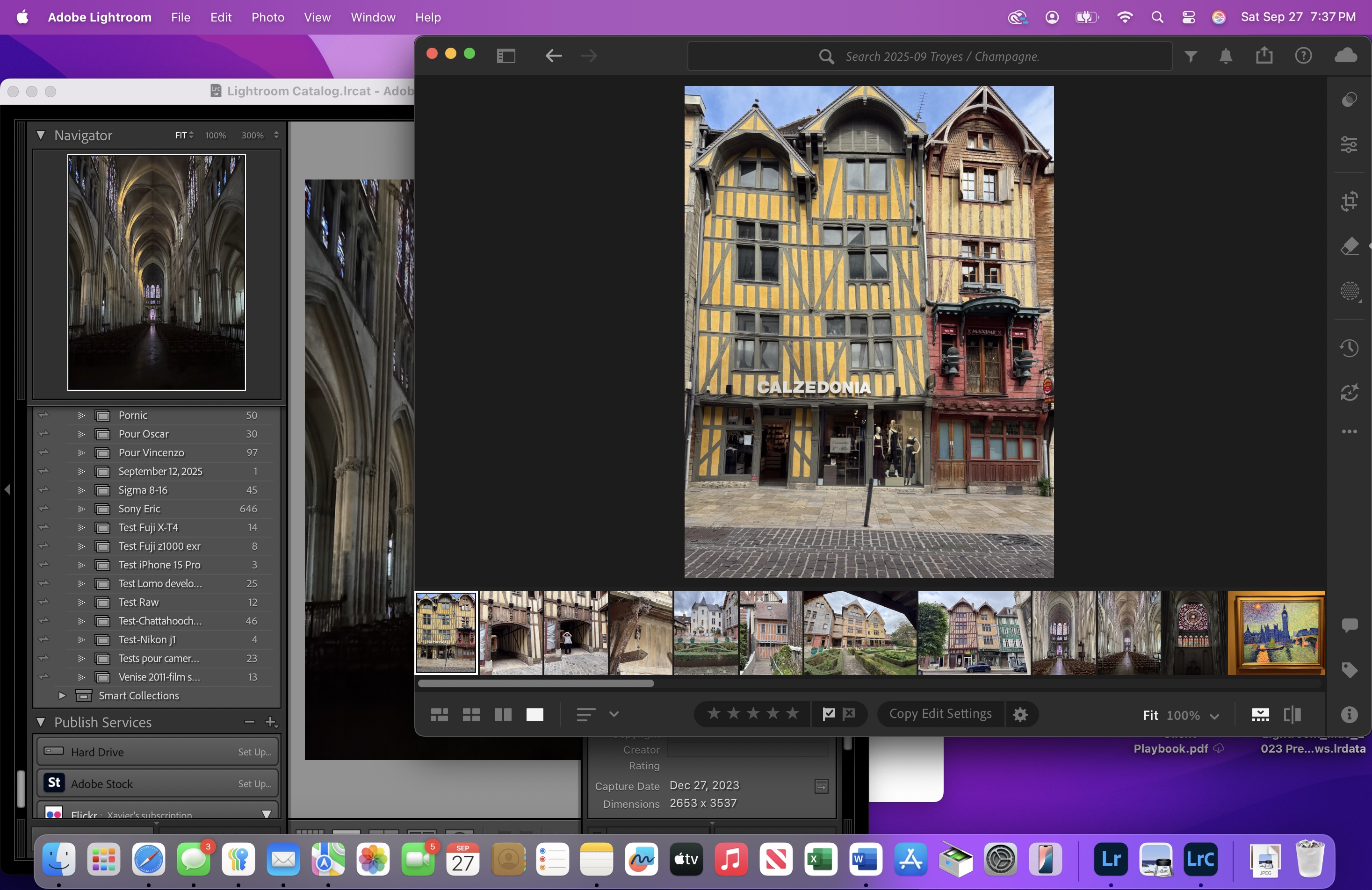
A surprise: the images don’t look the same when you are editing them in Lightroom Web and Lightroom Classic
All versions of Lightroom always preserve the original image uploaded by the photographer, and the edits are saved as instructions (metadata) in some sort of log. When time comes to export the final image as a JPEG or a TIFF file or to print it, Lightroom starts from the original image at its full resolution and re-applies the changes and transformations described in its log.
However, Lightroom Mobile, Web and PC/Mac are primarily cloud based products, and – by default – only keep a small subset of the photographer’s library in a local cache, where “smart-previews” are stored at a reduced resolution (up to 2640 points on the longest edge). You can force the system to download a full size version of the image, but if you don’t, the edits will be performed on a “smart-preview” at the reduced resolution. Lightroom Classic, on the other hand, relies on local storage (and is not bandwidth constrained) and always shows you the image at full resolution.

You don’t really see the difference between a smart-preview and the full resolution of an image on a smartphone or even a tablet (the screen is too small), but when you start using Lightroom Classic on a PC or a Mac where you only had used Lightroom Web before, the difference can be striking – an image that looked sharp enough as a smart preview on Lightroom Web may suddenly look much too soft when shown at full resolution by Lightroom Classic on a 8k monitor.
Not really a surprise … but
The smartphone and tablet versions of Lightroom have more or less similar capabilities, and they’re not very different from Lightroom Web. Lightroom (the laptop/desktop thing client) sits somewhere between Lightroom Web and Lightroom Classic.
Its feature set is close to the mobile and Web versions, but, being written for desktop and laptops machines, its UI is menu driven and more similar to Classic. Its photo-editing capabilities are more elaborate than Mobile or Web, and because PCs and Macs generally support larger monitors than tablets, the images can be shown at a higher resolution.
Lightroom Classic is also menu driven, but is a totally different animal altogether. As mentioned above, it stores everything in local libraries (catalogs in Adobe parlance), and can, if requested, sync its local libraries with the Creative Cloud, one at a time or as a group. But it’s a partial, asynchronous replication, that the photographer has to manage. Classic also offers features which are completely missing on the other versions of Lightroom, like the ability to run all sorts of plug-ins, interface with Google Maps, or create photo-albums and slideshows.
Is the upgrade to an Adobe Lightroom plan worth it?
- if you need more than 100 GB of cloud storage, and want to keep on using Lightroom for Mobile, you don’t really have a choice. If you don’t plan on using Lightroom on a PC or a Mac, you end up paying an extra $70/year for 900 extra gigabytes of storage. Not exactly a bargain.
- if you have a desktop or a laptop, you get everything you had bought for $49/year in the mobile App Store (phone, tablet and web apps, with 100 GB storage), plus Lightroom and Lightroom Classic, plus 900 GB of extra storage, for “only” $70 more per year. A much better deal.
- whether you install Lightroom Classic on your PC or not is another story – it’s a complex product, and the integration with the rest of the Adobe Lightroom family not that straightforward.
- but Lightroom (for PC or Mac) is very pleasant to use, fully integrated with Creative Cloud, and a perfect companion for the Mobile versions of Lightroom. I strongly recommend you use it.
- Lastly, once you’re in the Adobe world, you are not limited to 1TB of Creative Cloud storage. You can further increase your allocation up to 10 TB by increments of a few terabytes at a cost of approximately $10.00 /Terabyte/month.
The ideal use case – the one that will maximize the benefits of an Adobe Lightroom or Photography Plan – is that of photographers who need to store huge volumes of pictures in multiple libraries (catalogs) in their home or office IT infrastructure, but want at the same time the ability to work with a limited subset of their images while traveling – adding or editing pictures from a smartphone, a tablet or a laptop. They will take advantage of all the versions of Lightroom, and of the synchronization capabilities between them that Creative Cloud brings.

If you don’t need or don’t want to manage multiple local photo libraries, you can still rely primarily on Lightroom Mobile and Lightroom for PC or Mac, that work very well together, and only fire up Lightroom Classic occasionally to use a specific plug-in or create a photo-album.
One last word: Adobe photography plans are available through subscriptions, that bundle multiple products and services. The content and price of those subscriptions have been known to change frequently over the recent years. I believe that my description of the bundles and the cost of the subscriptions are accurate when I write these lines at the end of September 2025. But it may change without notice in a few months, and will most probably be different in the years to come. If you’re considering spending your hard earned money on Lightroom, do your due diligence before committing to a one year plan.

More recent content in CamerAgX


 CamerAgX - a new life for old gear