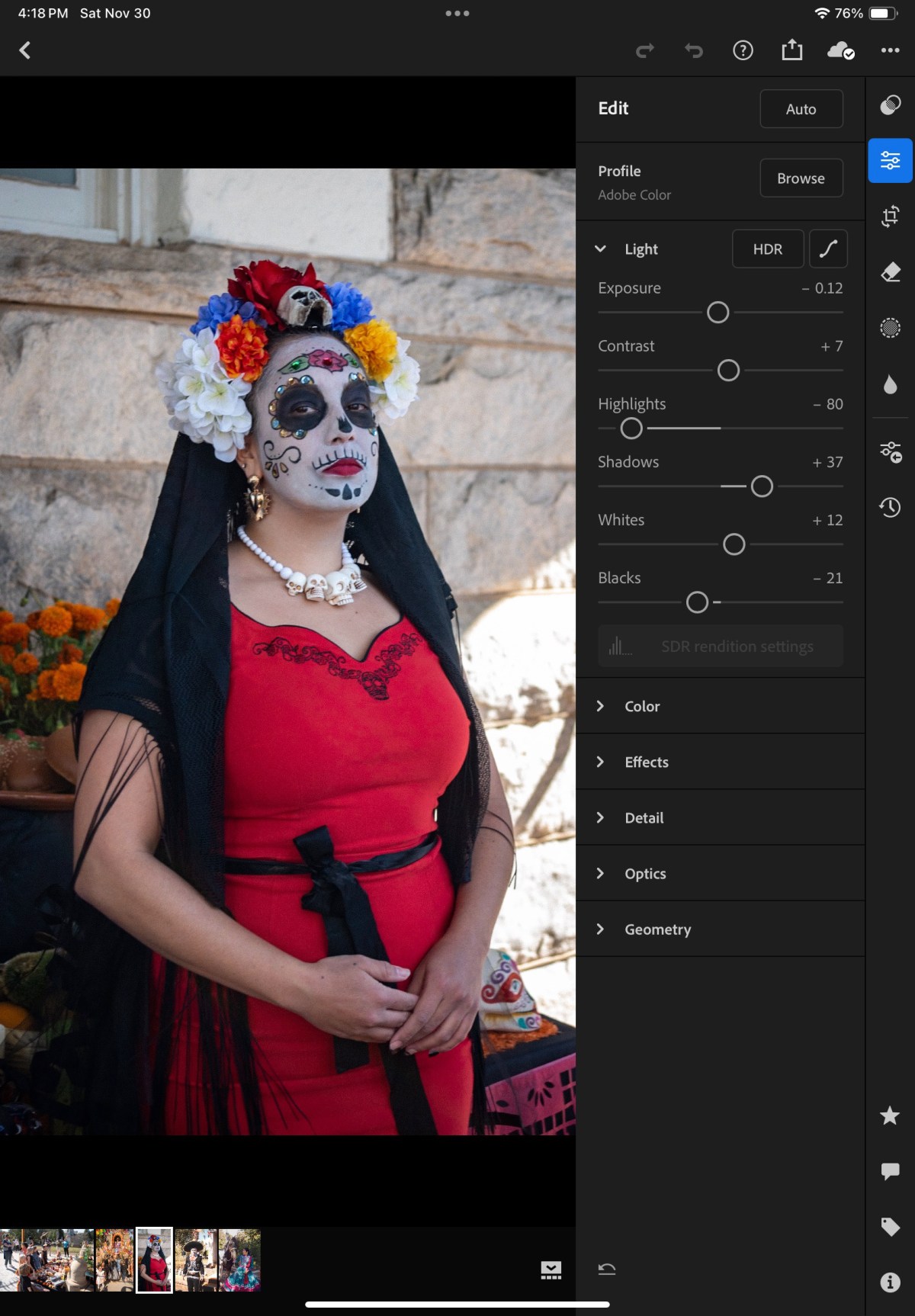
The times when an amateur photographer could wait for a week or two before receiving a set of prints are long gone. With everybody around us shooting with smartphones, we need to publish the pictures taken with our “serious” cameras very rapidly, in a matter of hours if not minutes, if we don’t want our pictures to be yesterday’s news. And since we’re also taking a lot of pictures with our own smartphones, we need a tool that can manage seamlessly our “serious” and our “smartphone” photos and publish them together.
The “photo” app of mobile devices have limitations (editing, cataloging, noise removal and RAW processing are weak); apps and (sometimes services) offered by camera companies are even weaker. Very often, only lower res version of images can be uploaded through a WiFi connection, and sometimes they’re down sampled so drastically they become hardly usable. As for the proprietary cloud offerings of the camera makers, they still have to make a mark. There is real opportunity for a company specialized in image processing tools to shine.
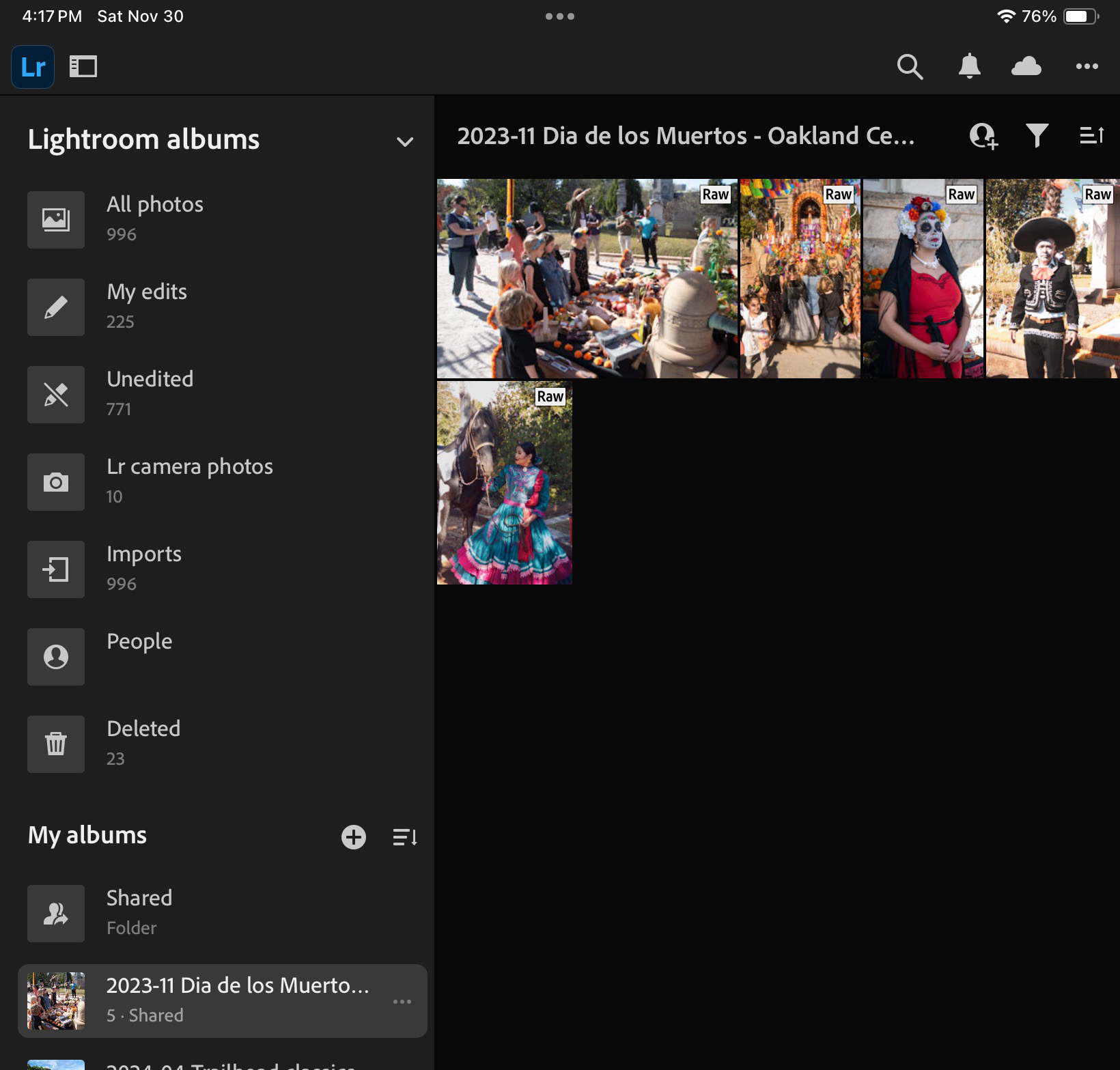
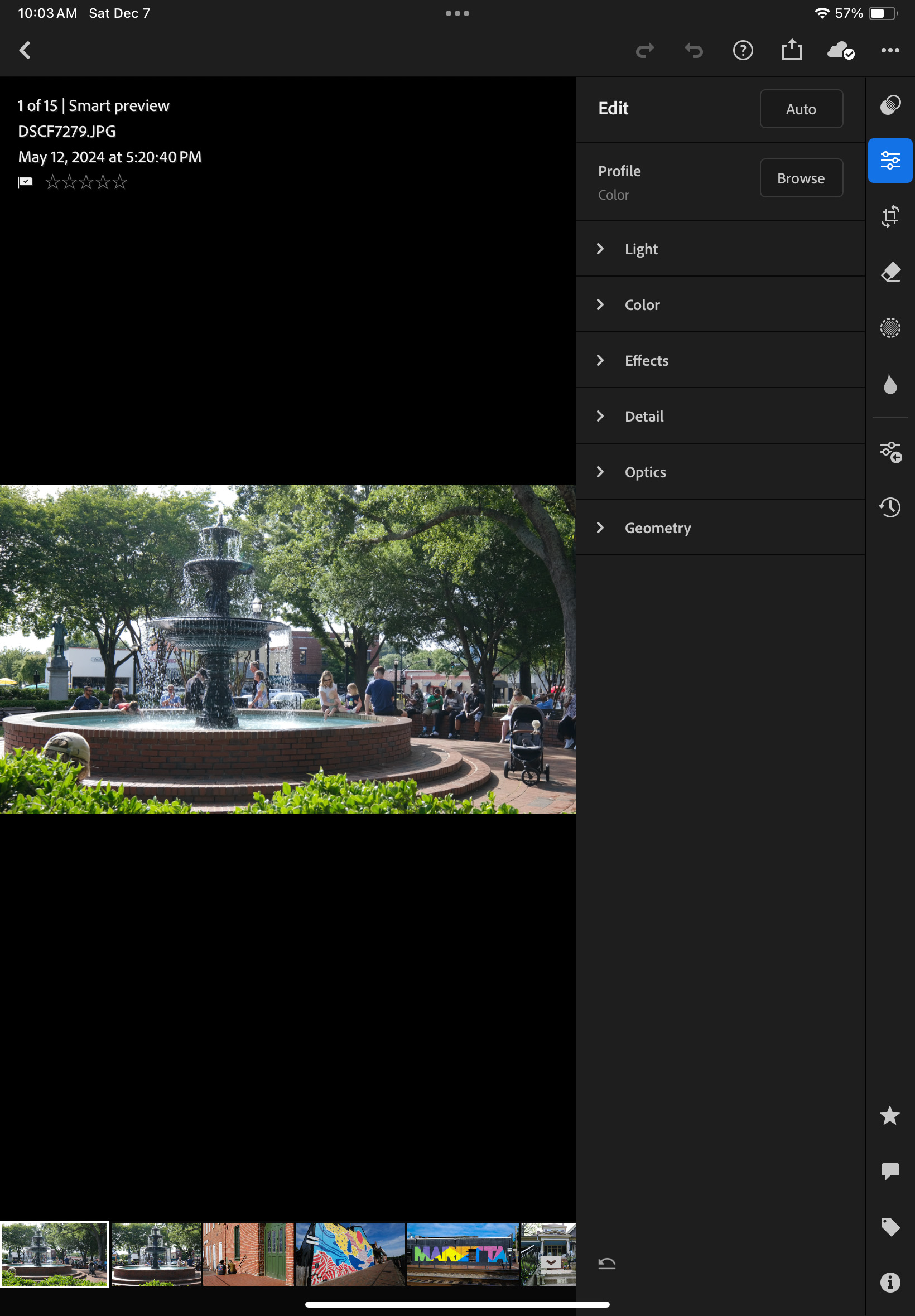
Then comes Adobe with Lightroom. Adobe’s Lightroom is primarily a non destructive photo editing tool, with strong cataloging and integration capabilities. In its current iteration, it’s a combination of features made available by software deployed locally on a device running Windows, MacOS, iPadOS, iOS or Android, and of services provided over an Internet connection, with everything tied by a common user interface.
Adobe makes a free version of Lightroom available on IOS, iPadOS and Android, but it’s very limited (no RAW processing, not many image editing options, no online storage, no AI tool) – you can question its real purpose beyond maintaining a presence in the app stores.
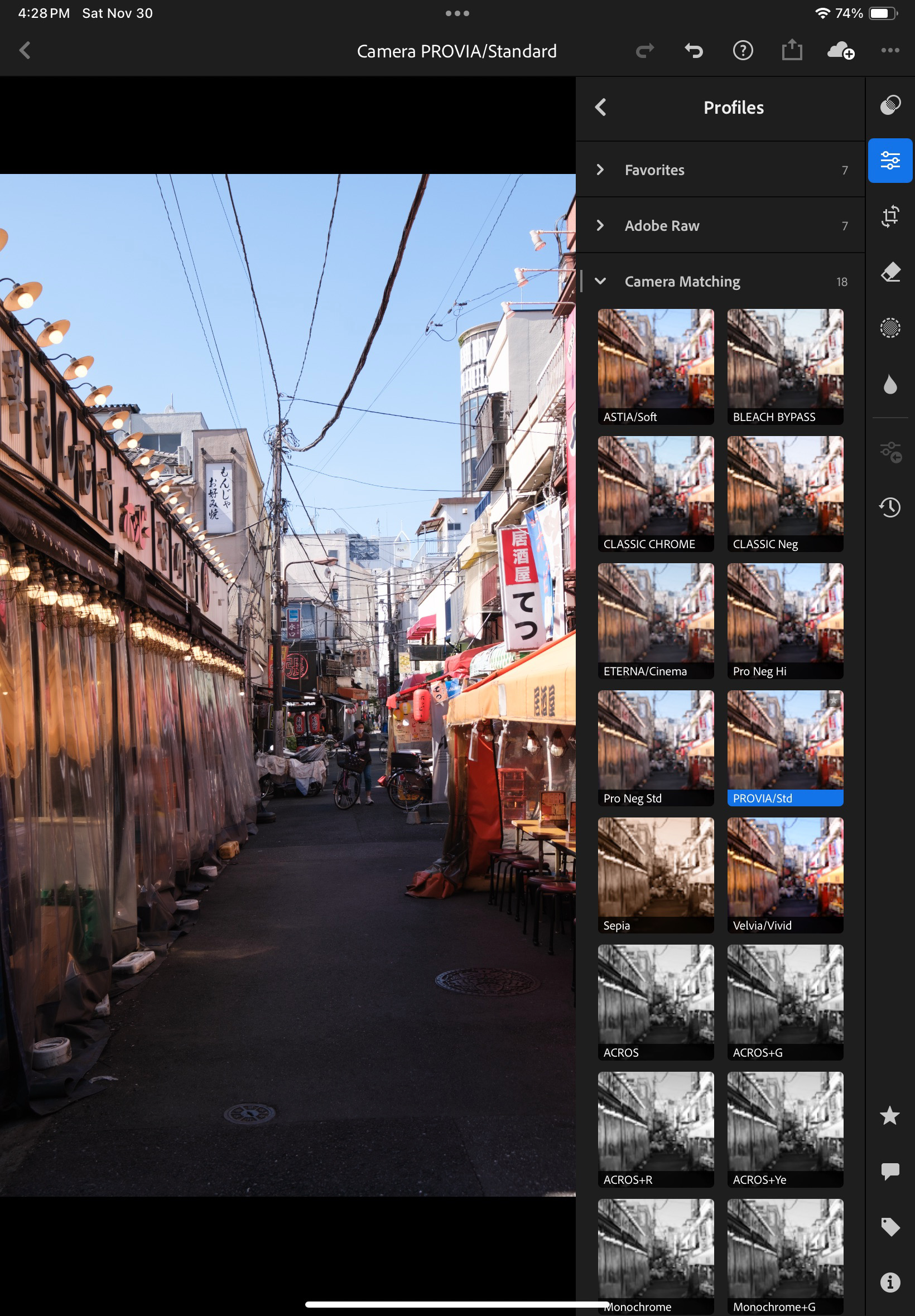
Enabling the Premium features – at $5.00 per month on the iPad – addresses those limitations. Lightroom for Mobile Premium processes RAW files, gives access to Adobe’s cloud where it includes 100 GB of storage, and to some AI goodies. That’s what I’m going to review. iOS (iPhone) or an Android versions of Lightroom are generally similar but not 100% identical.
How does it work?
Because of the way the memory of the iPad is managed and protected, Lightroom can only work (edit, catalog, sync to cloud) with images you have imported in the memory space dedicated to the application. You can import images from Apple’s Photo app (it’s seamless) but if you have paid for Lightroom’s premium features, it’s likely that you expect more than what the camera of the iPad can deliver, and better than the low res jpegs that the photo import app of the manufacturer of your camera: you will import images (jpegs, HEIC or RAW) from a storage volume (generally the memory card of your camera), thanks to a reader that you will attach to the usb port of your tablet.
The images remain in a local cache as long as you are working on them. Lightroom takes care of controlling the size of the cache (images are sync’d to Adobe’s cloud as soon as a solid Internet connection is available).
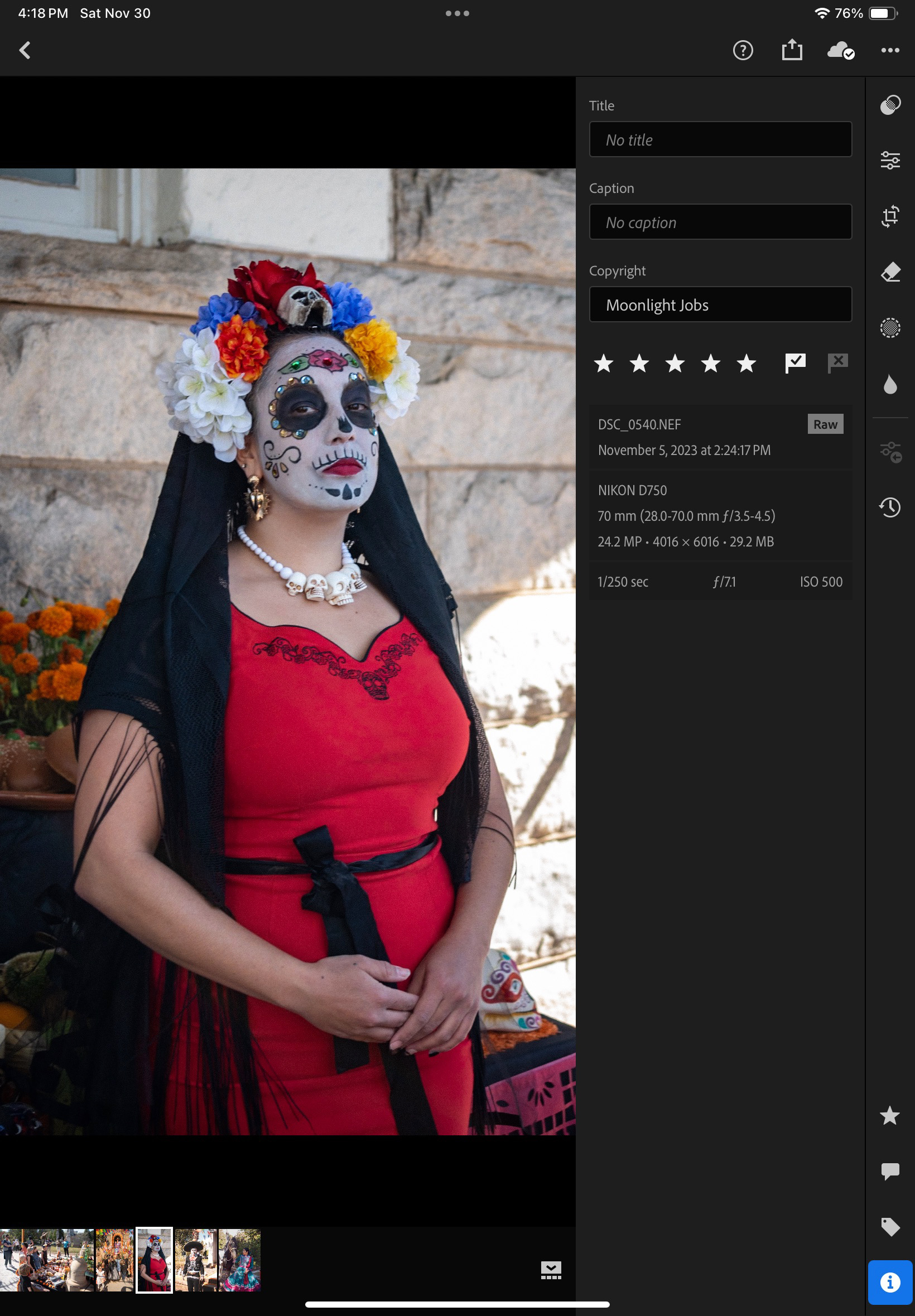
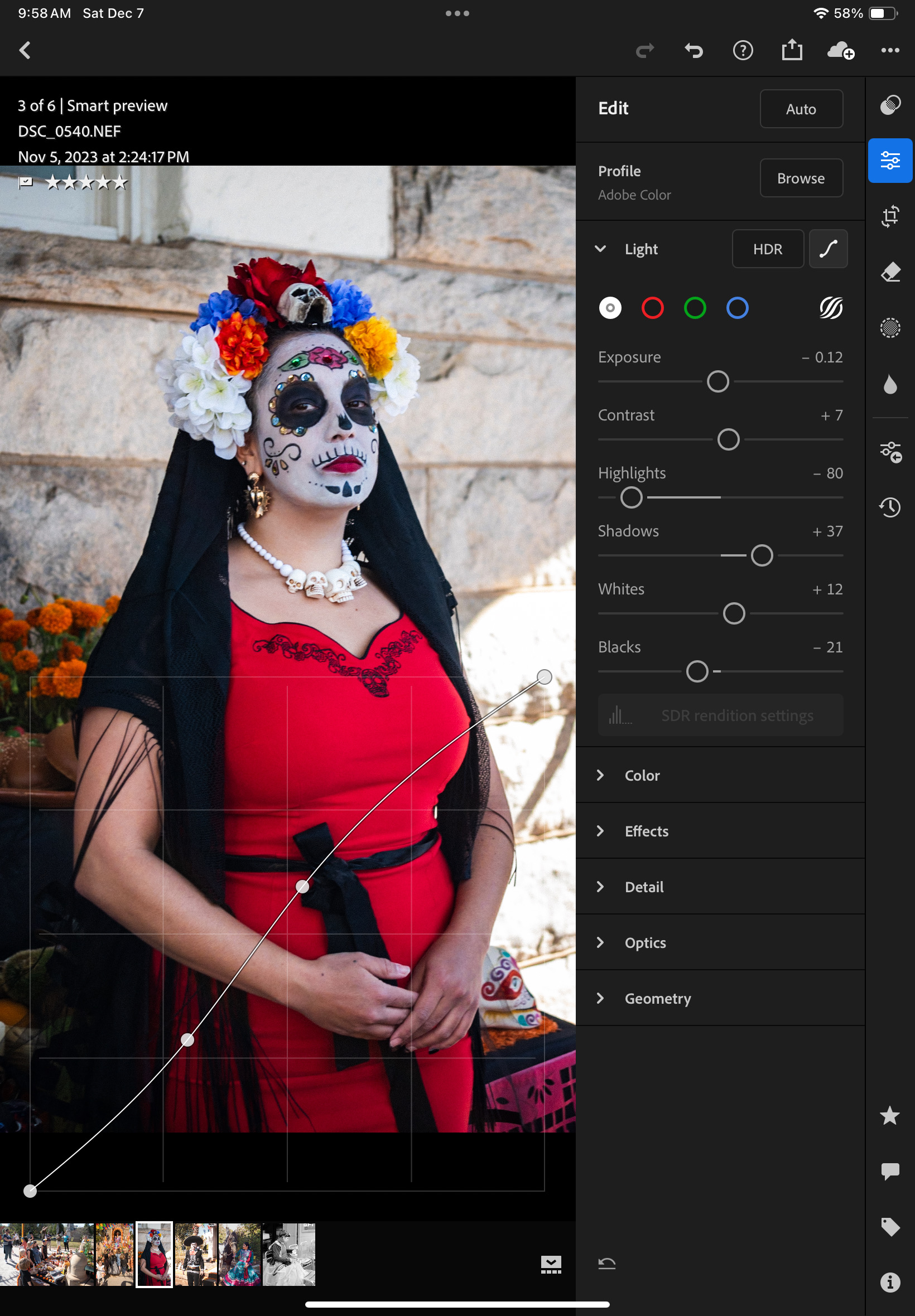
From there on, Lightroom for Mobile with Premium features ( what a mouthful) behaves more or less like the “full-size” version of Lightroom.
Let’s review what’s great and not so great with Lightroom for Mobile.
What’s great about Lightroom for Mobile
- Seamless integration with an PC or a Mac running Adobe Lightroom Classic with a large enough Adobe Cloud storage subscription (same images, same edits, same albums, same cloud storage). They can be used in parallel and complement each other.
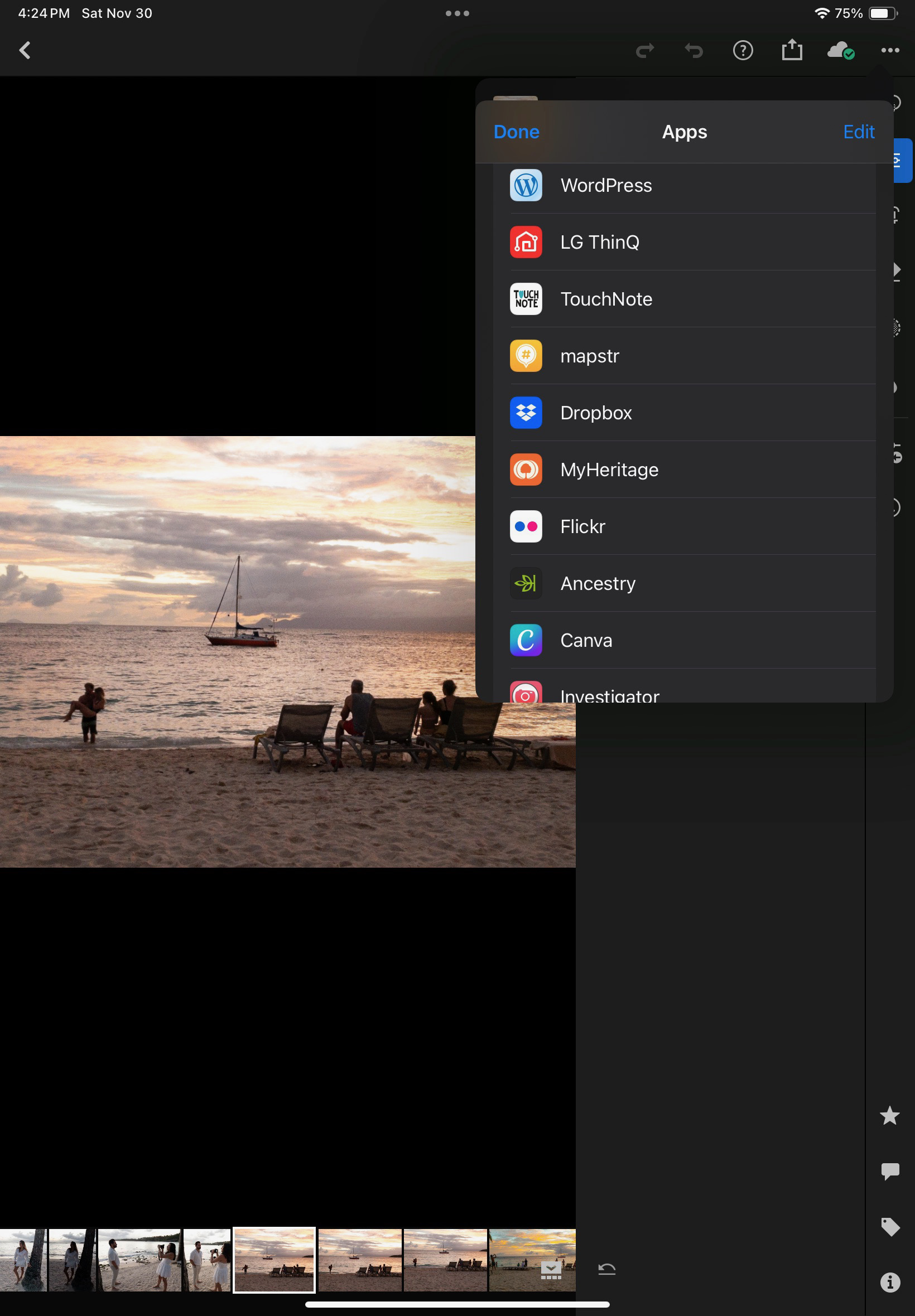
- Seamless integration with Apple’s Photo app, with the iPad file store, and generally iPad apps. And the integration works both ways (imports Photo images in Lightroom, export Lightroom pictures to Apple Photos). You can really create a Lightroom album composed of images taken with the camera of the iPhone and of images imported from a conventional camera.
- Lightroom also augments the basic capabilities of smartphone or tablet apps; Lightroom can take control over the device’s camera and shoot directly in RAW.
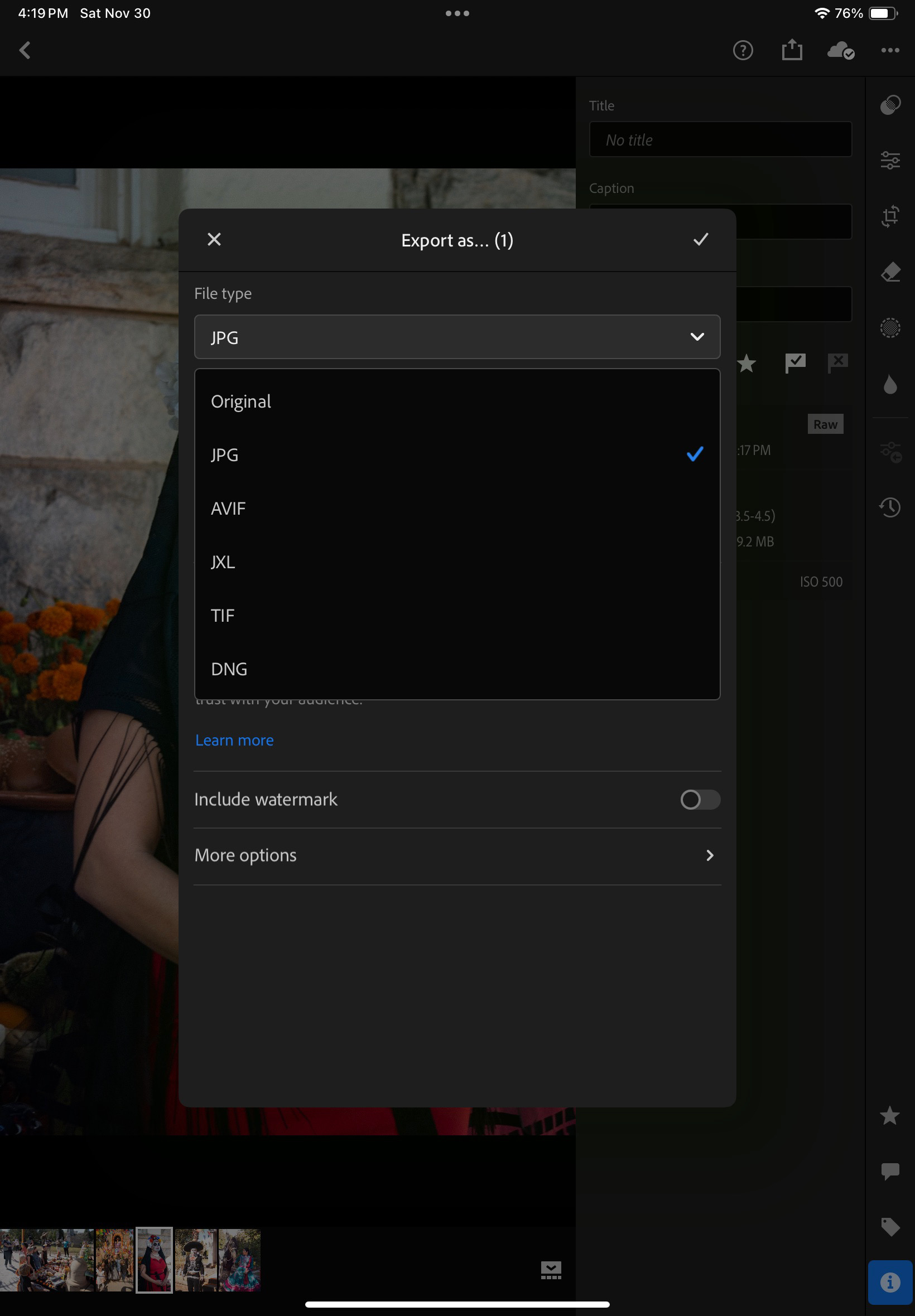
- Images can be exported out of Lightroom in different formats. As a result, the base promise of Lightroom Mobile: import images from a camera at full resolution, tag, edit and publish them (more or less easily) on many media, apps and social networks – is fulfilled with minimum hassle.
- Lightroom does not consume too much memory space on iPad (it manages a local cache intelligently)
- it offers enough to support a Raw or a JPEG/HEIC workflow, at least for an amateur taking a few dozens pictures a day.
- because it’s a combination of Software as a Service and mobile app, updates are frequent and the product is regularly improved.
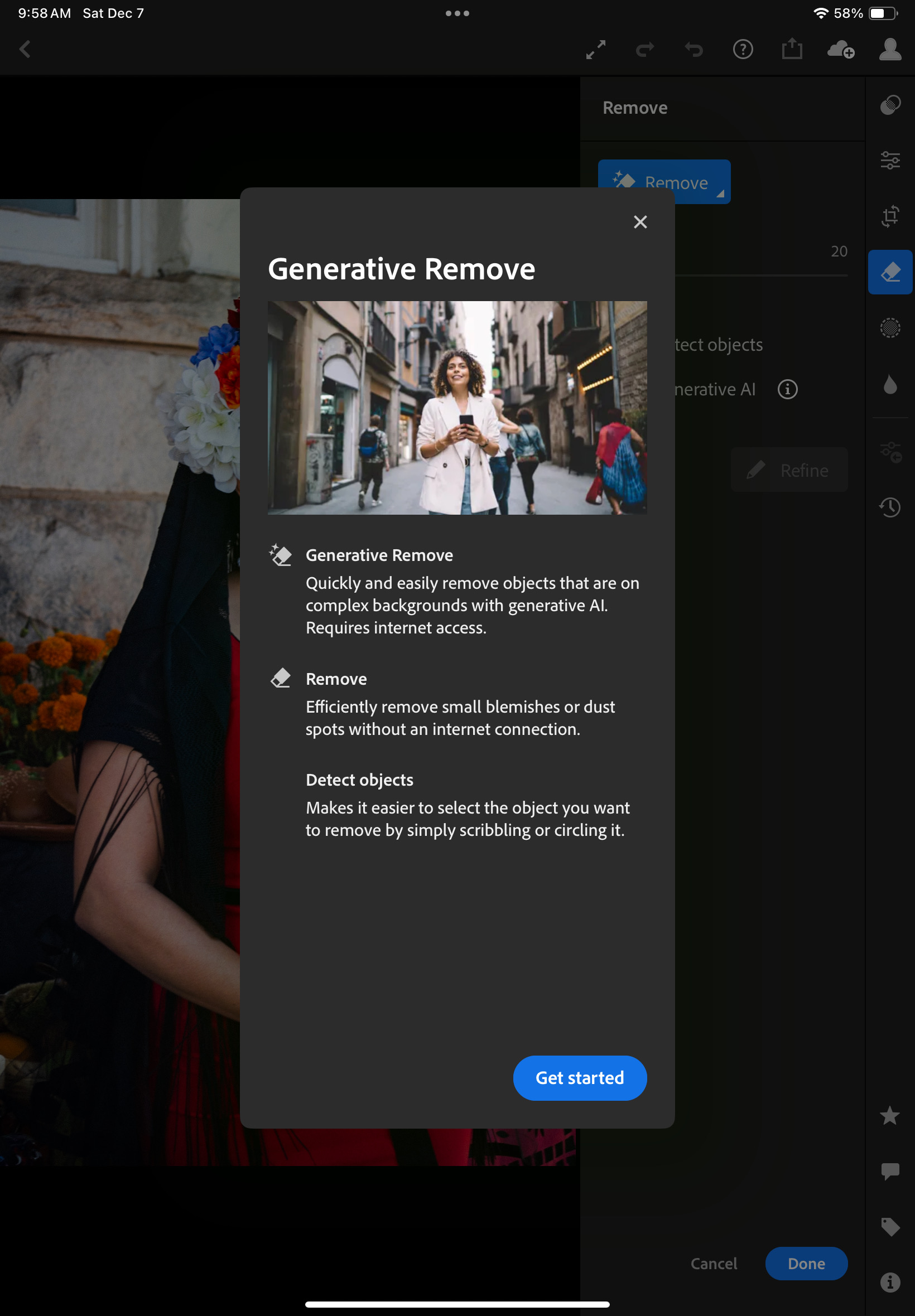
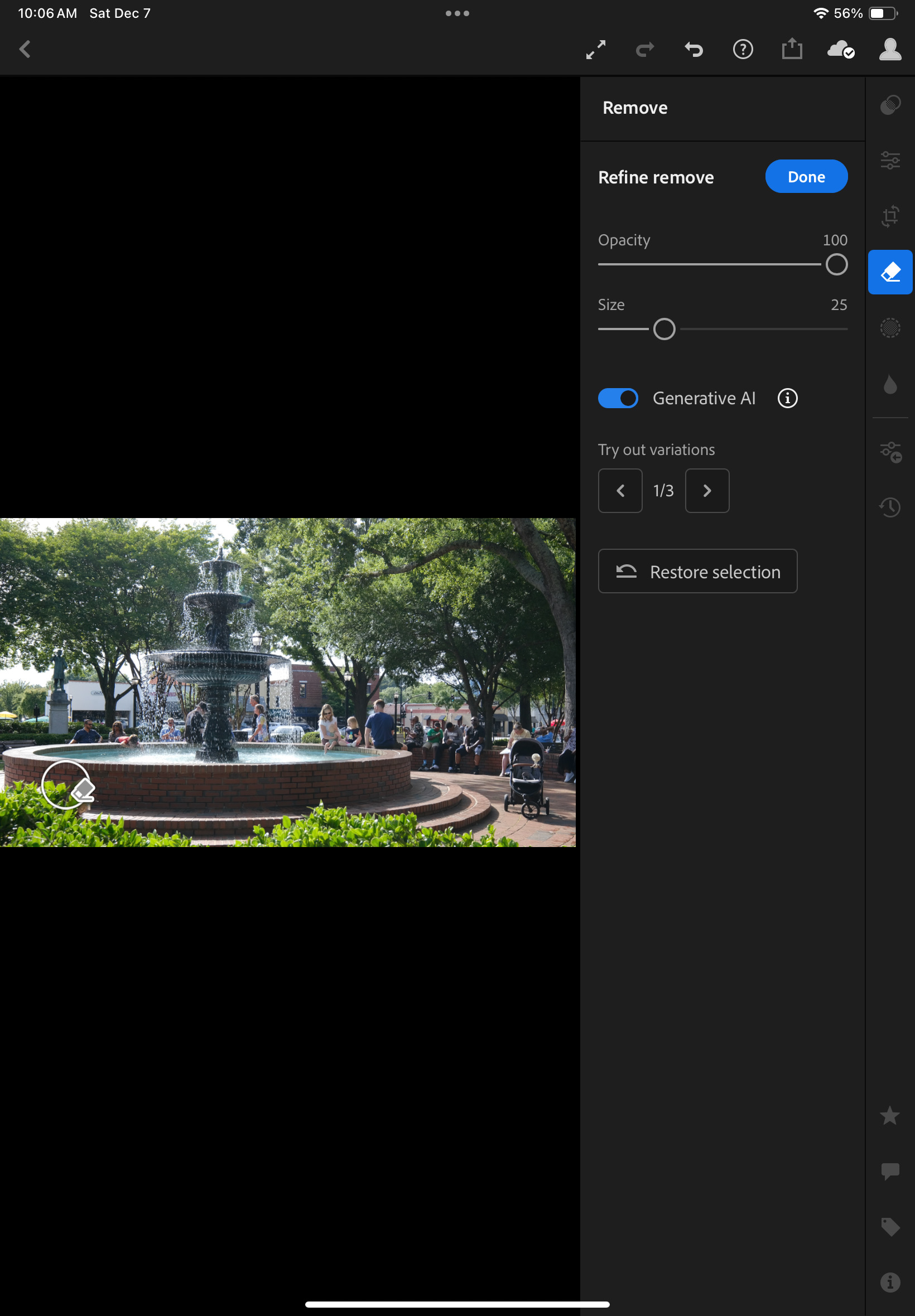
- Generative AI options are included in the subscription. They’re not perfect but they help – no need for Photoshop most of the time.
What’s not so great:
- The confusion about versions, product capabilities , subscriptions: the definition of the different Lightroom products changed multiple times over the years, the offerings are still different depending on the platform, there are incompatibilities between versions, the bundles are inflexible and force you to subscribe to Photoshop. At the moment, “Lightroom” designates the version running on Mobile and in Web browsers, as well as on PCs or Macs, with the images stored in the Adobe Cloud. “Lightroom Classic” is the PC and Mac only version, and depending on the application settings, your images will be stored locally or in Adobe’s Cloud.
- Lightroom for iPadOS is not totally similar to Lightroom Classic for Windows or MacOS – important features are missing (metadata batch update, side by side comparison of images, ordering printed photos albums, to name a few);
- The iPad version is also missing features compared to the Android version (updating the metadata of multiple images at the same time, for instance). But the opposite is also true (iPad has features that Android tablets don’t have).
- Beyond 100 GB the cloud storage upgrade options are available by increments to 1TB for roughly $10.00 /month.
- If you don’t want to pay for more Adobe’s Cloud storage, you will need to pay instead for a license combining Lightroom, Lightroom Classic and Photoshop for $9.99 / month, and keep the storage local (* on Dec 17th 2024, Adobe have announced they would stop offering this option to new users). Lightroom Classic will run on a laptop/desktop, and the images will reside in local drives (directly attached hard disks or NAS). But that will require you to own a laptop or a desktop, configure redundant storage (mirrored or in RAID arrays) and subscribe to an off site backup plan. Also, integration with Lightroom for Mobile will not be so seamless anymore, and will require some planning before off site expeditions, since the cloud storage is limited to 20GB.
- If money is no (or less of an) object, you will opt for the combined Lightroom+Lightroom Classic+Photoshop license, which comes with 1TB of storage, for $19.99 / month. Additional storage will cost you roughly $10.00 per additional TB. It’s the most flexible but also the most expensive solution.
Conclusion
So, is a laptop-free Lightroom workflow a possibility? At this moment, for an amateur like me, Lightroom Mobile, despite irritating limitations, will be good enough most of the time, and has unique capabilities: it’s the only practical way to work on the pictures taken with my “serious” camera, catalog them and share them while on the go, without having to carry a laptop. I just need my phone or my tablet and a USB-C card reader. But – as this review is being written – there are still important features missing in the mobile version, that would require the full Adobe Photographer subscription and a full featured PC when I’m back home.

I work in IT and have witnessed the migration to cloud computing – I tend to trust cloud technologies and Software as Service offerings, and my preference is to rely totally on Adobe’s cloud services instead of having to manage hardware, storage and backups at home. Provided the cost is acceptable. I still have a very old laptop running an old (pre subscription) version of Lightroom, and a NAS with an Amazon Glacier backup. Moving my Lightroom catalog and 15 years worth of pictures to Adobe’s Cloud is tempting, I just have to understand how it could be done, what I would be losing in the migration, and validate that Adobe’s storage cost is not going to send me on a path of financial ruin.
one last word… what are HEIC image files?
HEIC: images created following the High Efficiency Image Format (HEIF) – (Cf Wikipedia‘s description). Widely seen as a replacement for the JPEG format, HEIC reached the mainstream when Apple made it the default image format of the iPhone. Most modern operating systems now support HEIC. HEIC images are 50% smaller than equivalent JPEGs, and support up to 16 bit color depth. Mid 2024, the top of the line cameras from Canon, Fujifilm, Nikon and Sony all support 10 bit HEIC.
More about Lightroom for Mobile
- the Lightroom The Lightroom Queen
- Amazon : Adobe Lightroom edit on the go
 CamerAgX - a new life for old gear