
There are benefits to software subscriptions – obviously the initial cash outlay is minimal, and, if the software vendor reinvests the money it receives every month into useful product improvements, the subscriber (I mean “You”) will always work with a state of art software solution.
Of course, the problem with software subscriptions is that once you’ve started using the product you’re at the mercy of the software editor, who can elect to change their terms and conditions and raise their prices as often and as much as they like. There is a price point not to exceed obviously, but the subscriber is captive, and the cost to switch to another product (in hours of training and hours of labor to transfer the images and convert the workflows) far exceeds the few extra dollars that the software editor will be tempted to extract from its subscribers every now and then. So the captive audience elects to remain… captive.
Lightroom for Mobile on CamerAgx.com
https://cameragx.com/2024/12/16/lightroom-for-mobile-premium-migrating-images-from-lightroom-6/
https://cameragx.com/2024/12/30/adobe-lightroom-s-trying-to-make-sense-of-it-all/
At the end of last year, after I had published three posts about the Lightroom Mobile Premium, Adobe tested the tolerance to pain of its clients again, and announced a price increase of its Lightroom subscriptions.
Along this post, I will stress multiple times that the information I’m providing has been verified and is believed to be accurate as of the end of March 2025. Some Adobe Lightroom plans or upgrade options have been removed from Adobe’s store front and from the apps themselves during the last three months, and more changes could take place in the future.
The recent changes (and a simplification of the catalog) make very clear that Adobe’s preference is for the photographer to subscribe to the Adobe Lightroom Plan with 1 TB Cloud Storage. Under this plan, the ubiquity of the Lightroom platform is maximized: a photographer can, with the same license, enjoy Lightroom as a light weight application available on smartphones, tablets, PC/Mac and in a Web browser app (all with Cloud storage), or as a heavier PC/Mac conventional application with as much local storage as necessary.
The mobile-only versions of Lightroom increasingly look like minor products packaged to push the photographers to step up to the “real” Lightroom, the one they buy directly from Adobe.
High level – the product hierarchy and the upgrade path
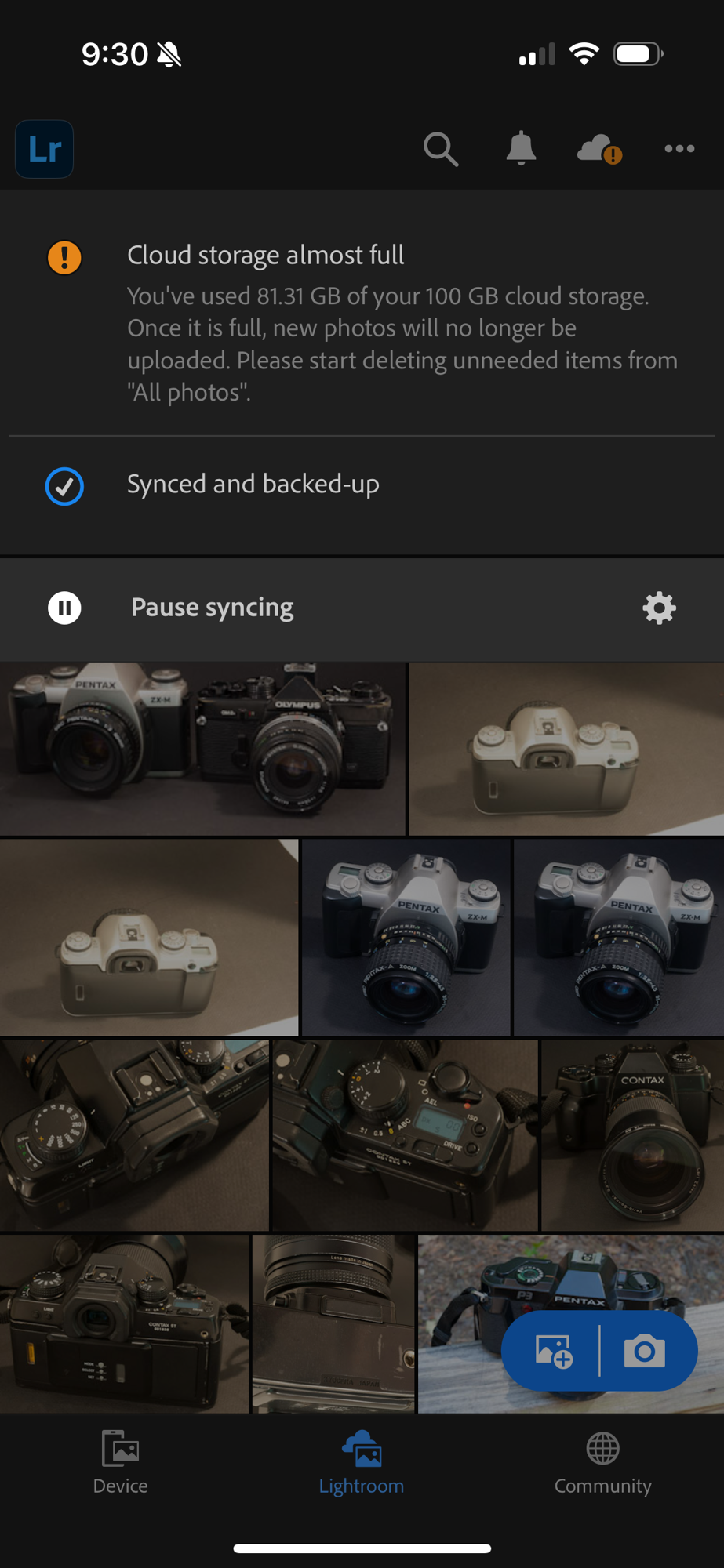
Lightroom is available as a mobile app for smartphone or tablet in the two main app stores (Apple and Google’s).
The gateway drug is a free version, which does not process RAW images and does not offer cloud storage. It’s a simple photo editor, and it’s easy to argue that Apple and Google’s native photo apps are at least as good and should be preferred.
Once you enable the Premium features, Lightroom Mobile for smartphone or tablet “with Premium features enabled” makes sense for a relatively light use – with its 100 GB of included cloud storage, you will store something between 10,000 and 15,000 images in Adobe’s library. Mobile Premium supports RAW files, and offers most of the benefits of the Adobe ecosystem, including credits to use Adobe’s AI. A sporadic use from a PC or a Mac is also possible (the cloud hosted library is accessible from a Web version of Lightroom).
If you need more than 100 GB of cloud storage, the only option (in March 2025) is to switch to an Adobe Lightroom Plan purchased through Adobe.com. The Adobe Lightroom Plan (with 1 TB of cloud storage) offers all the benefits of “Mobile with Premium features”, and adds Lightroom for PC/Mac (a lightweight client with Cloud storage) and Lightroom Classic (the fat client with local storage), plus 450 extra Creative Cloud monthly credits for less than $10.00/month (assuming you pay for one year of subscription upfront).

There is a catch, though. The Lightroom Mobile plan (sold on the app stores of Google and Apple) and Adobe’s Lightroom Plans (available on Adobe’s store front) are two distinct commercial offers made by two totally different organizations.
Lightroom Mobile and Adobe Lightroom are two products of the same family (and the library of images will follow you to Adobe Lightroom), but an upgrade from Lightroom Mobile to an Adobe managed Lightroom subscription is not commercially possible – you have to subscribe to Adobe’s Lightroom Plan as if you were new to Lightroom, and will receive no credit from Adobe if you had prepaid for one year of Mobile Premium on Apple’s or Google’s App Store.

Will I receive credit for the remaining months of Apple subscription?
No, Adobe typically does not offer a direct credit for the remaining months of your Apple App Store subscription if you switch to an Adobe Lightroom plan. When you switch to a different plan through Adobe, you will likely need to cancel your Apple subscription, and the billing on Apple’s platform will continue until the next renewal date.
Apple doesn’t usually allow third-party services like Adobe to manage credits or refunds for their App Store subscriptions. You might want to check with Apple Support to see if they can offer any credit for the unused months of your subscription, but that would be separate from Adobe’s policies.
To avoid being double-charged, it’s essential to cancel your Apple subscription before subscribing to an Adobe plan. [from a ChatGPT dialog on March 26, 2025]

The two tables below summarize the different ways to subscribe to Lightroom, as of March 2025.
Lightroom for Mobile – purchased through an App Store:
Using the Apple App Store as a reference – Lightroom’s offerings on the Google Play App Store are roughly similar.
| Adobe Lightroom for iPhone | Adobe Lightroom for iPad | Adobe Lightroom for iPhone with Premium Features enabled | Adobe Lightroom for iPad with Premium Features enabled | |
| iOS | iPadOS | iOS | iPadOS | |
| Available through Apple Store | Available through Apple Store | Licensed through Apple Store | Licensed trough Apple Store | |
| Annual Cost (US$) | free in Apple Store | free in Apple Store | 49.99 | 49.99 |
| Included Adobe Creative Cloud storage | No | No | 100 GB | 100 GB |
| Storage upgrade tiers | No direct upgrade option | No direct upgrade option | ||
| RAW Files Supported | No | No | Yes | Yes |
| AI enchancer | No | No | Yes | Yes |
| AI Generative Credits included | 50 /month | 50 /month | ||
| Lightroom Web | No | No | Included | Included |
| Lightroom for PC/Mac | No | No | No | No |
| Lightroom Classic | No | No | No | No |
| Photoshop | No | No | No | No |

Subscribing to Adobe Lightroom through the Adobe.com storefront
| Adobe Lightroom Plan | Adobe Photography Plan | |
| Annual Cost (if paid upfront) | $ 119.88 | $ 239.88 |
| Included Adobe Creative Cloud storage | 1 TB | 1 TB |
| Storage update tiers | 1 TB | 1 TB |
| Annual cost of storage tier | $119.99 | $119.99 |
| How to procure | Adobe.com | Adobe.com |
| RAW Files Supported | Yes | Yes |
| AI enchancer | Yes | Yes |
| AI Generative Credits included | 500/month | 500/month |
| Lightroom Mobile Premium for iOS | Included | Included |
| Lightroom Mobile Premium for iPadOS | Included | Included |
| Lightroom Web | Included | Included |
| Lightroom for PC/Mac | Included | Included |
| Lightroom Classic | Included | Included |
| Adobe Porfolio | Included | Included |
| Photoshop for iPad | No | Included |
| Photoshop for Web | No | Included |
| Photoshop for PC/Mac | No | Included |
Alternatives?
For those who don’t want to pay the “Adobe Tax”, and prefer products distributed under an Open Source license or following a conventional perpetual licensing model, there are quite a few options, some free, some cheap. Some of those products even offer a mobile version and integrated cloud storage. A selection, listed in alphabetical order: Capture One, Darktable, On1 Photo Raw, Raw Therapy, Skylum Luminar. I’ve not tested them but there are interesting reviews in Youtube. One of them below.
More about alternatives to Lightroom:
Why Las Vegas? Because in Las Vegas, the Casino always wins.




 CamerAgX - a new life for old gear