Lightroom – upgrading from Mobile Premium to the Lightroom 1TB plan

We’ve already discussed in those pages the complexity of the range of the Adobe Lightroom products, and the fact that some versions of Lightroom are only available in the Apple and Google app stores, while others are to be procured directly on Adobe’s Web store.

More about Adobe Lightroom in CamerAgX

In the mobile app stores, there is a free version of Lightroom Mobile which does not offer much more than what the native (and very good) photo apps that Apple and Google propose. If you’re serious about cataloging and photo-editing, you’ll have to subscribe to “Photoshop Lightroom Mobile with Premium Features” for $49.99 (one year, pre-paid) in Apple’s or Google’s mobile app stores. It gives you access to an enhanced set of features on the phone, tablet and web browser versions of Adobe Lightroom, as well as an allocation of 100 GB of storage in Adobe’s Creative Cloud (Lightroom Mobile and Lightroom Web keep a few Gigabytes worth of picture replicas in a local cache, but the full size original pictures are stored in the Adobe Cloud, and the application can’t operate if the cloud storage is full).

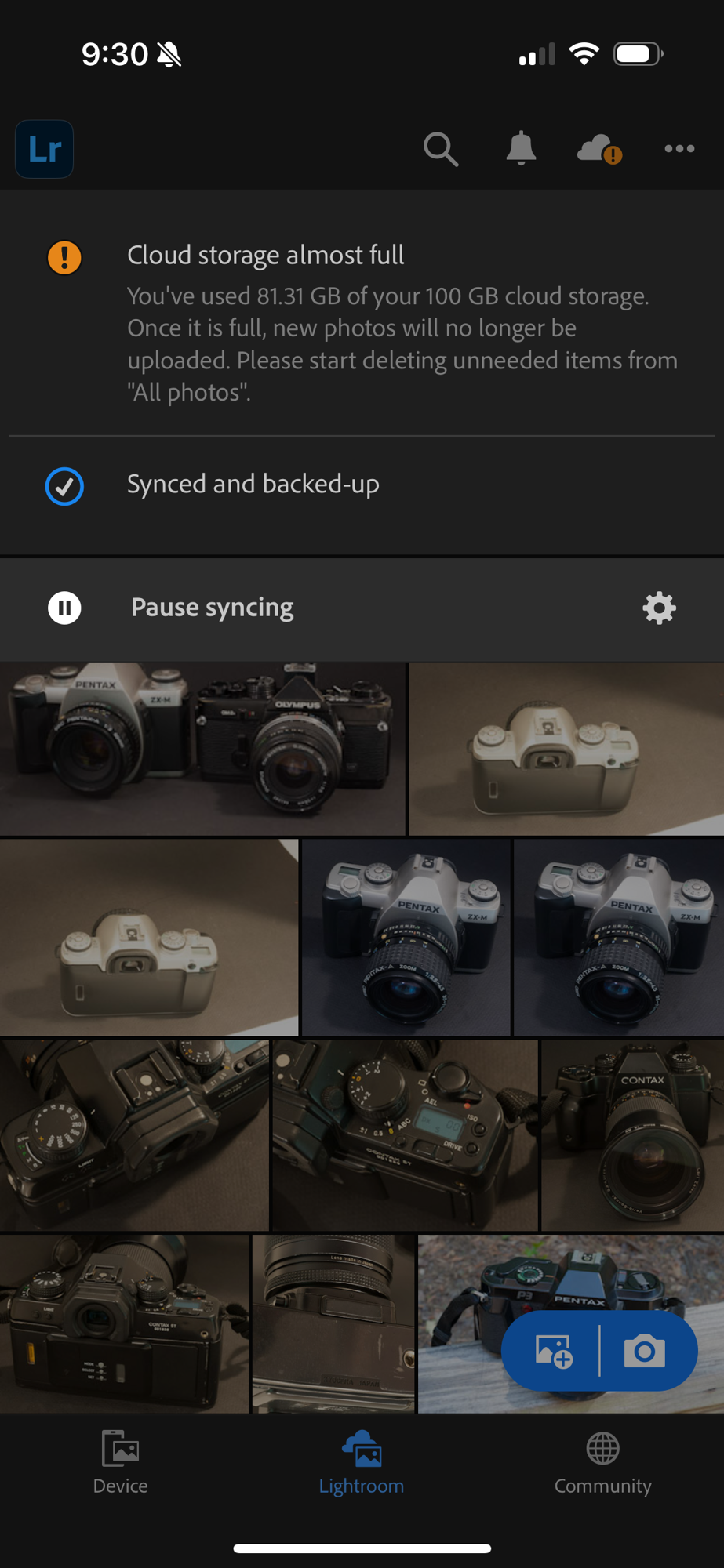
Lightroom Mobile on the iPhone – “please start deleting unneeded items” – not much of an upgrade path if you believe the message on this iPhone. Wrong. There is an upgrade path. But not in the Apple App Store.

If you reach the limit and need more storage (I reached the ceiling with approximately 15,000 pictures), there is no way to only buy more storage capacity from Apple, Google or Adobe. To get more storage space in the Adobe Creative Cloud, you have to subscribe to an Adobe Lightroom or Photography Plan directly on Adobe’s online store, and there is no refund for what’s left of your subscription in the app stores of Apple and Google. Ideally you should wait until you get very close to the expiration date of the mobile subscription before you switch to Adobe’s.

It looks bad enough on paper. How is it in the real life?

Lightroom for Web – same Mobile Premium subscription as above, but here Adobe lets you know that there is an “upgrade” option. It brings you to Adobe’s store where you can only subscribe to Adobe’s Lightroom or Photography Plans.

Upgrading from a mobile version of Lightroom

The upgrade is seamless. If you use Lightroom Mobile, you already have an Adobe ID (distinct from your Apple or Google app store IDs). Simply connect to the Adobe store, sign in with your Adobe ID, pick the photography plan you need, flash your credit card (it’s costing $119.99 if you pre-pay one year in advance), and you’re done. There is nothing to reinstall, nothing to configure. Within a few seconds, you will see your storage limit raised by an increment of 1TB in your mobile or Web apps.

The Mobile Premium subscription was just upgraded to the Adobe Lightroom plan. There are still a few weeks left in Apple’s Lightroom Mobile Premium annual subscription and the total cloud storage subscribed is 1.1 TB (100 GB from Mobile Premium, 1TB from the Lightroom Plan).

The upgrade to a Lightroom Plan also gives you an entitlement to two extra laptop/desktop versions of Lightroom, “Lightroom” (a thin client version of Lightroom formerly known as Lightroom CC), and “Lightroom Classic”, the current iteration of the “fat client” Lightroom application that Adobe has been selling since 2007. Lightroom and Lightroom Classic can both be installed on the same Windows or MacOS machine, and will take advantage of Adobe’s Creative Cloud to keep their respective libraries in sync.

“Lightroom” (represented in the dock of a Mac by the “Lr” icon) is similar in principle to Lightroom Mobile or Web, except it doesn’t run from an App or a Web browser, but from a local client installed on your machine. Its library of images is stored in Adobe’s Creative Cloud, not on local storage, but it benefits from more local image caching options, including the ability to replicate folders and albums locally, in which case it operates even without an Internet connection.

LR Classic (represented by the “LrC” icon) is the successor of Lightroom 6. It’s a large (fat-client) application installed on the local disk of a Windows or MacOS machine, which relies on local storage (directly attached or network attached drives) to store as many Lightroom libraries as needed. The storage is under the photographer’s responsibility, who has to manage, backup and protect what could amount to terabytes of data.

In summary, Lightroom Mobile (with Premium features) and Lightroom Web are products relying primarily on cloud storage, with limited local caching capabilities. Lightroom is also primarily relying on cloud storage, but has more manageable replication capabilities. Lightroom Classic, on the other hand, is designed as a stand alone product relying on local storage, which can, on demand, keep folders and albums in sync with the Adobe Creative Cloud – so that they can also be accessed from mobile devices.

One consequence is that you may have up to three versions of the same Lightroom album on a PC or a Mac: one created in Lightroom’s local cache, one in Lightroom’s local replica, and one in a Lightroom Classic library.
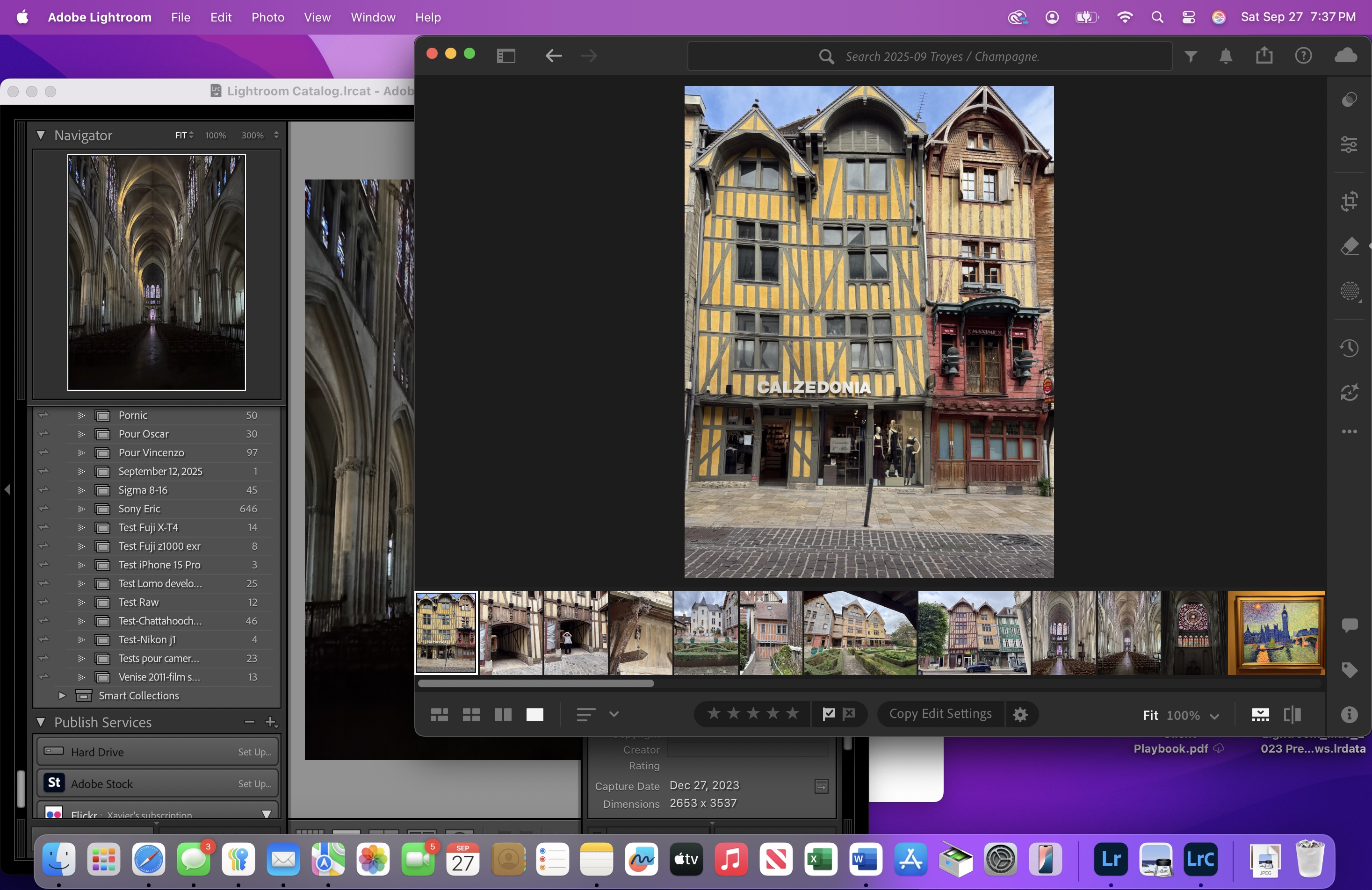
Lightroom Classic (on the left) and Lightroom (thin client) running here simultaneously on the same Mac. Lightroom Classic works with a local library, Lightroom from images stored in the Adobe Creative Cloud.

A surprise: the images don’t look the same when you are editing them in Lightroom Web and Lightroom Classic

All versions of Lightroom always preserve the original image uploaded by the photographer, and the edits are saved as instructions (metadata) in some sort of log. When time comes to export the final image as a JPEG or a TIFF file or to print it, Lightroom starts from the original image at its full resolution and re-applies the changes and transformations described in its log.

However, Lightroom Mobile, Web and PC/Mac are primarily cloud based products, and – by default – only keep a small subset of the photographer’s library in a local cache, where “smart-previews” are stored at a reduced resolution (up to 2640 points on the longest edge). You can force the system to download a full size version of the image, but if you don’t, the edits will be performed on a “smart-preview” at the reduced resolution. Lightroom Classic, on the other hand, relies on local storage (and is not bandwidth constrained) and always shows you the image at full resolution.

Calvi (Corsica) Pointe de la Revellata – Olympus TG-5 – the image looks great on Lightroom for Web (2640 pts on the longest edge for the smart-preview), but at full resolution in Lightroom Classic, it does not seem that sharp anymore.

You don’t really see the difference between a smart-preview and the full resolution of an image on a smartphone or even a tablet (the screen is too small), but when you start using Lightroom Classic on a PC or a Mac where you only had used Lightroom Web before, the difference can be striking – an image that looked sharp enough as a smart preview on Lightroom Web may suddenly look much too soft when shown at full resolution by Lightroom Classic on a 8k monitor.

Not really a surprise … but

The smartphone and tablet versions of Lightroom have more or less similar capabilities, and they’re not very different from Lightroom Web. Lightroom (the laptop/desktop thing client) sits somewhere between Lightroom Web and Lightroom Classic.

Its feature set is close to the mobile and Web versions, but, being written for desktop and laptops machines, its UI is menu driven and more similar to Classic. Its photo-editing capabilities are more elaborate than Mobile or Web, and because PCs and Macs generally support larger monitors than tablets, the images can be shown at a higher resolution.

Lightroom Classic is also menu driven, but is a totally different animal altogether. As mentioned above, it stores everything in local libraries (catalogs in Adobe parlance), and can, if requested, sync its local libraries with the Creative Cloud, one at a time or as a group. But it’s a partial, asynchronous replication, that the photographer has to manage. Classic also offers features which are completely missing on the other versions of Lightroom, like the ability to run all sorts of plug-ins, interface with Google Maps, or create photo-albums and slideshows.
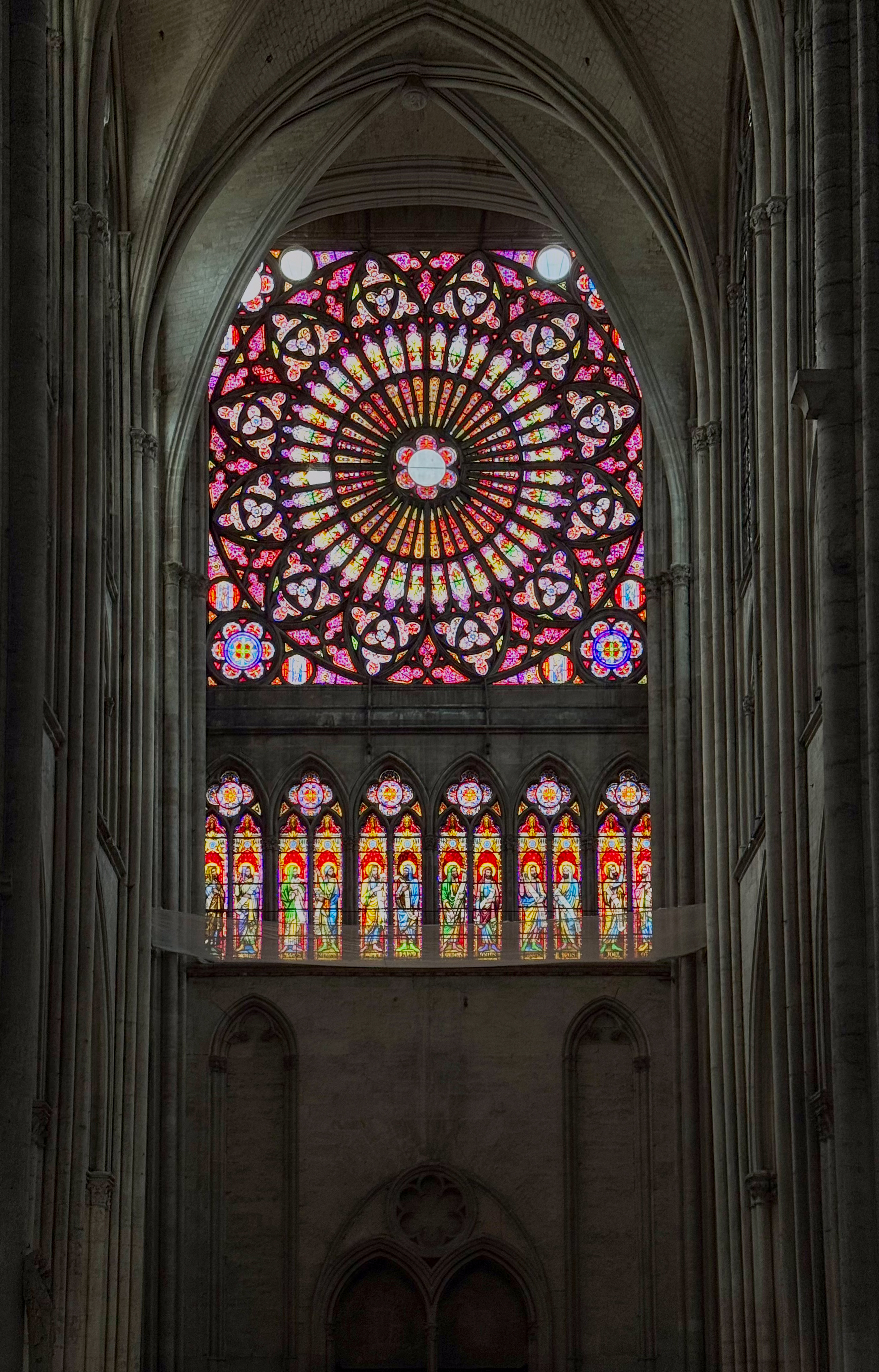
Troyes, France – the cathedral – iPhone 15 Pro – edited in Lightroom

Is the upgrade to an Adobe Lightroom plan worth it?

  • if you need more than 100 GB of cloud storage, and want to keep on using Lightroom for Mobile, you don’t really have a choice. If you don’t plan on using Lightroom on a PC or a Mac, you end up paying an extra $70/year for 900 extra gigabytes of storage. Not exactly a bargain.
  • if you have a desktop or a laptop, you get everything you had bought for $49/year in the mobile App Store (phone, tablet and web apps, with 100 GB storage), plus Lightroom and Lightroom Classic, plus 900 GB of extra storage, for “only” $70 more per year. A much better deal.
  • whether you install Lightroom Classic on your PC or not is another story – it’s a complex product, and the integration with the rest of the Adobe Lightroom family not that straightforward.
  • but Lightroom (for PC or Mac) is very pleasant to use, fully integrated with Creative Cloud, and a perfect companion for the Mobile versions of Lightroom. I strongly recommend you use it.
  • Lastly, once you’re in the Adobe world, you are not limited to 1TB of Creative Cloud storage. You can further increase your allocation up to 10 TB by increments of a few terabytes at a cost of approximately $10.00 /Terabyte/month.

The ideal use case – the one that will maximize the benefits of an Adobe Lightroom or Photography Plan – is that of photographers who need to store huge volumes of pictures in multiple libraries (catalogs) in their home or office IT infrastructure, but want at the same time the ability to work with a limited subset of their images while traveling – adding or editing pictures from a smartphone, a tablet or a laptop. They will take advantage of all the versions of Lightroom, and of the synchronization capabilities between them that Creative Cloud brings.

Troyes, France – the center of the city has been totally restored recently. Worth a visit.

If you don’t need or don’t want to manage multiple local photo libraries, you can still rely primarily on Lightroom Mobile and Lightroom for PC or Mac, that work very well together, and only fire up Lightroom Classic occasionally to use a specific plug-in or create a photo-album.

One last word: Adobe photography plans are available through subscriptions, that bundle multiple products and services. The content and price of those subscriptions have been known to change frequently over the recent years. I believe that my description of the bundles and the cost of the subscriptions are accurate when I write these lines at the end of September 2025. But it may change without notice in a few months, and will most probably be different in the years to come. If you’re considering spending your hard earned money on Lightroom, do your due diligence before committing to a one year plan.
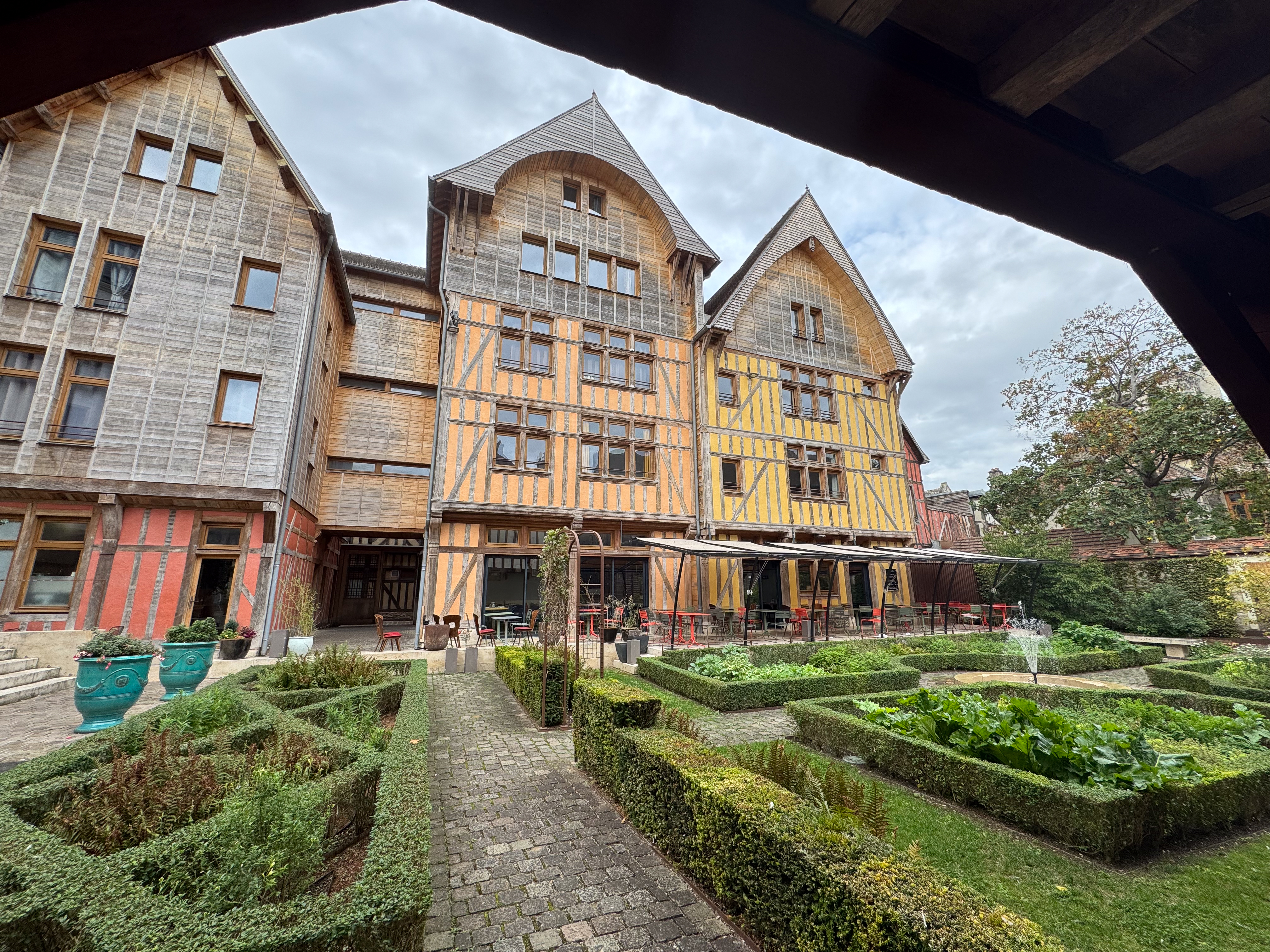

Troyes, France

More recent content in CamerAgX


An update on Adobe Lightroom licensing

There are benefits to software subscriptions – obviously the initial cash outlay is minimal, and, if the software vendor reinvests the money it receives every month into useful product improvements, the subscriber (I mean “You”) will always work with a state of art software solution.

Of course, the problem with software subscriptions is that once you’ve started using the product you’re at the mercy of the software editor, who can elect to change their terms and conditions and raise their prices as often and as much as they like. There is a price point not to exceed obviously, but the subscriber is captive, and the cost to switch to another product (in hours of training and hours of labor to transfer the images and convert the workflows) far exceeds the few extra dollars that the software editor will be tempted to extract from its subscribers every now and then. So the captive audience elects to remain… captive.

Lightroom for Mobile on CamerAgx.com

https://cameragx.com/2024/12/09/lightroom-for-mobile-premium-is-a-laptop-free-workflow-really-a-possibility/

https://cameragx.com/2024/12/16/lightroom-for-mobile-premium-migrating-images-from-lightroom-6/

https://cameragx.com/2024/12/30/adobe-lightroom-s-trying-to-make-sense-of-it-all/

At the end of last year, after I had published three posts about the Lightroom Mobile Premium, Adobe tested the tolerance to pain of its clients again, and announced a price increase of its Lightroom subscriptions.

Along this post, I will stress multiple times that the information I’m providing has been verified and is believed to be accurate as of the end of March 2025. Some Adobe Lightroom plans or upgrade options have been removed from Adobe’s store front and from the apps themselves during the last three months, and more changes could take place in the future.

The recent changes (and a simplification of the catalog) make very clear that Adobe’s preference is for the photographer to subscribe to the Adobe Lightroom Plan with 1 TB Cloud Storage. Under this plan, the ubiquity of the Lightroom platform is maximized: a photographer can, with the same license, enjoy Lightroom as a light weight application available on smartphones, tablets, PC/Mac and in a Web browser app (all with Cloud storage), or as a heavier PC/Mac conventional application with as much local storage as necessary.

The mobile-only versions of Lightroom increasingly look like minor products packaged to push the photographers to step up to the “real” Lightroom, the one they buy directly from Adobe.

Lightroom Mobile on the iPhone – “please start deleting unneeded items” – not much of an upgrade path. The reality is not that dire – there is an upgrade path – but not through Apple’s App Store.

High level – the product hierarchy and the upgrade path

Lightroom is available as a mobile app for smartphone or tablet in the two main app stores (Apple and Google’s).

The gateway drug is a free version, which does not process RAW images and does not offer cloud storage. It’s a simple photo editor, and it’s easy to argue that Apple and Google’s native photo apps are at least as good and should be preferred.

Once you enable the Premium features, Lightroom Mobile for smartphone or tablet “with Premium features enabled” makes sense for a relatively light use – with its 100 GB of included cloud storage, you will store something between 10,000 and 15,000 images in Adobe’s library. Mobile Premium supports RAW files, and offers most of the benefits of the Adobe ecosystem, including credits to use Adobe’s AI. A sporadic use from a PC or a Mac is also possible (the cloud hosted library is accessible from a Web version of Lightroom).

If you need more than 100 GB of cloud storage, the only option (in March 2025) is to switch to an Adobe Lightroom Plan purchased through Adobe.com. The Adobe Lightroom Plan (with 1 TB of cloud storage) offers all the benefits of “Mobile with Premium features”, and adds Lightroom for PC/Mac (a lightweight client with Cloud storage) and Lightroom Classic (the fat client with local storage), plus 450 extra Creative Cloud monthly credits for less than $10.00/month (assuming you pay for one year of subscription upfront).

Lightroom for Web – available to Mobile Premium users – the “upgrade” option brings you to Adobe’s store where you can only subscribe to Adobe’s Lightroom and Photography Plans.

There is a catch, though. The Lightroom Mobile plan (sold on the app stores of Google and Apple) and Adobe’s Lightroom Plans (available on Adobe’s store front) are two distinct commercial offers made by two totally different organizations.

Lightroom Mobile and Adobe Lightroom are two products of the same family (and the library of images will follow you to Adobe Lightroom), but an upgrade from Lightroom Mobile to an Adobe managed Lightroom subscription is not commercially possible – you have to subscribe to Adobe’s Lightroom Plan as if you were new to Lightroom, and will receive no credit from Adobe if you had prepaid for one year of Mobile Premium on Apple’s or Google’s App Store.

Las Vegas – Sony WX350 – in full daylight the camera does a nice job

Will I receive credit for the remaining months of Apple subscription?

No, Adobe typically does not offer a direct credit for the remaining months of your Apple App Store subscription if you switch to an Adobe Lightroom plan. When you switch to a different plan through Adobe, you will likely need to cancel your Apple subscription, and the billing on Apple’s platform will continue until the next renewal date.

Apple doesn’t usually allow third-party services like Adobe to manage credits or refunds for their App Store subscriptions. You might want to check with Apple Support to see if they can offer any credit for the unused months of your subscription, but that would be separate from Adobe’s policies.

To avoid being double-charged, it’s essential to cancel your Apple subscription before subscribing to an Adobe plan. [from a ChatGPT dialog on March 26, 2025]

Las Vegas – night shot with a Sony WX350. This is the last evolution of the Exmor 18Mpix sensor.

The two tables below summarize the different ways to subscribe to Lightroom, as of March 2025.

Lightroom for Mobile – purchased through an App Store:

Using the Apple App Store as a reference – Lightroom’s offerings on the Google Play App Store are roughly similar.

Adobe Lightroom  for iPhoneAdobe Lightroom  for iPadAdobe Lightroom  for iPhone with Premium Features enabledAdobe Lightroom  for iPad with Premium Features enabled
iOSiPadOSiOSiPadOS
Available through Apple StoreAvailable through Apple StoreLicensed through Apple StoreLicensed trough Apple Store
Annual Cost (US$)free in Apple Storefree in Apple Store      49.99  49.99 
Included Adobe Creative Cloud storageNoNo100 GB100 GB
Storage upgrade tiers  No direct upgrade optionNo direct upgrade option
RAW Files SupportedNoNoYesYes
AI enchancerNoNoYesYes
AI Generative Credits included  50 /month50 /month
Lightroom WebNoNoIncludedIncluded
Lightroom for PC/MacNoNoNoNo
Lightroom ClassicNoNoNoNo
PhotoshopNoNoNoNo
Las Vegas – Sony WX350 – the limits of the 2/3in sensor are very visible in night shots.

Subscribing to Adobe Lightroom through the Adobe.com storefront

Adobe Lightroom PlanAdobe Photography Plan
Annual Cost (if paid upfront) $ 119.88$ 239.88
Included Adobe Creative Cloud storage1 TB1 TB
Storage update tiers1 TB1 TB
Annual cost of storage tier$119.99 $119.99 
How to procureAdobe.com Adobe.com 
RAW Files SupportedYesYes
AI enchancerYesYes
AI Generative Credits included500/month500/month
Lightroom Mobile Premium for iOSIncludedIncluded
Lightroom Mobile Premium for iPadOSIncludedIncluded
Lightroom WebIncludedIncluded
Lightroom for PC/MacIncludedIncluded
Lightroom ClassicIncludedIncluded
Adobe PorfolioIncludedIncluded
Photoshop for iPadNoIncluded
Photoshop for WebNoIncluded
Photoshop for PC/MacNoIncluded

Alternatives?

For those who don’t want to pay the “Adobe Tax”, and prefer products distributed under an Open Source license or following a conventional perpetual licensing model, there are quite a few options, some free, some cheap. Some of those products even offer a mobile version and integrated cloud storage. A selection, listed in alphabetical order: Capture One, Darktable, On1 Photo Raw, Raw Therapy, Skylum Luminar. I’ve not tested them but there are interesting reviews in Youtube. One of them below.


More about alternatives to Lightroom:


Why Las Vegas? Because in Las Vegas, the Casino always wins.

Las Vegas in 2015 – Sony Cybershot WX350 – I returned the camera after one week – even if it was equipped with the best 2/3in sensor on the market at the time, I did not like the image quality and the ergonomics.

Digitizing negatives with the JJC Adapter

If you ask a lab to develop your film (I’m using https://oldschoolphotolab.com/), they will scan it for a modest extra fee ($6.00 per film). And if you send them already developed film strips, they will charge you anything between $1.00 and $4.50 per frame, depending on the quantity and on the desired output quality. The scans are made on Fuji or Noritsu machines, and the result is top notch – you just have to be prepared to wait – typically for two weeks – before you can access the files on Dropbox.

But there may be situations when you can’t wait, or you don’t want or are not permitted to send the negatives through the postal service at the other end of the country. There are also cases when the sheer volume of images to scan (and the expected low keep rate of the scanned images) makes using a specialized lab financially impractical.

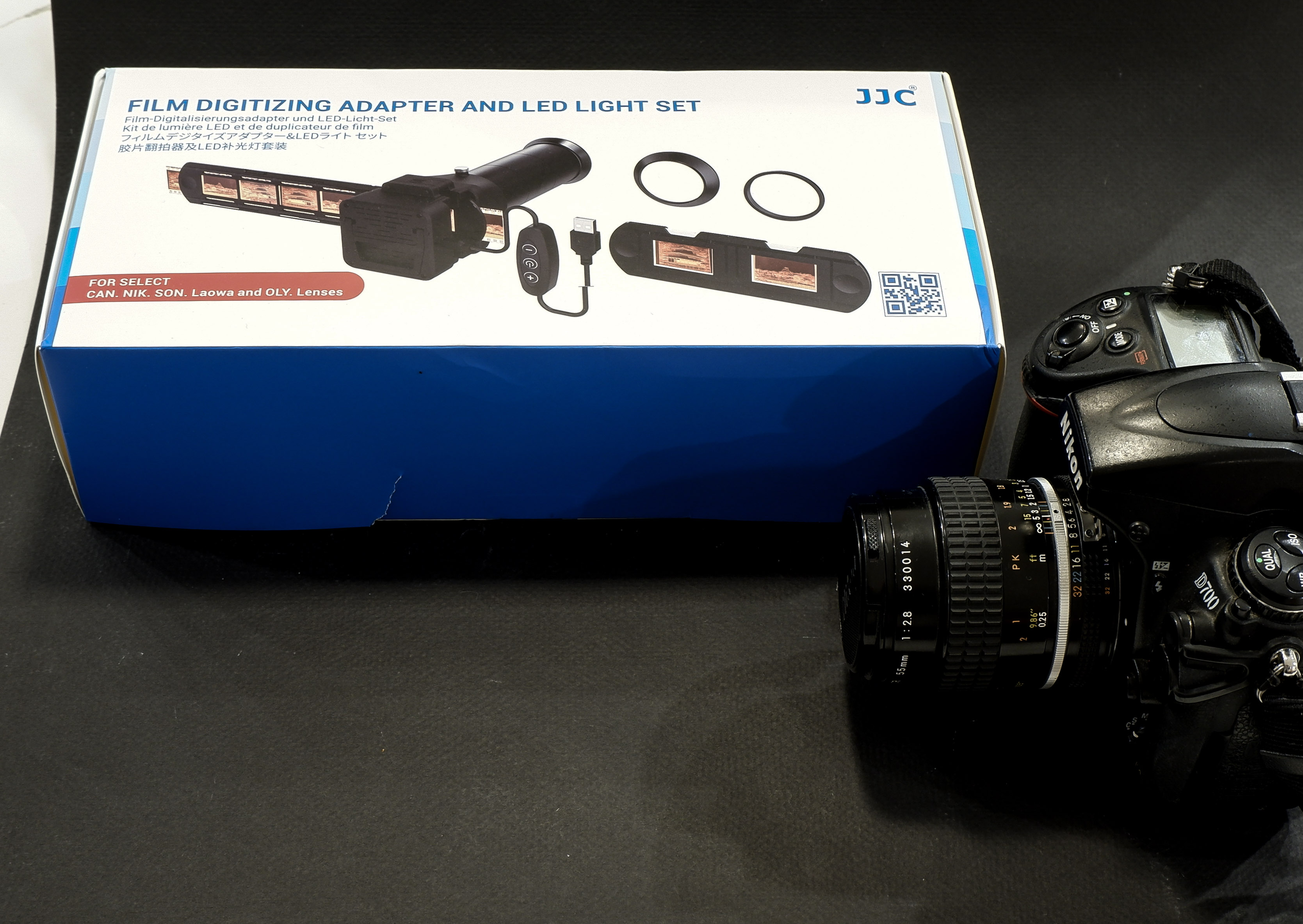
JJC Kit in its box, Nikon D700 ready for action

You can invest in your own scanner – or – taking advantage of the high resolution sensors of modern digital interchangeable lens cameras (dSLRs or mirrorless), shoot the negative frames (or the positive slides) with your camera, and simply upload the resulting files to Lightroom for a final edit.

Nikon were the first to package the necessary hardware in a single product (the Nikon ES-2 adapter, tested in The Casual Photophile: solving scanning with the nikon ES-2 film digitizing kit ). The Nikon kit is dedicated to Nikon cameras and lenses (and only a very limited list of Nikon Macro lenses are supported).

The JJC FDA-S1 Digitizing Kit

JJC have developed a clone of the ES-2, and have opened it to more lenses (they have added support for Canon, Sony, Laowa and Olympus lenses). Regular visitors of CamerAgX may know that when I’m shooting digital, it’s primarily with Fujifilm X cameras (X-T4 and X-A5) but I also have an old Nikon D700 and a much older 55mm Micro-Nikkor AI lens on a shelf, and that’s the gear I used to test the JJC “Film Digitizing Adapter Set”, Ref: FDA-S1.

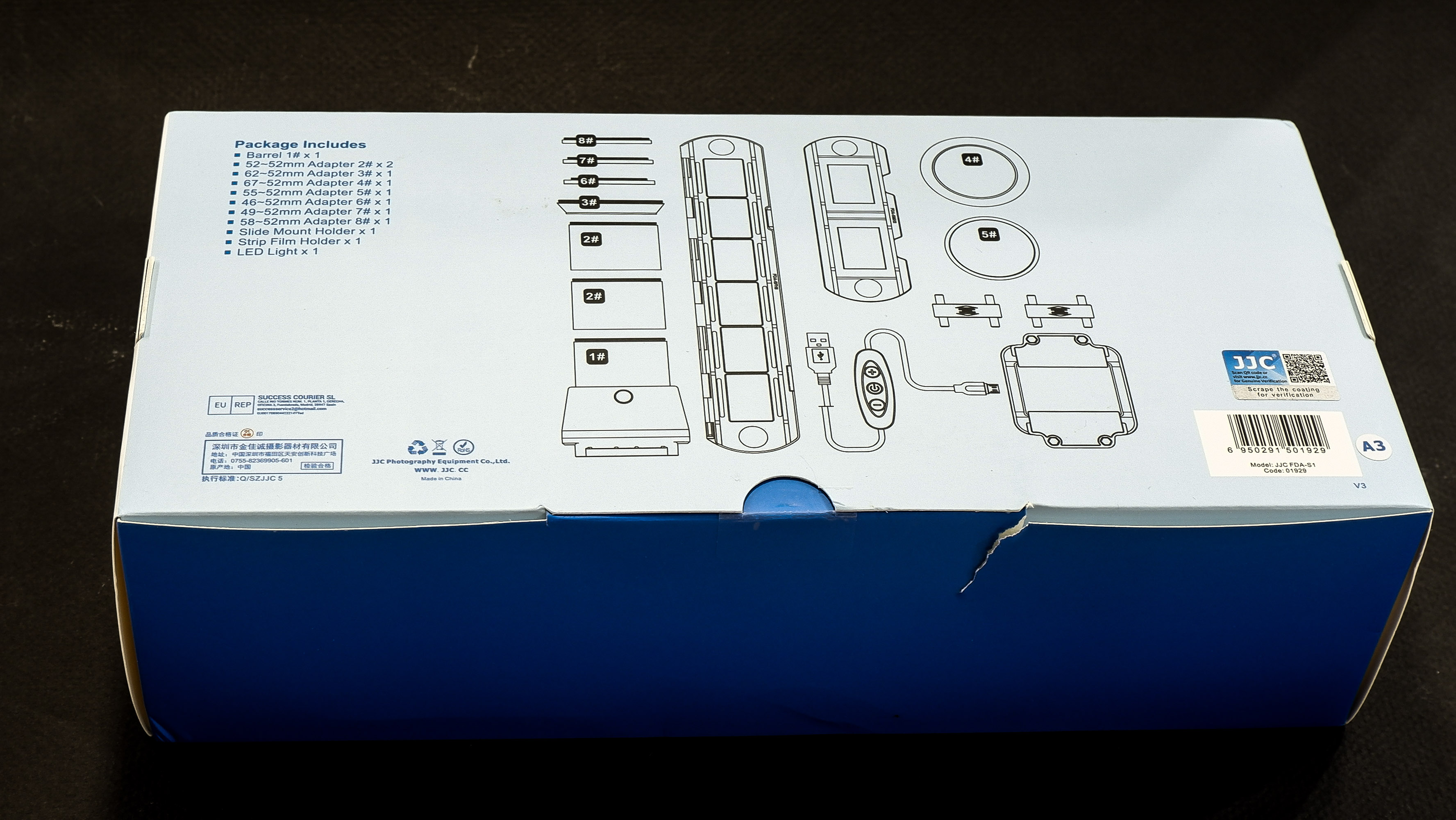
The kit is composed of 8 adapter rings, a slide mount holder, a negative film strip holder and (the unique selling proposition as far as I’m concerned), a USB powered light box. The whole set is well packaged, seems to be made of good quality materials (metal and plastic), and everything works as expected.

First attempt: Scanning with the Nikon D700 and the Nikon Micro Nikkor 55mm f/2.8 AI

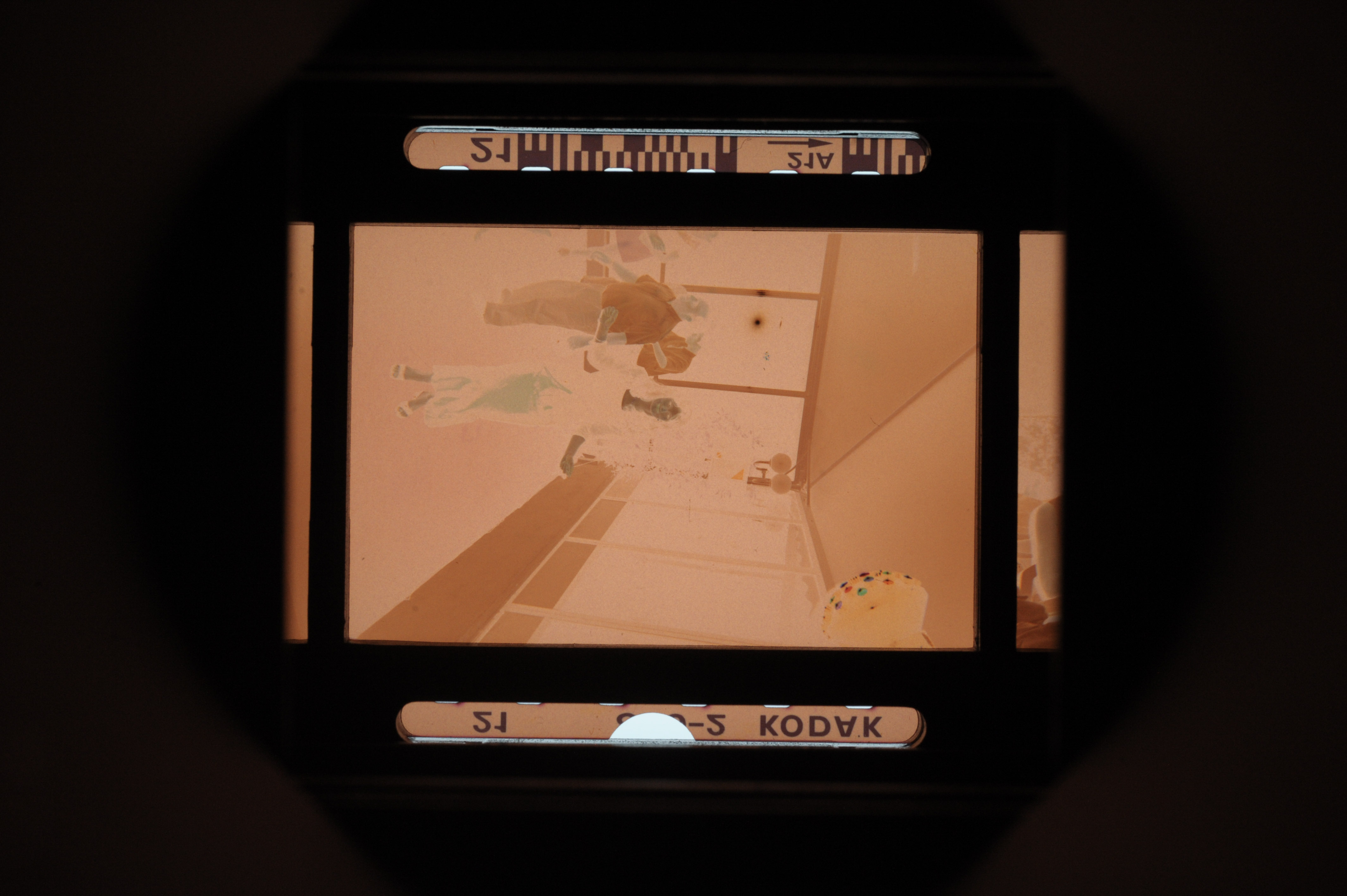
The Micro Nikkor 55mm AI is only offering a 1/2 repro ratio when shooting macro. As a result, the image of the negative is only using the central area of the frame of the D700. Not good. It’s made worse by the small resolution of the D700’s sensor – 12 Mpix – over here, we’re only using 3 Million pixels. The scans look blurred and lack detail.

As shot with the D700 – the Micro Nikkor 55mm lens is not a good fit for the JJC adapter

Second attempt: Scanning with an APS-C camera (the Fujifilm X-T4) and Nikon Micro Nikkor 55mm f/2.8 AI

One of the benefits of “mirrorless” cameras is that they can accept all sort of lens adapters. I happen to have a Fotasy adapter which will attach the Nikon AI lens to my Fujifilm X-T4. And the articulated display fo the mirrorless camera is much more comfortable to use than the optical viewfinder of the Nikon D700 for this type of work.

In action – Fujifilm X-T4, Fotasy Adapter, Nikon Micro-Nikkor 55mm, JJC kit

The “scan” fills the frame and is much more detailed.

Much better with the Fujifilm X-T4 – the “cropped sensor” is a good fit for the 1/2 repro ratio of the 55mm Micro-Nikkor AI.

Inverting the scanned image

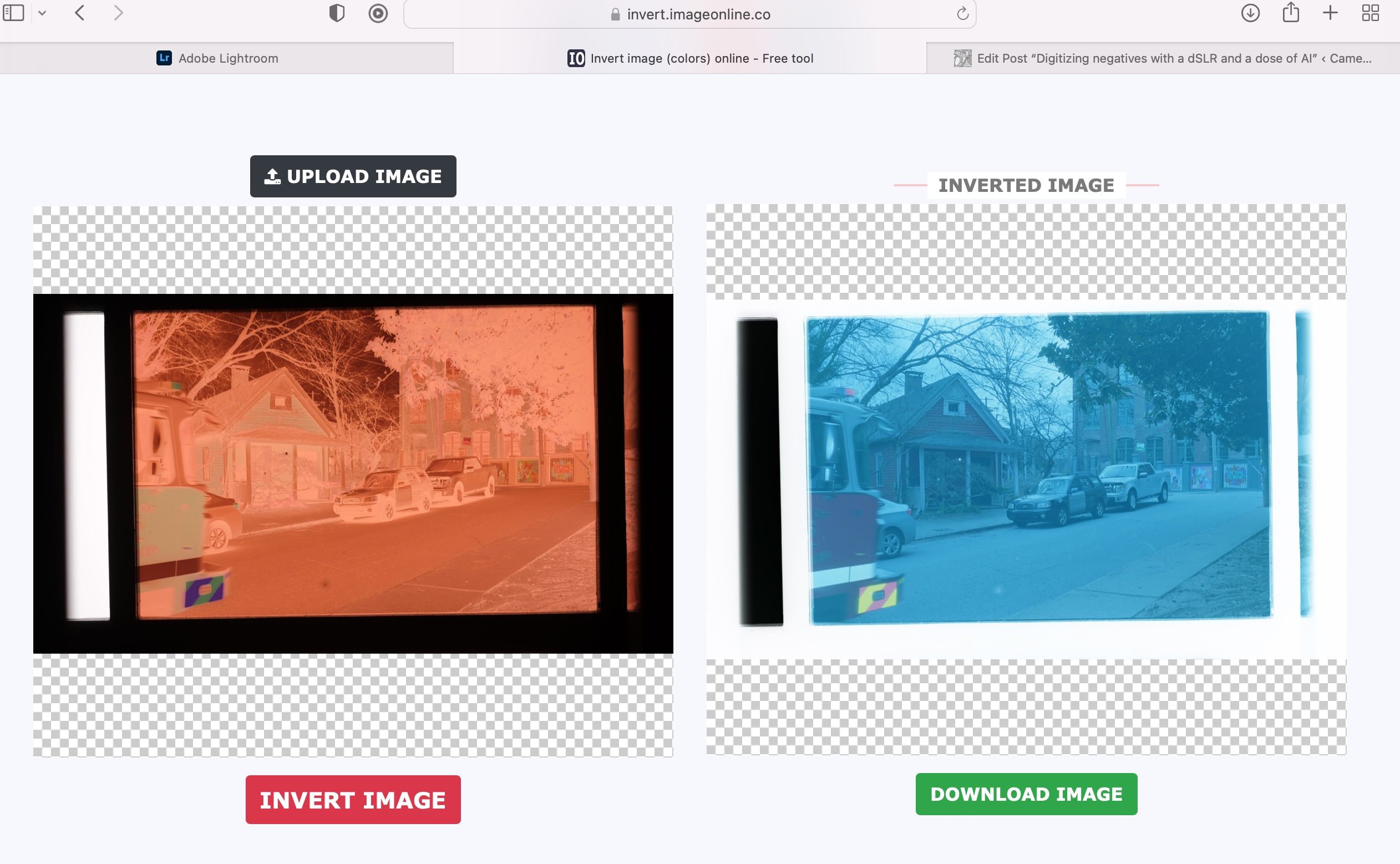
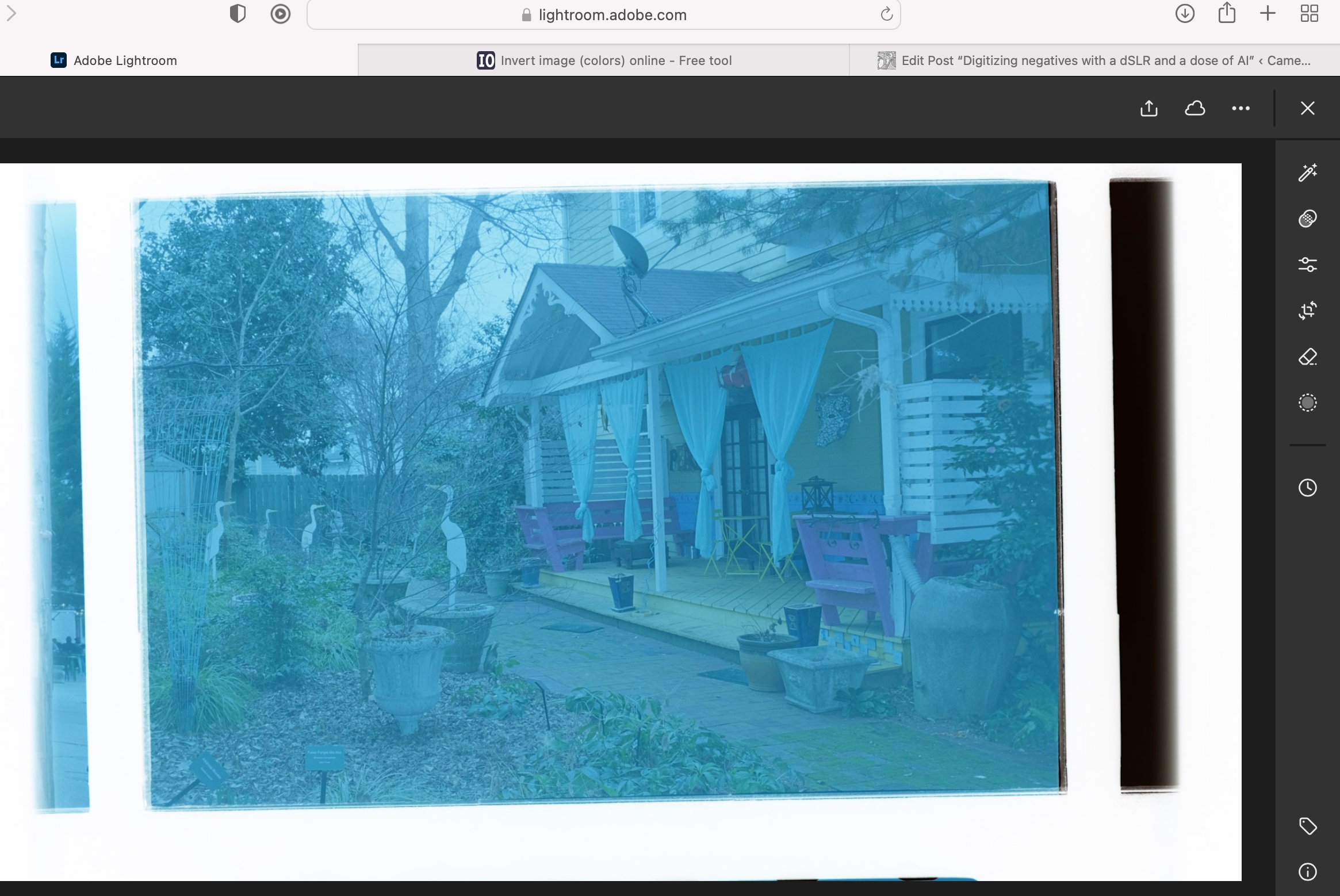
If you were starting from a negative, you have to convert it to a positive image. I tried this free online service (invert.imageonline.co). Better equipped pros will use Photoshop or Lightroom Plug-Ins.

Inverting the image with imageonline.co

Final touch in Lightroom Mobile

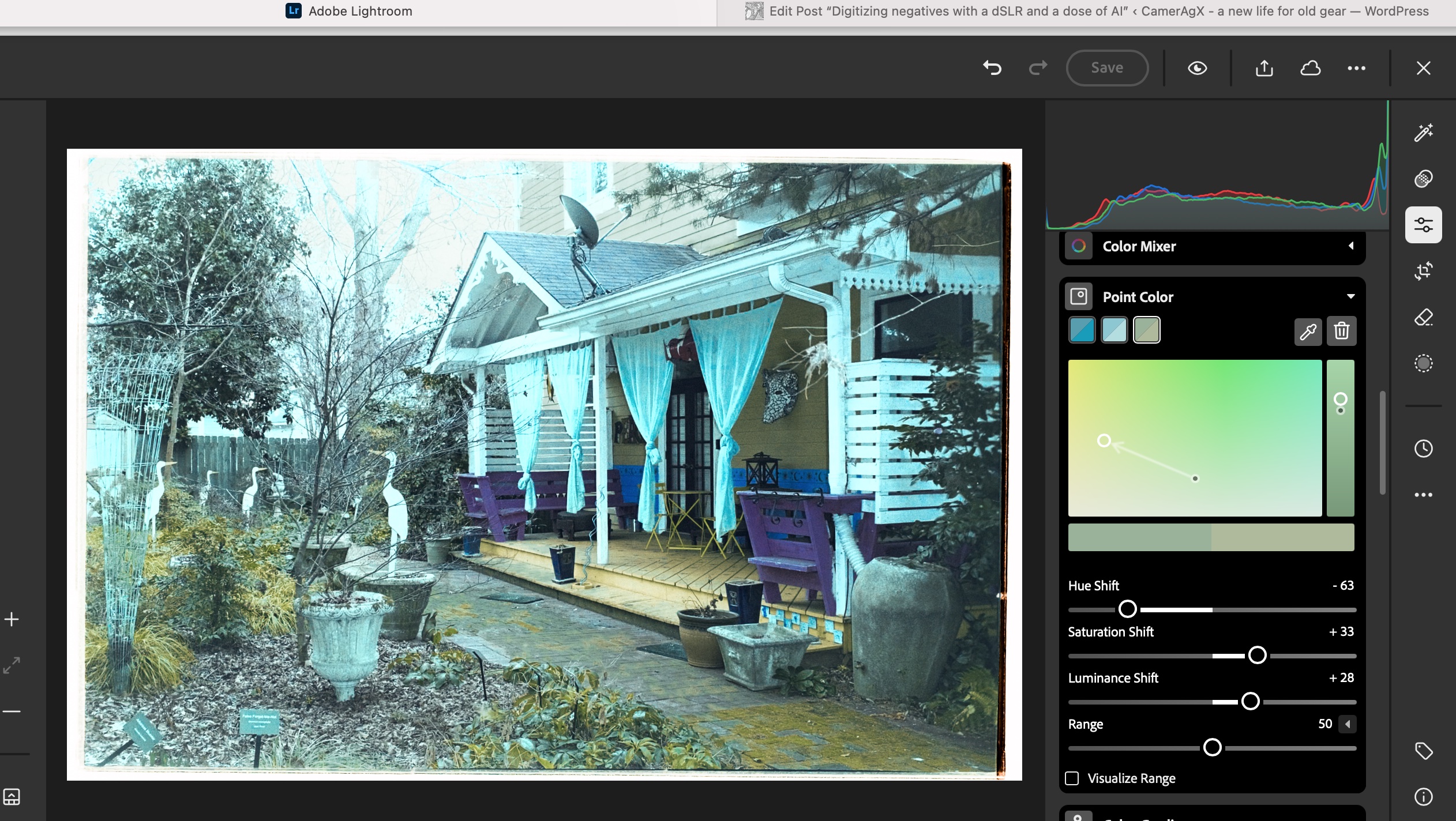
Depending on the pictures, it’s more or less labor intensive. It involves playing with the white balance, the different exposure sliders, and the color channels.

As imported in Lightroom from imageonline.co
Playing with the sliders in Lightroom with this picture I could not approach the colors of the lab’s scan.

Let’s compare a JJC scan with a pro medium resolution scan

The default resolution of scans performed by the Old School Photo Lab is 2048×3072, delivered as JPEG files. Higher resolution scans can be ordered at an extra cost (resolution: 4492×6774) and they can be delivered as TIFF files.

I’m generally happy with their standard resolution scans (I’ll call them medium res as some labs offer lower res scans as an option) and would only request High Resolution for exceptional pictures I’d like to print in a large format.

Shot with Kodak Ultramax on a Canon Photura, processed and scanned by the Old School Photo Lab

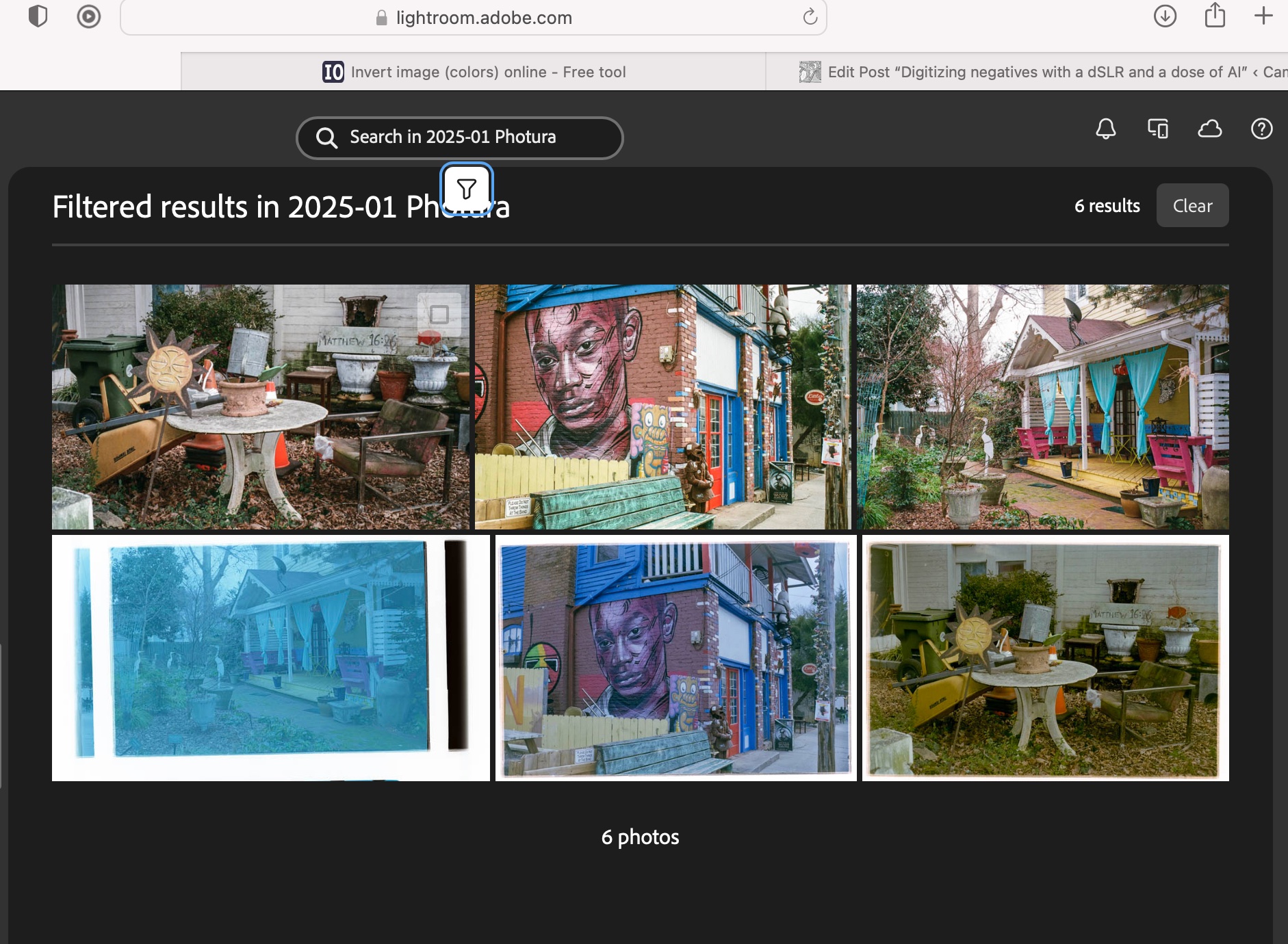
I just received the negatives of a film roll I shot with the Canon Photura a few weeks ago (the scans are made available online as soon as the film is processed, and the negatives returned to you one week later). Let’s compare a scan from a professional lab with an image captured on an APS-C camera with the JJC kit.

Scanned on a Fujifilm X-T4, inverted by imageonline.co and adjusted in Lightroom Mobile.

With the JJC kit and my amateur workflow, getting “good enough” results is easy and fairly quick. The DIY scans are very detailed but the colors still a bit off. Getting something as good as a scan on a Noritsu machine requires precision – the focus on the camera has to be perfect, the color balance has to be exact – but with practice and dedication I’m sure it’s possible to get “pretty close”. At the moment, I’m “pretty close” on some pictures, and totally off on others. Practice makes the master, and I lack practice, for sure.

Conclusion

I did not invest a lot in this test (the FDA-S1 kit cost me less than $100.00), I used an undocumented and unsupported setup, I relied on a free online service to invert the scanned negatives, and I edited the pictures with Lightroom Mobile. Enough to give me a feel for the practicality of the solution, but not enough to get the best possible results. I don’t think using an APS-C camera is an issue (the 26 Mpix of the X-T4’s sensor are more than enough to render a 35mm negative), but photographers who digitize their negatives “seriously” use the personal computer version of Lightroom (Lightroom Classic), with a plug in provided by Negative Lab Pro.

Scans from the lab (top row) vs DIY scans (lower row – the image on the bottom left has not been processed yet).

As a conclusion

The great thing about the JJC Digitizing kit is that it’s an all inclusive hardware solution, which is flexible enough to be used on cameras and lenses not explicitly supported. The USB powered lightbox is a significant plus, which is missing from the Nikon ES-2 kit.

The two main benefits of a scanning workflow starting with the JJC kit are speed – you can scan hundreds of pictures in an hour – and resolution. The biggest limitation is what comes after – inverting the negative and playing with the contrast slider, the color channels and the S curve to make the image usable. In order to get the best possible results at scale, using Lightroom Classic on a PC or a Mac, with a dedicated plug-in is probably the way to go, but it’s a spend I can’t justify – I’m just an amateur photographer, not a pro.

I’ll use the JJC Digitizing adapter as a quick way to reference hundreds or thousands of negatives, and, to share the ones that matter to them with family and friends, on the messaging apps of their smartphones. If I need a high quality scan of one of those pictures, I will still rely on a pro lab.

My most satisfying DIY scan so far.

(*) More about the different versions of Lightroom (Classic, Mobile, Mobile with Premium Features)

Adobe Lightroom (s) – trying to make sense of it all

I started using Lightroom on a Mac in 2008, when “Photoshop Lightroom 2” was launched.

I upgraded regularly up to Lightroom 6, and kept on working with this version until I started progressively using Lightroom Mobile on iOS and iPadOS devices. At some point this year I came to the conclusion that I was not using Lightroom 6 and the old Mac anymore, that all my recent pictures were cataloged and processed on the iPad, and that it made sense to migrate my Lightroom 6 catalog to Adobe’s Creative Cloud.

Using the “Lightroom mobile app” on a iPad – I had not seen how fundamentally different the new cloud based Lightroom was from the old PC or Mac based versions. When some features were absent, I had just assumed it was due to limitations of the iPad or to restrictions imposed by Apple. It’s only when I started considering migrating my Lightroom 6 catalogs to the “new Lightroom” that I could see that Lightroom was at best an umbrella brand, and that there was little in common between the Classic and the (non-Classic) Lightroom.

San Juan, Puerto Rico – shot in 2008 – when I started using Lightroom.

Lightroom 6 and Lightroom Classic are conventional desktop and laptop based applications, that keep a local catalog of the images, and store them on directly attached hard drives and on network attached storage.

The new Lightroom (currently known as “Lightroom”) is a totally different animal. The storage of the images is taken care of by Adobe’s own Creative Cloud. The end users can upload, catalog and edit their images from a Web Interface running in their favorite Web Browser, or from a thin application layer running on smartphones or tablets (iPhone, iPad and Android devices), or on conventional laptops and desktop PCs or Macs. This application layer does not store the images permanently – it just downloads them from the cloud to a local cache when the photographer wants to work with them.

Now, let’s stop for a minute. Yes, you’ve read it right – Lightroom Classic (with the local catalog pointing to the local storage) and the new Lightroom thin app with its cloud storage can run simultaneously on a PC or a Mac. Depending on how you set them up, they will or will not keep their respective collections in sync. In sync, but separated and largely independent.

San Juan, Puerto Rico – Nikon D80 – April 2008

What I had not understood was that even if they look similar upon a cursory examination, Lightroom Classic and Lightroom (the new, cloud based Lightroom) are largely incompatible. Each lives in its own universe – they share pictures and edits transparently, and seem to cohabitate in perfect harmony – but they remain in separate worlds.

You fully realize how different the two products are the day you decide to abandon Lightroom Classic and its local storage, and start considering working exclusively with “Lightroom” in the cloud universe. Naturally, you will want to bring your catalog of Lightroom Classic images to the Creative Cloud, and that’s when you’ll start feeling the pain.

Because the migration of your Lightroom Classic catalogs is painful. In fact, there is no migration as such. When you export a collection to the cloud, Adobe retains your original image as transferred from the camera, but all the subsequent edits to that image will be aggregated in a single all encompassing step. Basically, you will get your original, and the final state of your image after all the edits have been applied. Adobe will also retain the metadata of the picture, the information you have added (title, comments, keywords, flags, stars) but not much else. The original folder structure on your local disks, the smart collections, the photo albums, the slide shows, even geo tagging information – won’t be transferred and will therefore be lost.

Near Pienza, Italy – Fujifilm X-T4 – July 2024, after I definitely switched to “Lightroom mobile app”

It may seem like a huge loss. But I’m an amateur and don’t make a living from my pictures. I’ve already printed the photo albums I needed to print, shared the slide shows I wanted to share, and won’t need to go back and rearrange them. As long as I can keep my pictures as they were when I was finished editing them, I’ll be fine. Having the ability to return to my images from any device, anywhere, without having to worry about storage devices, RAID arrays and off site backups, without even a laptop, has more value to me than the layout of a few photo albums.


Naming conventions….

Adobe has kept changing the names of its “Lightroom” products, and even today, they are not perfectly consistent.

The conventional PC/Mac version of Lightroom, with its local storage, its local catalog, and its very broad feature set, is known as “Lightroom Classic“. Abbreviation: “LrC”

The “new” Lightroom, combining cloud storage and a thin interface running on a browser, a smartphone, tablet, PC or Mac is simply known as “Lightroom“. Some people still call it “Lightroom Creative Cloud” or “Lightroom CC”. But it’s “Lightroom“, abbreviated as “Lr” in the dock of a Mac or a PC, and on the Home screen of a mobile device.

When it’s running on a smartphone or a tablet, “Lightroom” is designated officially as “Adobe Photoshop Lightroom mobile app“, but it’s still abbreviated as “Lr”. The Lightroom mobile app is free but its feature set is limited. In order to work with RAW files, store images in the Adobe Creative Cloud and play with the new generative AI features, you will need to subscribe to Premium features (and you will be using “Adobe Lightroom mobile app with premium features enabled“, abbreviated as “Lr”, of course).


More about the differences between Lightroom Classic and Lightroom when it comes to storage


Did you recognize them?

“The Fathers of Technology” : Charles Babbage, Nikola Tesla, Vannevar Bush, Alan Turing, Claude Shannon and Steve Jobs. Corner of Tremont Street and Frazier Ave – Chattanooga, TN

Lightroom for Mobile Premium – is a laptop-free workflow really a possibility?

The times when an amateur photographer could wait for a week or two before receiving a set of prints are long gone. With everybody around us shooting with smartphones, we need to publish the pictures taken with our “serious” cameras very rapidly, in a matter of hours if not minutes, if we don’t want our pictures to be yesterday’s news. And since we’re also taking a lot of pictures with our own smartphones, we need a tool that can manage seamlessly our “serious” and our “smartphone” photos and publish them together.

The “photo” app of mobile devices have limitations (editing, cataloging, noise removal and RAW processing are weak); apps and (sometimes services) offered by camera companies are even weaker. Very often, only lower res version of images can be uploaded through a WiFi connection, and sometimes they’re down sampled so drastically they become hardly usable. As for the proprietary cloud offerings of the camera makers, they still have to make a mark. There is real opportunity for a company specialized in image processing tools to shine.

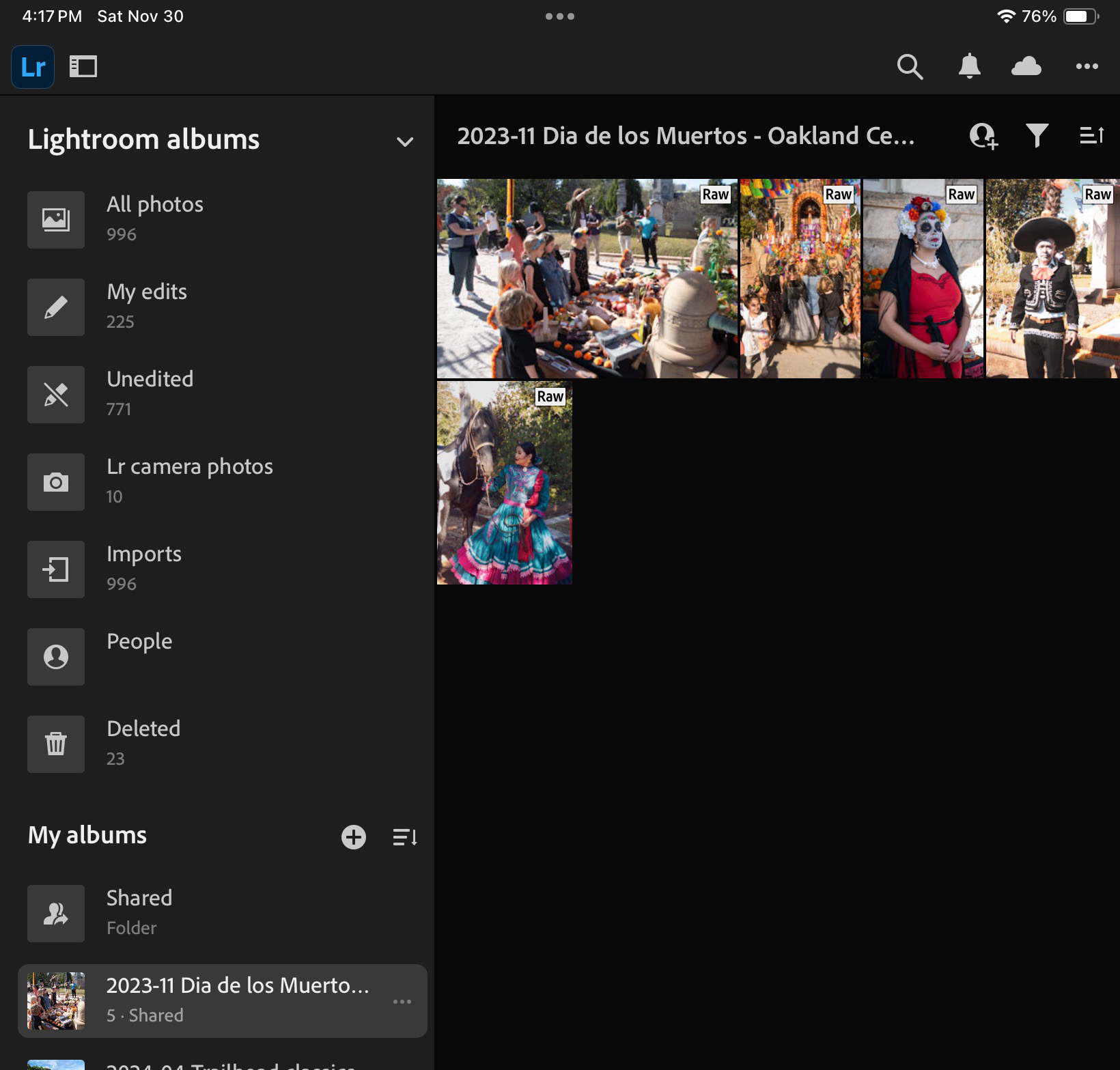
Lightroom for Mobile on an iPad. Some albums are “virtual” and created by default by Lightroom, the rest are “yours”.

Then comes Adobe with Lightroom. Adobe’s Lightroom is primarily a non destructive photo editing tool, with strong cataloging and integration capabilities. In its current iteration, it’s a combination of features made available by software deployed locally on a device running Windows, MacOS, iPadOS, iOS or Android, and of services provided over an Internet connection, with everything tied by a common user interface.

Adobe makes a free version of Lightroom available on IOS, iPadOS and Android, but it’s very limited (no RAW processing, not many image editing options, no online storage, no AI tool) – you can question its real purpose beyond maintaining a presence in the app stores.

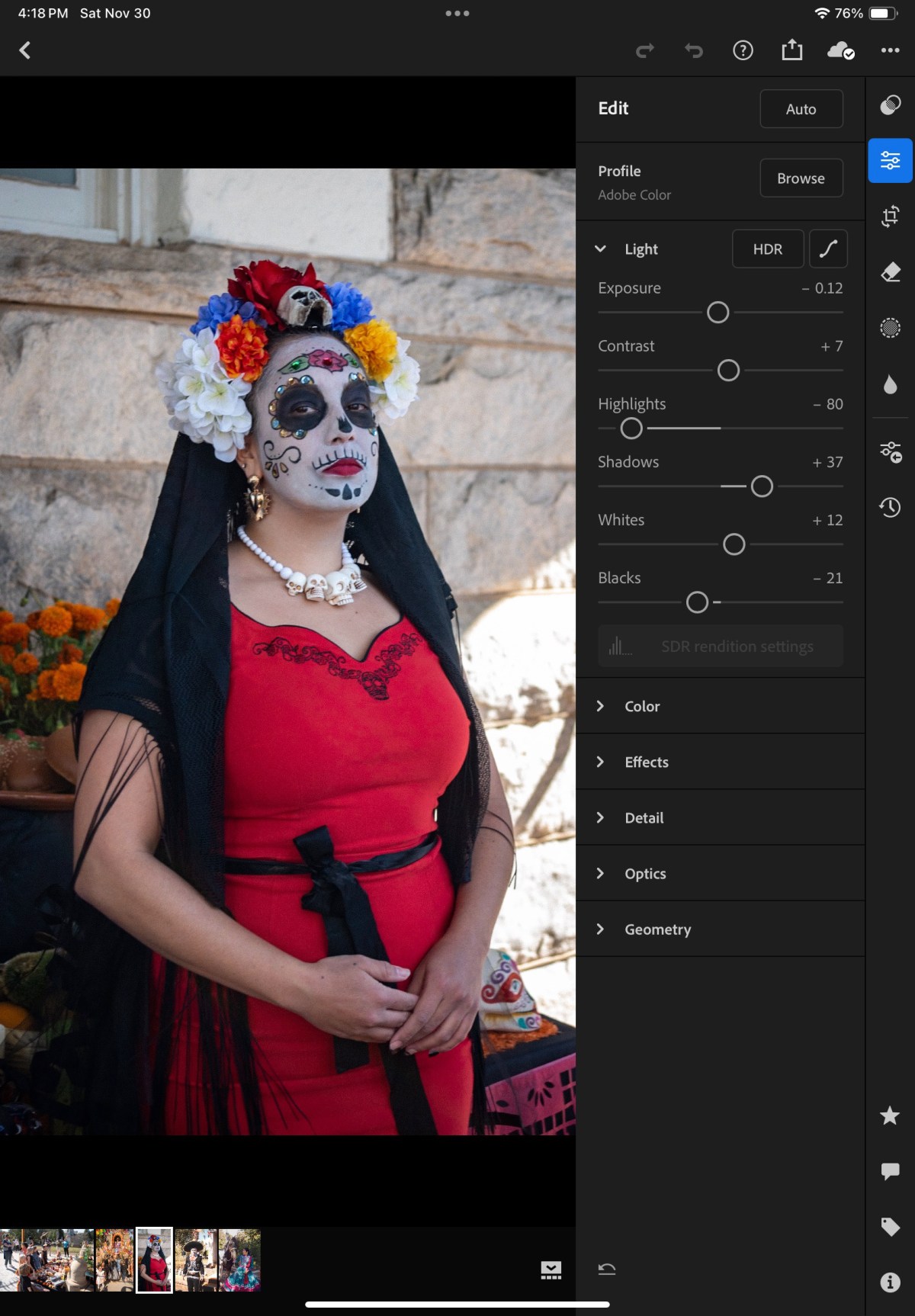
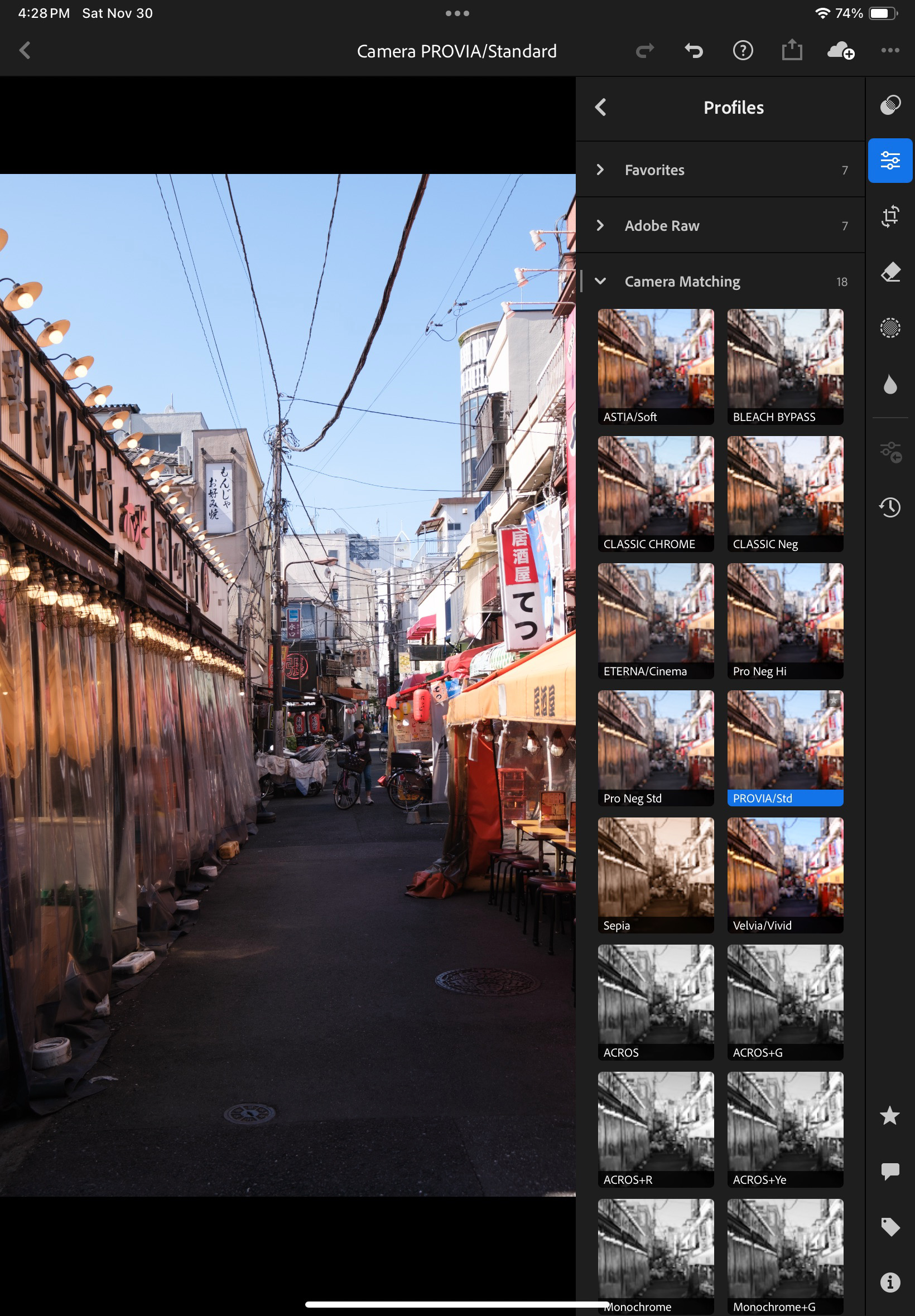
Lightroom applies Profiles to images – Adobe has its set of universal defaults, augmented by the profiles dedicated to a specific camera (here, a Fujifilm X-T4)

Enabling the Premium features – at $5.00 per month on the iPad – addresses those limitations. Lightroom for Mobile Premium processes RAW files, gives access to Adobe’s cloud where it includes 100 GB of storage, and to some AI goodies. That’s what I’m going to review. iOS (iPhone) or an Android versions of Lightroom are generally similar but not 100% identical.

Lightroom for Mobile offers more than Apple’s Photos app. Here, the S curve.

How does it work?

Because of the way the memory of the iPad is managed and protected, Lightroom can only work (edit, catalog, sync to cloud) with images you have imported in the memory space dedicated to the application. You can import images from Apple’s Photo app (it’s seamless) but if you have paid for Lightroom’s premium features, it’s likely that you expect more than what the camera of the iPad can deliver, and better than the low res jpegs that the photo import app of the manufacturer of your camera: you will import images (jpegs, HEIC or RAW) from a storage volume (generally the memory card of your camera), thanks to a reader that you will attach to the usb port of your tablet.
The images remain in a local cache as long as you are working on them. Lightroom takes care of controlling the size of the cache (images are sync’d to Adobe’s cloud as soon as a solid Internet connection is available).

One of the issues with Lightroom on iOS or iPadOS: metadata can’t be added in bulk – each image has to be reviewed individually.

From there on, Lightroom for Mobile with Premium features  ( what a mouthful) behaves more or less like the “full-size” version of Lightroom.

Let’s review what’s great and not so great with Lightroom for Mobile.

What’s great about Lightroom for Mobile

  • Seamless integration with an PC or a Mac running Adobe Lightroom Classic with a large enough Adobe Cloud storage subscription (same images, same edits, same albums, same cloud storage). They can be used in parallel and complement each other.  
  • Seamless integration with Apple’s Photo app, with the iPad file store, and generally iPad apps. And the integration works both ways (imports Photo images in Lightroom, export Lightroom pictures to Apple Photos). You can really create a Lightroom album composed of images taken with the camera of the iPhone and of images imported from a conventional camera.
  • Lightroom also augments the basic capabilities of smartphone or tablet apps; Lightroom can take control over the device’s camera and shoot directly in RAW.
  • Images can be exported out of Lightroom in different formats. As a result, the base promise of Lightroom Mobile: import images from a camera at full resolution, tag, edit and publish them (more or less easily) on many media, apps and social networks – is fulfilled with minimum hassle.
  • Lightroom does not consume too much memory space on iPad (it manages a local cache intelligently)
  • it offers enough to support a Raw or a JPEG/HEIC workflow, at least for an amateur taking a few dozens pictures a day.
  • because it’s a combination of Software as a Service and mobile app, updates are frequent and the product is regularly improved. 
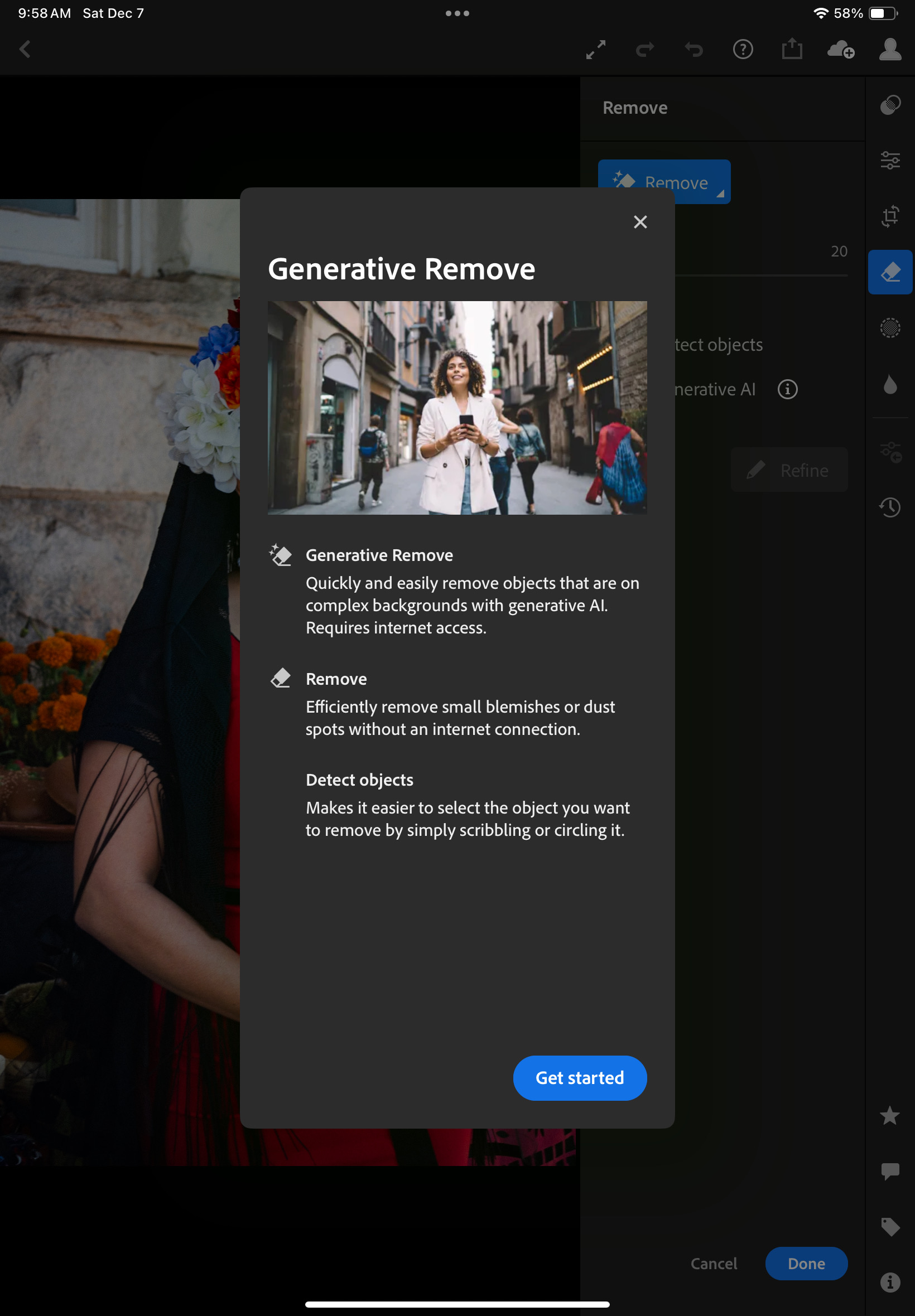
  • Generative AI options are included in the subscription. They’re not perfect but they help – no need for Photoshop most of the time.
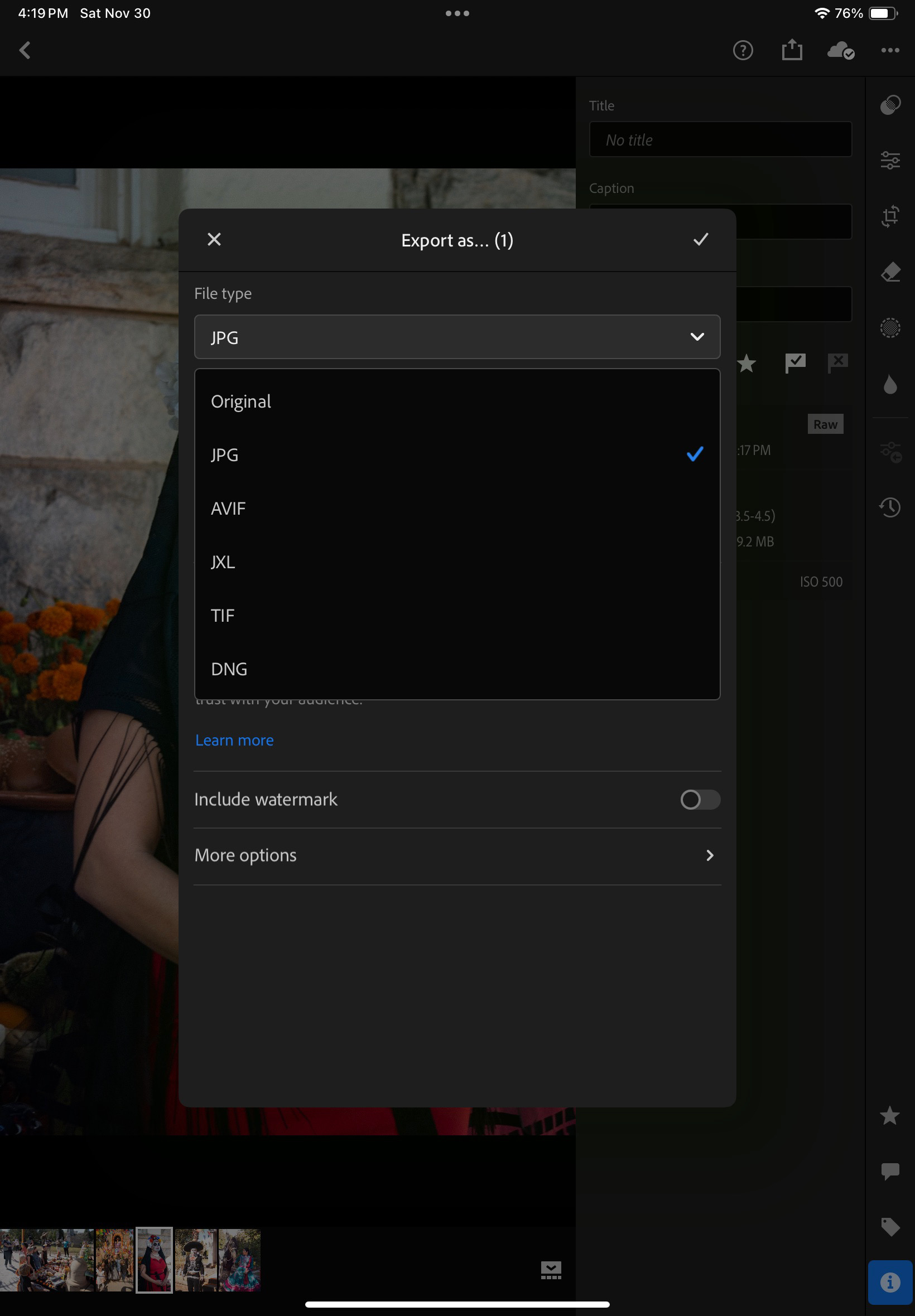
Edited images can be exported in different formats and different levels of resolution.

What’s not so great:

  • The confusion about versions, product capabilities , subscriptions: the definition of the different Lightroom products changed multiple times over the years, the offerings are still different depending on the platform, there are incompatibilities between versions, the bundles are inflexible and force you to subscribe to Photoshop. At the moment, “Lightroom” designates the version running on Mobile and in Web browsers, as well as on PCs or Macs, with the images stored in the Adobe Cloud. “Lightroom Classic” is the PC and Mac only version, and depending on the application settings, your images will be stored locally or in Adobe’s Cloud.
  • Lightroom for iPadOS is not totally similar to Lightroom Classic for Windows or MacOS – important features are missing (metadata batch update, side by side comparison of  images, ordering printed photos albums, to name a few);
  • The iPad version is also missing features compared to the Android version (updating the metadata of multiple images at the same time, for instance). But the opposite is also true (iPad has features that Android tablets don’t have). 
  • Beyond 100 GB the cloud storage upgrade options are available by increments to 1TB for roughly $10.00 /month.
  • If you don’t want to pay for more Adobe’s Cloud storage, you will need to pay instead for a license combining Lightroom, Lightroom Classic and Photoshop for $9.99 / month, and keep the storage local (* on Dec 17th 2024, Adobe have announced they would stop offering this option to new users). Lightroom Classic will run on a laptop/desktop, and the images will reside in local drives (directly attached hard disks or NAS). But that will require you to own a laptop or a desktop, configure redundant storage (mirrored or in RAID arrays) and subscribe to an off site backup plan. Also, integration with Lightroom for Mobile will not be so seamless anymore, and will require some planning before off site expeditions, since the cloud storage is limited to 20GB.
  • If money is no (or less of an) object, you will opt for the combined Lightroom+Lightroom Classic+Photoshop license, which comes with 1TB of storage, for $19.99 / month. Additional storage will cost you roughly $10.00 per additional TB. It’s the most flexible but also the most expensive solution.
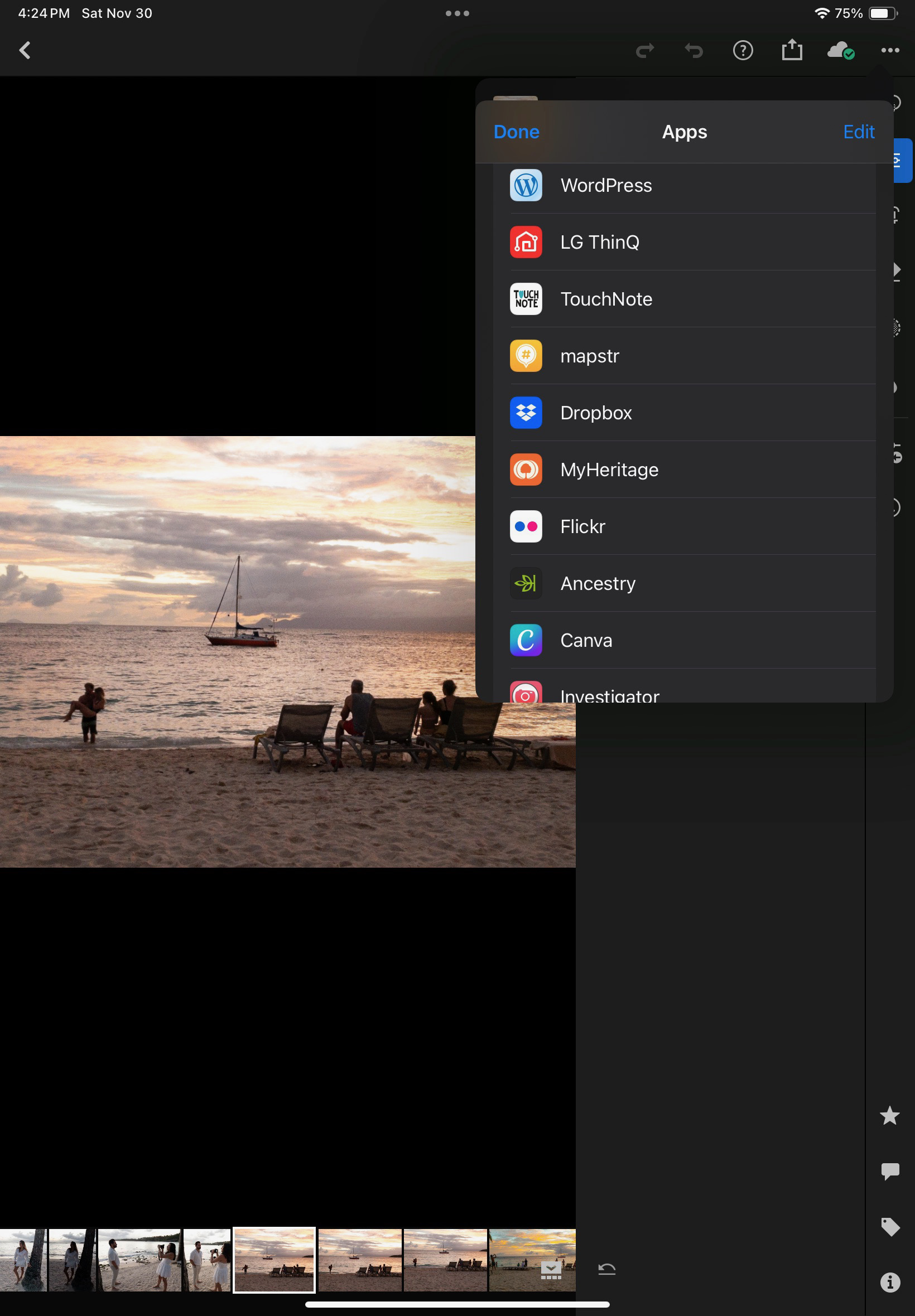
Edited images can also be “Shared” with other applications residing on the iPad. “Share” plays the role of Connectors on Lightroom Classic.

Conclusion

So, is a laptop-free Lightroom workflow a possibility? At this moment,  for an amateur like me, Lightroom Mobile, despite irritating limitations, will be good enough most of the time, and has unique capabilities: it’s the only practical way to work on the pictures taken with my “serious” camera, catalog them and share them while on the go, without having to carry a laptop. I just need my phone or my tablet and a USB-C card reader. But – as this review is being written – there are still important features missing in the mobile version, that would require the full Adobe Photographer subscription and a full featured PC when I’m back home.

Premium comes with AI.
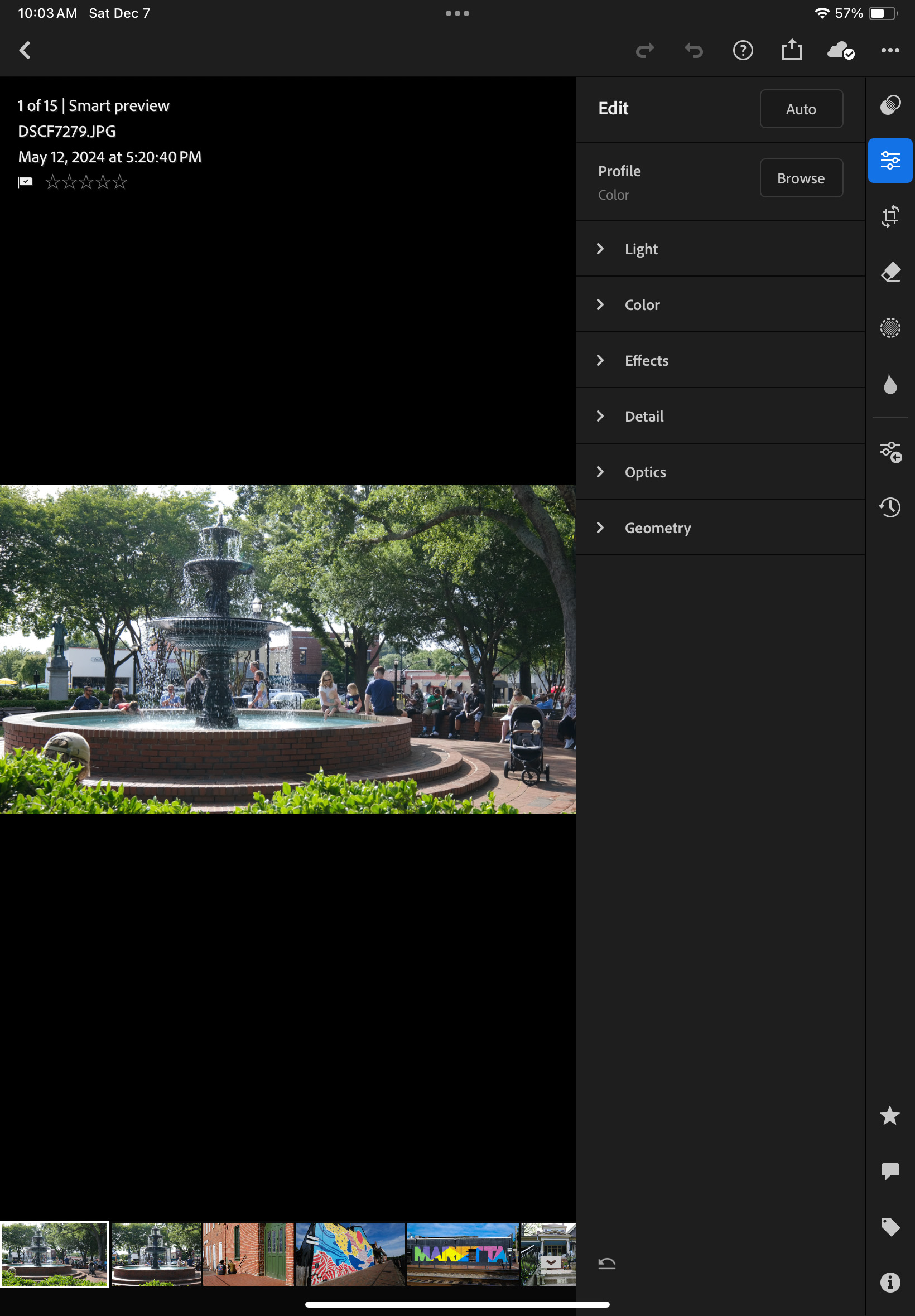
I want to remove the baseball cap of the person sitting just behind the shrubs on the lower left of the picture.
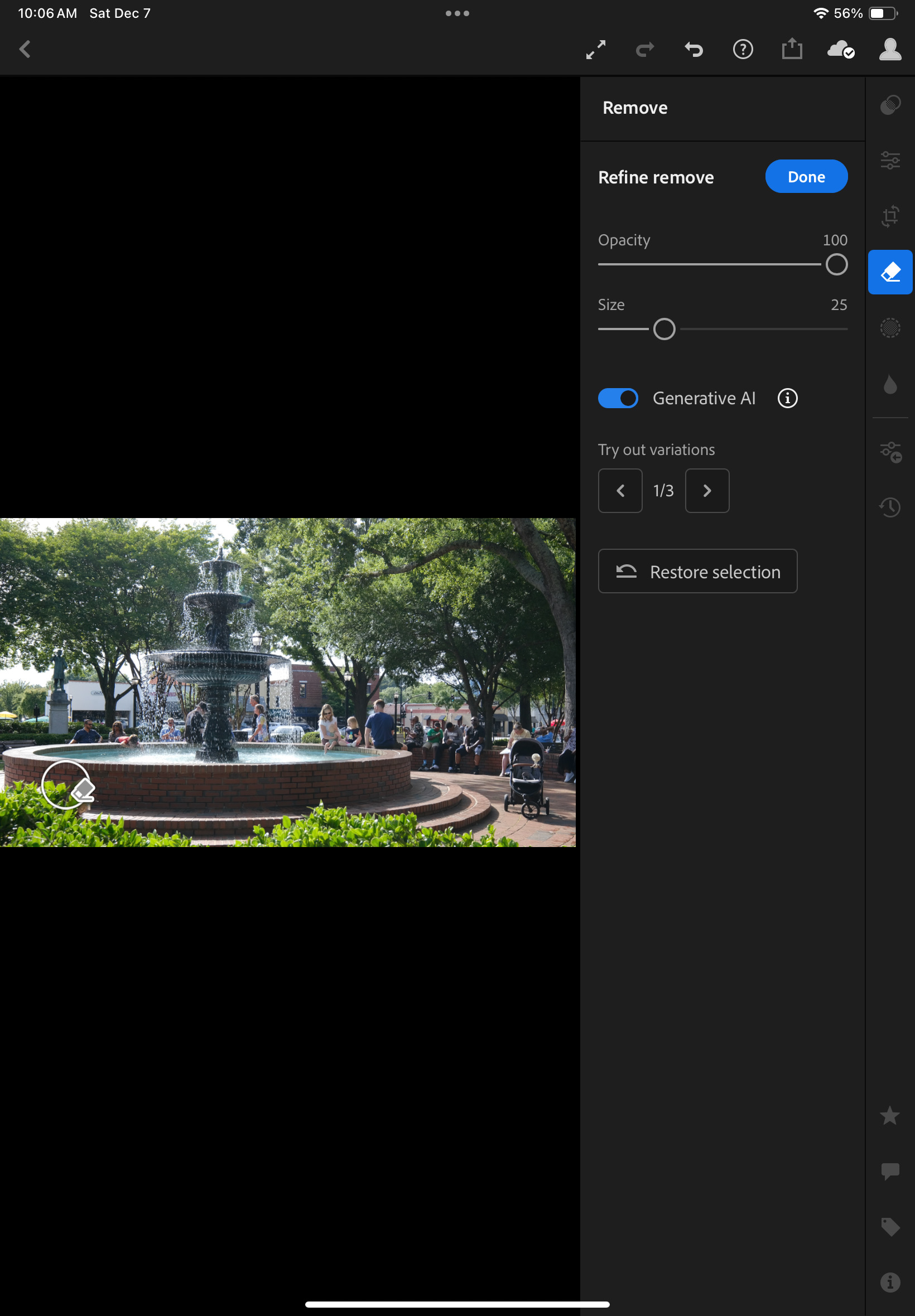
Generative AI removes it. No need for Photoshop: you just designate the object to remove with your fingers.
The result is not perfect and the bricks are not perfectly aligned – but it took me less than 2min. to remove the cap, just pointing it with my finger, in Lightroom Mobile.

I work in IT and have witnessed the migration to cloud computing – I tend to trust cloud technologies and Software as Service offerings, and my preference is to rely totally on Adobe’s cloud services instead of having to manage hardware, storage and backups at home. Provided the cost is acceptable. I still have a very old laptop running an old (pre subscription) version of Lightroom, and a NAS with an Amazon Glacier backup. Moving my Lightroom catalog and 15 years worth of pictures to Adobe’s Cloud is tempting, I just have to understand how it could be done, what I would be losing in the migration, and validate that Adobe’s storage cost is not going to send me on a path of financial ruin.

one last word… what are HEIC image files? 

HEIC: images created following the High Efficiency Image Format (HEIF) – (Cf Wikipedia‘s description). Widely seen as a replacement for the JPEG format, HEIC reached the mainstream when Apple made it the default image format of the iPhone. Most modern operating systems now support HEIC. HEIC images are 50% smaller than equivalent JPEGs, and support up to 16 bit color depth. Mid 2024, the top of the line cameras from Canon, Fujifilm, Nikon and Sony all support 10 bit HEIC.

More about Lightroom for Mobile

Amazon Glacier – an archival solution for your digital memories

One of the biggest challenges of digital photography is the long term archival of the images. And because slides and negatives are generally scanned, and end up in the same post-processing chain as “native” digital images, they’re subject to more or less the same issues (I guess that you could still go back to the original negative or the slide and re-scan it, but you would have to locate it first).

lightroom
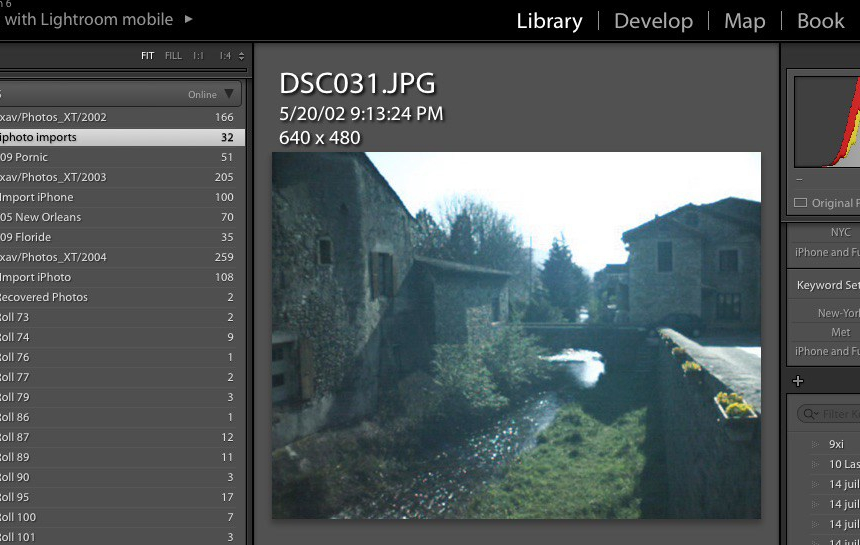
This early digital picture was taken in 2002 with a Samsung digicam and stored in iPhoto. But it was imported in Lightroom at a later date and is still accessible.

There are three big obstacles to the long term preservation of pictures in a digital world:

  • the long term availability of the digital asset management software,
  • the evolving file format standards
  • the inherent fragility of the medium used for storage

Users of the original version of Apple iPhoto, of Apple Aperture, of Microsoft Expression Media and of plenty of other discontinued products have not lost the original images stored in their photo libraries, but they have lost an easy way to access them – and in some case, of all the changes and adjustments (crops, exposure, contrast and curves) they had performed. Of course, it’s always possible to port the images to … the standard of the moment: Adobe Lightroom, but it may require a serious effort.

Adobe Lightroom is not about to disappear (on the contrary, it has become a de facto monopoly), but Adobe may progressively price it out of the reach of amateurs: they have already transitioned to a subscription-only licensing model, which may make sense for professionals, but is costly for amateurs who used to perform an upgrade every 5 years or so…

Surprisingly, evolving standards have not been too much of an issue so far – after early challenges by patent trolls were defeated, JPEG has led a quiet life. Evolutions of JPEG are being discussed in the international standardization bodies, but they promise to maintain backwards compatibility. At this stage, jpeg is still jpeg, tiff is still tiff, and we can still read files saved 15 years ago.

The proliferation of RAW file formats (how many for Nikon or Canon already? ) is also a potential issue, but computer Operating Systems and RAW converters still keep up – and support most of the old RAW formats, even though it’s probably wise to keep a JPEG or a DNG version of your images, just in case.

readynas_working
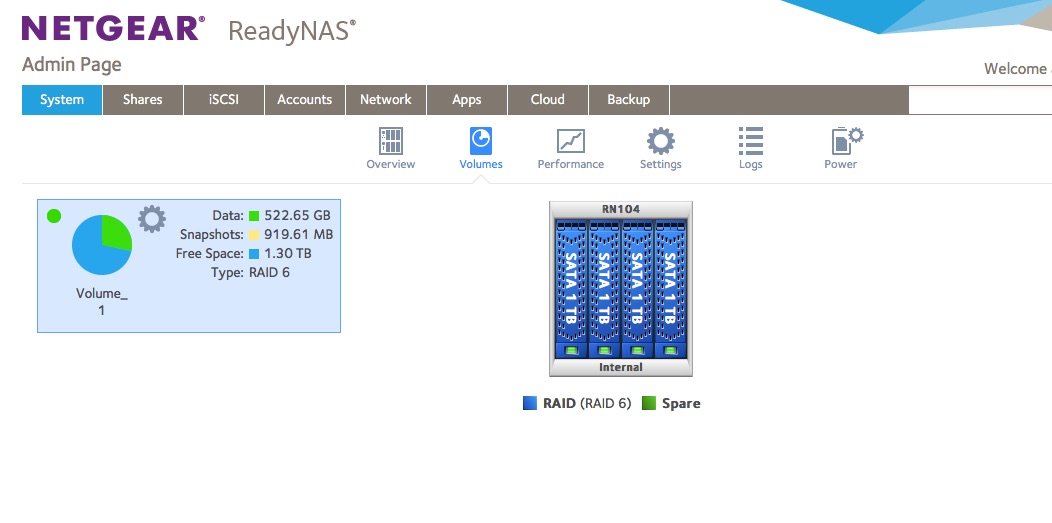
A NAS in working order (here, a Netgear Readynas with 4 1TB drives, all up) and Raid 6 configured.

Which brings us to the worst issue by far – the medium (tape, CD, DVD, hard drive, cloud blob) used for storage.

  • the storage needs have exploded (24 Mpixel is the new normal, and I know amateurs who refuse to shoot with anything less than a 40 Mpixel camera, like the Pros) – shooting 10 Gigabytes worth of images per day has nothing exceptional anymore,
  • At the same time, the capacity of WORM devices (CD, DVD, …) has stagnated,
  • solid state media is still expensive,
  • spinning hard drives have capacity but are fragile,
  • in spite of all the promises, consumer grade Network Attached Storage (NAS) is far from 100% reliable,
  • on line backup/archival services and cloud hosting services come and go (many vendors have decided to leave the consumer market, while some services are tied to a specific brand of computer or smartphone hardware), and some free photo sharing services may sell your secrets to advertisers (“if you’re not paying for the product, you’re the product”).

corruped_pict
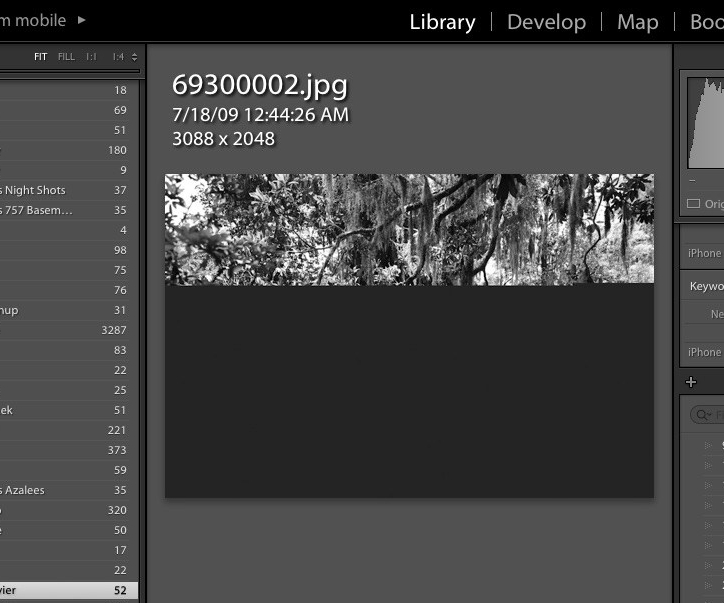
Images can also get corrupted – without a good backup, the image would be lost forever (Lightroom does not store the images in its catalog, just the metadata and the “development” instructions, the issue is with the NAS or with the file sharing protocol).

For  long term storage at home, hard drives are currently the best option, but at least in my case,  they’ve been quite unreliable: over the last 10 years,

  • I lost two hard drives on my personal laptop, before I upgraded to a SSD – which has less capacity but seems to fare much better when it comes to reliability,
  • I lost a hard drive on the Apple Time Capsule I was using for backups (Green Seagate Barracuda)
  • I lost a LaCie network attached hard drive (a Barracuda also, I’m afraid)
  • Files got corrupted (see above),
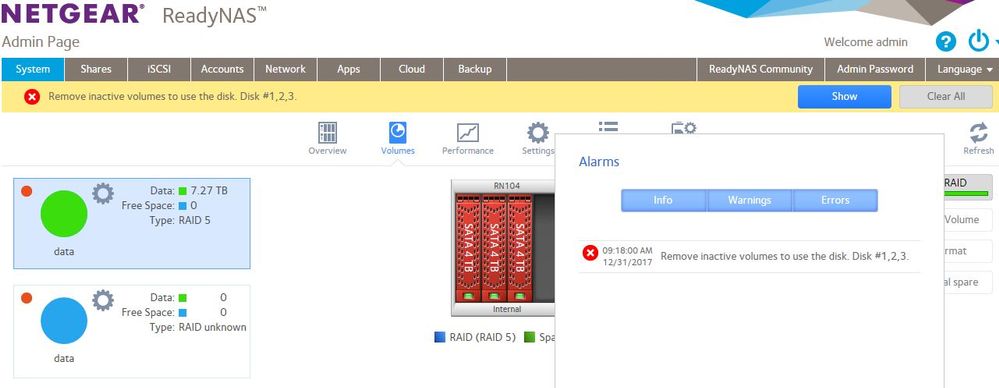
  • the Netgear ReadyNAS RN104 (with four 1 TB drives arranged in a so-called X-RAID) lost its file allocation tables (even if the Western Digital Red disks were still OK) and had to be reinstalled from scratch – without using X-RAID this time, but under a proper RAID 6 scheme instead.

Netgear issue
The dreaded Netgear error message – search “ReadyNAS – Remove inactive volumes to use the disk. Disk #1,2” on Google to see other examples (source: Netgear Communities Forum)

Fortunately, I’ve always had relatively good backups (not 100% success at recovery – there’s always something that falls thru the cracks, but close enough)

Here is how my pictures are processed and protected, currently:

  • if I’m using a modern digital camera:
    • while traveling – I upload the files to my iPhone over Wi-fi at least once a day – then Apple syncs it to my Photo library in iCloud. It’s not a full backup – my Fujifilm XT-1 camera only uploads JPEG files via Wi-Fi, it does not upload the RAW files, and with a resolution limited to 1776×1184 (a bit above 2 Mpixels)  – but it’s convenient, good enough for social network updates, and better than nothing if the SD card fails or the camera is stolen,
    • the “exposed” SD or CF card are copied as soon as possible to the SSD of a  laptop;
    • and I store the SDs for up to 6 month before reformating and reusing them.
  • if I’m shooting with film:
    • I don’t have any form of backup until the film has been sent to the lab, processed and scanned (it’s the rule of the game with film – but it always makes me uneasy when a drop an envelope with a few irreplaceable rolls of film in a USPS mailbox, even if they have a 100% reliability record with me so far).
    • when the scans are available, I download them to the SSD  of the laptop, and  when I receive the negatives from the lab, I keep them in the proverbial shoebox.
  • once the JPEGs, the RAWs and the scans are on the laptop,
    • there is an automatic backup process to an external HDD drive (using Apple TimeMachine), to the NAS (TimeMachine again), and to Amazon Glacier (using the ARQ backup application)
    • I upload the pictures to the Netgear NAS for Lightroom processing and archival,
    • and the Netgear NAS is backed up to Amazon Glacier using the ARQ client of the Mac.

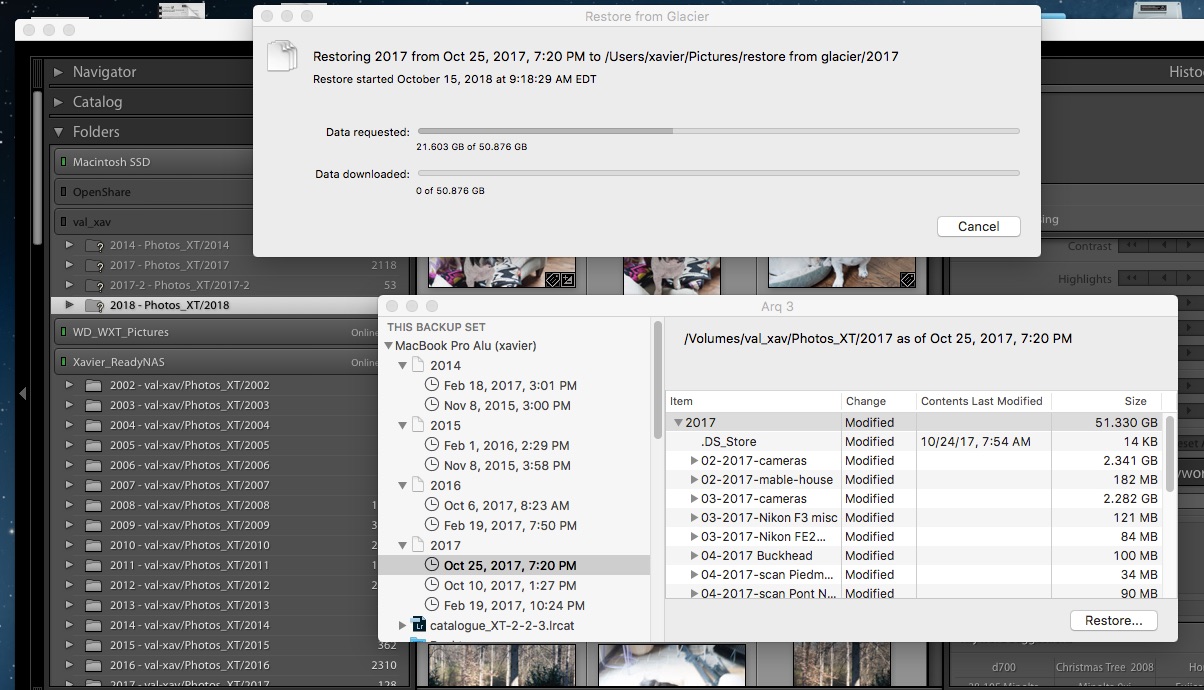
arq restore
ARQ backup – the restore request is being processed by Glacier. In the background, Lightroom with the folders already restored on the ReadyNAS.

Amazon Glacier

  • Amazon Glacier is the long term archival service of AWS (the Amazon Cloud). Storage is extremely cheap ($0.004 per GB per month) and Amazon keeps multiple encrypted copies of the data in multiple AWS data centers.
  • There are all sorts of interesting features for Enterprise clients. But it’s not the exclusive domain of IT departments and the man in the street can also store files on Amazon Glacier.
  • Now there’s a catch: data retrieval is not instantaneous (Amazon needs 3 to 5 hours to start processing the request in the standard retrieval mode) and it’s not free either ($0.01 per Gbyte in the standard mode) – which is perfectly fine if you remember that Glacier is about long term storage. Consider the typical use cases for an amateur photographer:
    • you lost the pictures of that fantastic trip you made 10 years ago – it’s not going to be an issue for you if Glacier starts retrieving the pictures 5 hours from now,
    • you lost a hard drive and its local backup with 1 TB of pictures (to a flood, a fire, a burglary, a massive power surge) – again, you’re not going to complain if the data retrieval actually starts a few hours after you requested it: you’ll be happy to retrieve  your files, even if it takes time (assuming 1TB, that would be 44 hours on a 50 Mbits broadband circuit continuously operating at that speed, which means much more time in reality) and you will have to pay a few dozens of dollars for the service.

Arq

  • Arq is a backup solution for Mac OS and for Windows, leveraging the storage and archival services provided by a large selection of public cloud services. I’ve been using it in conjunction with Glacier for a few years, and it’s proved its worth a few times already.

It may seem like overkill – but massive hardware failures, catastrophic events and user errors happen, sooner or later. If you don’t want to lose your pictures eventually, do something, now.


Definitions, Buzzwords and Acronyms:

Archive: collection of records kept for long term retention. Typically, archives are not actively used.

Backup: “process of making extra copies of data, that will be used to restore the original in case it is lost or corrupted”

AWS: Amazon Web Services – the on-demand cloud computing platform of Amazon.com

Cloud (cloud computing): Cloud computing is shared pools of configurable computer system resources and higher-level services that can be rapidly provisioned with minimal management effort, often over the Internet. Cloud computing relies on sharing of resources to achieve coherence and economies of scale, similar to a public utility. (Wikipedia)

HDD: hard disk drive – they’re called hard disk drives because there are made of a few hard, metallic disks spinning at high speed, with tiny mechanical arms moving a magnetic head a few microns above the disks. The technology has been here forever, hard drives are cheap, offer a large capacity, but are somehow unreliable over the long run. (see Backup, above)

NAS (NAS Drive): Network Attached Storage – appliance containing one or more hard drives, connected to a LAN, that provides file level data storage to PC or Mac clients. Practically, a NAS is a small file server, generally running a version of Linux, with an easy to use Web based configuration interface. For the user of a PC or a Mac, the NAS just presents itself as another storage volume in Windows Explorer or in the finder. Models supporting two or more disk drives generally offer redundancy mechanisms (mirroring, RAID) to minimize the consequences of a hard drive failure.

RAID: (Redundant Array of Independent Disks): a technology that provides data redundancy and performance improvements in storage systems using multiple physical disk drives. Having a NAS configured with RAID is not the panacea and does not dispense from running regular backups: RAID usually protects the data if one disk fails, but it does not protect against a massive failure (two or more disks fail, a disk controller corrupts the data) or against human error (files erased by mistake).

SSD: solid state drives. With a SSD, information is stored on microchips. There is no moving part. SSDs are both faster and more expensive than Hard Drives, that’s why they are used in laptops, but not in long term storage systems.


69320016
An image restored from a backup – Atlanta – Nikon FM – Nikon 24mm AF